Microsoft 365 backup
Connect customer tenants, choose which users, sites and teams are protected, and fix tenants that refuse sign-in.
Microsoft 365 backup protects each customer's mailboxes, OneDrive, calendars, contacts, SharePoint sites and Teams. Microsoft keeps the service running, but deleted and overwritten data is only recoverable from Microsoft for a limited time; Tenvara keeps your own copy for as long as your retention says.
Before you start, the Microsoft 365 app registration must be set up. See Setting up backup.
What is backed up
| Item | Parts |
|---|---|
| User | Mail, OneDrive, Calendar, Contacts |
| Shared or room mailbox | Mail, calendar and contacts (they have no OneDrive) |
| SharePoint site | The site's files |
| Microsoft 365 group | The group's site |
| Team | Channel messages and the team's site |
Each part has its own recovery points, so a failure in one (for example Teams) does not stop the others backing up.
The tenants list
Open Backup and choose Microsoft 365.
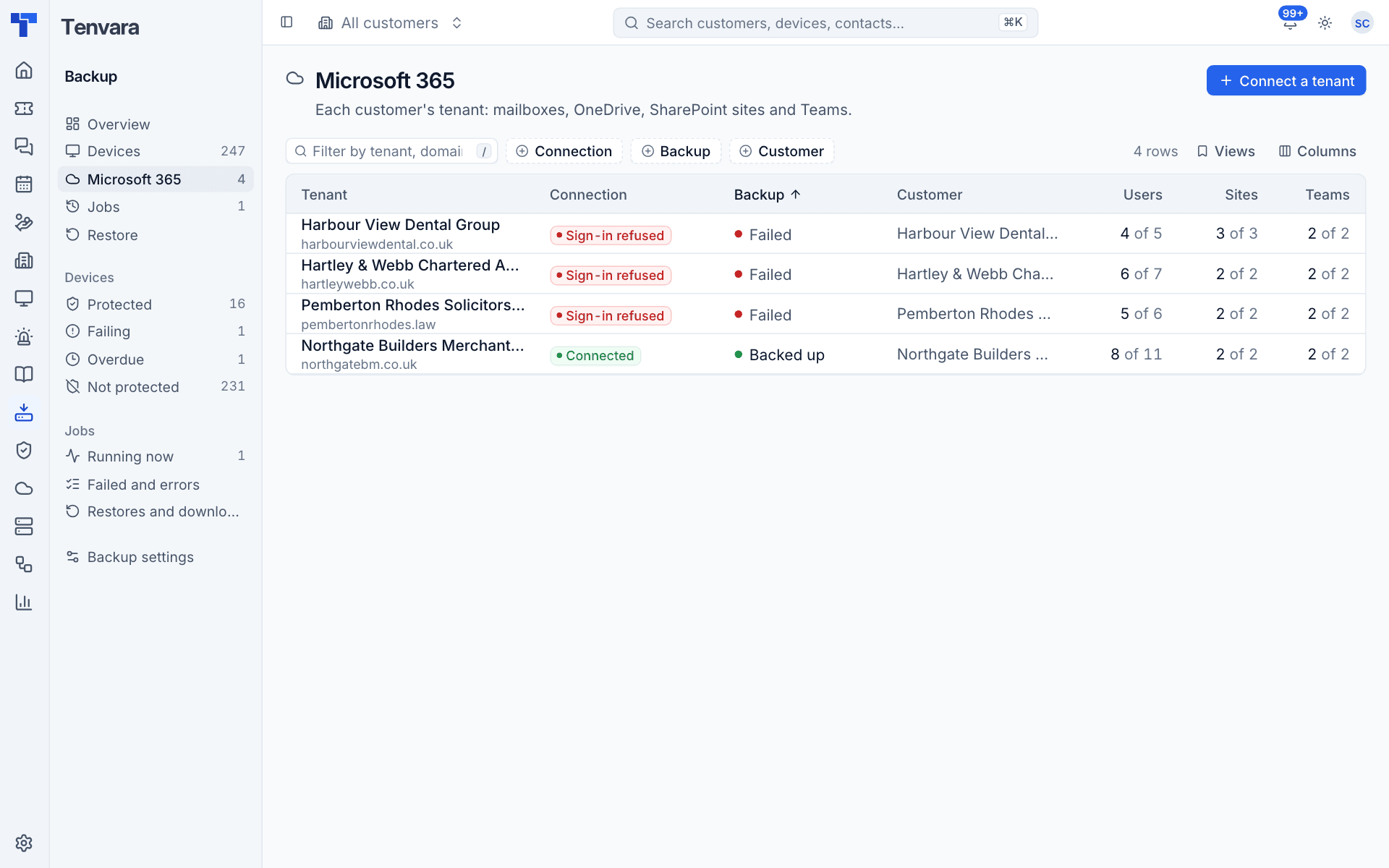
Each row shows the tenant and its domain, its Connection (Connected or Sign-in refused), its Backup state, the Customer, how many Users, Sites and Teams are protected out of those found, and the last good backup.
Connecting a tenant
- Press Connect a tenant.
- Choose how to connect:
- Admin consent link: the customer's global admin approves once. This works for every customer.
- From GDAP: for customers you reach through a GDAP relationship. There is no link to send.
- Choose the Customer. A customer can have more than one tenant.
- Press Make the consent link and send it to the customer's global admin (or follow the GDAP steps).
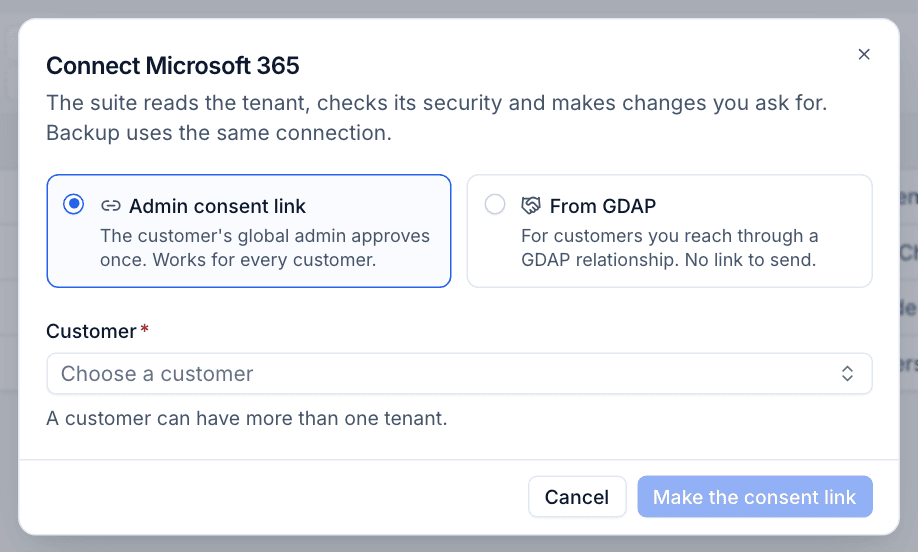
The same connection is used by the rest of Tenvara's Microsoft 365 features, so the customer consents once. You can also connect tenants from the Microsoft 365 area, and backup picks them up.
After consent, Tenvara reads the tenant's directory (users, groups, sites and teams) and the first backup follows on the schedule. A tenant is never backed up before its first directory read.
Note: A consent link works once, for seven days. If it expires, make a new one. One Microsoft tenant can only be connected once.
The tenant page
Click a tenant to open it.
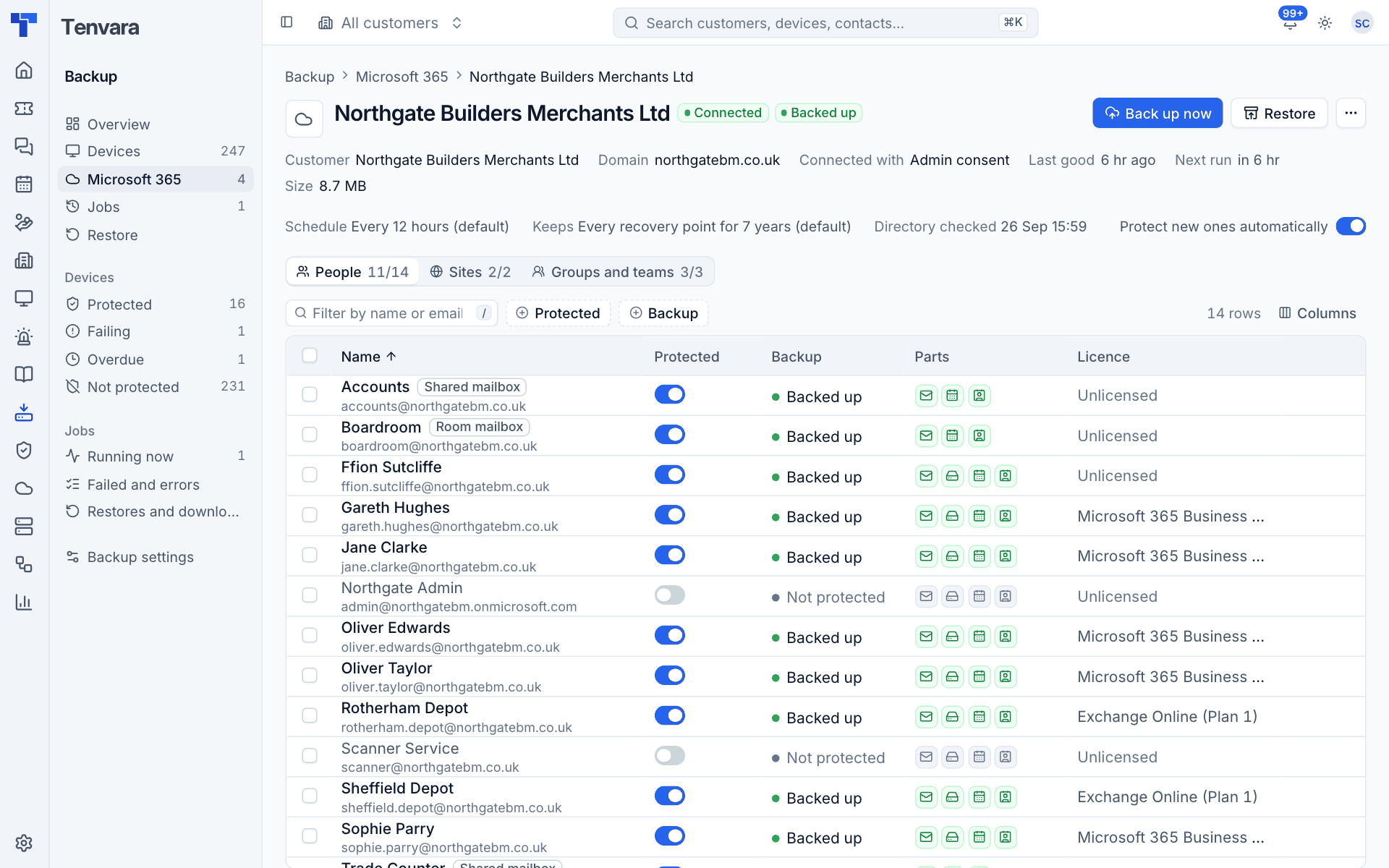
The header shows the customer, domain, how it is Connected with (admin consent or GDAP), the last good backup, the next run and the size. Below it:
- Schedule and Keeps, with "(default)" when they follow the defaults.
- Directory checked: when the tenant was last read.
- Protect new ones automatically: when on, new users, sites and teams are protected as soon as they appear.
The tabs People, Sites and Groups and teams list what was found, with how many are protected. Each row shows:
- Protected: the switch that turns backup on or off for that item.
- Backup: its state.
- Parts: an icon for each part (mail, OneDrive, calendar, contacts). Green means the part is backed up, red that it failed, grey that it is not protected. Hover over one to see its state.
- Licence: the user's licence, or Unlicensed. Shared and room mailboxes are marked as such.
- Last good and Size.
Choosing what is protected
- Turn an item's Protected switch on or off.
- Tick several rows and press Protect or Stop protecting in the bar that appears.
- Each row also has buttons to back up that one item now and to restore it.
Items you switch off stop being backed up and their alerts clear. Their existing recovery points are kept.
Tip: Leave Protect new ones automatically on. A new starter is then protected from their first day without anyone remembering to do it.
Buttons and actions
- Back up now: runs a backup of the tenant straight away.
- Restore: starts the restore flow with this tenant chosen. See Restoring.
- ... menu:
- Find new users, sites and teams: reads the directory now instead of waiting.
- Schedule, retention and sign-in: the tenant's name, Protect new users, sites and teams as they appear, and its own Schedule and Retention (turn on Set here).
- Open admin consent: opens the consent page again.
- Disconnect: stops backing up the tenant. Its backups are kept.
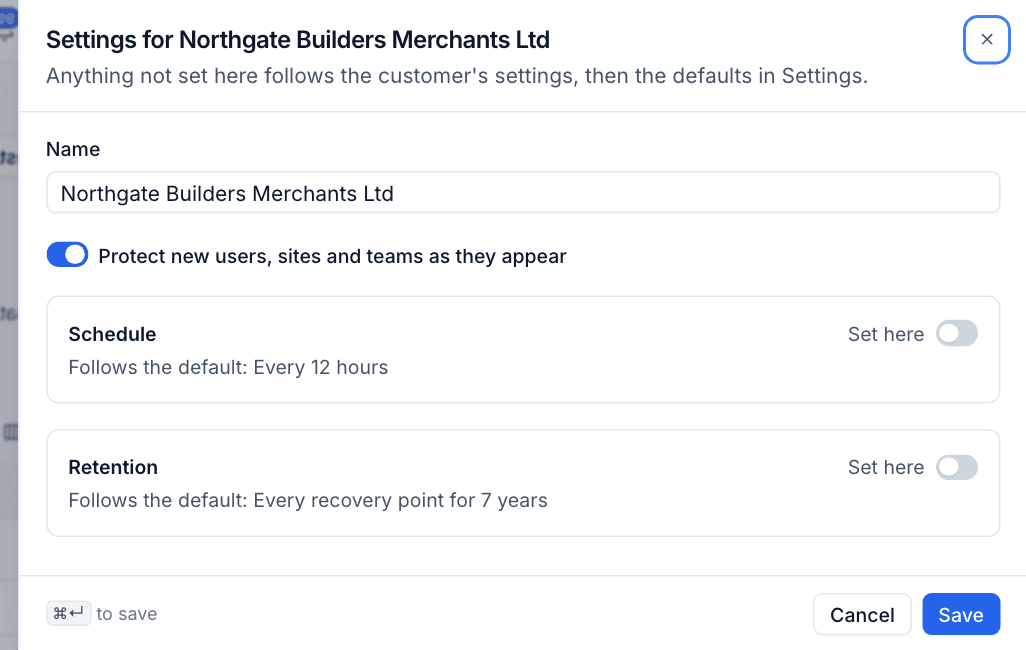
The directory is read again automatically about every 12 hours.
When Microsoft refuses the sign-in
If Microsoft stops accepting the connection, for example because consent was withdrawn or a permission was removed, the tenant shows Sign-in refused and a red banner with Microsoft's message. A critical alert is raised for the tenant.
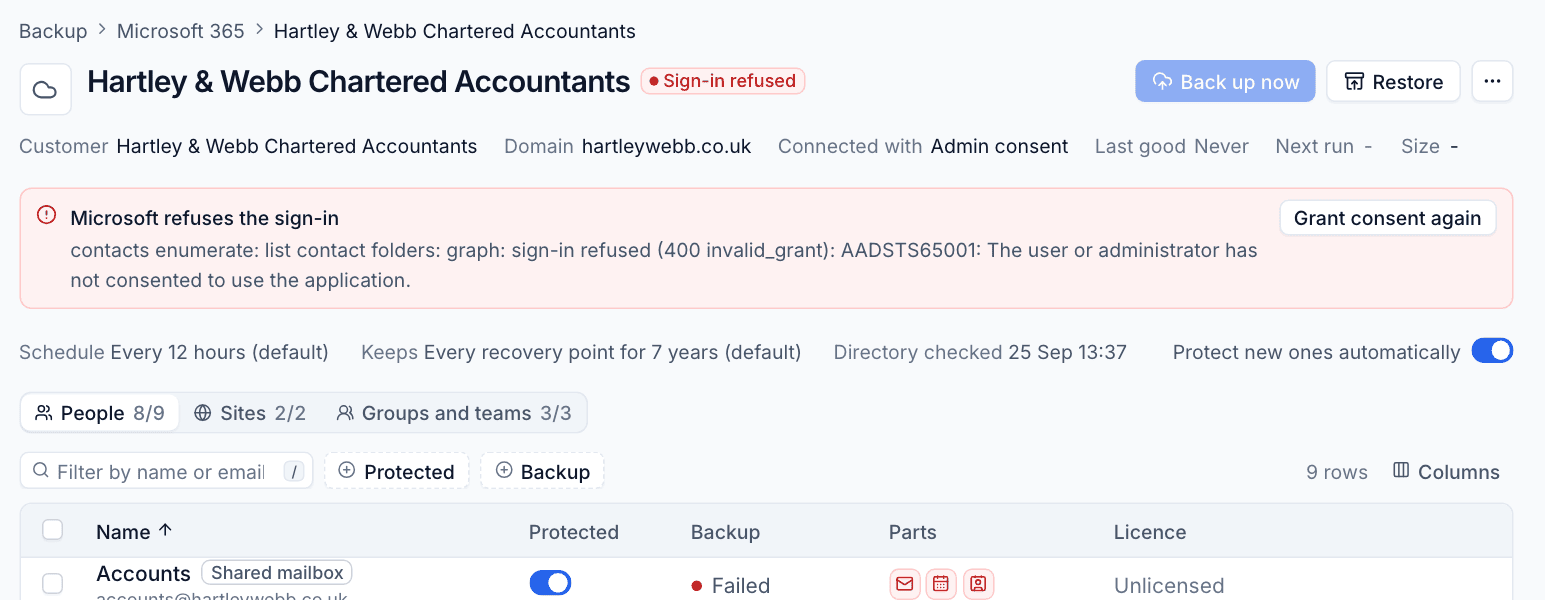
To fix it:
- Read the message.
AADSTS65001means the admin has not consented (or consent was removed). - Press Grant consent again and have the customer's global admin approve it.
- The next accepted sign-in clears the alert and backups resume.
If only Teams is failing and everything else works, the app has probably not been approved for Microsoft's protected Teams API yet. See Setting up backup.
When a tenant moves customer
If a Microsoft tenant is connected to a different customer later (for example after a merger), the tenant and its jobs move to the new customer. Earlier recovery points stay in the old customer's repository and can still be browsed and restored from the tenant. The next backup writes to the new customer's repository.
Was this page helpful?
Thanks for the feedback.