The chat bot
Let the AI assistant answer chats first, choose what it may do for people, set approvers and limits, and read its handovers in the console.
The assistant is an AI that can answer new chats before your team does, on the website widget, in the portal and in the tray. It answers from your knowledge base, the customer's documentation and their tickets, checks their computer, and carries out actions such as password resets once the person confirms. When it cannot help, it hands over to a person with a summary so nobody has to repeat themselves.
Without AI set up, or with the assistant off, chat works exactly as described in the rest of this section.
Before you start
The assistant needs AI to be set up: an Anthropic key added in Settings > AI, with the Chat bot feature switched on there. Until then Settings > Chat > Chat bot shows Not answering and every chat goes straight to your team.
The assistant also stays away from any customer who has opted out of AI.
Switching the assistant on
Open Settings > Chat > Chat bot.
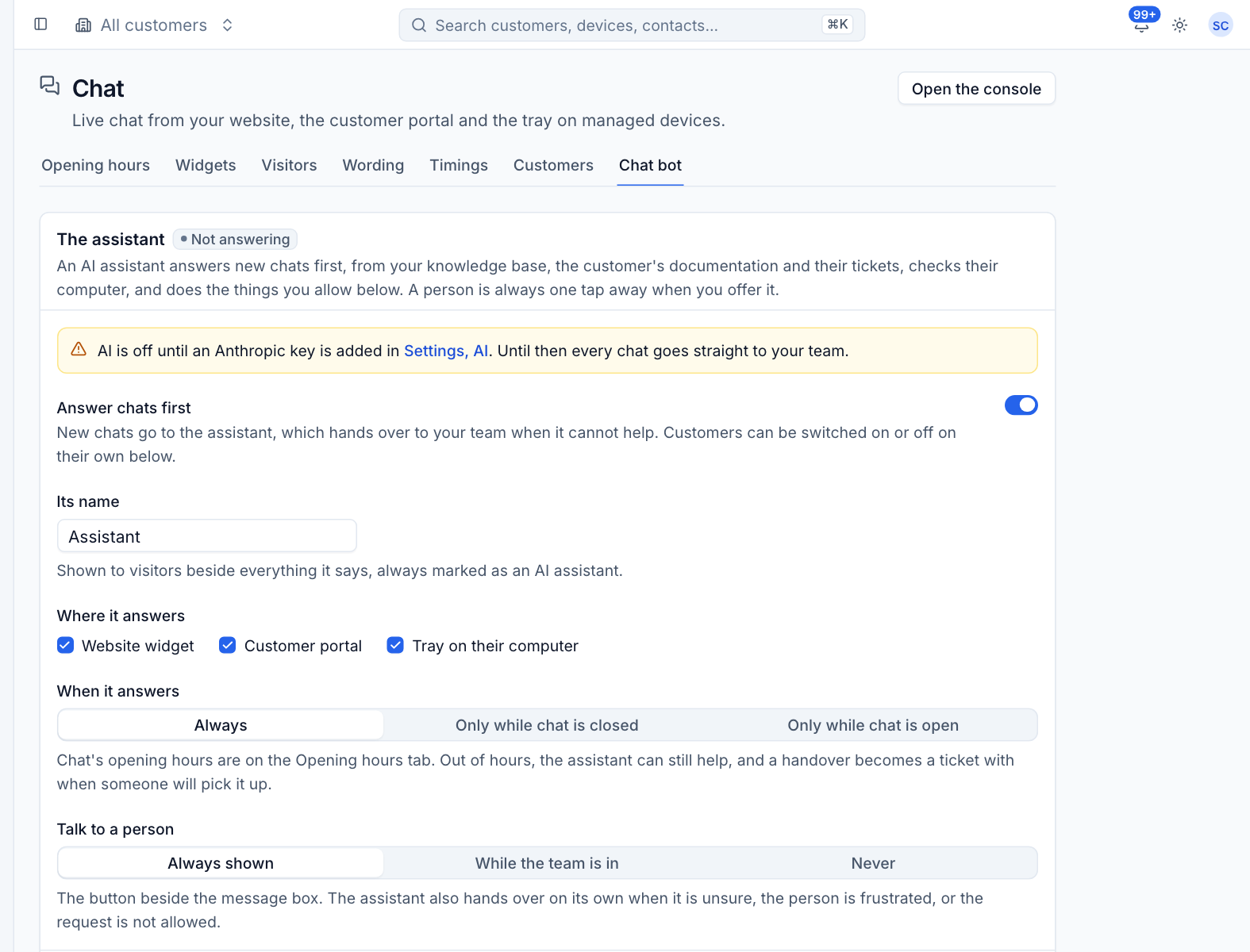
- Turn on Answer chats first. New chats go to the assistant, which hands over to your team when it cannot help.
- Give it a name under Its name. Visitors see it beside everything it says, always marked as an AI assistant.
- Tick Where it answers: Website widget, Customer portal, Tray on their computer.
- Choose When it answers: Always, Only while chat is closed or Only while chat is open. Out of hours the assistant can still help, and a handover becomes a ticket with when someone will pick it up.
- Choose when visitors see Talk to a person: Always shown, While the team is in or Never. The assistant also hands over on its own when it is unsure, the person is frustrated, or the request is not allowed.
- Press Save.
What it may do
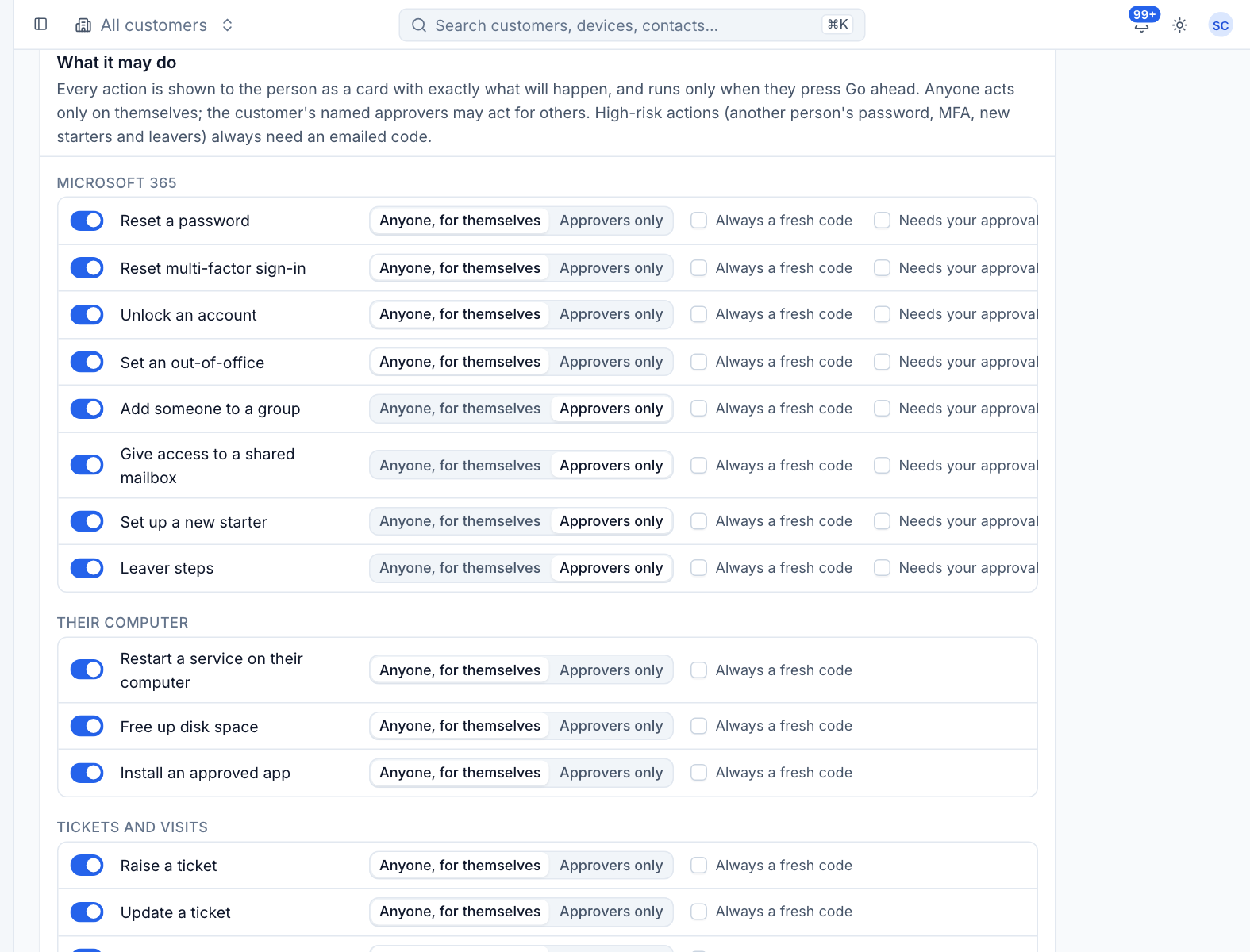
Every action is shown to the person as a card saying exactly what will happen, and runs only when they press Go ahead. Typing "yes" does nothing.
| Group | Actions |
|---|---|
| Microsoft 365 | Reset a password, Reset multi-factor sign-in, Unlock an account, Set an out-of-office, Add someone to a group, Give access to a shared mailbox, Set up a new starter, Leaver steps |
| Their computer | Restart a service on their computer, Free up disk space, Install an approved app |
| Tickets and visits | Raise a ticket, Update a ticket, Book a visit |
For each action choose:
- the switch, to allow it at all;
- Anyone, for themselves or Approvers only;
- Always a fresh code, to make the person prove who they are again for this action;
- Needs your approval (Microsoft 365 actions), to hold it in Microsoft 365 approvals for your team before it runs.
Below the list:
- Anything that costs money needs your approval too: a new licence always shows its monthly cost and needs the customer's approver; with this on it also waits for your team.
- New passwords: By text to their mobile or A technician passes it on. New passwords are never shown in the chat.
Press Save actions.
Who may do what
- Anyone acts only on themselves. The customer's named approvers may act for others.
- New starters, leavers, and group and mailbox access are Approvers only by default.
- A portal sign-in, or a tray visitor Tenvara recognised from the computer's account, counts as proven. A website visitor proves who they are with a 6 digit code emailed to the contact's address before any action.
- High-risk actions (another person's password, multi-factor sign-in, new starters and leavers) always need a fresh emailed code.
Every action is logged on a ticket for that customer, so billing, audit and time line up.
Apps and services
Apps and services people may ask for sets what the assistant may install or restart, on the person's own computer only:
- Apps they may install: chosen from the software catalogue, on top of the optional apps set for their company.
- Services they may restart: press Add a service and give the Windows service name and what people call it.
Anything else goes to a person.
Limits and handing over
Limits and handing over keeps the assistant, and anyone trying it on, within bounds:
- Messages it answers in one chat (then it hands over; 0 for no limit);
- Actions for one person a day (0 for no limit);
- Codes emailed in a chat an hour;
- A code works for (minutes) and A code proves who they are for (minutes);
- A high-risk code must be this fresh (minutes);
- A card expires after (minutes), after which the person asks again and it is checked afresh;
- Unsure answers in a row before it hands over;
- Hand over when someone is frustrated: shouting, a row of exclamation marks, or any of the Phrases you list hand the chat to a person straight away.
What it says holds every line the assistant uses, such as its Greeting, Handing over and Asking for a code, with placeholders like {bot_name}, {first_name} and {ticket}.
Customers and approvers
The Customers block lists customers with their own assistant settings and approvers. Press Add a customer, or Edit on one:
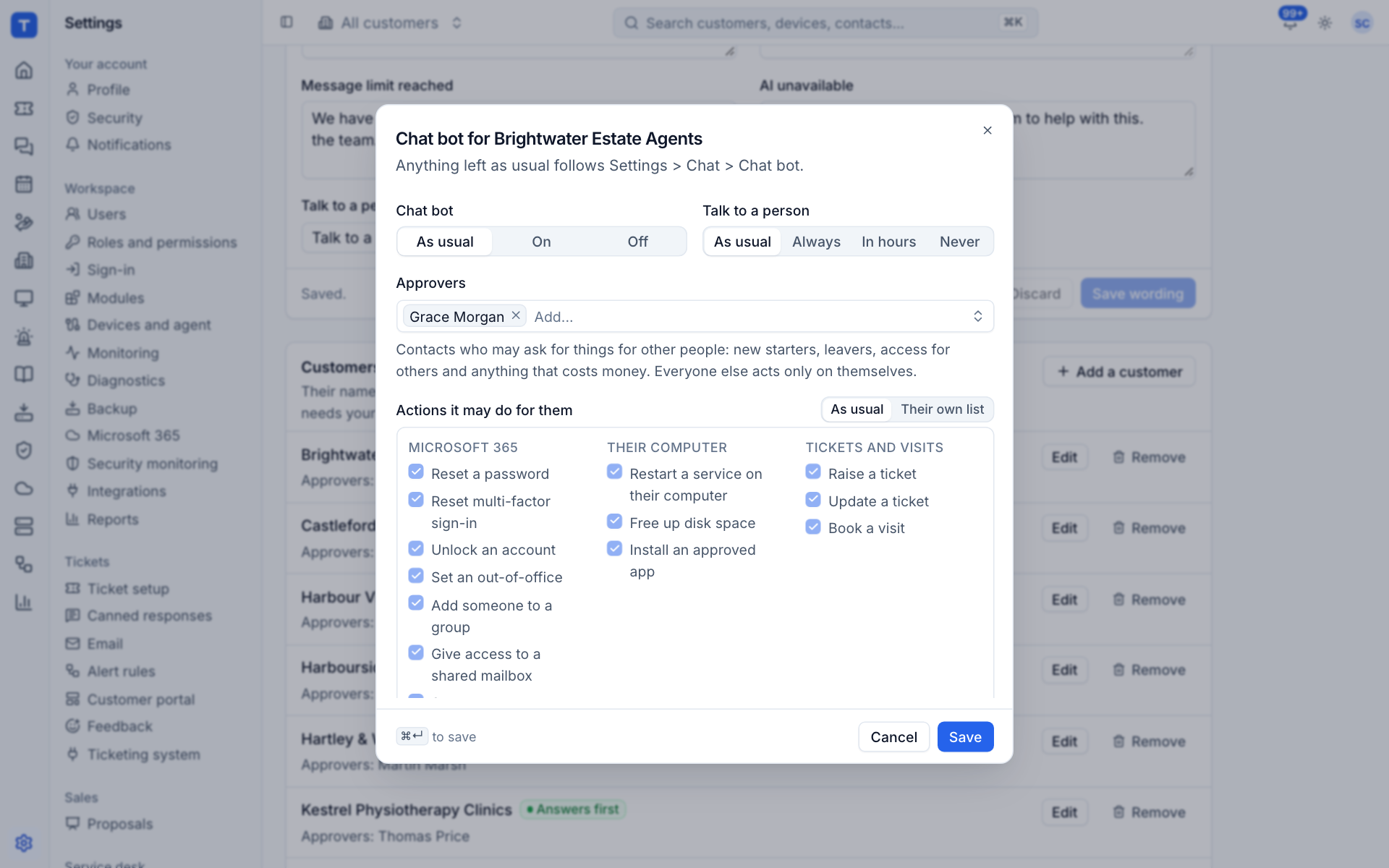
- Chat bot: As usual, On or Off for this customer.
- Talk to a person: As usual, Always, In hours or Never.
- Approvers: the contacts who may ask for things for other people.
- Actions it may do for them: As usual, or Their own list.
The same settings are on each customer's Chats tab.
Everything it has proposed
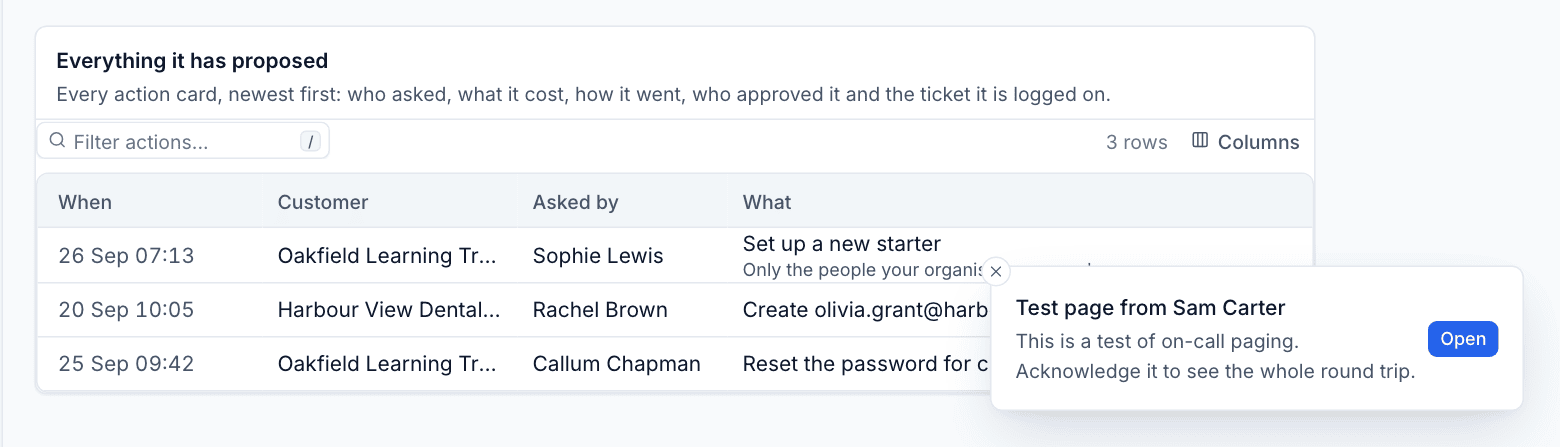
Everything it has proposed lists every action card, newest first: who asked, what it would do and cost, how it went, who approved it and the ticket it is logged on.
In the console
Chats the assistant is answering sit in the Active group, marked Assistant, with the status With the assistant. You can open them and watch at any time, or step in by replying.
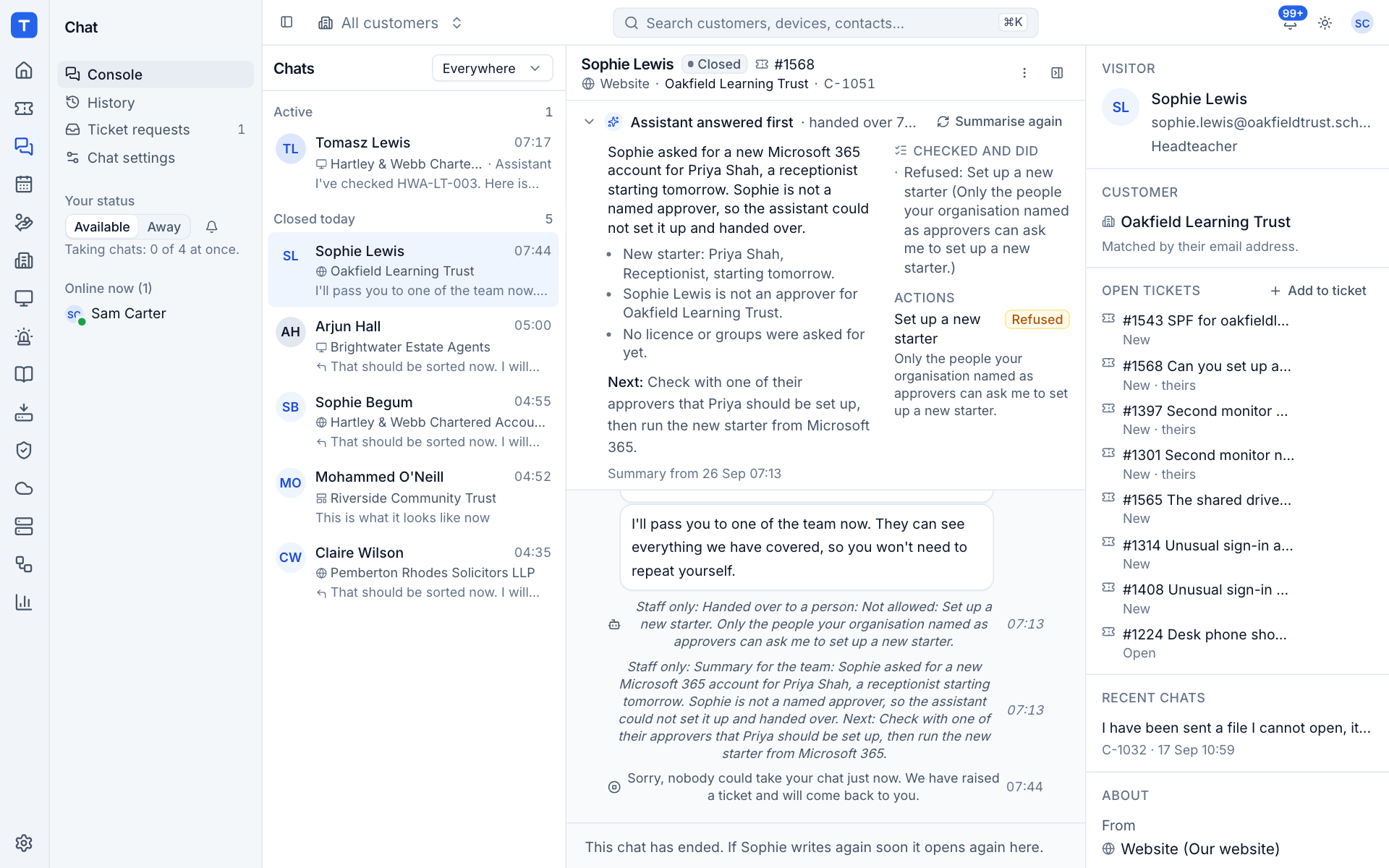
At the top of a chat the assistant answered first you see:
- whether it is still answering or has handed over, and why;
- a summary of the chat and what should happen next. Press Summarise (or Summarise again) for a fresh one;
- Checked and did: what it looked at and what it did;
- Actions, with their outcome and who confirmed or approved them;
- who the visitor proved to be.
Under each assistant message are its suggested replies and What it checked, which shows every lookup it made. When it hands over, the chat moves to Waiting like any other, with the summary also added as a staff-only line. If nobody can take it, it becomes a ticket and the visitor is told when someone will pick it up.
Was this page helpful?
Thanks for the feedback.