Monthly customer reports
How monthly customer reports are made, reviewed, emailed and published to the portal.
Every month Tenvara can make each customer a branded PDF report of the month before: tickets and SLA, devices, patching, backup, security, Microsoft 365, monitoring and time against their contract, with a plain-English summary and their health score on the cover. It then emails it to the customer's chosen contacts, publishes it to their portal, or holds it for you to check first.
How the monthly run works
- On the schedule day and time (by default the 3rd of the month at 08:00), Tenvara makes last month's report for every active customer with reports switched on.
- Each report works out every section's figures once and keeps them, with the template as it was. A report always shows what it said at the time, even if a template or the data changes later.
- It then does what the customer's delivery says: email the PDF, publish it to the portal (the email then links to it), both, or none.
- If reports are held for review, it waits as Needs review instead, and the customer's account manager is told.
Set the schedule, delivery and review in Settings > Reports > Customer reports, and override them per customer on the customer's Reports tab. See Customer report settings and templates.
The customer reports list
Go to Reports > Customer reports. The header shows the next run, the default delivery and template, with Templates and Make a report buttons.
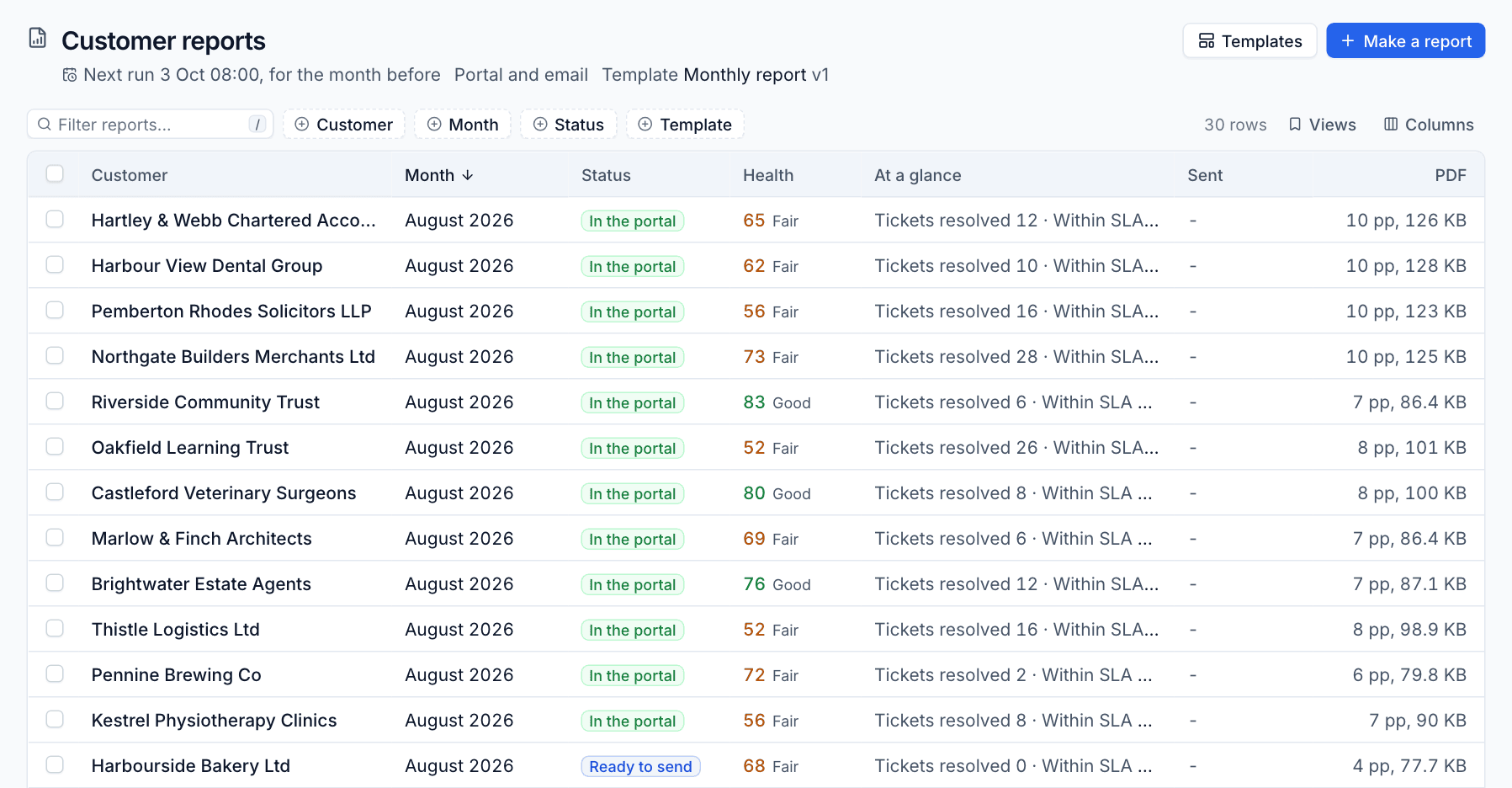
Each row shows the customer, the month, the status, the health score when the report was made, the headline figures (At a glance), when it was sent and the PDF's size. Use Views for All reports, This month, Needs review, Failed and Sent, or filter by customer, month, status or template.
Click a row for a side panel with the summary, health, delivery, recipients and Open and PDF buttons.
Statuses
| Status | Meaning |
|---|---|
| Generating | Being made now |
| Needs review | Held for someone to approve |
| Ready to send | Made, not yet sent or published |
| Sent | Emailed to the recipients |
| In the portal | Published to the customer portal (and emailed, if delivery is both) |
| Failed | Could not be made, with the reason. Tenvara tries again a few times |
Bulk actions
Tick rows to Send, Publish, approve or Make again several reports at once.
Making a report by hand
- Click Make a report.
- Choose the Customer and the Month.
- Tick Send it once it is made to deliver it the customer's usual way, even if their reports are held for review. Leave it unticked to check it first.
- Click Make the report.
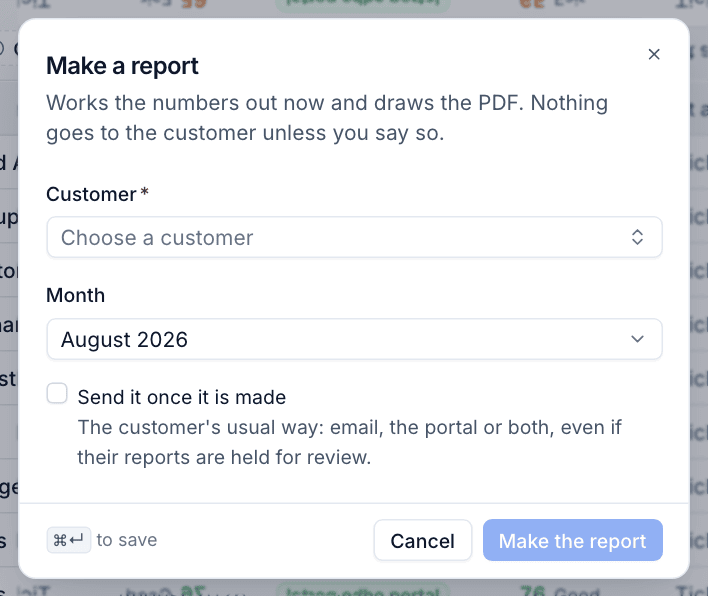
Nothing goes to the customer unless you tick the box or send it afterwards. Making the same customer and month again replaces the report with one from today's numbers.
Reading a report
Click a report to open it. The page shows the report exactly as the customer reads it, with the facts about it along the top: Health when made, Delivery, Template, the PDF size and pages, and when it was Made.
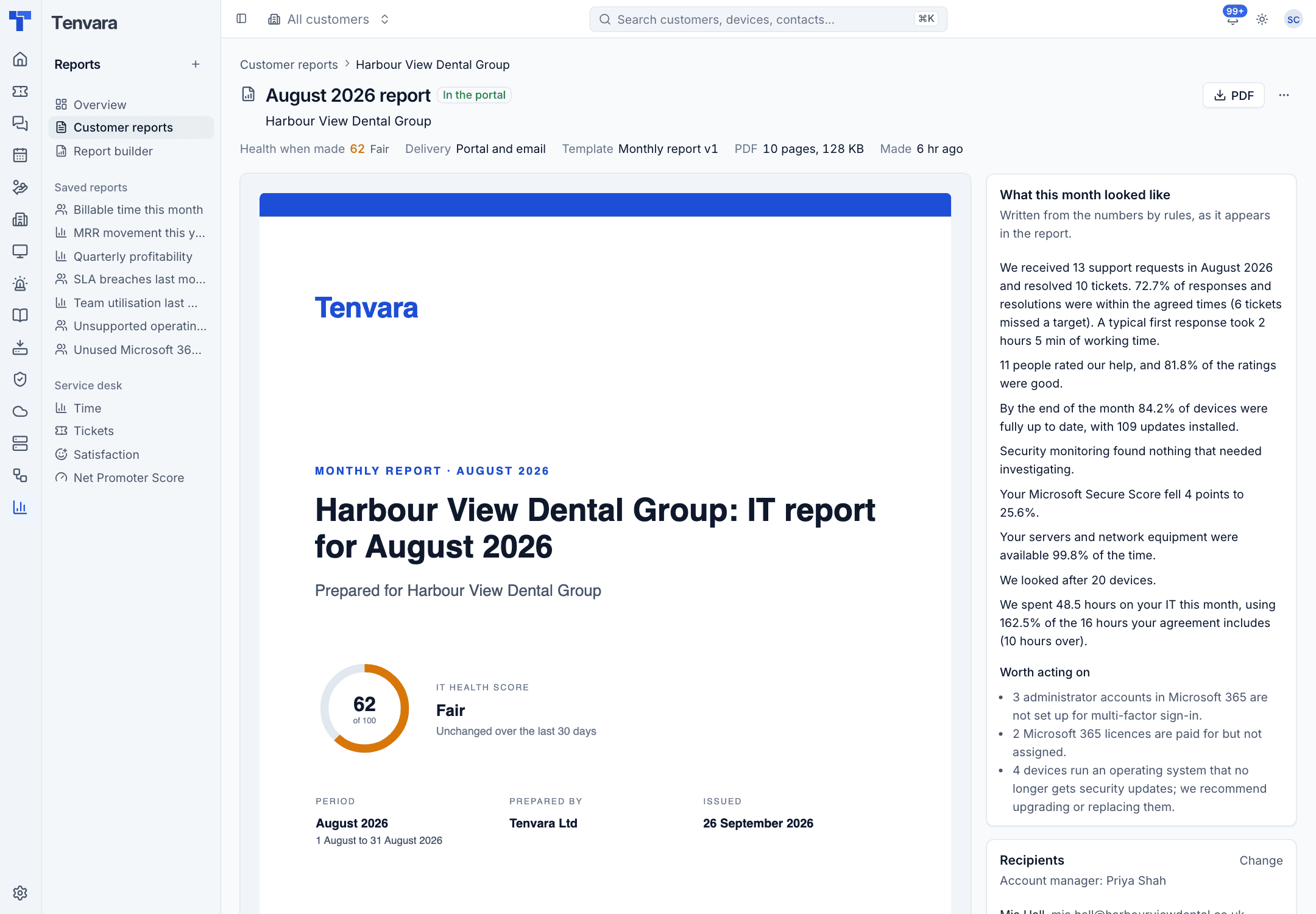
On the right:
- What this month looked like: the summary written from the numbers by fixed rules, as it appears in the report, and Worth acting on, the things the figures say need attention (admins without MFA, unused licences, unsupported operating systems and so on).
- Recipients: the account manager and the contacts it goes to, with Change.
- History: when it was made, sent, published, approved, downloaded from the portal, and anything that failed.
If Settings asks for it and AI is set up, the report also carries a summary written by AI from the same figures, always marked as written by AI. See AI assist.
Actions on a report
- PDF: download the PDF.
- The ... menu: Send now (to the contacts you choose), Take out of the portal or publish it, Make again from today's numbers, and a link to the customer's report settings.
- A report that needs review has an approve action. Approving sends it the customer's usual way.
Sections in the report
A report opens with a cover (title, customer, month and health score) and the summary, then these sections in the template's order:
| Section | What it covers |
|---|---|
| Support tickets | Opened, resolved, SLA met, first response and resolution times, satisfaction, optionally the ticket list |
| Devices | Devices by type and operating system, added and retired, unsupported and offline devices |
| Updates and patching | Compliance at month end, critical and important updates outstanding, installs and failures |
| Backup | Success rate for devices and Microsoft 365, and the last good backup of each |
| Security | Detections by severity, notable detections, protection coverage and Cyber Essentials |
| Microsoft 365 | Secure Score and its change, findings, MFA coverage and licences |
| Monitoring | Availability of servers and network kit, and alerts |
| Time and contract | Hours spent against the contract's included hours, overage and hours by technician |
A section is left out when its module is off, the customer switched it off, or it has nothing to say for them (no tenant, nothing backed up or monitored).
Reports in the customer portal
Published reports appear on the Reports page of the customer portal, with their headline figures. By default portal managers and the report's recipients can see them. The download link is made for that contact, works for 10 minutes and also needs their portal session.
Was this page helpful?
Thanks for the feedback.