Microsoft 365 overview
What the Microsoft 365 area does, how Tenvara reads your customers' tenants, and how to read the overview page.
The Microsoft 365 area brings every customer's tenant into one place. Tenvara reads each tenant on a schedule, checks its security against one baseline, lets you make everyday changes to users, groups and mailboxes, runs starters and leavers, and looks after the email authentication (SPF, DKIM, DMARC, MTA-STS) of every customer domain.
How it works
- One app registration. You register one multi-tenant app in your own Entra tenant and enter it once in Settings. Every customer consents to that app, and Microsoft 365 backup uses the same connection, so a customer admin only approves once. See Connecting a tenant.
- Sync reads, screens show the mirror. Tenvara reads each tenant in areas (directory, security settings, Exchange, sign-ins and email) on a schedule, one job per tenant, so a slow or broken tenant never delays the others. Screens, checks and reports read what the last sync saw. A change you make goes to Microsoft and the changed object is read again straight away.
- Not known is never a pass. When Microsoft will not give something (a missing licence, a permission, an outage), Tenvara records it as not known and says so. A check with no data is shown as Not known, never as passing.
- Every change goes through the change log. A change shows a preview first, asks you to type the name for anything destructive, can need an administrator's approval, and is recorded with what it was before so it can be undone. See Making changes safely.
The Microsoft 365 sidebar
Open Microsoft 365 from the rail. The sidebar has:
- Overview: the page described below.
- Tenants: every connected tenant, with its users, MFA, licences and last sync.
- Users: everyone in every tenant.
- Findings: every security check across all tenants.
- Starters and leavers: new accounts and leavers, run now or later.
- Changes: every change made through Tenvara, with undo and the approvals queue.
- Email security: every customer mail domain and its DNS checks.
- Quick user views: Administrators, No MFA and Blocked but licensed.
- Microsoft 365 settings: the app registration, partner access, checks, templates and email security settings.
The counts beside each item show what needs a look (for example, the number of critical findings beside Findings).
Reading the overview
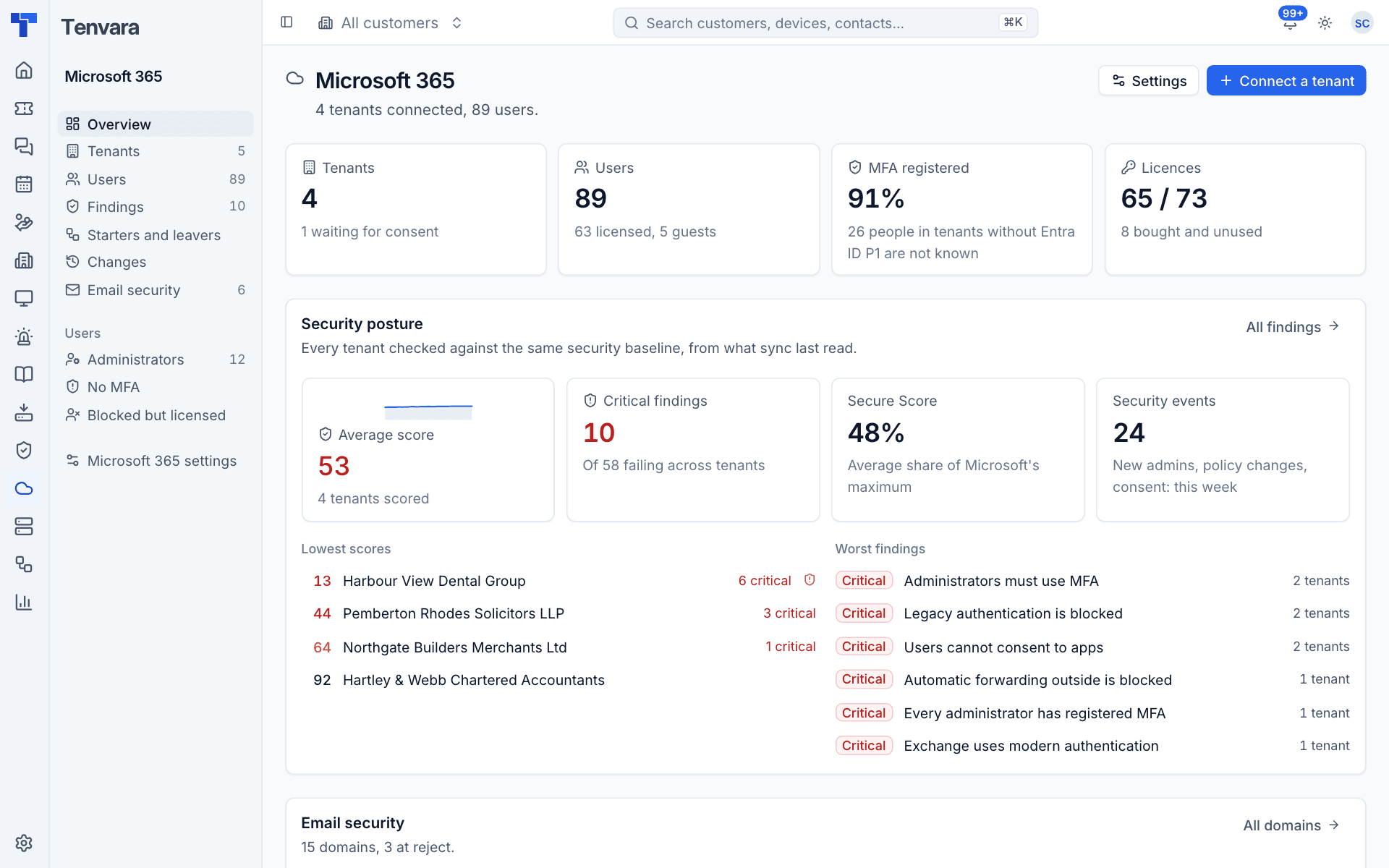
The top row sums up every connected tenant:
- Tenants: how many are connected, with any waiting for consent underneath.
- Users: everyone across the tenants, with how many are licensed and how many are guests.
- MFA registered: the share of people with an MFA method. People in tenants without Entra ID P1 are counted as not known, because Microsoft does not report their registration.
- Licences: assigned out of bought, with the number bought and unused. Free and trial offers are left out of the totals.
Security posture shows the Average score across scored tenants, Critical findings, the average Secure Score as a share of Microsoft's maximum, and Security events this week (new admins, policy changes, app consent). Below that, Lowest scores lists the tenants that need the most work and Worst findings lists the most serious failing checks, with how many tenants fail each. Click any of them to open it.
Email security sums up the customer domains: how many have problems, how many pass DMARC, messages reported in the last seven days, a count per check and how many domains are at each DMARC stage.
Tenants that need a look lists any tenant refusing Tenvara, failing to sync, waiting for consent or with a GDAP relationship ending soon. Recent changes shows the latest changes made through Tenvara.
Where else Microsoft 365 shows up
- Customer page: a Microsoft 365 tab with the tenant summary, findings, users, licences, email domains and recent changes.
- Contact page: the contact's Microsoft 365 account (matched by email address), with the same Actions menu as the user panel.
- Device page: Intune's record of the device, including compliance, when the device is matched by serial number.
- Search (Cmd+K): go to Microsoft 365 screens, connect a tenant, find a user, reset a password, block a user, and start a new starter or leaver.
Alerts
Microsoft 365 raises alerts into the normal Alerts list, so your alert rules can turn them into tickets:
| Alert | Raised when | Clears when |
|---|---|---|
| Tenant refusing Tenvara | Microsoft refuses the app's credentials or consent was withdrawn | The next successful sync |
| Sync failing | Three syncs in a row failed | The next successful sync |
| GDAP ending | A GDAP relationship ends within 30 days (critical within 7) | It is renewed |
| Security check failing | A check starts failing | The check passes, stops applying or gets an exception |
| Security event | A risky sign-in, a new administrator, a Conditional Access policy deleted or switched off, app consent, the audit log switched off and similar | Someone acknowledges it |
| Suspicious inbox rule | Sync finds an enabled suspicious rule | The rule is disabled or gone |
| Licences over | More licences assigned than bought | Back within |
| Email domain | A check gets worse, SPF goes over 10 lookups, DKIM is not signing, an unknown sender, and more | The condition goes |
Permissions
Microsoft 365 has its own permission area in Roles and permissions:
| Level | What it allows |
|---|---|
| View | See every Microsoft 365 screen, and run routine actions such as signing a user out |
| Manage | Connect tenants, sync, make changes, run starters and leavers, fix findings and accept risks |
| Administrator role | Settings, approving high-risk changes, undoing destructive changes and deleting a tenant |
Licence billing against your distributor (Pax8 and others) is covered in Licences and billing.
Was this page helpful?
Thanks for the feedback.