Working detections
Triage, take, investigate and close detections, mark false positives, and follow the alert and ticket each one raised.
A detection is something a detection rule or a security integration found: a brute force that got in, a new country sign-in, malware on a laptop. Detections are what your technicians work through; the events behind them are there to explain them.
The detections list
Security > Detections lists detections worst first. Each shows its Severity, the Detection title (the rule and what it is about, for example "Windows logon brute force: administrator"), Status, Customer, Assignee, how many Events it covers and when it was Last seen.
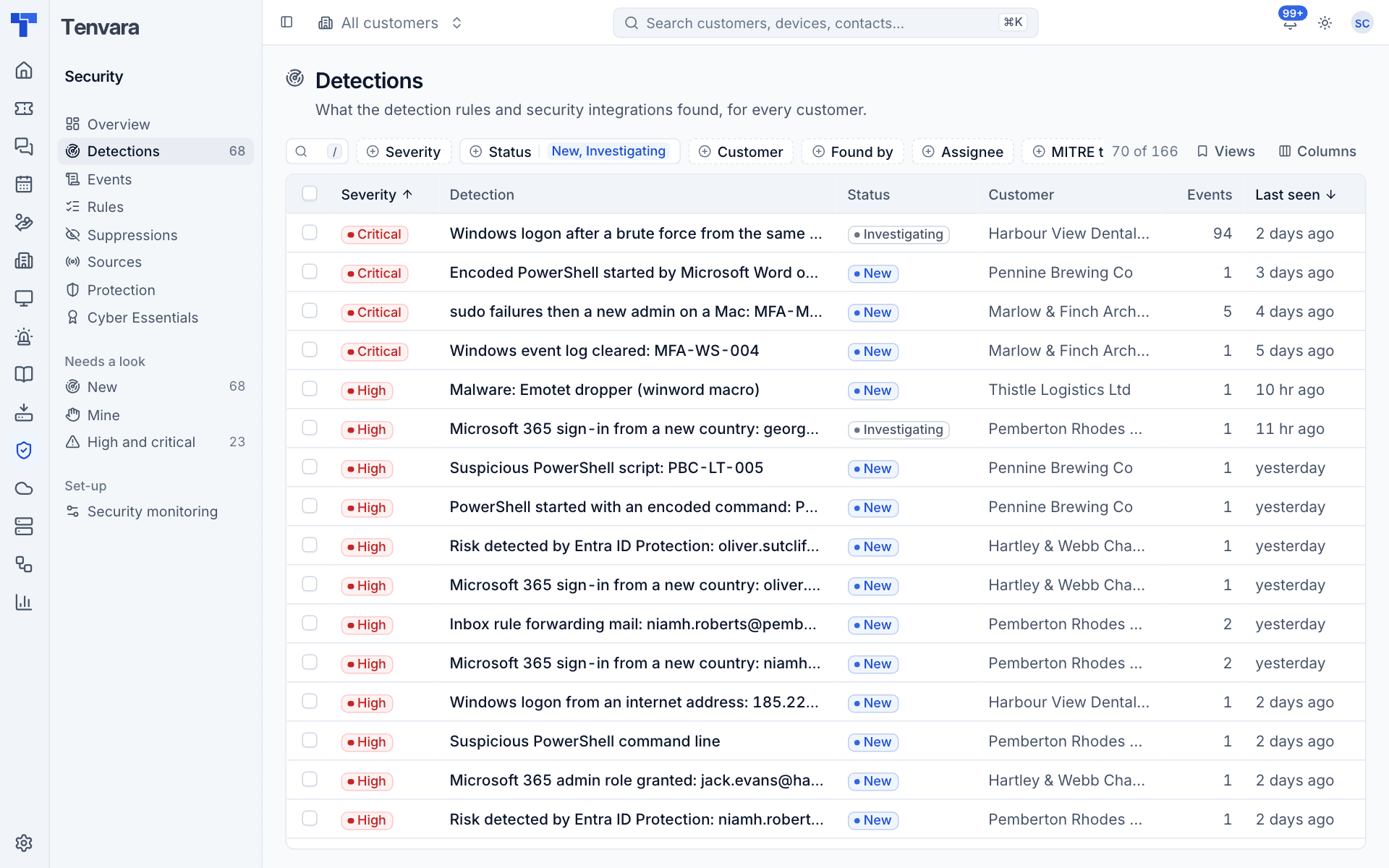
Filter by severity, status, customer, what found it (a rule or an integration), assignee, MITRE tactic and last active. The Views menu has New, Mine, High and critical, This week, Resolved, False positives and All detections, and you can save your own.
Keyboard
| Key | Action |
|---|---|
j / k |
Move down and up |
Enter |
Open the selected detection |
t |
Take it: assign it to yourself and mark it investigating |
r |
Resolve |
f |
False positive |
Select several rows to take them, mark them investigating, resolve them or mark them false positives in bulk. Anything that could not be done is reported.
The side panel
Click a detection to open it in a side panel: why it fired, the grouped values (host, source IP, user), the steps of a sequence rule, customer, device, what it is about, the rule that found it, its MITRE ATT&CK tactic and technique, event counts, first and last seen, sample events, and the alert and tickets it raised.
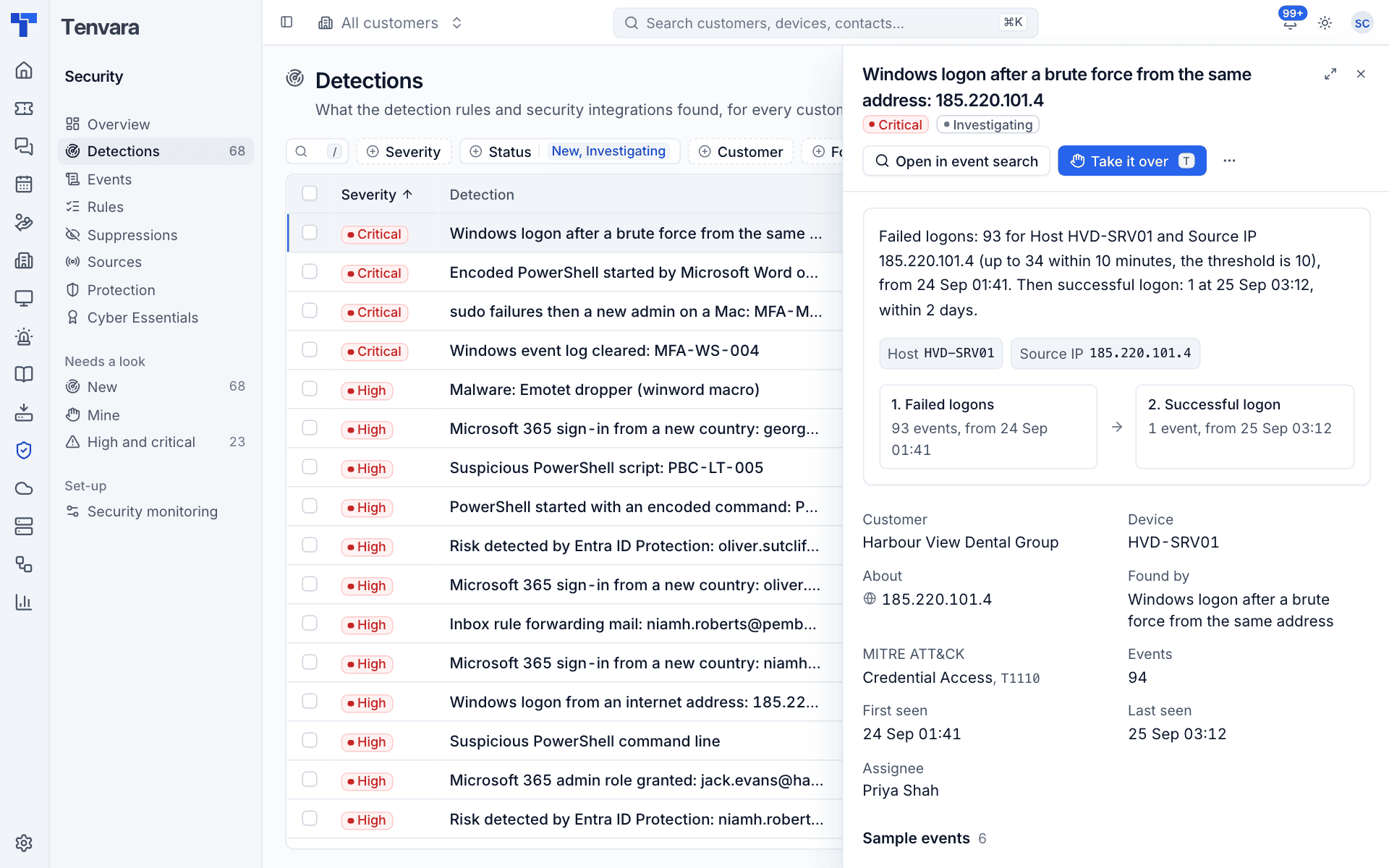
Every value links on: the customer and device to their pages, an address or user to the events for it, the rule to its page, and the technique to MITRE's site. Press Open detection for the full page.
The detection page
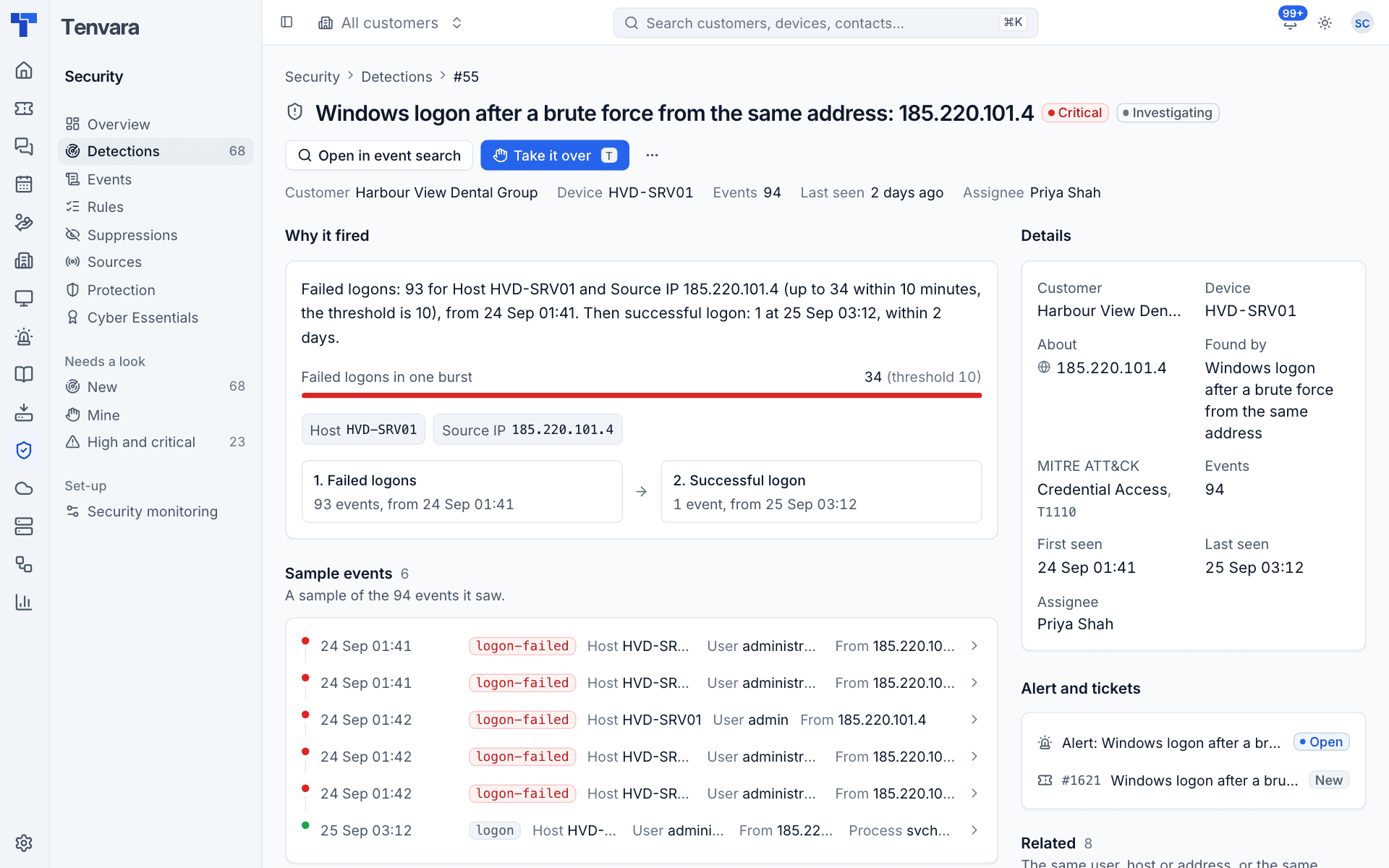
The full page shows the same, with more room:
- The header: severity, status, Open in event search (the exact search the rule ran, over the detection's time), Take it (or Take it over when someone else has it) and a menu with Resolve, False positive, Assign to and unassign.
- Why it fired: in plain words, with the numbers against the threshold, for example "34 (threshold 10)".
- Sample events: a timeline of up to ten of the events it saw. Click one to see the whole event.
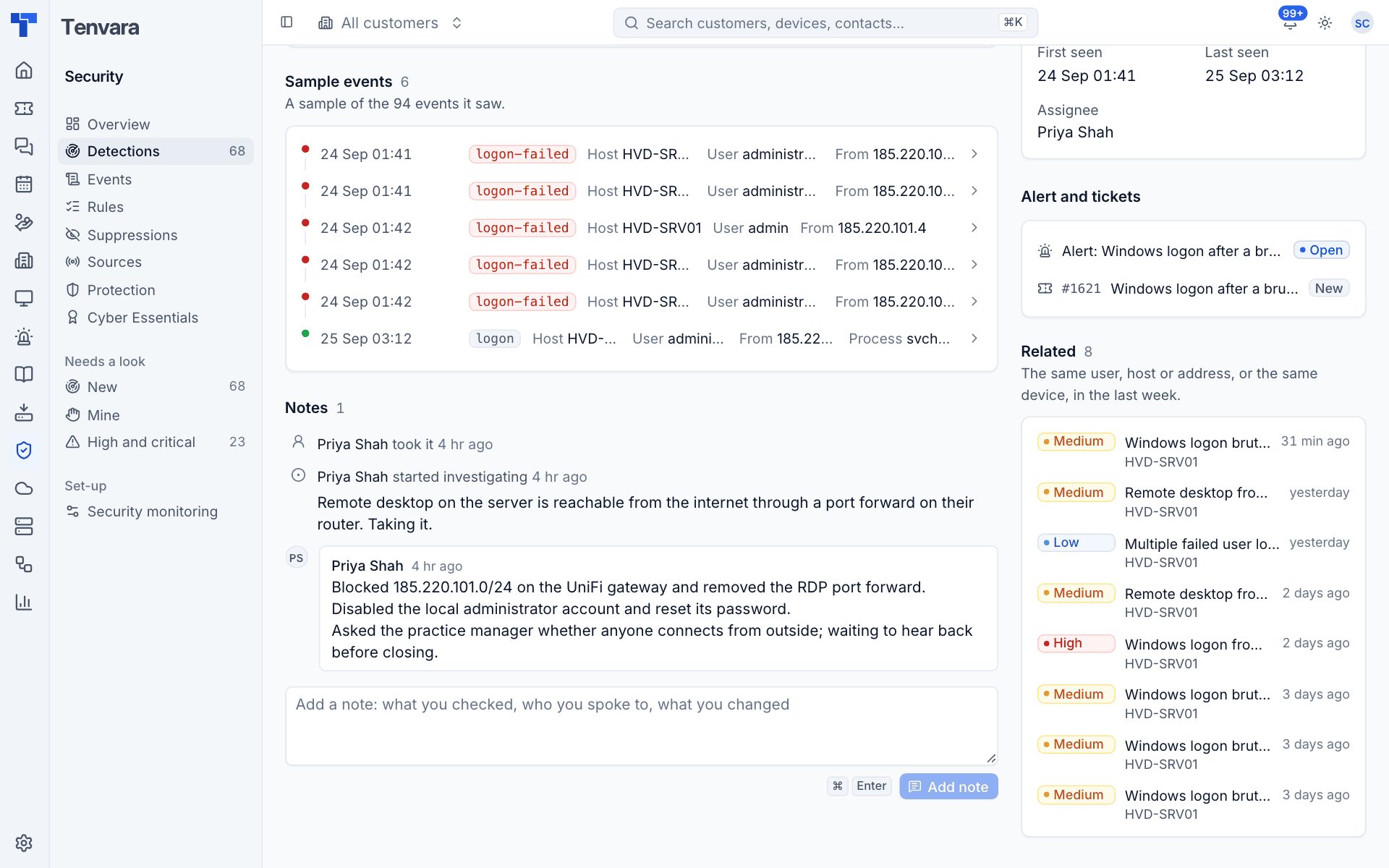
- Notes: every note and status change, with who and when.
- Details, Alert and tickets and Related: other detections for the same user, host, address or device in the last week.
Working a detection
- Take it. Press Take it (or
t). It becomes yours and Investigating. To give it to someone else, use Assign to in the menu; they are notified. - Investigate. Use Open in event search, the sample events and Related to see what happened before and after. Check the device page and the user in Microsoft 365.
- Write notes as you go. Type in the notes box and press Add note (or Cmd+Enter). Notes are for whoever looks next.
- Close it. From the menu choose Resolve or False positive, with a note.
Closing a detection clears the alert it raised. Reopening it raises the alert again. A resolved detection does not come back from the same events.
False positives
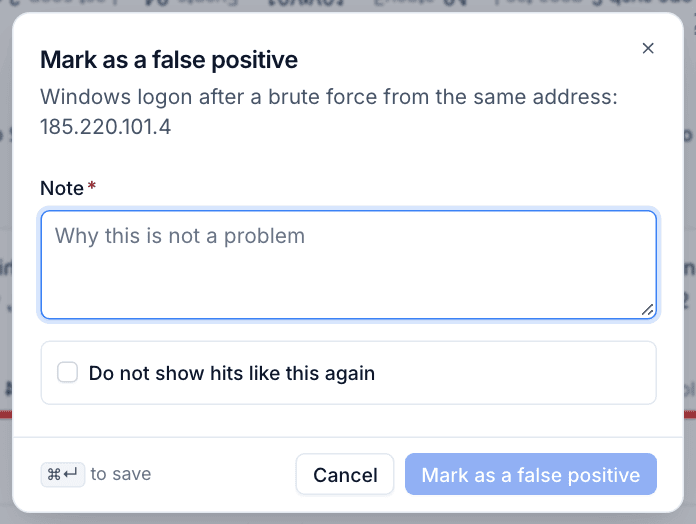
When a detection is not a problem (a backup agent's scheduled task, a rollout's new service), mark it a false positive:
- Choose False positive from the menu (or press
f). - Enter a Note saying why it is not a problem.
- Tick Do not show hits like this again to add a suppression in the same step, for the rule, the customer and the values it was grouped on, with an expiry.
- Press Mark as a false positive.
Suppressions are listed under Security > Suppressions; see Detection rules and suppressions.
How detections are kept tidy
- Repeats merge. Further hits for the same rule and the same values within the rule's window join the open detection: the event count grows, the times widen and the severity can only rise.
- After a quiet spell, a new hit opens a new detection beside the old one.
- Integration findings (Defender, SentinelOne, Huntress) are detections too. When the vendor resolves an alert, the detection follows with a note; for SentinelOne, resolving the detection in Tenvara can resolve the threat in the console.
Alerts and tickets
A detection at or above the alerting severity (medium by default) raises an alert in the Alerts list. Your PSA alert rules can open a ticket from it, which resolves when the detection closes. Both are linked under Alert and tickets. See Integrations and alerting.
Was this page helpful?
Thanks for the feedback.