Checking in and completing a visit
Check in on arrival, complete the visit with a note and the customer's signature, and log the time, travel and mileage in one step.
Completing a visit is what turns a booking into billable time. One dialog records what was done, logs the time on the ticket for everyone who went, claims the mileage and, if you like, captures the customer's signature.
Anyone booked on the visit can do this, whatever their scheduling permissions.
Check in
When you arrive, open the booking and press Check in. The booking moves to In progress and the check-in time is kept. When the Tenvara mobile app is used, the location can be kept with it too. Checking in twice keeps the first time, so a retry on a poor signal does no harm.
Checking in is optional. It matters when Use the check-in and check-out times is on in Settings, because then the time between check-in and completing the visit is what gets logged.
Complete the visit
- Open the booking and press Complete visit.
- In What was done, write what you did. It goes on the time entries and the booking, so write it for the customer's invoice as much as for your colleagues.
- Check Time to log. There is one line per technician for the time on site, and, when the booking type logs travel, one line for travel. For each line you can:
- untick it to log nothing for it;
- change the time;
- switch Billable on or off. The note underneath explains where the times came from, for example "The booked time, rounded up 15 minutes, at least 15 minutes. The contract comes from the day."
- Under Mileage and expenses, check Claim mileage. It offers the round trip from the site's miles from the office (for example "50 miles (25 miles each way)"). Change the miles if you went elsewhere on the way. Leave Rebill to the customer on to charge it on their next invoice at their rate per mile.
- Press Add an expense for parking, tolls, parts or a train fare paid on the visit.
- For a signature, leave Customer signature on, ask the customer to sign on the pad above the line and type their name in Signed by. Clear starts again.
- Press Complete and log (the button shows the total, for example Complete and log 4h 30m).
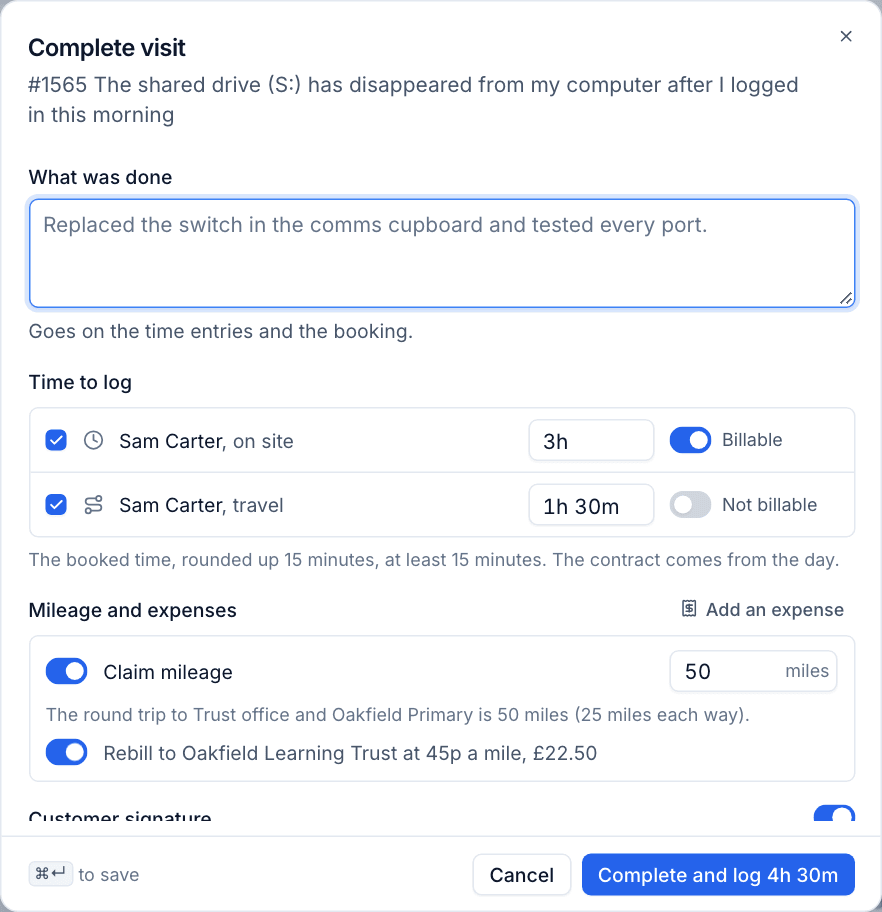
The booking becomes Completed, the time entries appear on the ticket and in the technicians' timesheets, and the mileage and expenses appear under Expenses waiting to be claimed. The ticket's activity records that the visit was completed.
Note: A visit can only log its time once. Completing it again cannot create a second set of entries.
How the time is worked out
- Which time: with Use the check-in and check-out times on and a check-in recorded, the time between checking in and completing. Otherwise the booked time.
- Rounding: each entry is rounded as set in Settings (not at all, up, or to the nearest step), with a minimum.
- Billable: from the booking type, subject to the customer's contract on the day of the visit.
- Travel: logged as its own entry only when the booking type says so, billable or not.
If nobody lets you in
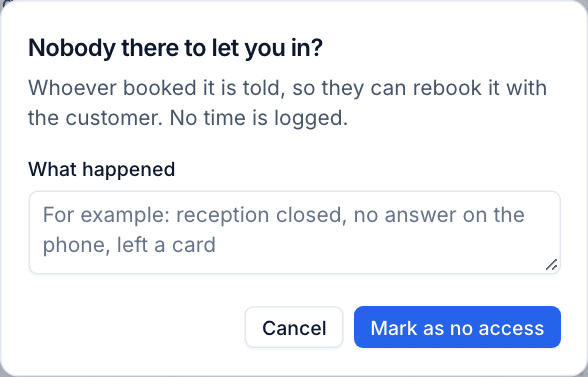
Open the booking, press ... and choose Mark as no access. Describe What happened, then press Mark as no access. The booking is marked No access, whoever booked it is told so they can rebook it with the customer, and no time is logged.
Time settings
Settings > Scheduling > Time sets how completed visits log time:
| Setting | What it does |
|---|---|
| Round each entry | Not rounded, Up or To the nearest |
| To | The step, for example 15 minutes |
| At least | A short visit logs no less than this |
| Use the check-in and check-out times | Log the time between check-in and check-out when both exist, otherwise the booked time |
A worked example updates as you change the settings: with rounding up to 15 minutes and at least 15, 7 minutes logs 15m, 38 minutes logs 45m and 1h 37m logs 1h 45m.
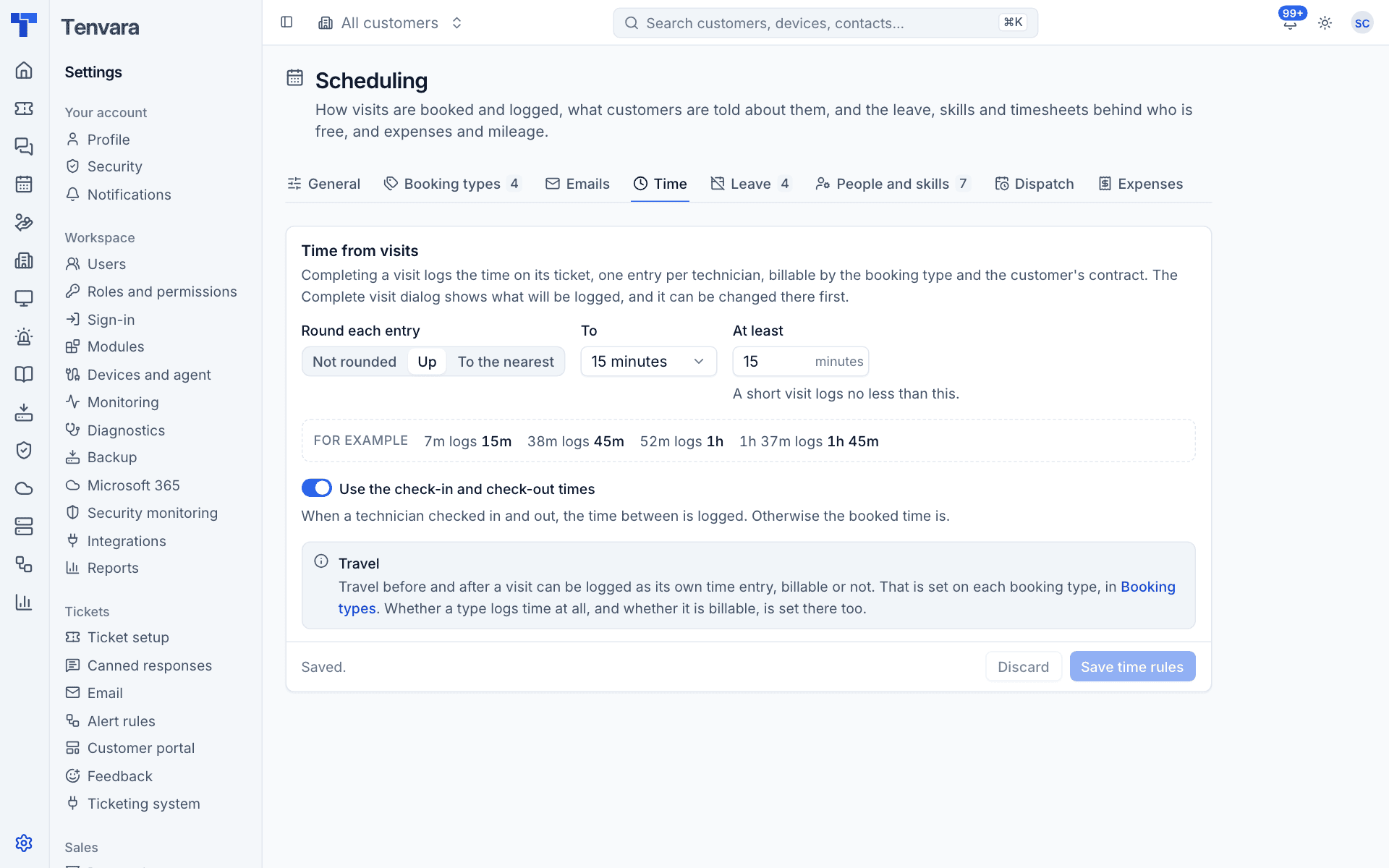
Whether a type logs time at all, whether it is billable, and whether travel is logged as its own entry are set on each booking type. See Booking a visit.
Visits that were never completed
A visit that happened but was never completed shows up in the technician's timesheet under Time nobody logged, with Open visit and Log time. See Timesheets.
Was this page helpful?
Thanks for the feedback.