Troubleshooting printers
What to check when a printer will not install, shows the wrong driver, is offline or shows no toner.
Most printer problems show up in one of three places: the Devices table on the printer's page, the Printers block on a device's page, or the printer's status. This page goes through the common ones.
A printer is stuck on Pending
Pending means the device has not reported the printer yet.
- Check the device is online. An offline device picks up its printers when it next connects.
- Open the device and look at its Printers block. Reported shows when the agent last reported its printers.
- Click Reconcile now to ask the agent to check straight away.
- If the device is a server, hypervisor or virtual machine, remember that site and customer deployments only reach workstations and laptops. Deploy to it as a chosen device or through a device group instead.
- Check the device is not a protected device. Protected devices never get printers from deployments.
A printer failed to install
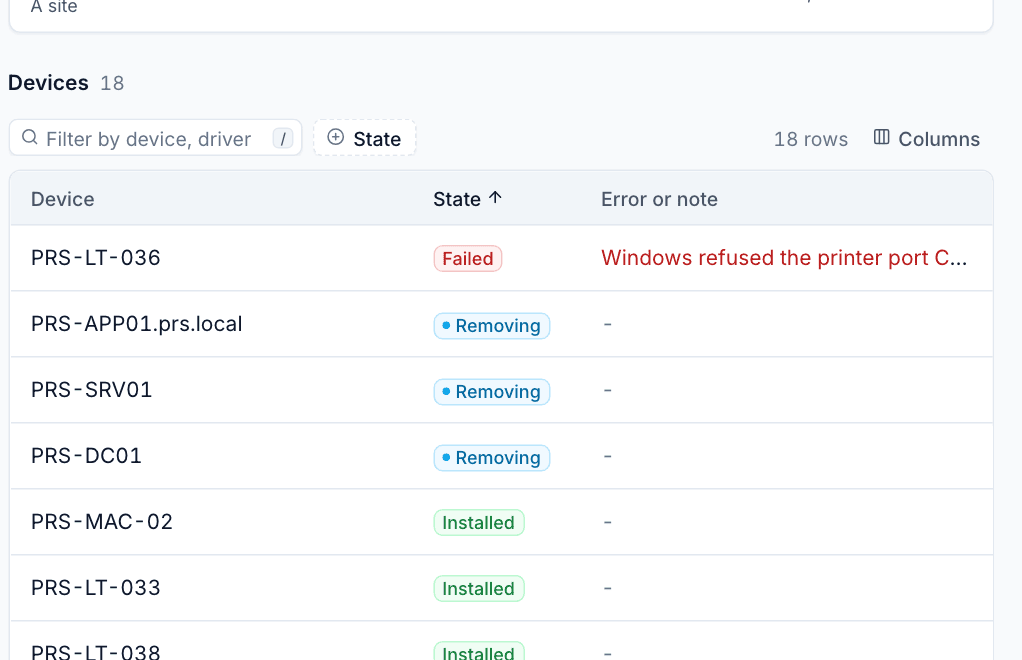
The reason is under Error or note on the printer's page and on the device page. Common ones:
| Error | What to do |
|---|---|
| A printer with that name already exists and was not added by Tenvara | Someone installed it by hand or another tool did. Remove that printer from the device, or rename the printer in Tenvara, then Reconcile now |
| Windows refused the printer port (access is denied) | Something else on the PC is locking down printers, often another management tool or a policy. Find it and let the agent manage printers, then reconcile |
| The driver could not be installed | Check the package is for the device's architecture (x64 or arm64) and that the INF lists a driver name you chose. Upload the other architecture if needed |
| The name is too long or has characters the system refuses | Shorten the printer's name. Windows allows fewer characters than you might expect for queue and share names |
| The printers from the server are not signed by it | The device could not verify its printer list. This usually clears after the agent reconnects. If it persists, reinstall the agent |
A failed install raises an alert and is retried at every reconcile, so once you fix the cause it installs on its own.
The printer got a different driver than expected
Look at Windows driver on the printer page and the Driver column in its devices table. The column says whether the driver came from an uploaded package, the operating system, or a fallback.
- From the model mapping means a mapping line matched. If it is the wrong one, change the mapping so the right line matches first. See Drivers and model mapping.
- A fallback to the Microsoft IPP Class Driver (Windows) or the generic PPD (macOS and Linux) means the chosen driver could not be used. The note says why, for example "the printer does not answer IPP". On macOS and Linux, a printer set to IPP Everywhere must answer IPP; if it does not, choose Generic PPD or change its connection.
- Check the printer's Make and Model match what the printer reports. Discovery fills them in exactly.
A printer shows Offline
- Open the printer. The banner says when it went offline and what did not answer.
- Check Checked by: the watcher must be on the same network as the printer. If the site's devices are on a different VLAN from the printers, make sure they can reach the printer's address on the print port and on SNMP (UDP 161).
- Check the printer's address has not changed. Printers on DHCP often move. Give it a reservation, then Edit the printer with the new address.
- Click Check now once it is back.
An offline alert is only raised after an hour, so a printer switched off overnight does not wake anyone.
Toner levels are missing
A printer with no toner bars, or with the note about SNMP being off, is not answering SNMP. Turn on SNMP v1 or v2c on the printer and check the SNMP community matches. Some cheap printers do not report toner over SNMP at all; they still show as OK when their print port answers.
Users do not get the default printer
- On Windows the default is set per user, in their session, once per user and printer. If a user later chose another default, Tenvara leaves their choice alone.
- Check Default for users in the device's Printers block to see what was set for whom.
- If two deployments both set a default, the more specific one wins: chosen devices, then a group, then a site, then the customer.
Printers that were not added by Tenvara
The device's Printers block counts printers on the machine that Tenvara did not add. Tenvara never changes or removes them. To bring one under management, remove it from the device, add the printer in Tenvara and deploy it.
Was this page helpful?
Thanks for the feedback.