Backup alerts and troubleshooting
The alerts backup raises, when they clear, and how to fix failed, overdue and helper problems.
Backup problems show up in two places: Needs attention on the Backup overview, and as alerts in the Alerts area. Backup alerts go through the same alert handling as everything else, so your alert rules can turn them into tickets, and they clear themselves when the problem is fixed.
Needs attention
The Needs attention panel on the Backup overview lists what needs a person, most serious first.
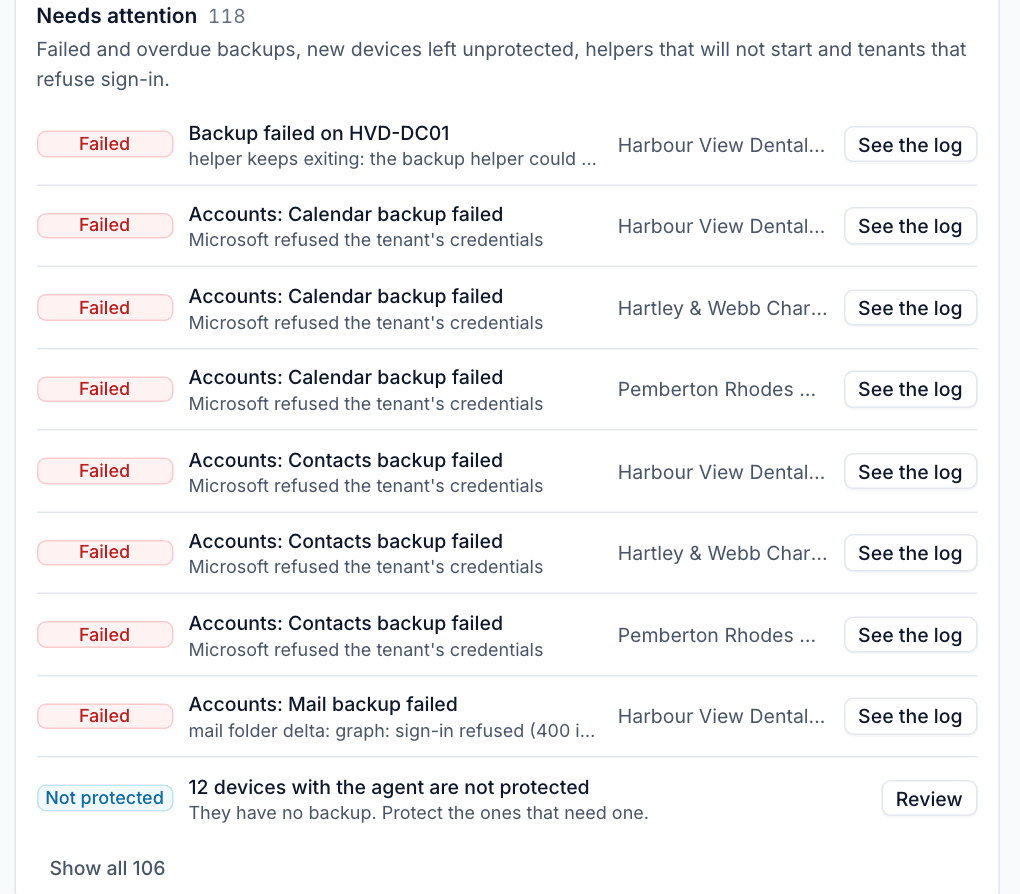
- Failed: a backup that failed, with the reason. See the log opens the job.
- Overdue: a device or Microsoft 365 item with no good backup for longer than its threshold.
- Not protected: devices with the agent that have no backup. Review opens them in the Devices list so you can protect the ones that need it.
- Helpers that will not start, and tenants that refuse sign-in.
Show all lists the rest.
The alerts
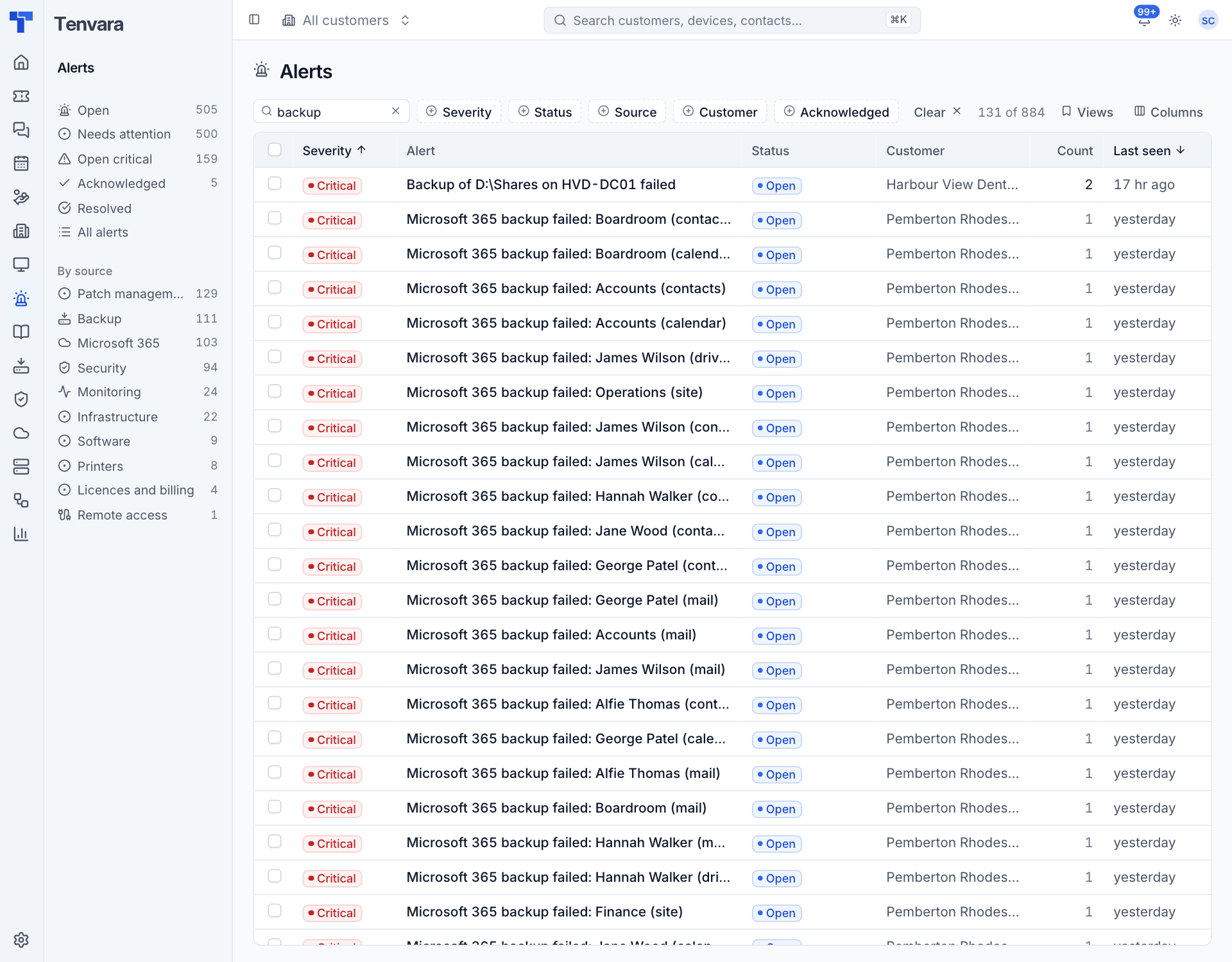
Open Alerts and choose Backup under By source to see only backup alerts.
| Problem | Raised when | Clears when |
|---|---|---|
| A backup failed | The latest run of a volume, folder, guest or Microsoft 365 part failed. Critical, or a warning when a run finishes with errors twice in a row | The next good run of that unit or part |
| Overdue | No good recovery point for longer than Overdue after (default 48 hours for devices, 24 for Microsoft 365) | A good recovery point lands |
| Helper problem | The backup helper keeps failing to start or update on a protected device | The helper runs normally |
| Sign-in refused | Microsoft refuses a tenant's credentials, or consent was withdrawn. Critical | The next accepted sign-in |
| Storage | Backup storage cannot be written, or a folder has less than 10% free | The next storage check passes |
Alert titles say what failed, for example "Backup of D:\Shares on HVD-DC01 failed" or "Microsoft 365 backup failed: Accounts (mail)".
Each alert belongs to the customer and, where there is one, the device, so it shows on their pages too. The storage alert belongs to no customer.
Stopping protection of a Microsoft 365 item clears its alerts. Overdue checks run every 15 minutes.
Fixing common problems
A device backup failed
- Open the job from See the log or the device's Recent jobs and read the log. The last lines usually say what went wrong.
- Check the device is online and has free disk space.
- Press Back up now on the device to try again once it is fixed.
"Could not create a VSS shadow copy"
Windows could not take a snapshot of the volume. Common causes are too little free space for the shadow copy, another backup product holding VSS, or a VSS writer in a failed state.
- Run
vssadmin list writerson the device (through Remote control or a script) and look for writers that are not Stable. - Restart the service behind a failed writer, or restart the device.
- Make sure no other backup software is running at the same time.
- Back up again.
A device is overdue
The device has not had a good backup for longer than Overdue after.
- It is off or offline at the scheduled time: common with laptops. Move the schedule to a time it is usually on (see Schedules and retention), or use Back up now when it is next online.
- A job is stuck in the queue waiting for the device: it starts when the device comes back.
- The helper is not running: see below.
The helper will not start
The device page shows the helper's state under Helper, and the Devices list has a Helper column.
- Backup not supported: no helper build exists for the device's platform. Check Status in backup settings (see Setting up backup).
- "helper download failed": the agent could not fetch the helper. Check the device can reach your Tenvara address. It retries on its own, backing off up to every 30 minutes.
- "helper keeps exiting": the helper starts and stops, and the message after it says why (for example a VSS error, below). If a newly updated helper fails to start three times, the agent goes back to the previous version automatically. The helper's own log is
helper.login the agent's backup folder on the device.
Microsoft 365 parts failing
- Sign-in refused on every part: the tenant needs consent again. See Microsoft 365 backup.
- Only Teams failing: the app has not been approved for Microsoft's protected Teams API yet.
- A user's OneDrive is skipped with "no OneDrive provisioned": the user has never opened OneDrive, or is not licensed for it. This is a skip, not a failure.
- Throttling: Microsoft limits how fast any app can read a tenant. Tenvara paces itself per tenant and carries on in the next run if it has to stop. A very large first backup can take several runs.
Storage alert
- Open Settings, Backup, Storage and press Test to see the error.
- For a folder, free space or move to a larger disk (copying the repositories across first).
- For S3, check the keys, bucket and endpoint still work.
Backups that could not be written will run again on their next schedule once storage is fixed.
Keeping on top of backup
- Look at the Backup overview each morning. Success, last 24 hours should be close to 100%.
- Set an alert rule that turns critical backup alerts into tickets, so failures get an owner.
- Review Not protected devices weekly: new servers in particular should never be left without a backup.
- Test a restore from each customer regularly (see Restoring).
Was this page helpful?
Thanks for the feedback.