Users
Add your team, change roles, set per-person exceptions, reset passwords and two-factor, link single sign-on, mark break-glass administrators, and deactivate or delete accounts.
Settings > Users lists everyone who can sign in to Tenvara: their role, how they sign in, whether they use two-factor, whether they are active and when they last signed in. Only administrators can open it.
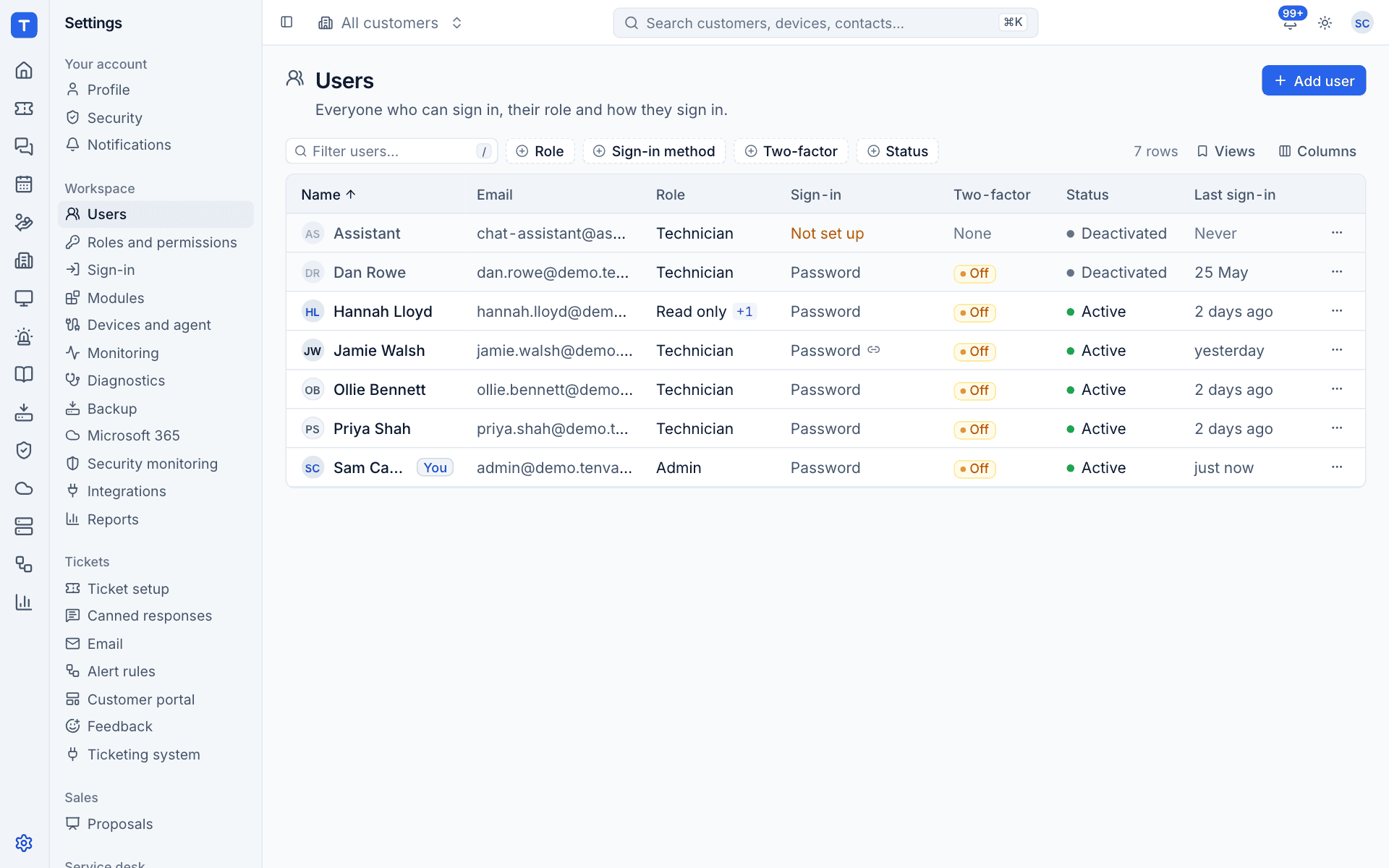
Reading the list
| Column | What it shows |
|---|---|
| Name | The person, with You next to your own account |
| Their sign-in name | |
| Role | Admin, Technician or Read only. A +1 (or more) means they have exceptions to their role's permissions |
| Sign-in | Password, single sign-on, or Not set up when the account has no way in yet. A link icon means a single sign-on account is linked |
| Two-factor | On, Off or None |
| Status | Active or Deactivated |
| Last sign-in | When they last signed in, or Never |
Filter with the box (press / to jump to it) or by Role, Sign-in method, Two-factor and Status. Views saves a filter you use often, and Columns chooses what is shown.
Tip: Filter Two-factor to Off and Status to Active to see who still needs to turn two-factor on.
Add a user
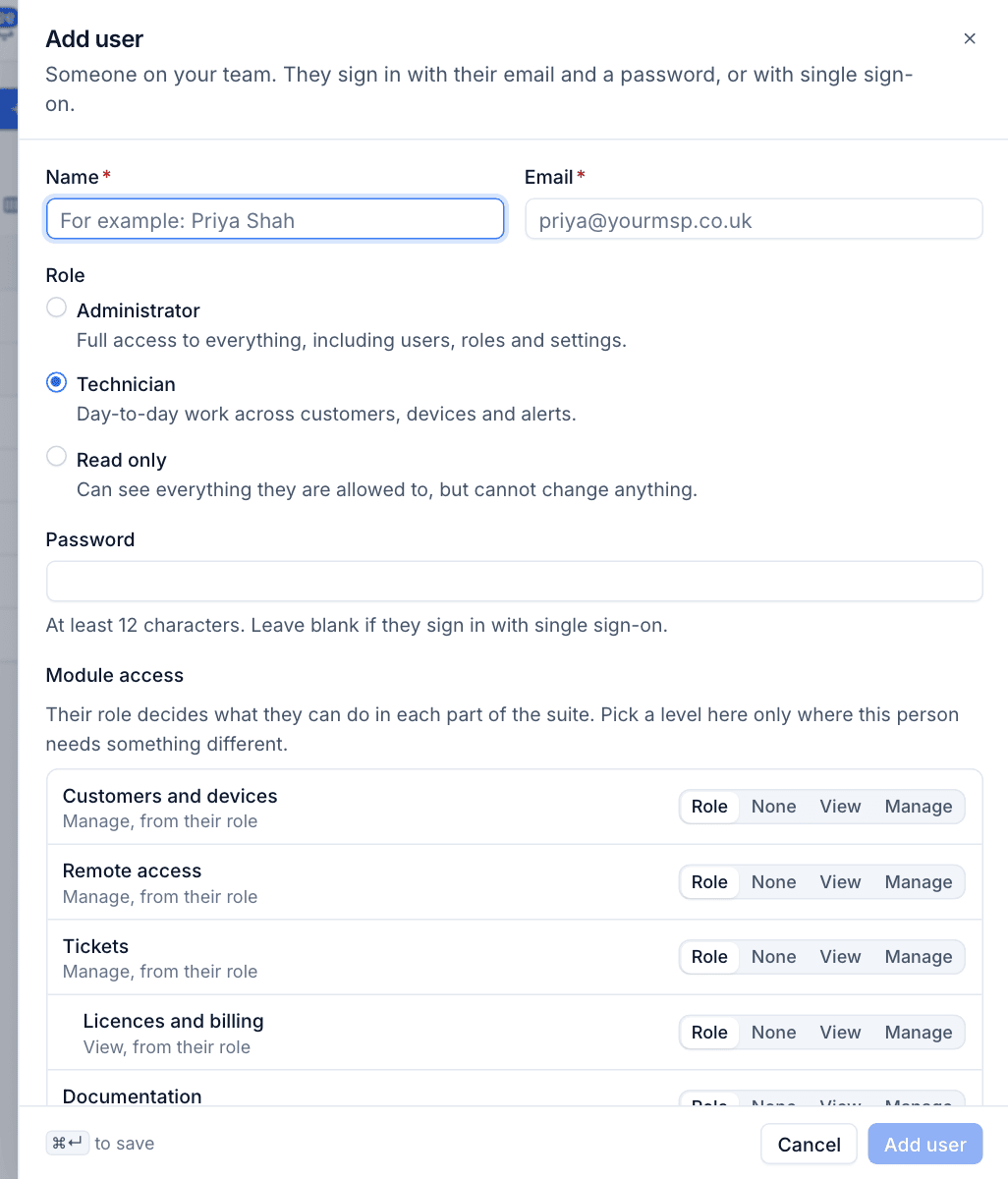
- Press Add user.
- Enter their Name and Email. The email is their sign-in name.
- Choose a Role:
- Administrator: full access to everything, including users, roles and settings.
- Technician: day-to-day work across customers, devices and alerts.
- Read only: can see everything they are allowed to, but cannot change anything.
- Set a Password of at least 12 characters, or leave it blank if they sign in with single sign-on or you want them to choose their own.
- Under Module access, change anything this person needs differently from their role (see below). Usually you leave this alone.
- Press Add user.
If you left the password blank and they will not use single sign-on, open the row's menu and choose Send password reset. An account with no password gets a "set your password" email instead of a reset.
Note: With single sign-on and Create accounts on first sign-in turned on, you do not need to add people at all: they get an account the first time they sign in, with the role your rules give them. See Single sign-on.
The row menu
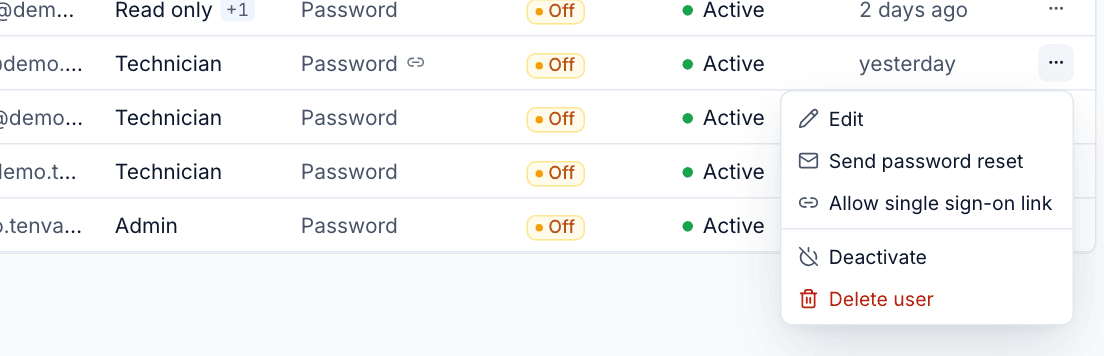
Press the ... button at the end of a row:
| Action | What it does |
|---|---|
| Edit | Opens the user (clicking the row does the same) |
| Send password reset | Emails them a link to set a new password. It works once, for 60 minutes |
| Allow single sign-on link | For seven days, their next single sign-on with their email address links to this account |
| Deactivate | Signs them out everywhere and stops them signing in. Their history stays |
| Delete user | Removes the account. Asks you to confirm |
Prefer Deactivate when someone leaves: their tickets, time and notes keep their name, and you can reactivate them later.
Edit a user
Click a row to open it. You can change their Name, Email and Role, set a New password (leave it blank to keep the current one), and turn Active off or on. Turning Active off signs them out everywhere and stops them signing in.
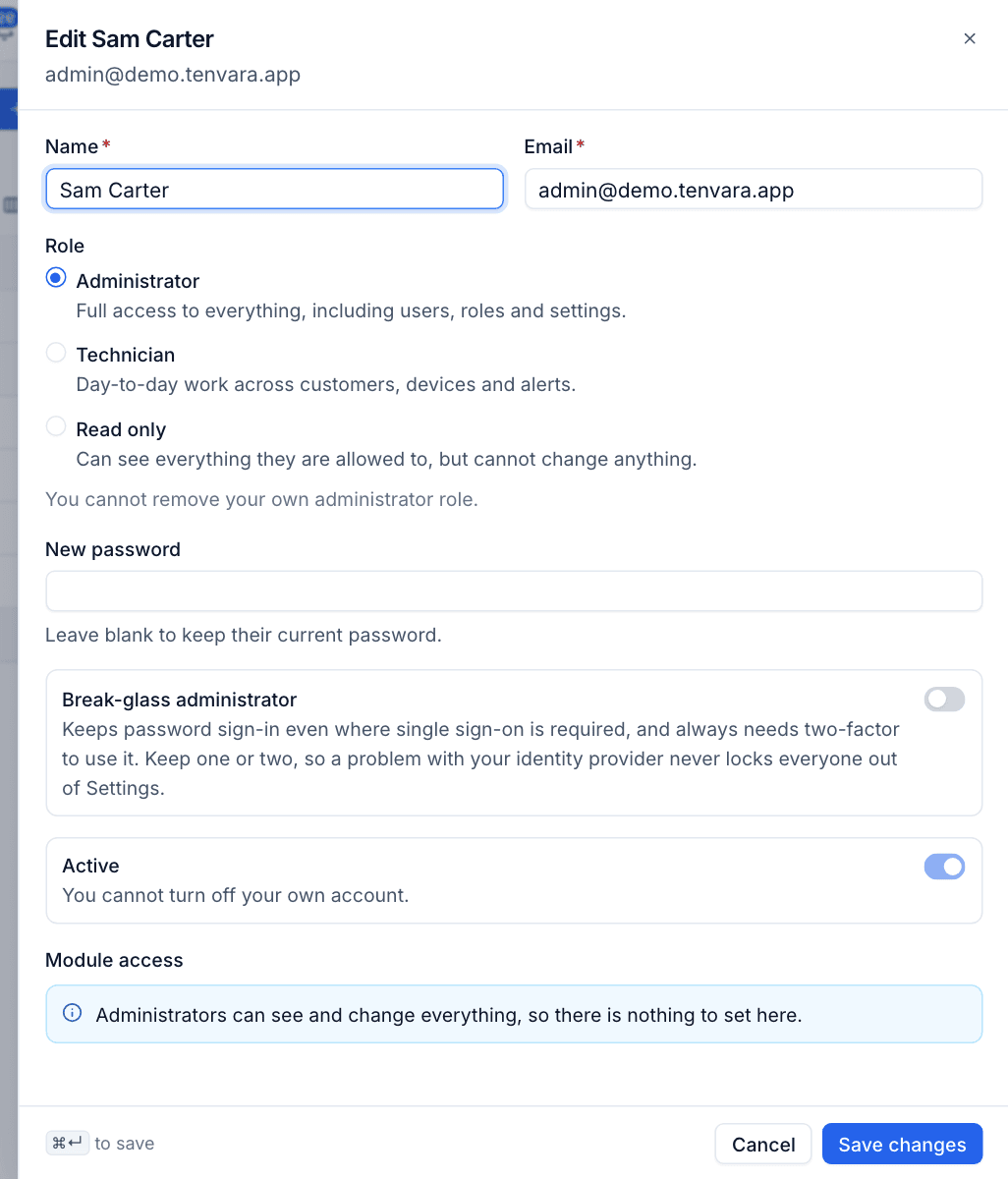
Some changes are refused to keep you safe: you cannot remove your own administrator role or turn off your own account, and Tenvara refuses any change that would leave no active administrator able to sign in with a password.
Per-person exceptions
A person's role decides what they can do in each area. When one person needs something different, set it under Module access in their user:
- Open the user.
- Find the area, for example Tickets.
- Pick None, View or Manage instead of Role. The line underneath changes to say what is different, for example "Manage for this person (role gives view)".
- Press Save changes.
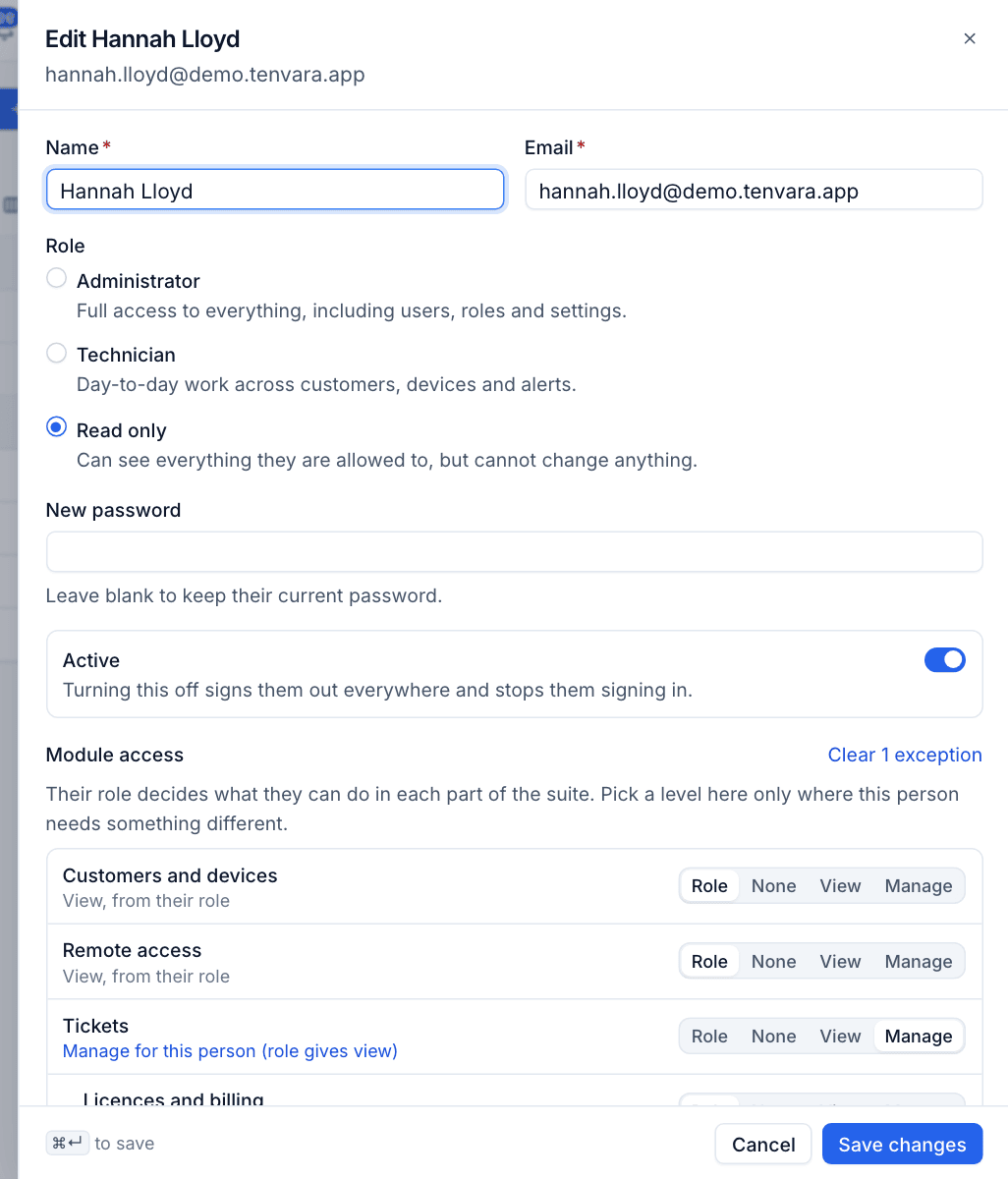
Clear 1 exception (or however many there are) puts everything back to their role. Administrators can see and change everything, so there is nothing to set for them. Changes apply the next time the person's session refreshes, within a few minutes. To change what a whole role can do, use Roles and permissions instead.
Break-glass administrators
A break-glass administrator keeps password sign-in even where single sign-on is required, so a problem at your identity provider never locks everyone out of Settings.
- Open an administrator.
- Turn on Break-glass administrator.
- Press Save changes.
A break-glass sign-in always needs two-factor, whatever your two-factor policy. If they have not set it up, they set it up at that sign-in. Keep one or two. Only administrators can be marked; the mark goes if they stop being an administrator. See Passwords and two-factor.
Resetting someone's two-factor
When someone loses their phone and has no recovery codes left, an administrator can reset their two-factor from their user in Settings > Users. They set it up again at their next sign-in (straight away if your policy requires it). An email tells them it was reset, so they can raise the alarm if it was not expected.
Linking single sign-on to an existing account
When you add single sign-on to an existing team, most accounts link on their own the first time people sign in with the provider. Accounts that already have a password or two-factor, and all administrators, are never linked by email alone. For those:
- The person links it themselves from Settings > Security, in the Single sign-on card, with Link. Or:
- You use Allow single sign-on link on their row. For seven days, their next single sign-on with their email address links to their account.
This is also the way in for an administrator in a domain that requires single sign-on who has no link yet. See Single sign-on for the full rules.
Assistant accounts
You may see a deactivated account called Assistant with Not set up as its sign-in. It is the account the chat bot acts as when it does things for customers, and it cannot sign in. Leave it as it is. See The chat bot.
Was this page helpful?
Thanks for the feedback.