Web servers
How web servers are found, adopting one so Tenvara can run site operations, and everything on the server page.
A web server in Tenvara is a machine running the agent with a web server on it. The agent's Web server role finds it, reports what it serves, and once an administrator adopts the server, runs a fixed catalogue of site operations on it: creating sites, certificates, databases, SFTP, cron, deploys, backups and WordPress updates. Nothing is ever a shell line built from what someone typed, apart from a cron entry's command and a deploy script, both of which run as the site's own user.
What each platform supports
| Linux with nginx (Ubuntu 24.04, Debian 12) | Linux with Apache | Windows with IIS | |
|---|---|---|---|
| Reported and checked (services, runtimes, sites, certificates, disks, databases, HTTPS checks) | Yes | Yes | Yes |
| Site operations | Yes | No: reported and checked only | Static and .NET sites |
Site operations write nginx configuration, so an Apache server is listed as "Apache: reported and checked only" and refuses operations. On Windows Server (2019 or later) sites are static or .NET, databases are SQL Server Express, and certificates come from an upload or from win-acme when it is installed. PHP, Laravel, WordPress and Node.js sites are Linux only.
The web server list
Infrastructure > Web servers lists every machine the agent found serving websites, with its customer, Health, web server and version, number of Sites (and how many are failing), Certificates expiring, Fullest disk, whether it is Adopted and its Last report.
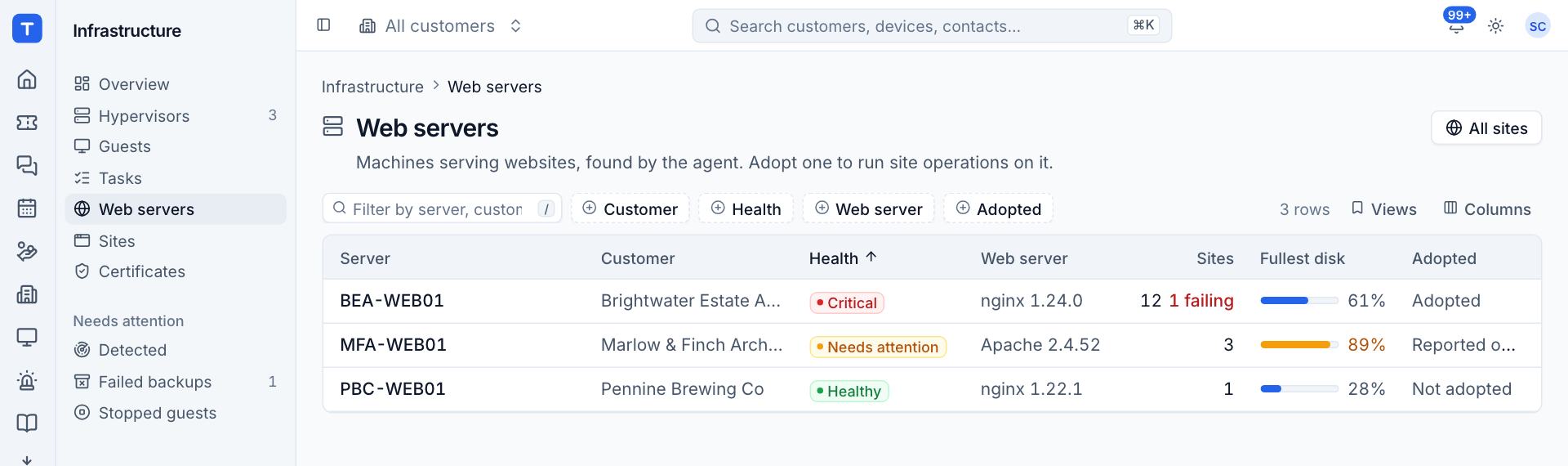
The Adopted column reads:
- Adopted: operations can run.
- Not adopted: reported only, waiting for an administrator.
- Reported only: an Apache server, which is checked but takes no operations.
Adopting a server
Until a server is adopted, its agent refuses every operation except a refresh ("this server has not been adopted"). Adopting needs the Administrator role.
- Open the server from Infrastructure > Web servers.
- Press Adopt (the page shows "Adopt to run operations" while it is not adopted).
- Check the settings in the dialog:
- Backup folder: where site backups and database dumps are kept on the server.
- ACME contact email: given to the certificate authority for expiry notices. Needed before certificates can be issued.
- ACME directory: the certificate authority to use. Let's Encrypt by default.
- Confirm. The page shows "Waiting for the agent to pick this up" until the agent confirms, usually within a minute.
Existing sites stay exactly as they are. Sites Tenvara did not create are shown as Discovered: they are reported and checked over HTTPS, but never changed.
Releasing and removing a server
From More actions on the server page, administrators can:
- Release the server: the agent refuses operations again. Its sites keep running and are still reported and checked, but scheduled backups and certificate renewals stop.
- Remove it from Tenvara: its sites, certificates, databases, backups and operations history are forgotten. Nothing is deleted on the server. While the agent still runs there, the server comes back, not adopted, with its next report.
The server page
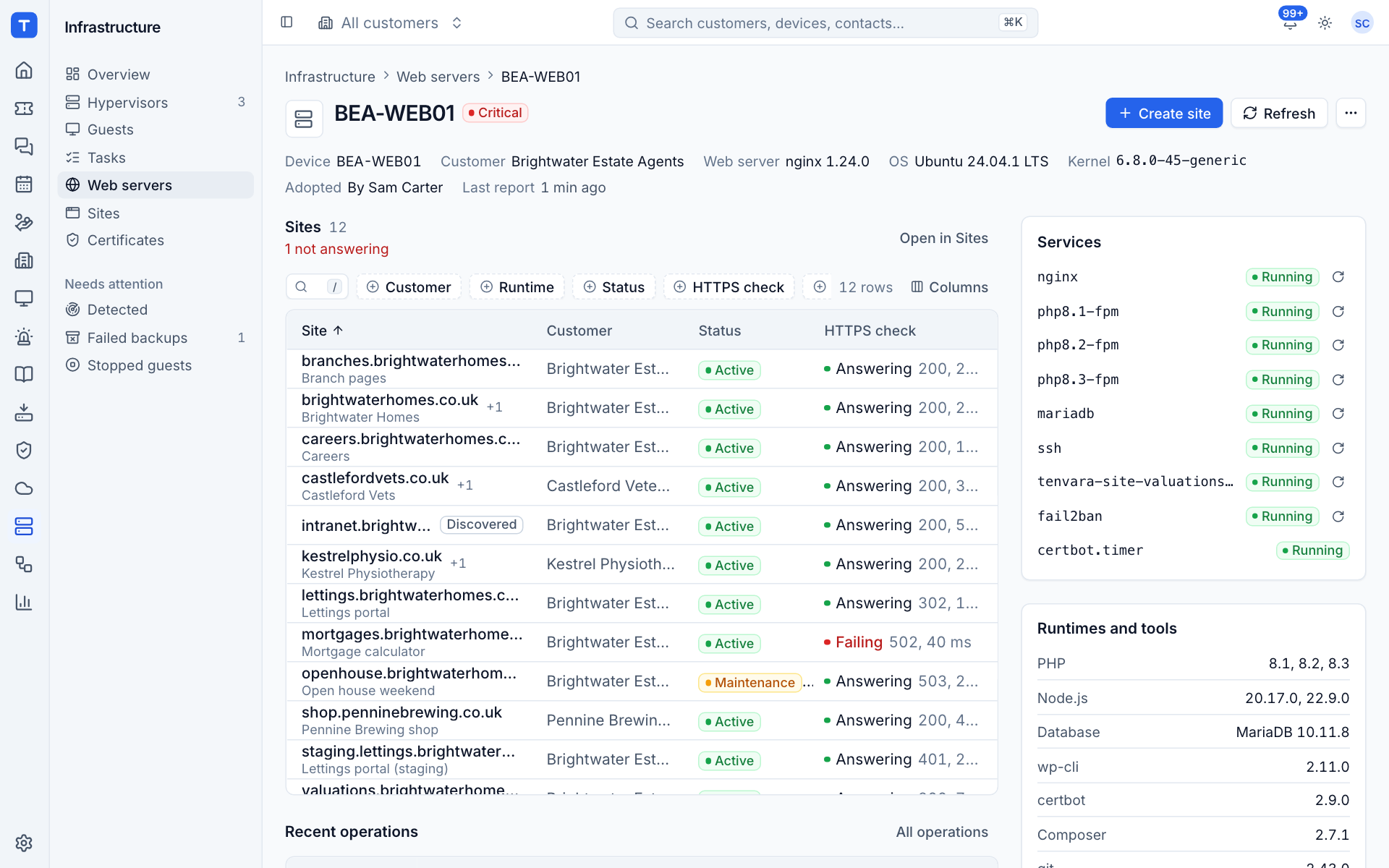
The header shows health, Create site and Refresh (ask the agent for a fresh report now), and the facts: Device, Customer, Web server, OS, Kernel, who adopted it and Last report. Then:
- Sites: every site on the server with its runtime, status, HTTPS check, maintenance state and certificate. Open in Sites jumps to the full list filtered to this server.
- Recent operations, with All operations.
- Run a command: the break-glass shell, described below.
- Databases: every database the server reports, with engine, tables and size.
- Services: the web server, each PHP-FPM version, MariaDB or MySQL, SSH, Node.js site services, fail2ban and certbot's timer, with their state. With Manage permission you can restart, reload or start a service; nginx and PHP-FPM configuration is tested first where the agent can. Requests in flight may fail for a second or two while a service restarts.
- Runtimes and tools: PHP versions, Node.js versions, the database engine, wp-cli, certbot, Composer and git.
- Disks: each mount and how full it is.
- Settings: backup folder, ACME contact and directory, whether Run a command is on, and Notes for the team (what runs here, who to call, quirks).
If parts of the last report failed (for example the agent could not read the databases), the page says which under "Parts of the last report failed".
Server settings
Open Settings on the server page to change the backup folder, the ACME contact email and directory, the notes, and Allow Run a command on this server. Only administrators change the backup folder, the ACME account and Run a command.
Run a command (break-glass)
Some fixes need a shell: installing a package, changing a firewall rule. Run a command lets administrators run any shell command on the server as root, from its page. It is off on every server by default.
- An administrator opens the server's Settings and turns on Allow Run a command on this server.
- In Run a command, enter the Command (for example
systemctl status nginx --no-pager) and a Timeout (seconds). - Run it. The output streams back to the page.
Commands run through bash as root. The command, who ran it and its output go to the activity log. Turn the switch off again when you are done.
Warning: Run a command is root on a customer's server from the browser. Keep it off unless a fix needs it.
How the agent checks sites
Every few minutes (and in each report) the agent asks the server itself for each site's first two domains over HTTPS, using the domain as the name, so DNS and redirects prove nothing either way. A site is Answering when it gives a 2xx or 3xx within ten seconds; a 401 from a password-protected site and a 503 from a site in maintenance also count. The check records the status code, the time taken and the days left on the certificate served.
Was this page helpful?
Thanks for the feedback.