Installing the agent
Create an enrolment token, run the one-line install command on Windows, macOS or Linux, and manage tokens and agent updates.
The Tenvara agent is one small service for Windows, macOS and Linux. It keeps a single encrypted connection to your Tenvara server and runs the modules you switch on: inventory, remote control, monitoring, patching, software, scripts, backup, diagnostics and more. You install it with an enrolment token, which ties the device to a customer (and optionally a site) from the moment it connects.
Create an enrolment token
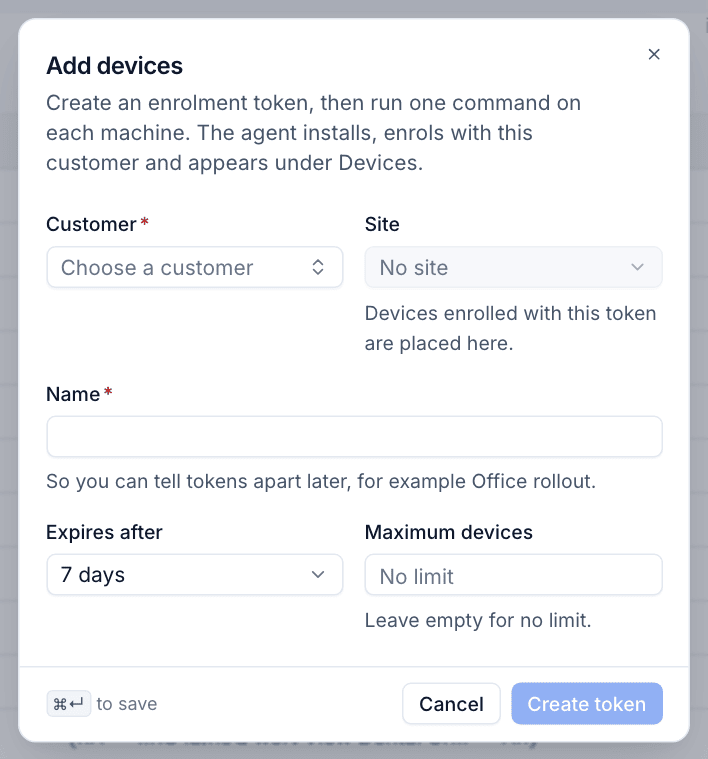
- Go to Devices and click Add devices, or open Devices > Enrolment and click New token.
- Choose the Customer. Devices enrolled with this token belong to that customer.
- Optionally choose a Site. Devices enrolled with the token are placed there.
- Give the token a Name so you can tell tokens apart later, for example Office rollout.
- Set Expires after (1 day, 7 days, 30 days, 90 days, 1 year or never) and, if you want, a Maximum devices limit. Leave the limit empty for no limit.
- Click Create token.
Tenvara then shows the token and a ready-to-paste install command for each platform.
Warning: The token is only shown once. Copy it now. You can always create another, and revoking a token does not affect devices already enrolled with it.
Run the install command
Pick the tab for the machine's operating system and copy the command.
| Platform | How to run it |
|---|---|
| Windows | Run in PowerShell as an administrator. It downloads the signed installer, installs the service and enrols. |
| macOS | Run in Terminal. It asks for an administrator password. Afterwards approve Screen Recording and Accessibility for the agent in System Settings, so remote control can see and control the screen. |
| Linux | Run as root, or with sudo. Works on Debian, Ubuntu, RHEL, Fedora and most systemd distributions. |
Within a few seconds the device appears under Devices with its hardware, operating system and the modules that are running. If the network is not ready when the service starts, the agent keeps retrying every minute until it enrols.
Tip: The same command works from your RMM, Intune or any MDM that can run a script, so you can roll the agent out to a whole customer at once with one token.
Manage tokens
Devices > Enrolment lists every token with its customer, site, the start of the token, its state, how many devices have used it, when it expires and when it was last used.
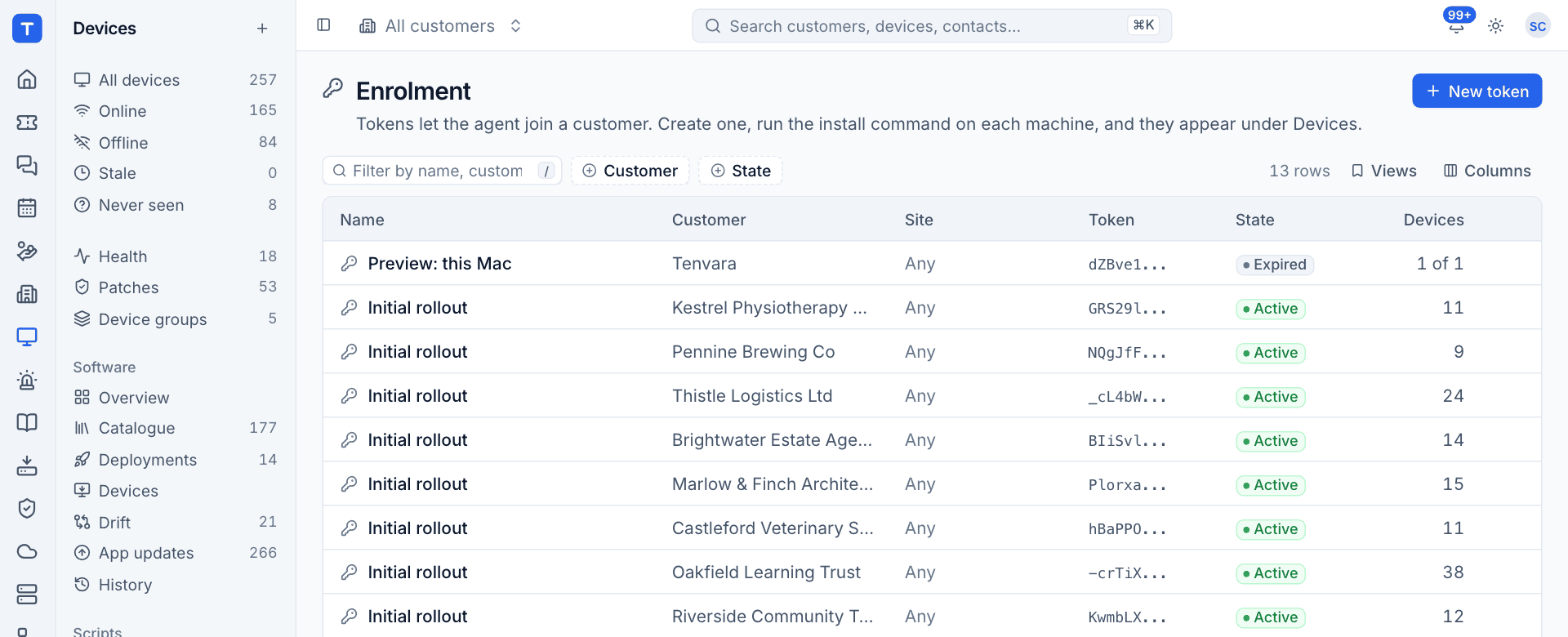
- Filter by Customer or State (active, expired, revoked).
- Click Revoke on a token to stop it enrolling any more devices. Devices already enrolled keep working.
Reinstalls and changed hardware
Each device has a fingerprint made from stable hardware identifiers, so reinstalling the agent on the same machine keeps the same device record and its history. When a new agent enrols:
- it is matched to an existing device by serial number first, then by hostname (never across customers), so a device you added by hand or that another source already reported is joined up rather than duplicated;
- if a device that already has a live agent is enrolled again with a different key, the new install is held as pending until an administrator approves it. This stops anyone who can read a machine's hardware IDs from taking the device over.
Installers and agent updates
Devices > Installers lists every agent package on your server, for each platform and architecture, for use with software deployment tools.

- Get an install command opens the same dialog as Add devices.
- Release history lists each uploaded version with its platform, architecture, package type, channel and size.
Agents update themselves to the newest stable release. Each update is signed by your server and checked before it runs, and on macOS and Linux the previous version is restored automatically if the new one does not start. You can turn automatic updates off, and change how often agents check in, under Settings > Devices and agent. See Devices and agent settings.
Removing the agent
To stop a device reporting, open it and choose Revoke agent from the ... menu. The device record and its history stay in Tenvara; the agent is disconnected and can no longer sign in. A revoked device can be enrolled again later with a valid token.
Was this page helpful?
Thanks for the feedback.