Your profile, security and notifications
Your own account settings: your name and how you sign in, your password and two-factor, and what notifications reach you where and when.
The Your account pages at the top of Settings are yours. Everyone can open them, whatever their role, and they only change your own account. The account menu (your initials, top right) has shortcuts to Profile and Password and two-factor.
Profile
Settings > Profile shows how you appear to the rest of the team.
- Your details: your email, which is your sign-in name, and your Name. Change your name and press Save. Only an administrator can change your email, from Users.
- Access: set by an administrator. Your Role, when you Last signed in, whether you have a Password, and which Single sign-on provider your account is linked to, if any.
Security
Settings > Security (Password and two-factor in the account menu) keeps your account safe.
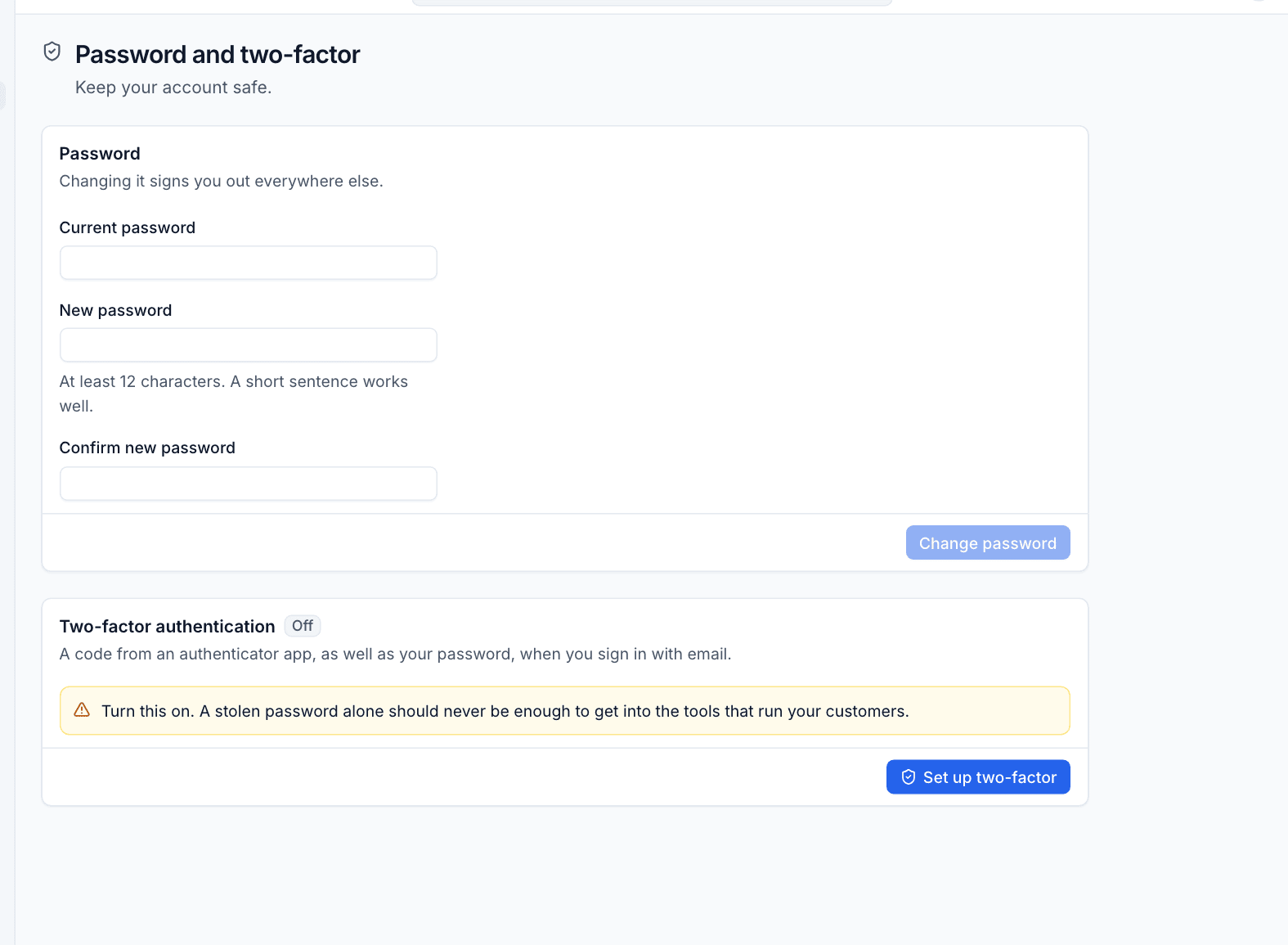
Change your password
- Enter your Current password.
- Enter a New password of at least 12 characters (a short sentence works well), and again in Confirm new password.
- Press Change password.
Changing it signs you out everywhere else.
Set up two-factor
Two-factor authentication shows Off or On. With it on, you need a code from an authenticator app as well as your password when you sign in with email.
- Press Set up two-factor.
- Scan the QR code with your authenticator app, or type in the key.
- Enter the code the app shows.
- Save your recovery codes somewhere safe. There are ten, each works once, and they are only shown now.
An email confirms two-factor was turned on. If your administrator requires two-factor for your role, you cannot turn it off. See Signing in.
Link single sign-on
When your administrator has set up single sign-on, the Single sign-on card lists the providers. Press Link next to one, sign in there, and you come back linked. From then on you can sign in with that provider. The provider account's email must be the same as your Tenvara email. See Single sign-on.
Notifications
Settings > Notifications decides what reaches you, where, and when to leave you alone. The inbox in the top bar always keeps a copy of everything.
What reaches you where
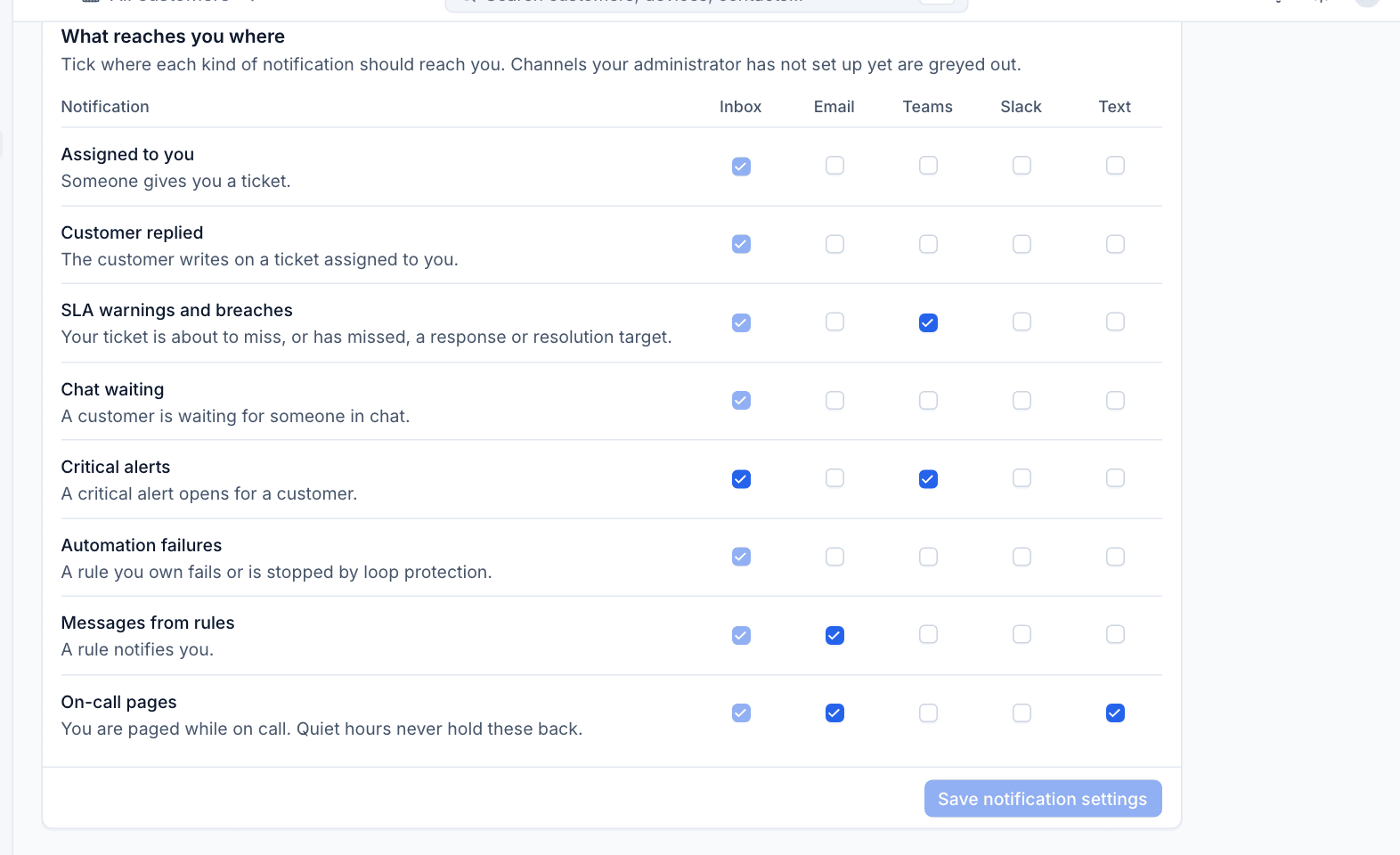
Tick where each kind of notification should reach you:
| Notification | When it is sent |
|---|---|
| Assigned to you | Someone gives you a ticket |
| Customer replied | The customer writes on a ticket assigned to you |
| SLA warnings and breaches | Your ticket is about to miss, or has missed, a response or resolution target |
| Chat waiting | A customer is waiting for someone in chat |
| Critical alerts | A critical alert opens for a customer |
| Automation failures | A rule you own fails or is stopped by loop protection |
| Messages from rules | A rule notifies you |
| On-call pages | You are paged while on call. Quiet hours never hold these back |
The channels are Inbox (always on), Email, Teams, Slack and Text. Channels your administrator has not set up yet are greyed out; they are set up with the other notification channels in Settings > Automation. Press Save notification settings when you are done.
When you are on call, a banner at the top says so and until when, for example "You are on call: Servers (always on) until 28 Sep 09:00. Pages reach you whatever your quiet hours."
How to reach you
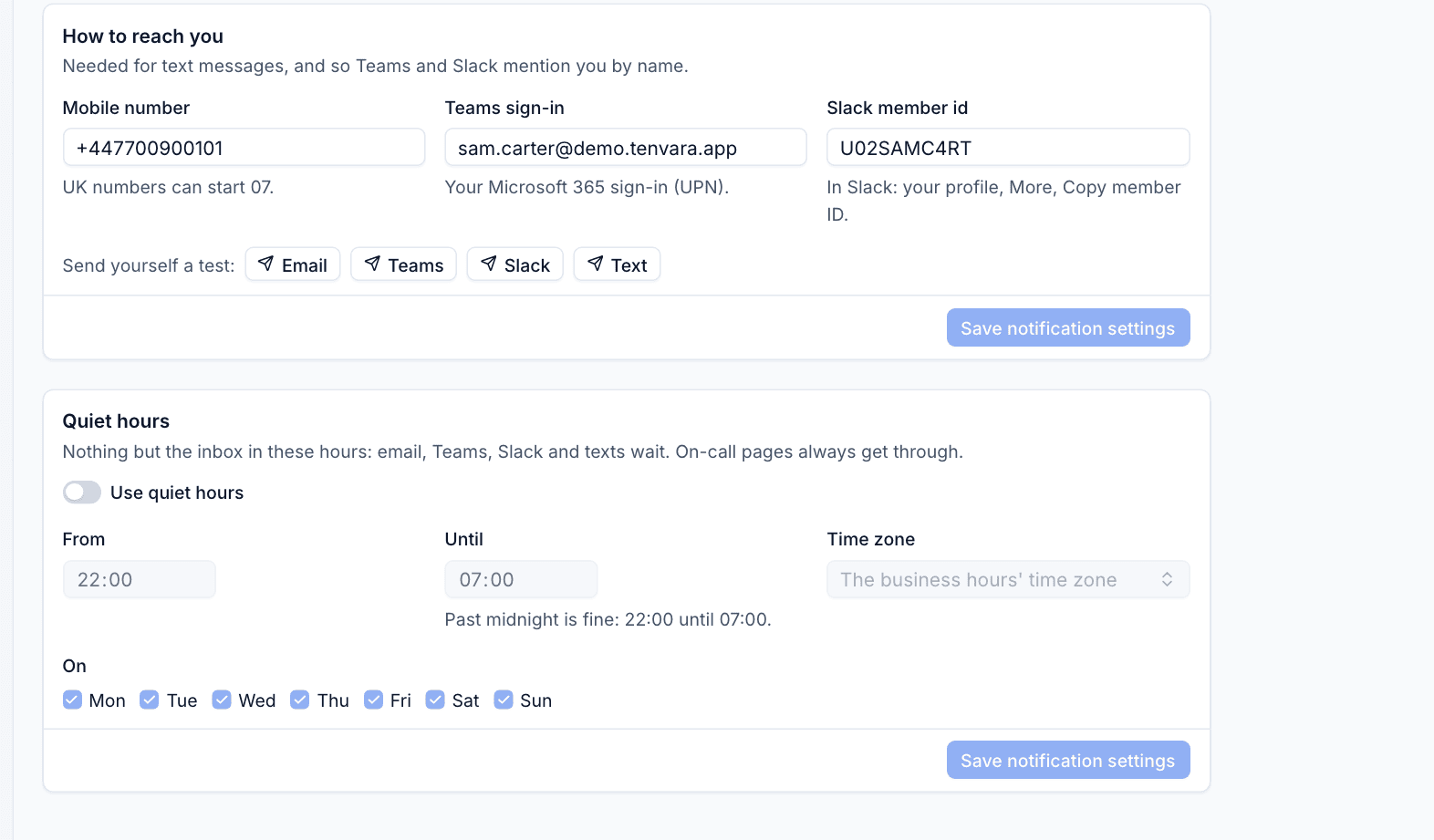
Teams, Slack and text messages need to know who you are:
- Mobile number: needed for text messages. UK numbers can start 07.
- Teams sign-in: your Microsoft 365 sign-in (UPN), so Teams messages mention you by name.
- Slack member id: in Slack, open your profile, then More, then Copy member ID.
Use Send yourself a test (Email, Teams, Slack or Text) to check each one arrives.
Quiet hours
Nothing but the inbox reaches you in your quiet hours: email, Teams, Slack and texts wait until they end. On-call pages always get through.
- Turn on Use quiet hours.
- Set From and Until, for example 22:00 until 07:00. Past midnight is fine.
- Choose the Time zone. It follows your business hours' time zone unless you pick another.
- Tick the days they apply On.
- Press Save notification settings.
Tip: Set quiet hours even if you are never on call. Critical alerts at 3am are what on-call rotas are for, and on-call pages still reach whoever is on duty.
Was this page helpful?
Thanks for the feedback.