Automation overview
What automation rules do, how the Automation area is laid out, and who can make which rules.
Automation lets Tenvara do routine work for you. A rule says: when something happens (an alert, a ticket change, a device event, a time of day), for these customers, if these conditions hold, do these things in order. Rules can open and update tickets, run scripts, deploy software, notify people on Teams, Slack, email or text, page whoever is on call, and call other systems with a webhook.
Every time a rule matches, Tenvara records a run in the run log: what it was about, how each condition came out and what each action did. Around the rules sit the notification channels, each person's notification settings, and on-call rotas with escalation.
The Automation area
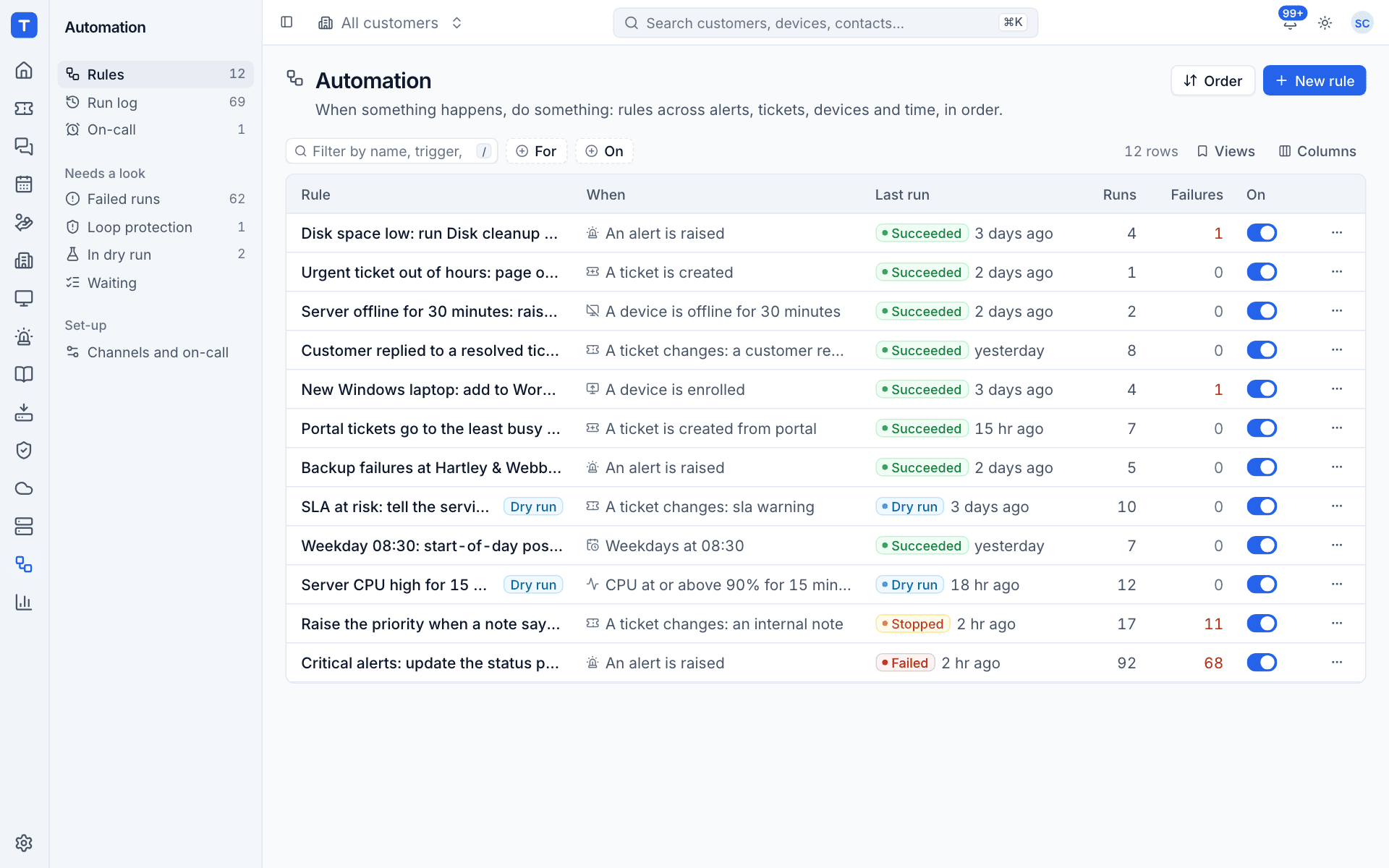
Open Automation from the rail. The sidebar has:
- Rules: every rule, in the order they run.
- Run log: every run of every rule. See The run log.
- On-call: who is on call now, and every page. See On-call rotas and paging.
- Needs a look: quick views for Failed runs, runs stopped by Loop protection, rules In dry run and runs Waiting (parked on a Wait action or a webhook retry).
- Set-up: Channels and on-call, which opens Settings > Automation.
The rules list
Each row shows the Rule name (with a Dry run badge when it only logs), When (its trigger in words, such as "A device is offline for 30 minutes" or "Weekdays at 08:30"), For (which customers), the Last run outcome and time, how many Runs and Failures it has had, and an On switch.
- Click a rule to open it in the builder.
- Flip On to switch a rule on or off without opening it.
- The ... menu on each row has the rule's run log, Duplicate and Delete.
- Filter by For and On, or type to match a name or trigger.
Starting a rule
Click New rule. You can start From scratch or from one of six templates:
- Disk space low: run Disk cleanup and note the ticket
- Urgent ticket out of hours: page on-call
- Server offline for 30 minutes: raise a ticket
- Customer replied to a resolved ticket: reopen and notify the assignee
- New device enrolled: add to a group and deploy the standard apps
- Critical alert: send it to another system (a signed webhook)
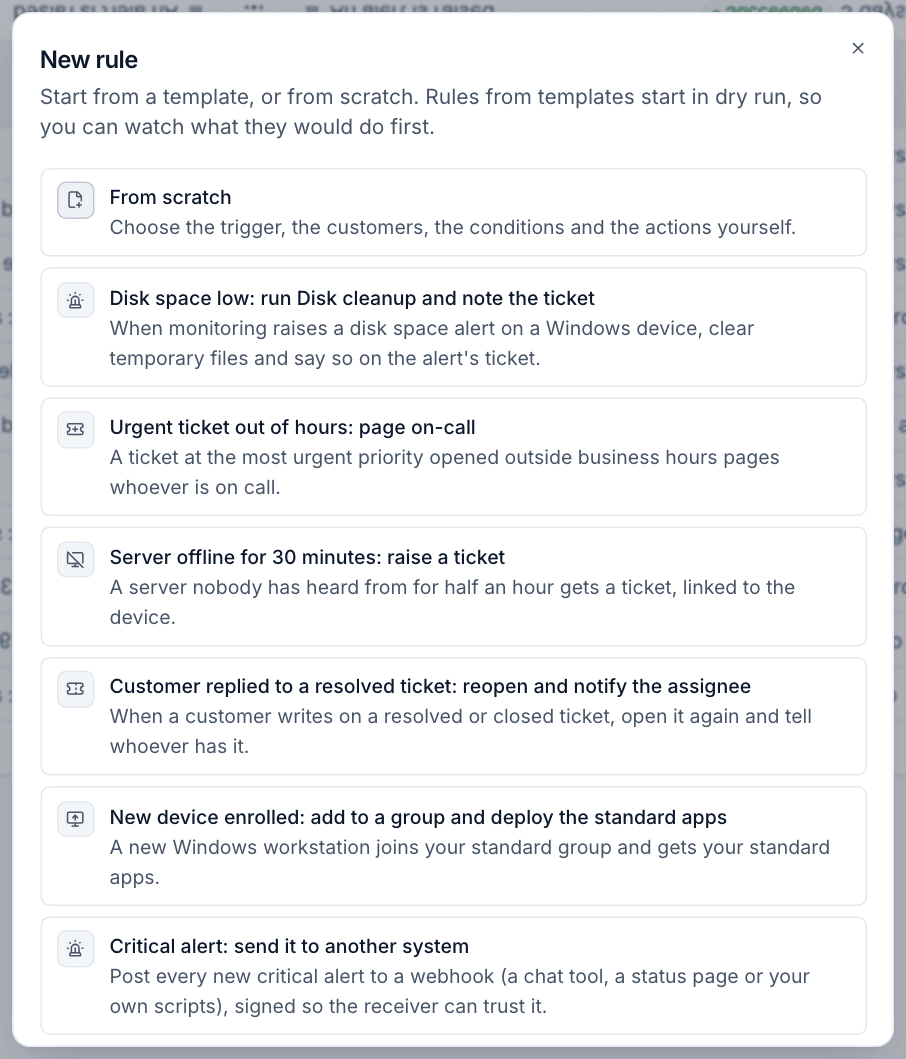
Rules made from a template start in dry run, so you can watch what they would have done before letting them act. See Building a rule.
Rule order
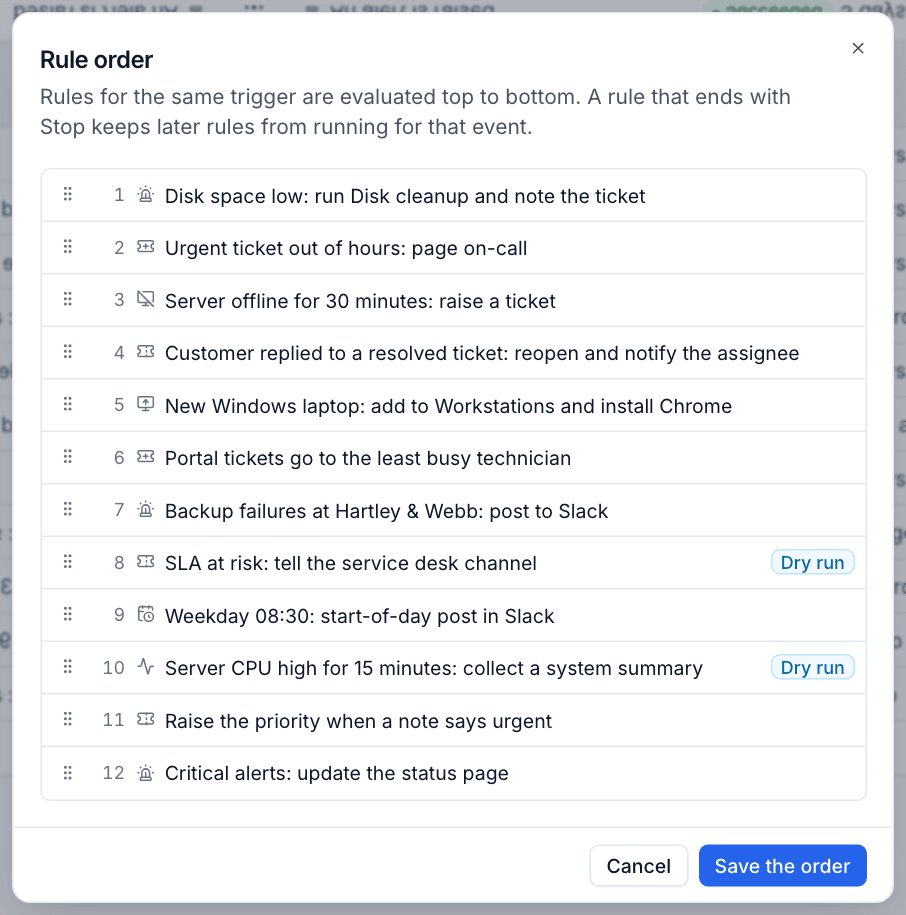
Rules for the same event run top to bottom. Click Order to put them in a different order, then Save the order. Order matters when a rule ends with a Stop action, which keeps later rules from running for that event, and when one rule relies on something an earlier one did (for example assigning a ticket before another rule notifies the assignee).
Whose permissions a rule uses
A rule has an owner, and it acts with the owner's permissions, checked every time it runs rather than when it was saved. If the owner loses a permission or is deactivated, the steps that need it are skipped with the reason, and the owner is told.
- Ticket actions (create, update, assign, note, reply) need the owner to manage tickets.
- Raising or resolving an alert, and adding a device to a group, need the owner to manage devices.
- Running a script and deploying software need the owner to have those modules' permissions.
- Rules that run scripts, deploy software or send webhooks are for administrators, unless Settings > Automation allows anyone who manages automation. This is also checked at every run.
Permissions
Automation has its own area in Roles and permissions:
| Level | What it allows |
|---|---|
| View | See rules, the run log, on-call and pages, and acknowledge a page |
| Manage | Make, change, test and switch rules on and off, retry runs, and look after rotas and escalation policies |
| Administrator | Settings > Automation (general settings and channels) |
Everyone can change their own Settings > Notifications.
If automation is switched off in Modules, no rule runs and the inbox in the top bar is the only notification channel.
Where else automation shows up
- Customer page: an Automation tab lists the rules scoped to that customer and every run that concerned them, with a New rule button.
- Tickets: a ticket opened or changed by a rule says so in its activity, for example 'Automation "Server offline for 30 minutes: raise a ticket" opened the ticket'. Such tickets have the source automation.
- Home: who is on call now and any open pages.
- Search (Cmd+K): jump to rules, the run log and on-call, start a new rule, or find rules by name.
Was this page helpful?
Thanks for the feedback.