Security findings
The 43 security checks run against every tenant, the posture score, fixing findings, accepting a risk, and the CIS, NIST, SCuBA and Essential Eight frameworks.
After every sync, Tenvara checks each tenant against the same baseline of 43 security checks, using only what sync read. Nothing is guessed: if something could not be read, the check says Not known.
Findings across every tenant
Microsoft 365 > Findings lists every check with its Severity, Area, how many tenants are Failing (as a bar, for example 3 / 4), how many objects are Affected and how many tenants have Accepted the risk. Filter by severity, area and state.
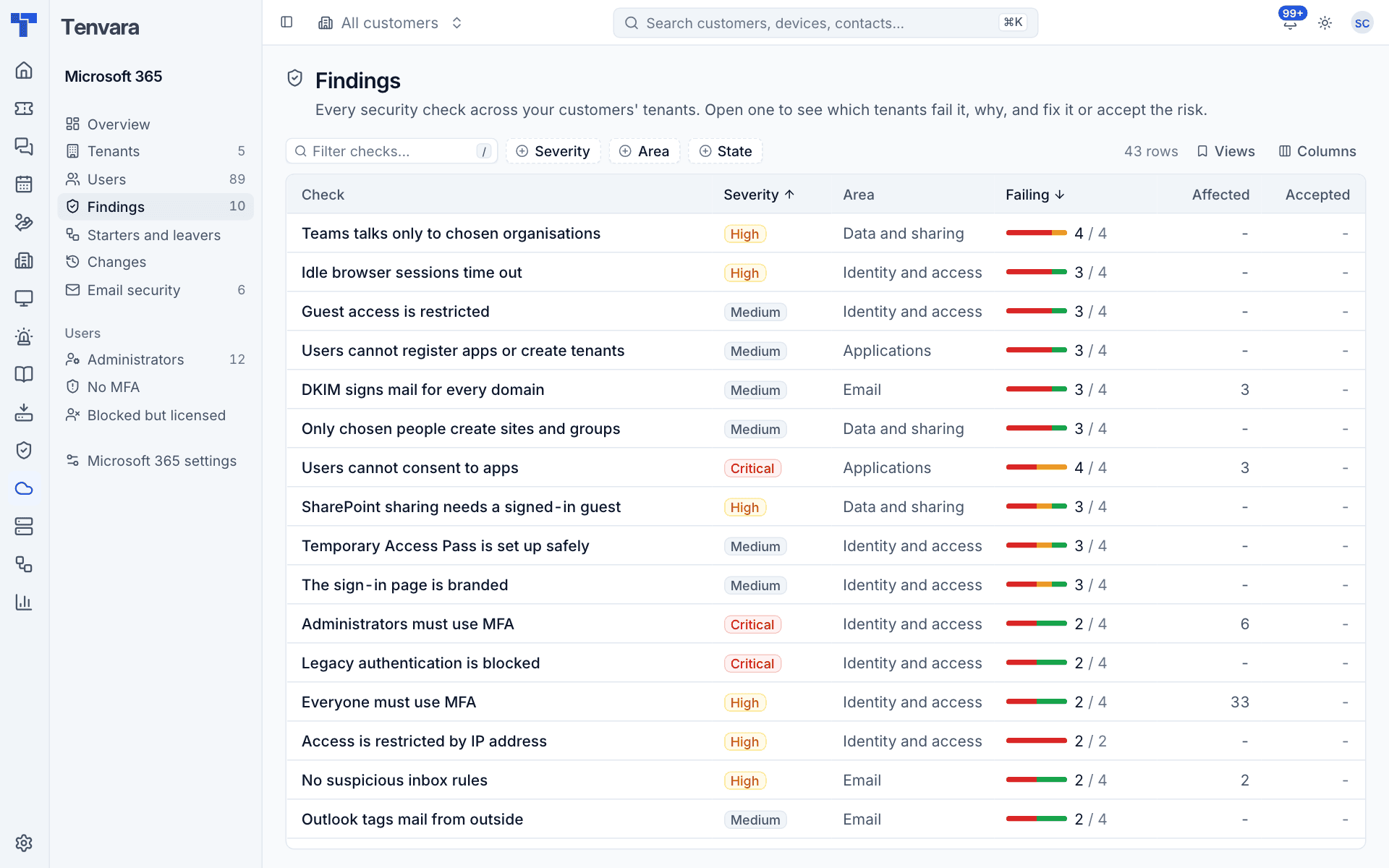
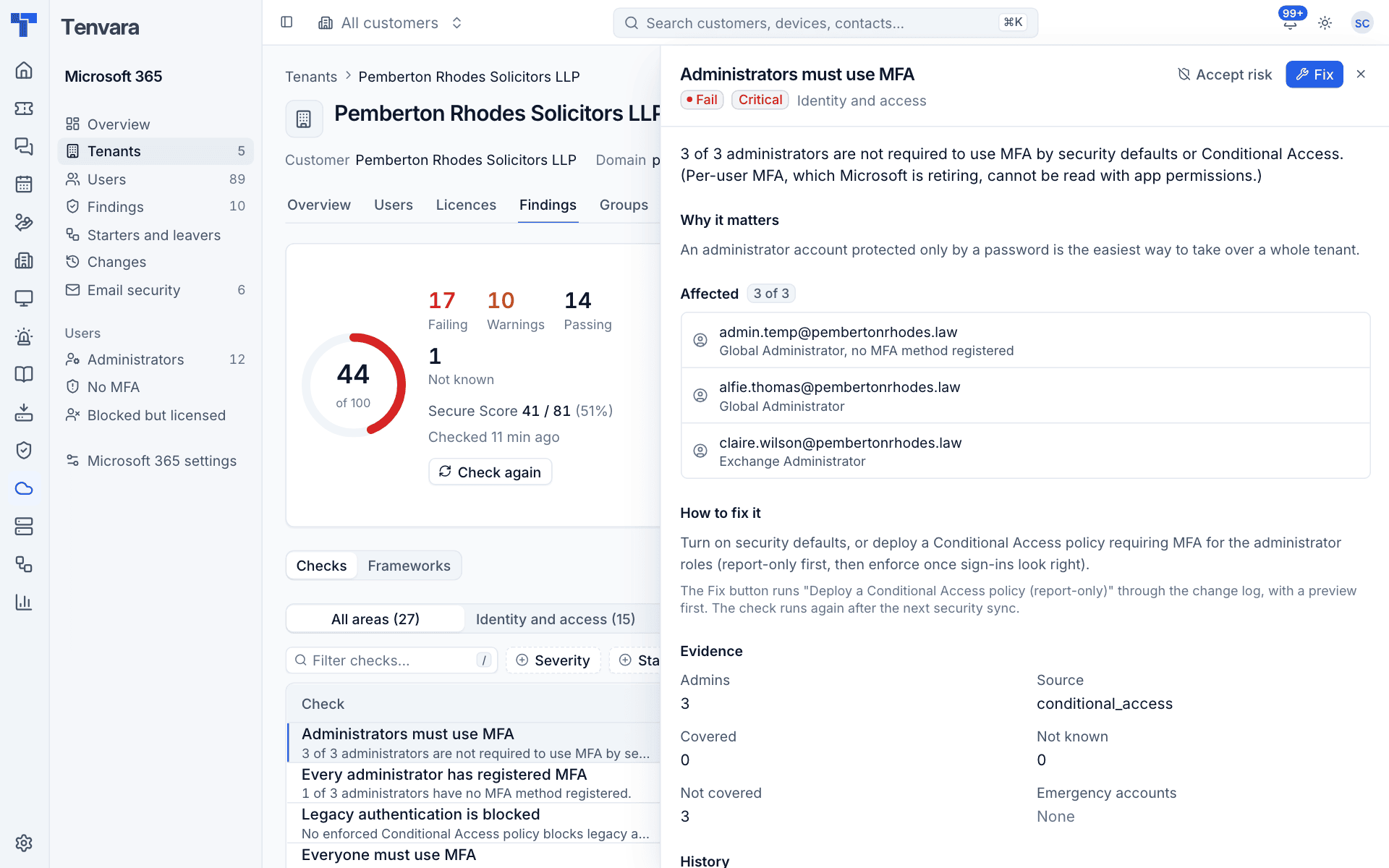
Click a check to open a side panel with why it matters, how to fix it, and each tenant's result with Fix and Accept risk buttons beside it.
A tenant's findings
Open a tenant and go to Findings. The top shows:
- The posture score out of 100, with counts of Failing, Warnings, Passing and Not known.
- Microsoft's Secure Score for comparison.
- Check again, which reads the tenant's security settings and sign-ins now.
- A Trend chart of the posture score and Secure Score, daily.
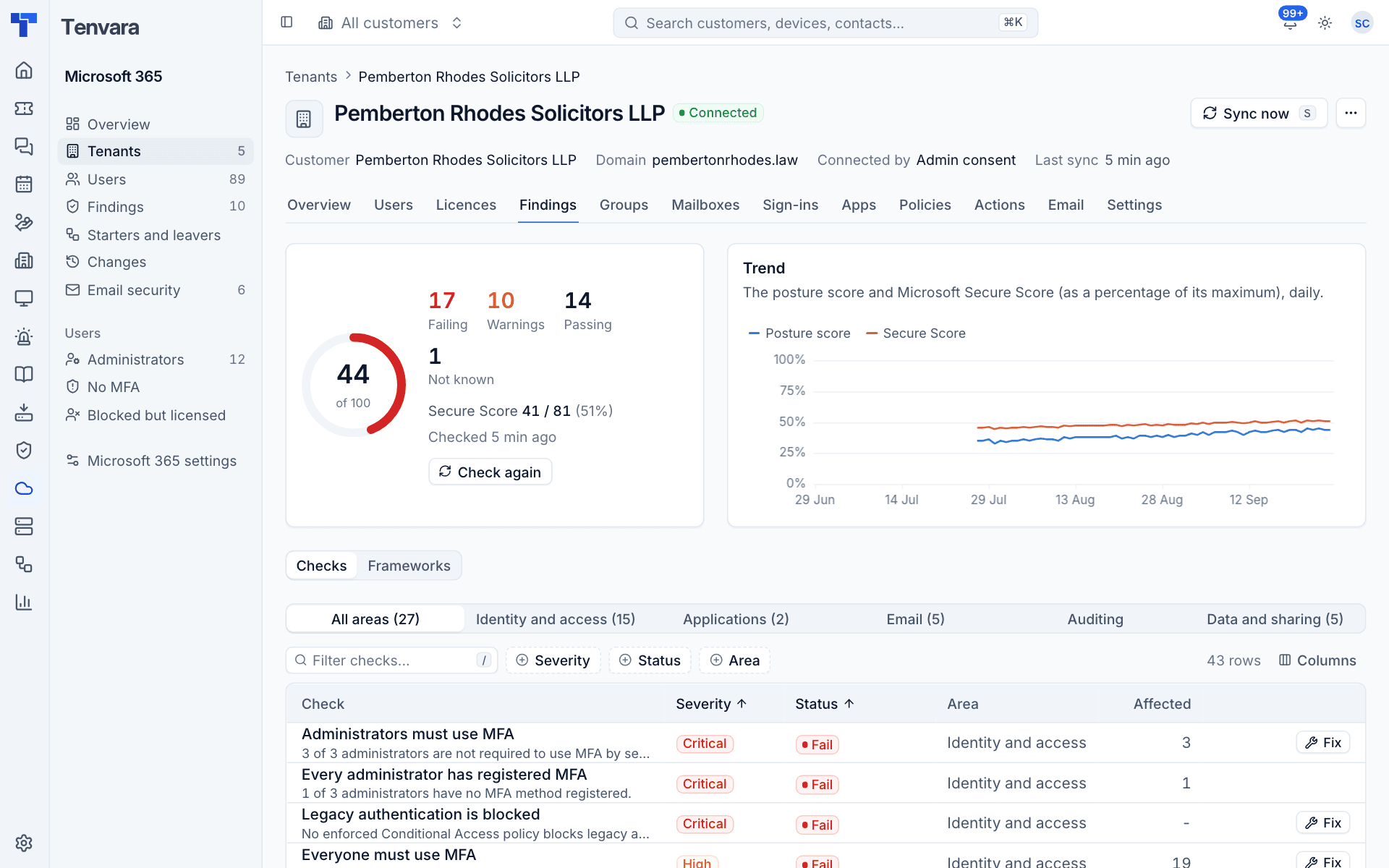
Below are two tabs, Checks and Frameworks. The checks are grouped into areas: Identity and access, Applications, Email, Auditing and Data and sharing.
Results
| Result | Meaning |
|---|---|
| Pass | The check is met |
| Warning | Mostly met, with something to look at |
| Fail | Not met |
| Not known | Tenvara could not read what it needs. Never counted as a pass |
| Not applicable | The tenant does not have the licence the check needs, such as Entra ID P1 or Defender for Office 365 |
| Accepted | Someone accepted the risk until a date |
The score
Each check carries points by severity: critical 40, high 25, medium 12, low 5. A pass earns all of them, a warning half, a fail none. Not known, not applicable and accepted checks count on neither side.
What is checked
A selection of the checks, by area:
- Identity and access: administrators must use MFA, every administrator has registered MFA, everyone must use MFA, legacy authentication is blocked, two to four Global Administrators, emergency access accounts exist, high-risk countries blocked, access restricted by IP address, device code sign-in blocked, idle browser sessions time out, Authenticator number matching, the MFA registration campaign, Temporary Access Pass set up safely, guest access restricted, stale guests, shared mailboxes cannot sign in, inactive accounts, blocked users do not hold licences, the sign-in page is branded.
- Applications: users cannot consent to apps, users cannot register apps or create tenants.
- Email: automatic forwarding outside is blocked, no mailbox forwards outside, no suspicious inbox rules, modern authentication, Safe Attachments, Safe Links, DMARC, SPF, DKIM, Outlook tags mail from outside.
- Auditing: the unified audit log is on, mailbox auditing on by default, every mailbox is audited.
- Data and sharing: SharePoint sharing needs a signed-in guest, guests cannot reshare files, only chosen people create sites and groups, a leaver's OneDrive is kept for a year, Teams talks only to chosen organisations, anonymous people wait in the Teams lobby.
Note: Emergency access (break-glass) accounts are recognised, not configured: an enabled Global Administrator left out of every enforced Conditional Access policy. The MFA checks leave them out and say so, so a well-run tenant does not fail for following Microsoft's advice.
Looking at one check
Click a check to open it. You see the summary, Why it matters, every Affected user, mailbox, app or policy, How to fix it, the Evidence the check used, and its History (when it was last checked, the status since, when it first failed and every change of status).
Fixing a finding
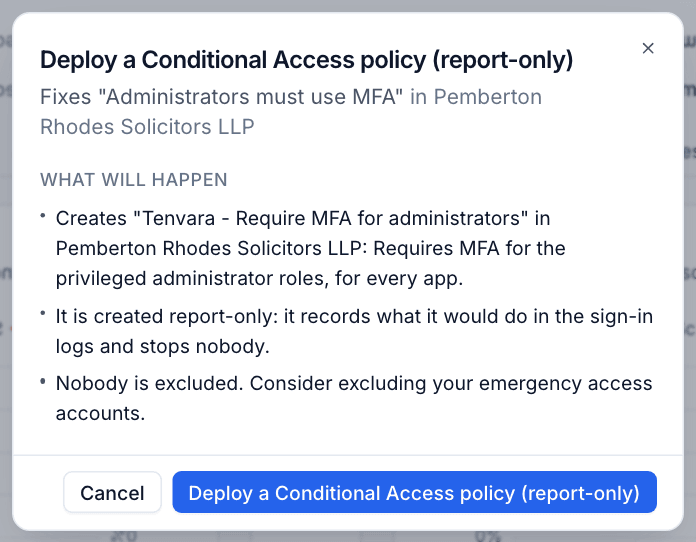
Many checks have a Fix button. It runs the matching change through the change log, with a preview first.
- Press Fix on the check (in the list, the side panel or the check itself).
- Read the preview. For Conditional Access, the policy is created report-only: it records what it would do in the sign-in logs and stops nobody.
- Confirm. The tenant's security settings are read again shortly afterwards and the check runs again.
Fixes include deploying Conditional Access templates, switching on number matching, the registration campaign and Temporary Access Pass, restricting user consent, app registration and guest access, tightening SharePoint sharing and site creation, keeping OneDrive for a year, switching on the audit log, mailbox auditing, modern authentication, the external sender tag and Safe Attachments, blocking automatic forwarding, and DKIM per domain. Some checks have per-object fixes, such as blocking sign-in for a stale guest or disabling a suspicious rule.
Some checks are fixed by hand, for example the number of Global Administrators or the sign-in page branding. Teams checks have Open admin centre instead, because Teams settings cannot be changed app-only.
Tip: Every tenant setting a fix changes is recorded with its value before, so it can be put back from the change log. See Making changes safely.
Accepting a risk
When a finding is deliberate (for example the customer archives mail with their own tool), accept it rather than leaving it red.
- Press Accept risk on the check for that tenant.
- Enter Why is it accepted?: who agreed and why. Everyone sees this beside the finding.
- Choose Until, at most two years ahead.
- Press Accept risk.
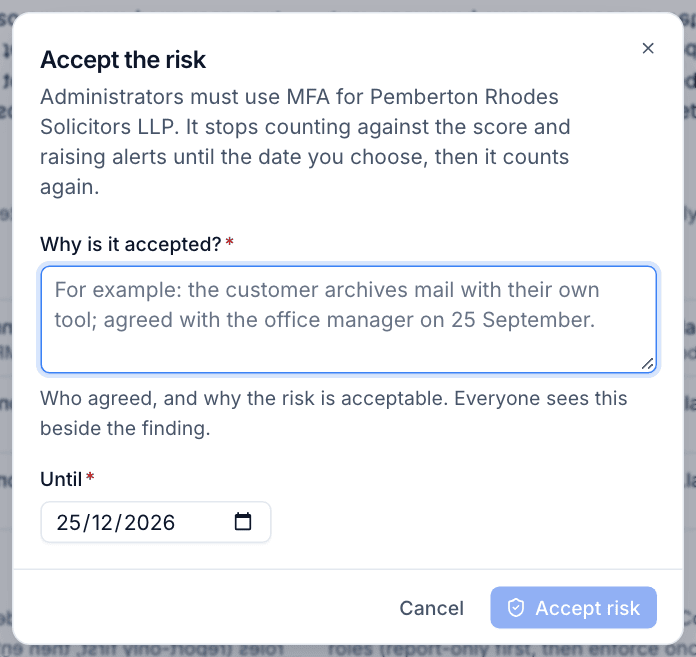
While accepted, the check shows as accepted everywhere and counts on neither side of the score, and its alert is cleared. It counts again after the date or when the acceptance is withdrawn.
Frameworks
The Frameworks tab maps the checks to four frameworks: CIS Microsoft 365 Foundations Benchmark (3.1), NIST Cybersecurity Framework (2.0), CISA SCuBA Microsoft 365 baselines and ACSC Essential Eight (Maturity Level 2). Each shows a score with how many controls are met, partly met, not met and to check by hand.
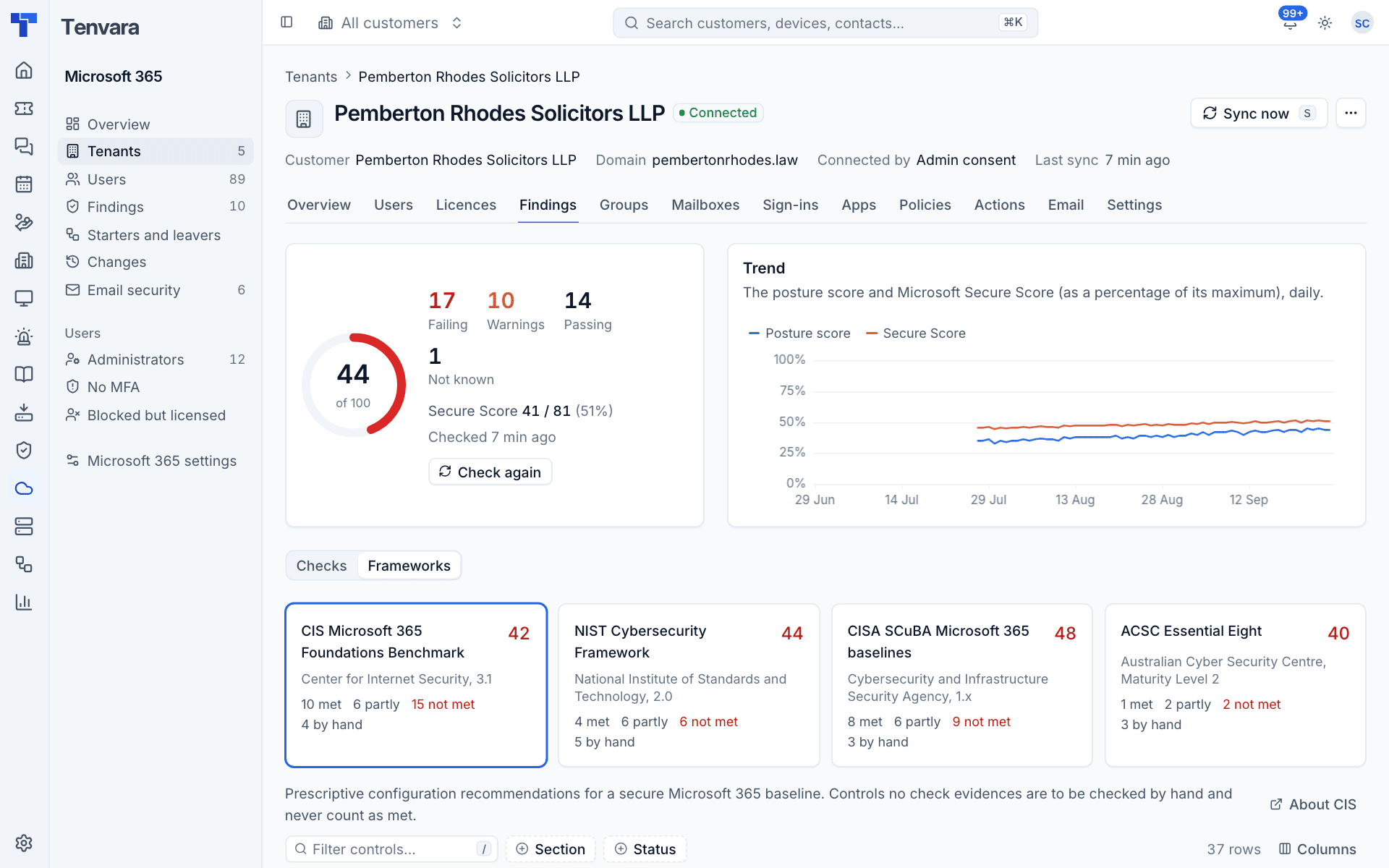
Choose a framework to list its controls with the Section, Status and the checks that evidence each. A control no check covers is marked to check by hand and never counts as met. A control with a check that is not known is never counted as met either.
Check settings
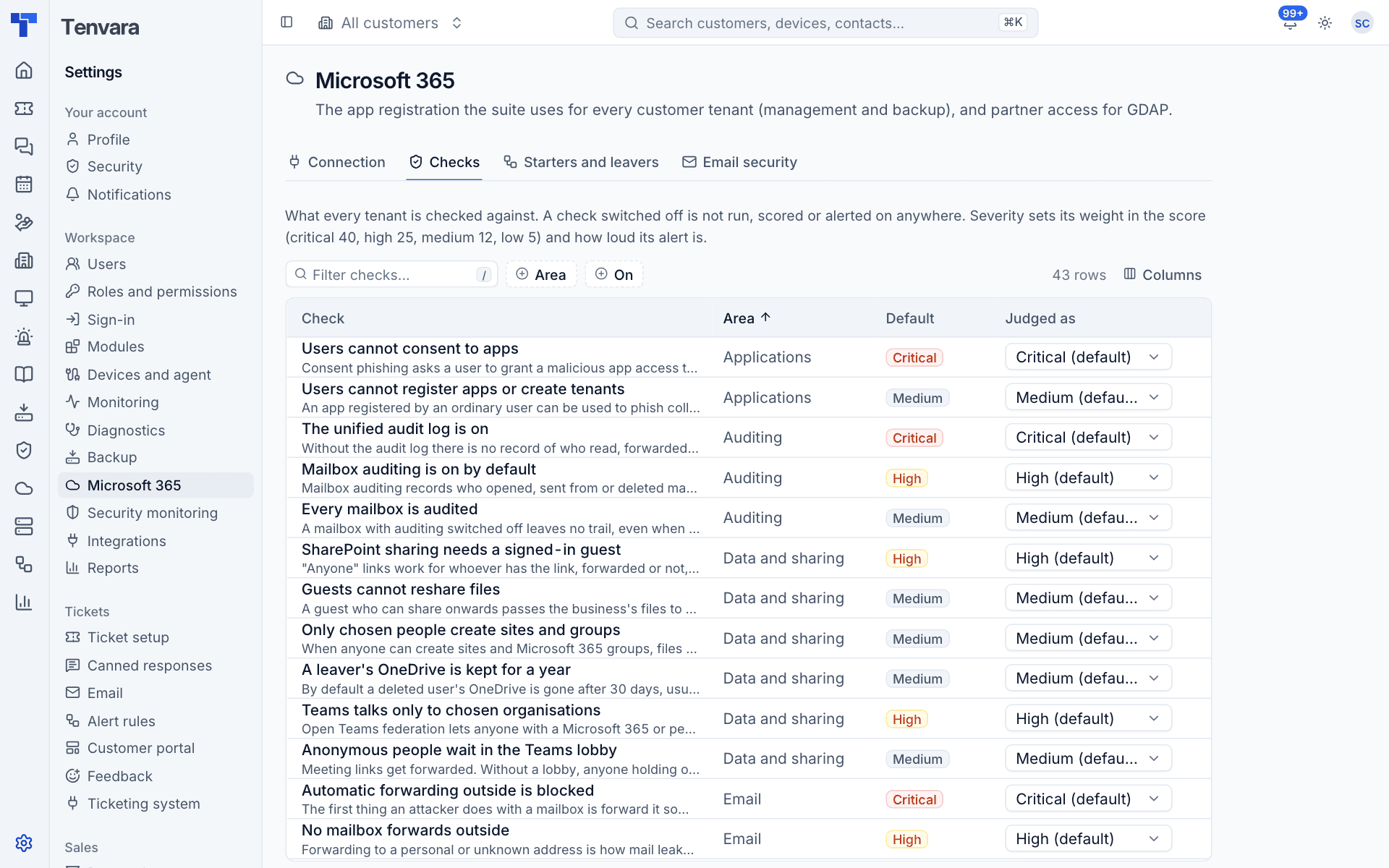
Administrators can change how checks behave in Settings > Microsoft 365 > Checks. Each check shows why it matters, its Area, its Default severity and how it is Judged as. Switch a check off to stop it being run, scored or alerted on anywhere, or change its severity to change its weight in the score and how loud its alert is.
Alerts
A check that starts failing raises one alert at its severity (critical checks as critical, high and medium as warnings, low as information), cleared when it passes, stops applying, is switched off or gets an exception. It is raised once per failing spell, so resolving the alert while a fix is pending does not page you again.
Was this page helpful?
Thanks for the feedback.