Email to ticket and alert rules
Connect a support mailbox so mail becomes tickets and replies, follow what happened to every message, and choose which alerts open tickets.
Two things open tickets without anyone typing them in: mail to your support mailboxes, and alerts that match an alert rule. Both are set up under Settings.
Support mailboxes
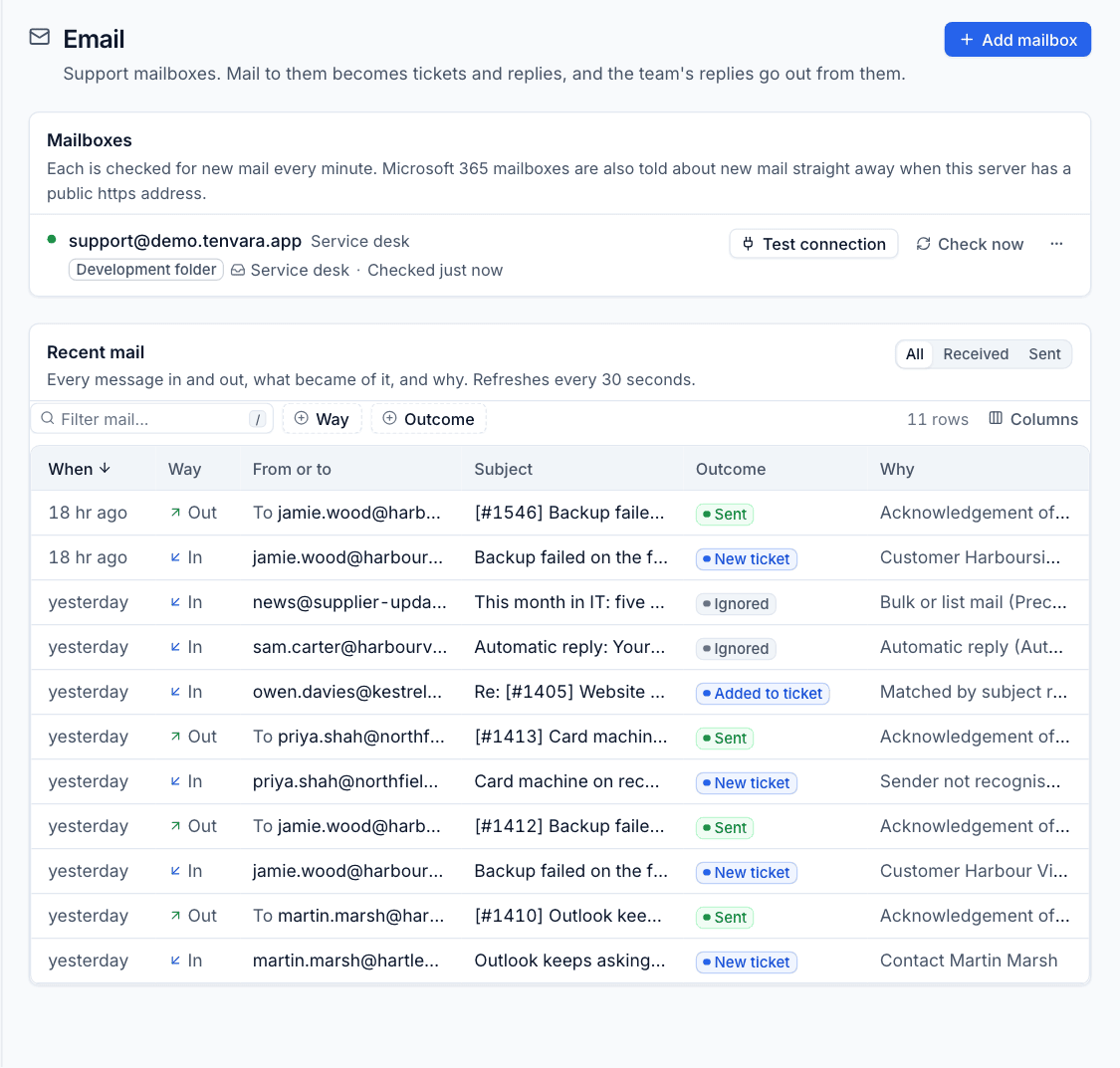
Settings > Email lists your support mailboxes. Mail to them becomes tickets and replies, and your team's public replies go out from them. Internal notes are never emailed.
What you need in Microsoft 365
A Microsoft 365 mailbox connects through an app registration in Microsoft Entra:
- In the Entra admin centre, register an app for Tenvara.
- Give it the Microsoft Graph application permissions
Mail.ReadWriteandMail.Send, and grant admin consent. - Create a client secret and copy its value (not its ID).
- Limit the app to the support mailbox with an Exchange Online application access policy, so it cannot read other mailboxes:
New-ApplicationAccessPolicy -AppId <application-client-id> `
  -PolicyScopeGroupId support@yourmsp.co.uk `
  -AccessRight RestrictAccess `
  -Description "Tenvara support mailbox only"
Add the mailbox
- In Settings > Email, press Add mailbox.
- Enter the Name mail goes out under, and the mailbox Address.
- Under Connection, choose Microsoft 365 and enter the Directory (tenant) ID, Application (client) ID and Client secret. The secret is stored encrypted and never shown again.
- Under New tickets, choose the Queue tickets from this mailbox land in.
- Leave Acknowledge new tickets on to reply to whoever opened a ticket by email with its reference. Edit the Acknowledgement text if you like:
{name}is their first name,{reference}the ticket number,{subject}its subject and{mailbox}this mailbox's name. - In After handling, move mail to, enter a folder under the Inbox to file processed mail into (it is created if missing). Leave it blank to leave mail in the Inbox, marked as read.
- Leave Enabled on and press Add mailbox.
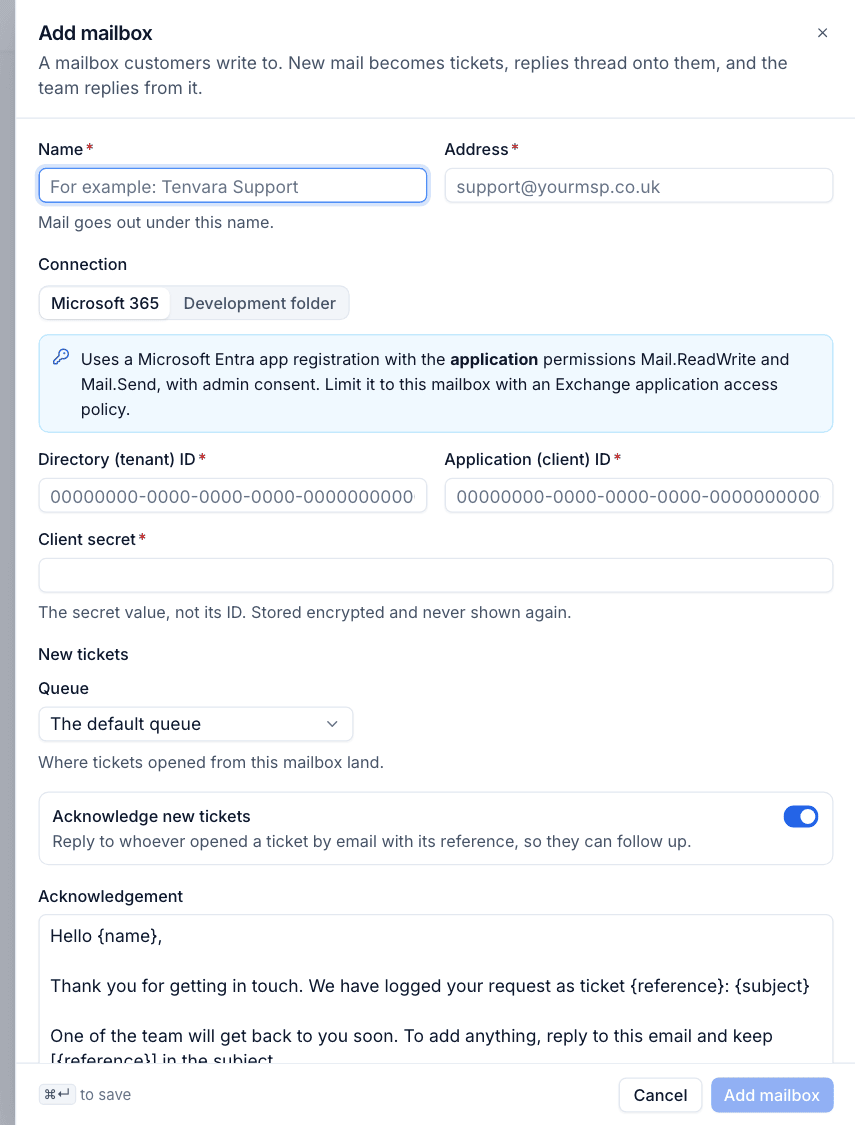
Press Test connection on the mailbox to check the details, and Check now to fetch mail straight away.
Each mailbox is checked every minute. When your Tenvara server has a public https address, Microsoft 365 also tells Tenvara about new mail as it arrives, so tickets appear within seconds.
Note: Development folder is a connection for trying Tenvara out without a real mailbox. It reads and writes mail as files on the server. Use Microsoft 365 for live mailboxes.
How mail is matched
When mail arrives, Tenvara decides whether it is a reply to an existing ticket. The first match wins:
- A
[#1234]reference in the subject, when the sender is on that ticket or belongs to its customer. - The email headers pointing at a message Tenvara sent.
- The Microsoft 365 conversation it belongs to.
- A bare
#1234in a reply subject from someone already on that ticket.
If none match, it is a new ticket. The sender is matched to a contact, else to a customer by their email domain, else the ticket waits in triage with no customer.
Replies have quoted history and common signatures stripped, so the conversation stays readable. Tenvara ignores automatic replies, bounces, bulk and mailing list mail, mail from its own mailboxes and floods from one sender.
Outgoing mail
Replies go from the mailbox the customer last wrote to (else the one for the ticket's queue, else the first enabled mailbox), with the subject [#1234] Subject so the answer threads back. Each reply on the ticket shows whether it was emailed, and a failed one can be sent again.
The mail log
Recent mail, under the mailboxes, lists every message in and out, what became of it and why. Filter by Way (in or out) and Outcome, or switch between All, Received and Sent. It refreshes every 30 seconds. Typical outcomes:
| Outcome | Why |
|---|---|
| New ticket | For example "Contact Martin Marsh", "Customer ... by email domain" or "Sender not recognised, waiting in triage" |
| Added to ticket | For example "Matched by subject reference" |
| Ignored | For example "Automatic reply" or "Bulk or list mail" |
| Sent | For example "Acknowledgement of a new ticket" |
Tip: When a customer says "I emailed you and nothing happened", the mail log tells you in seconds whether the message arrived and what Tenvara did with it.
Alert rules
Every part of Tenvara raises alerts: monitoring, backup, security, Microsoft 365, infrastructure and more. Settings > Alert rules decides which of them become tickets. Rules are tried from the top, and the first enabled rule that matches decides. An alert that no rule matches stays in the alert list without a ticket.
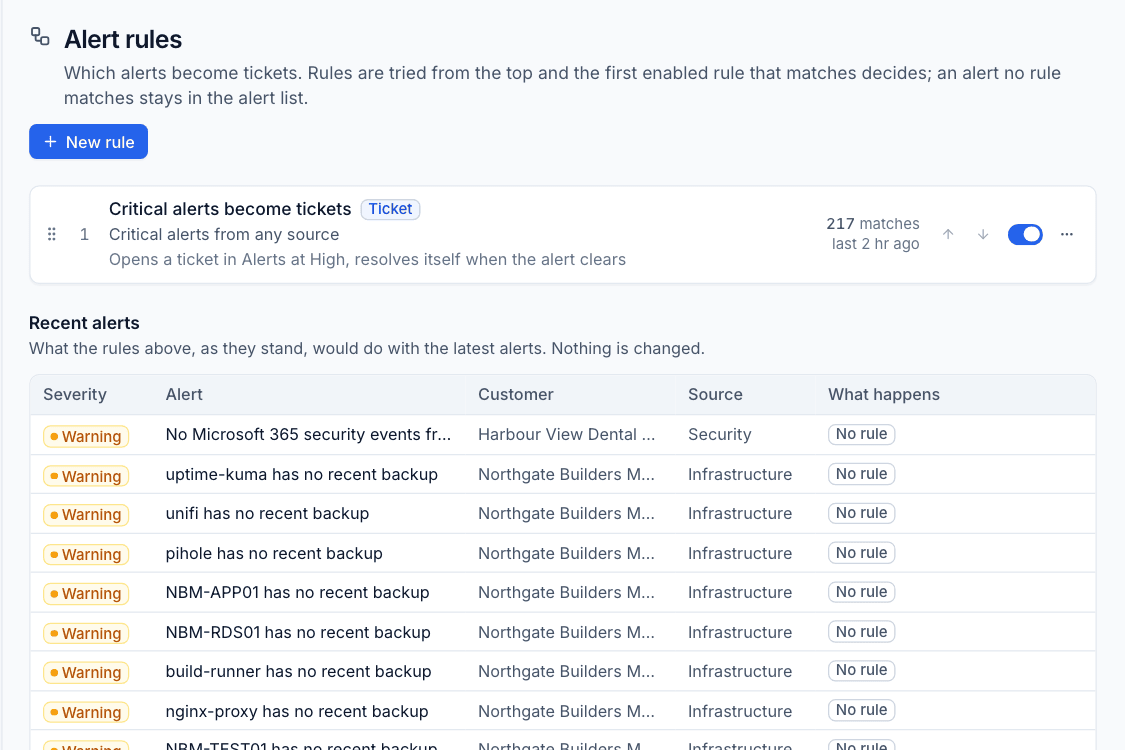
Each rule shows what it matches, what it does, how many alerts it has matched and when it last did. Drag rules or use the arrows to change the order, and use the switch to turn a rule off.
Add a rule
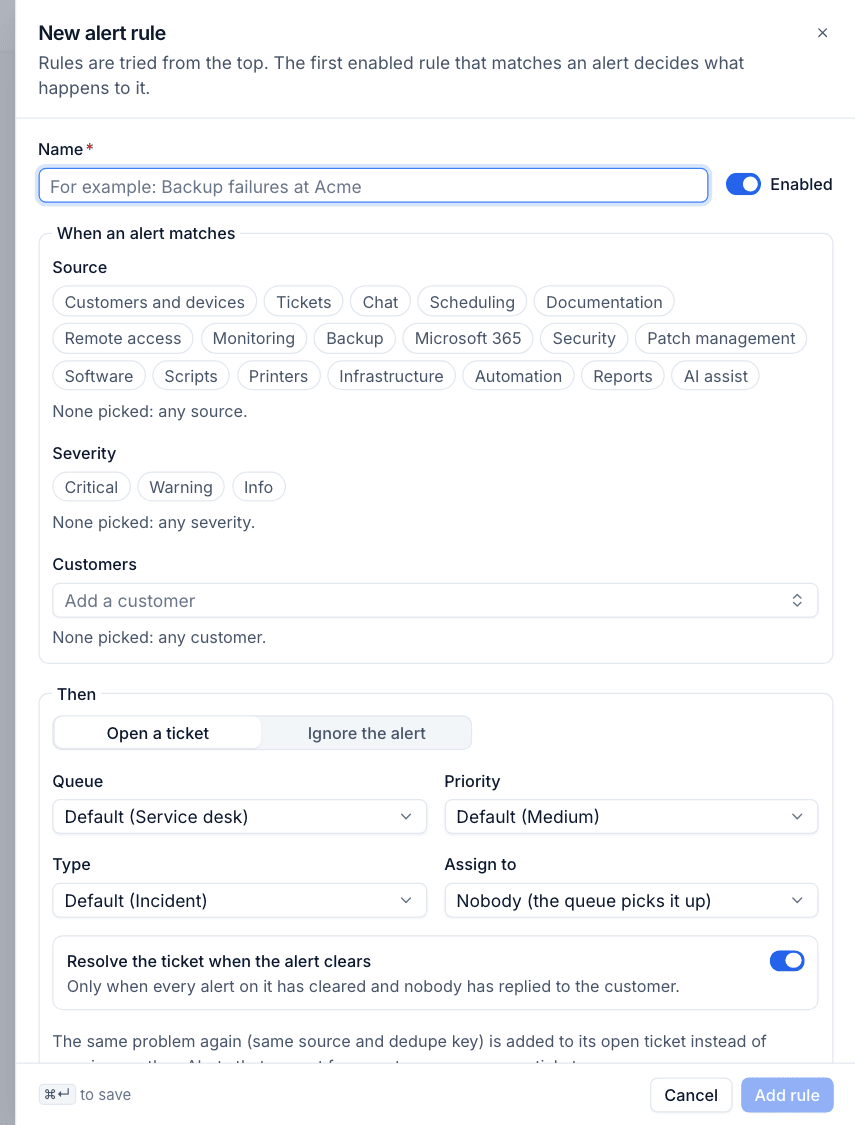
- Press New rule and enter a Name, such as "Backup failures at Acme".
- Under When an alert matches, pick the Source modules, the Severity (Critical, Warning, Info) and the Customers. Leave any of them empty to match all.
- Under Then, choose Open a ticket or Ignore the alert.
- For a ticket, choose the Queue, Priority, Type and who to Assign to (or nobody, so the queue picks it up).
- Leave Resolve the ticket when the alert clears on to close the loop by itself. It only resolves once every alert on the ticket has cleared and nobody has replied to the customer.
- Use Test against recent alerts to see what the rule would have caught.
- Press Add rule.
What happens after
- One open ticket per problem: the same alert again (same source and the same underlying issue) is added to its open ticket instead of opening another.
- An alert that comes back within a day of its ticket resolving by itself reopens that ticket.
- Alerts that are not for a customer never open tickets.
Recent alerts, under the rules, shows what the rules as they stand would do with the latest alerts. Nothing is changed, so it is a safe way to check a new rule before relying on it.
Was this page helpful?
Thanks for the feedback.