Templates
The seven built-in record templates, how to change them, and how to build your own with fields, sections and tables.
A template decides what a kind of record holds. Tenvara comes with seven, and administrators can change them or add their own for anything else you document per customer.
Open Docs and choose Templates.
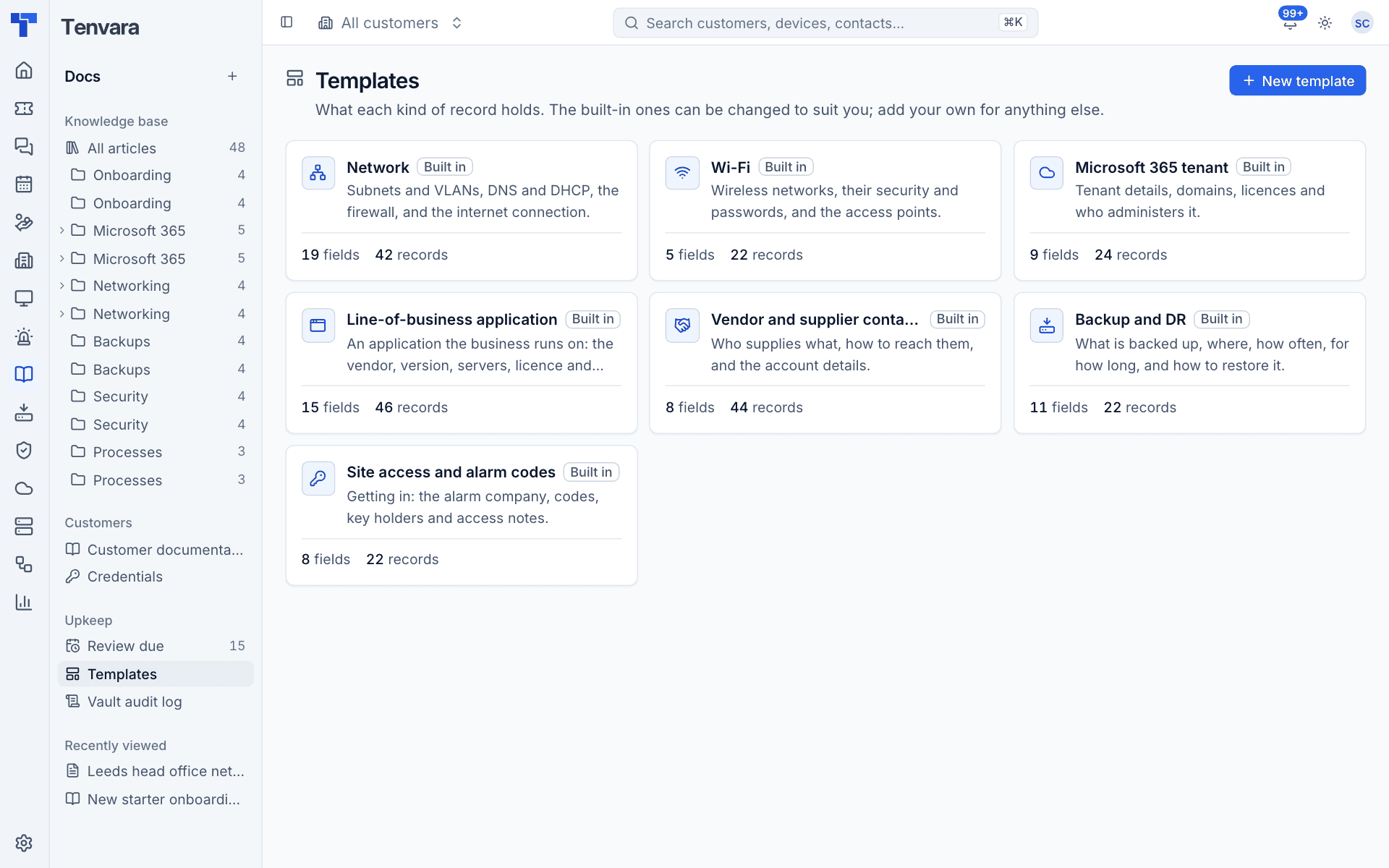
Each card shows the template's description, how many fields it has and how many records use it.
The built-in templates
| Template | Holds |
|---|---|
| Network | Subnets and VLANs, DNS and DHCP, the firewall, and the internet connection |
| Wi-Fi | Wireless networks, their security and passwords, and the access points |
| Microsoft 365 tenant | Tenant details, domains, licences and who administers it |
| Line-of-business application | The vendor, version, servers, licence and support for an application the business runs on |
| Vendor and supplier contacts | Who supplies what, how to reach them, and the account details |
| Backup and DR | What is backed up, where, how often, for how long, and how to restore it |
| Site access and alarm codes | The alarm company, codes, key holders and access notes |
Built-in templates are marked Built in. You can change them to suit you in the same way as your own.
Adding a template
- On Templates, press New template.
- Choose an Icon and enter a Name.
- Enter a Description. It is shown when people choose what to document, so say what goes in it.
- Add fields (below).
- Press Add template, or Cmd+S.
Editing a template
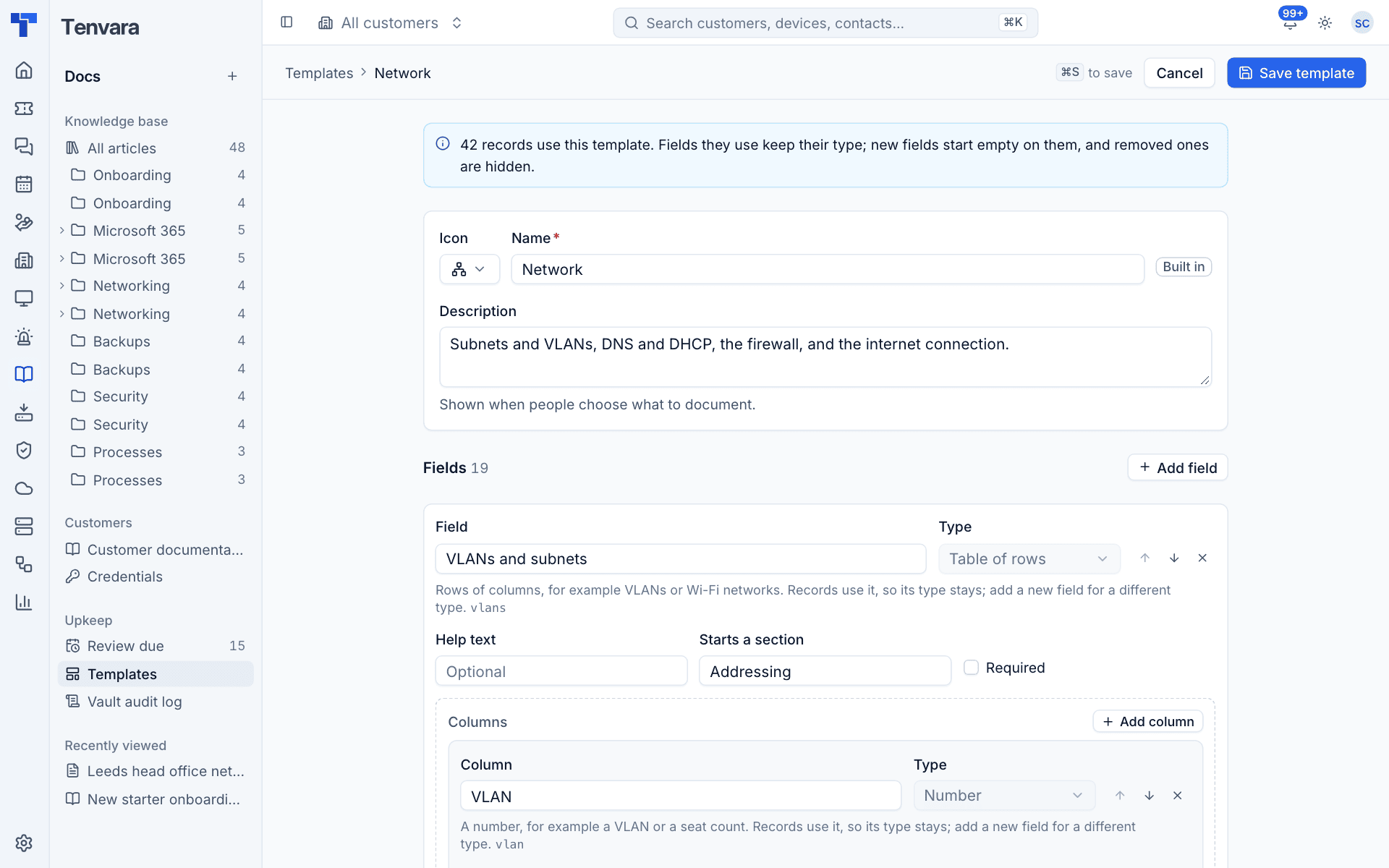
Click a template to open it. The banner at the top tells you how many records use it.
Fields
Press Add field to add one. For each field:
- Enter the Field name, for example "Management URL".
- Choose its Type.
- Optionally add Help text, shown under the field when someone fills in a record.
- To start a new headed part of the form, enter a heading in Starts a section, for example "Firewall".
- Tick Required if a record cannot be saved without it.
Use the arrows to move a field up or down, and the cross to remove it.
The field types are:
| Type | Use it for |
|---|---|
| Text | One line of text |
| Long text | Formatted notes, with the article editor |
| Number | A number, for example a VLAN or a seat count |
| Date | A date, such as when a contract ends |
| Choice | One of a list of options you set |
| Web address | A web address, shown as a link |
| Email, Phone | Shown as links you can email or call |
| IP address or range | An IP address or a CIDR range such as 10.0.0.0/24 |
| Tick box | Yes or no |
| Secret | A password or code. Stored in the vault, not the record, and every reveal is logged |
| Link | A credential, device, contact or site of the same customer. Choose what it links to under Links to |
| Table of rows | Rows of columns, for example VLANs or Wi-Fi networks. Add columns with Add column |
Rules that protect existing records
Templates can change while records use them, so Tenvara keeps a few rules to avoid losing data:
- A field's key never changes. Each field gets a key made from its name when it is first saved (shown in small type under the field). Renaming the field later does not change the key, so records keep their values.
- Types are fixed once records use them. If a field or column is in use, its type stays. Add a new field if you need a different type. The same goes for what a Link field links to.
- New fields start empty on existing records.
- Removing a field removes what records held in it straight away: values, links and secrets. Each secret deleted this way is written to the vault audit log.
Warning: Removing a field cannot be undone. If records use it, check you really want to lose those values first, especially for Secret fields.
Records are always shown as the template is now. Values of fields the template no longer has are not shown.
Tips for good templates
- Keep one template per kind of thing, and one record per instance: one Network record per site rather than one for the whole customer.
- Use Secret for anything sensitive instead of text, so it is encrypted and every look is logged.
- Use Link to a credential rather than repeating a password in a record. The credential then shows the record under Used by.
- Use sections to keep long templates readable, as the built-in Network template does with Addressing, Firewall and Internet connection.
Was this page helpful?
Thanks for the feedback.