Passwords and two-factor
Set who must use two-factor, keep break-glass administrators, and understand how sessions follow your sign-in settings.
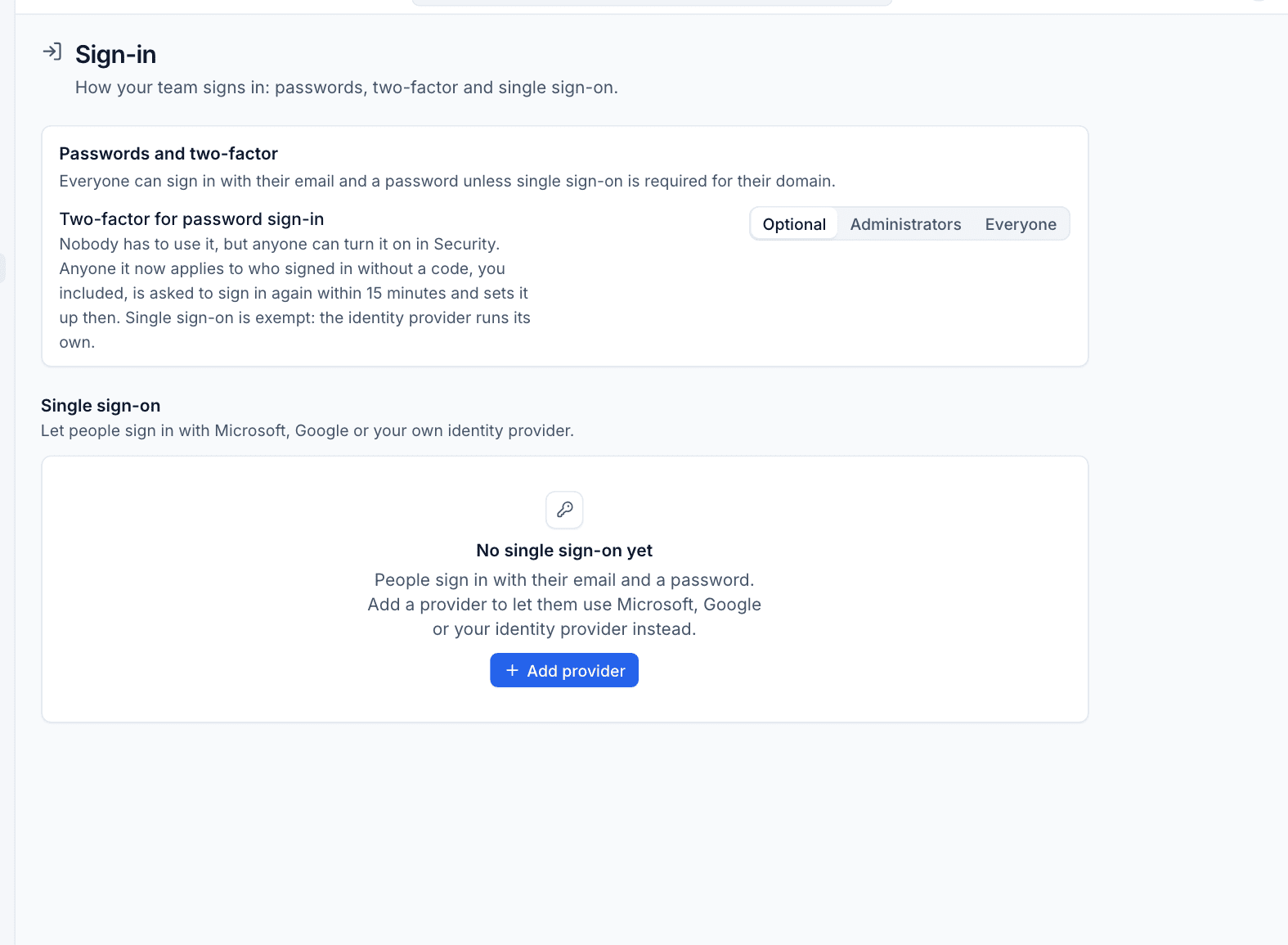
Local accounts work out of the box: everyone can sign in with their email and a password unless single sign-on is required for their domain. Settings > Sign-in decides who must also use two-factor, and shows whether you have a way in if your identity provider ever fails. Only administrators can open it.
Password rules
- Passwords are at least 12 characters. A short sentence works well.
- Changing a password, or setting a new one from a reset link, signs that account out everywhere else.
- Forgot password? on the sign-in page emails a link that works once, within 60 minutes, and at most one is sent a minute. The page answers the same way for every address, so it never reveals who has an account.
- Administrators can send the same link from Settings > Users. See Users.
The two-factor policy
Two-factor adds a code from an authenticator app to the password, with ten single-use recovery codes for a lost phone. Under Two-factor for password sign-in, choose:
| Setting | Who must use two-factor with a password |
|---|---|
| Optional | Nobody, but anyone can turn it on for themselves in Security |
| Administrators | Administrators |
| Everyone | Everyone |
Single sign-on is exempt from this policy: the identity provider runs its own multi-factor.
Requiring two-factor
- Go to Settings > Sign-in.
- Under Two-factor for password sign-in, choose Administrators or Everyone.
It applies straight away. Anyone it now covers who signed in without a code, you included, is asked to sign in again within 15 minutes and sets it up then: the sign-in page shows a QR code or key, asks for a code, shows the recovery codes once, and only then lets them in. Nobody can turn off two-factor that the policy requires.
Tip: Set up two-factor on your own account first, from Settings > Security, so you are not interrupted when you turn the policy on.
When someone loses their phone
They sign in with a recovery code and set two-factor up again. If they have none left, reset their two-factor from their user in Settings > Users. Whenever two-factor is turned on for an account, or an administrator resets it, an email goes to the account's address saying what happened and to tell an administrator straight away if it was not them.
Break-glass administrators
A problem at your identity provider must never lock everyone out of Settings. That is what break-glass administrators are for.
- Only administrators can be marked Break-glass administrator, in their user in Settings > Users. The mark goes if they stop being an administrator.
- A break-glass administrator can always sign in with their password, even where single sign-on is required for their domain, and a password reset can reach them.
- A break-glass sign-in always needs two-factor, whatever the policy above. Without it set up, they set it up at that sign-in.
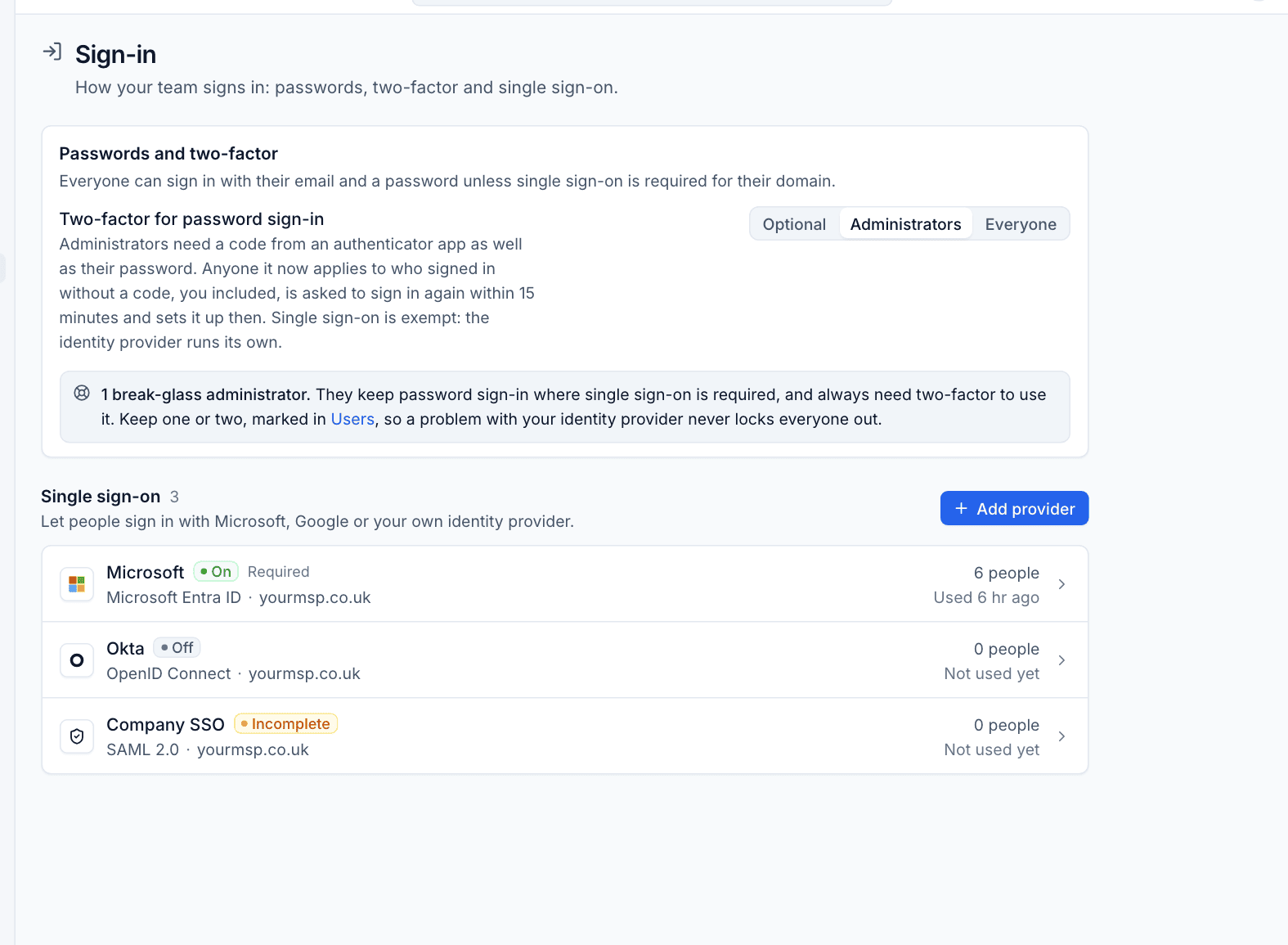
The Sign-in page says how many break-glass administrators you have: "1 break-glass administrator. They keep password sign-in where single sign-on is required, and always need two-factor to use it." Keep one or two.
What Tenvara refuses
Tenvara refuses any change that would leave no active administrator able to sign in with a password. That includes:
- turning on Require single sign-on for these domains for a domain that covers every administrator, with no break-glass administrator;
- removing, demoting, deactivating or unmarking the last break-glass administrator.
The Sign-in page warns you when no administrator can sign in with a password.
Warning: Store the break-glass administrator's password and two-factor recovery codes somewhere you can reach when your identity provider is down, such as a sealed record in your own password manager that does not itself depend on that provider.
Sessions follow the settings
A session remembers how it signed in: a password with or without two-factor, or single sign-on through a particular provider. Every refresh (at least every 15 minutes while the app is open) checks that this way in is still allowed, by the same rules as signing in. So when you:
- require two-factor, password sessions it now covers that did not use a code end, including your own, and those people set it up at their next sign-in;
- require single sign-on for a domain, password sessions in that domain end, except a break-glass administrator's session that used two-factor;
- change a provider's allowed domains, turn it off or delete it, the sessions it no longer allows end;
- deactivate a user, all their sessions end.
Nothing else is signed out, and signing in again works as usual.
Email for sign-in
Password reset links, "set your password" emails, two-factor notices, and the customer portal's sign-in links and invitations are all sent by email. On a self-hosted install, set up SMTP before relying on them: until then nothing is sent. See Installing self-hosted.
Was this page helpful?
Thanks for the feedback.