Deploys and site backups
Deploy a site from git or an uploaded build with atomic releases and instant rollback, and back sites up on the server on a schedule.
How releases work
Every managed site keeps its code in releases. A deploy builds a new release next to the live one, runs your deploy script in it, and only then switches the site over. If anything fails, the old release stays live. Files that must survive deploys live in a shared folder:
| Runtime | Kept in shared |
|---|---|
| Laravel | .env, storage |
| WordPress | wp-config.php, wp-content/uploads |
| Node.js | .env |
Environment files belong to the customer and are edited over SFTP; Tenvara does not store them.
Deploy settings
Open the site's Deploy tab and fill in Deploy settings first.
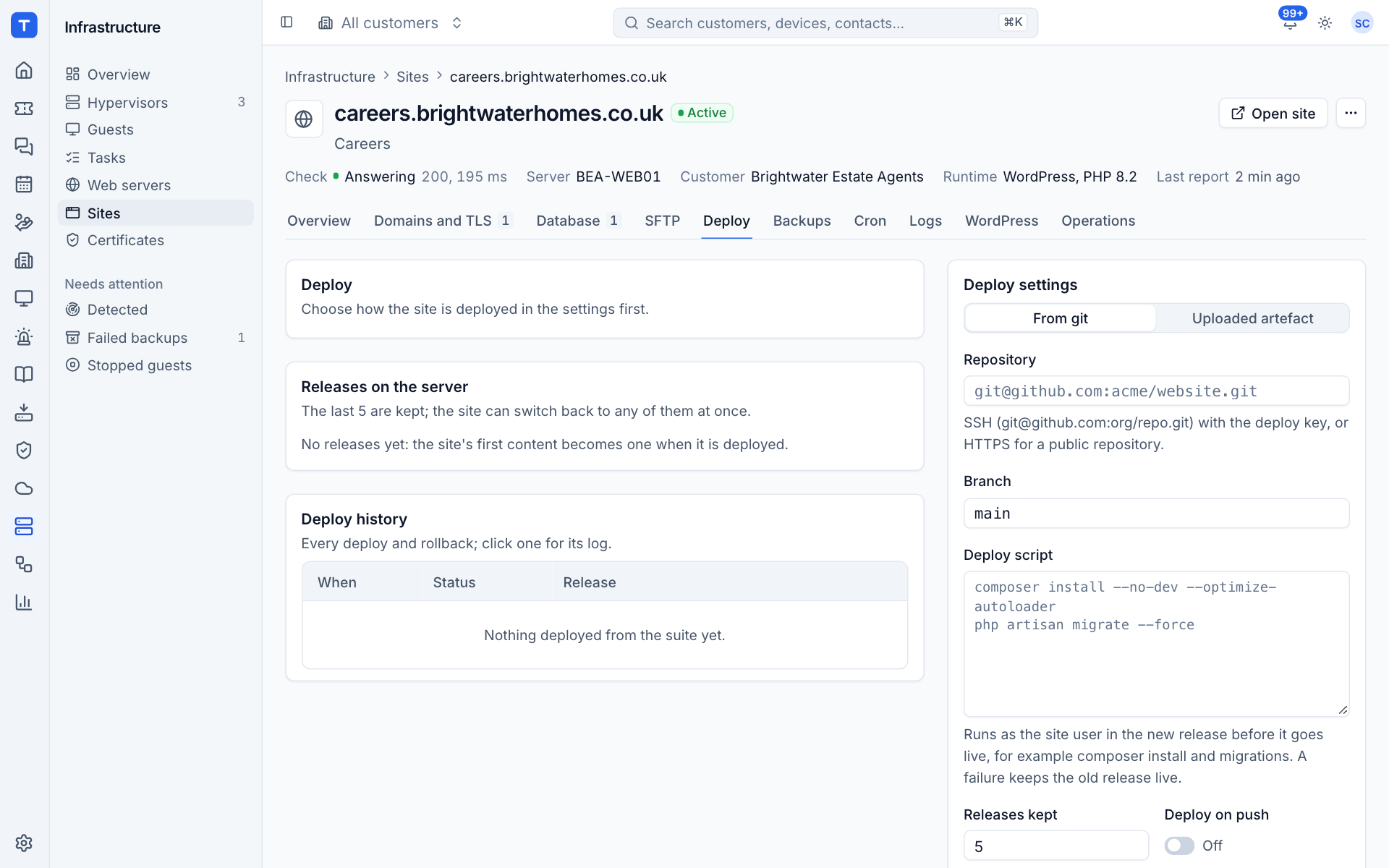
- Choose Deploy from: From git or Uploaded artefact.
- For git, enter the Repository: SSH (
git@github.com:org/repo.git) with the deploy key, or HTTPS for a public repository. Enter the Branch. - Optionally enter a Deploy script. It runs as the site user in the new release before it goes live, for example:
A failure keeps the old release live.composer install --no-dev --optimize-autoloader php artisan migrate --force - Set Releases kept (2 to 20). Older releases are removed after each deploy.
- Turn on Deploy on push if you want pushes to the branch to deploy automatically (see the webhook below).
- Press Save settings.
The deploy key
For a private repository, create the key under Deploy key and add its Public key to the repository as a read-only deploy key. The private half never leaves the server. Replacing the key makes a new pair; deploys fail until the new public key replaces the old one in the repository.
Deploy on push
- Turn on Deploy on push and save.
- Under Webhook, press Create secret. The secret is shown once: paste it into the repository's webhook settings now.
- In GitHub (or a compatible host), add a push webhook to the Webhook URL, content type
application/json, with that secret.
Pushes to the configured branch then deploy. Pushes signed with an old secret are refused. With Deploy on push off, pushes are acknowledged and ignored.
Deploying
- From git: press Deploy, optionally enter a Branch, tag or commit (empty deploys the configured branch), and confirm.
- Uploaded artefact: upload a
.zipor.tar.gzof the built site. It becomes a new release, and the site switches over only when the deploy script succeeds.
Progress and the script's output stream on the page. Deploy history lists every deploy and rollback with its status, release, and who (or the webhook) started it; click one for its log.
Rolling back
Releases on the server lists the kept releases, with the Live one marked. To go back:
- Choose Rollback beside an older release.
- Confirm Roll back.
The site switches to that release at once. Shared files (.env, uploads, storage) stay as they are, so a database change made since is not undone.
Site backups
Open the site's Backups tab. Backups are kept on the web server itself under its backup folder, which protects against mistakes and bad deploys.

Note: Because these backups live on the same server, protect the server with Backup as well for a copy elsewhere.
Back up now
Press Back up now. The backup holds the site's files and its databases, and appears in the list with when it was taken, what it holds, its size and whether the schedule or a person made it.
Set a schedule
- Under Schedule, choose How often: off, daily, every 6 hours or weekly.
- For weekly, choose the Day; for daily and weekly set the Time (UTC).
- Set Keep for (days), from 1 to 365. Older backups are pruned after each run.
- Under Include, choose Files and which Databases.
- Press Save schedule.
Restore
- Choose restore on a backup.
- Choose what to bring back: Files (the site's code and uploads, as a new release) and each database (its contents are replaced; a database no longer on the server is created again).
- Confirm. The site goes into maintenance while it restores.
Delete backup removes a backup from the server.
Backup and deploy alerts
- Backup failed: the last backup of a site failed. Clears with the next good one.
- Backup missed: no good backup within twice the schedule's interval.
- Operation failed: a deploy or other operation failed. Clears when the same operation succeeds.
Running backups and deploys that have not finished after three hours are marked failed.
Was this page helpful?
Thanks for the feedback.