Setting up AI
Add your Anthropic key, choose features and models, decide when AI acts by itself, and set the house style.
AI assist is set up in Settings > AI, which is for administrators. It has five tabs: General, Costs and usage, Customers, Prompts and fixes and Activity. This page covers General and the house style on Prompts and fixes.
Adding your Anthropic key
- Sign in to the Anthropic Console at console.anthropic.com and create a key under API keys. Make sure the workspace has billing set up.
- In Tenvara, go to Settings > AI > General.
- Paste the key into Key under Anthropic API key.
- Click Save key. Tenvara tests it with one tiny call.
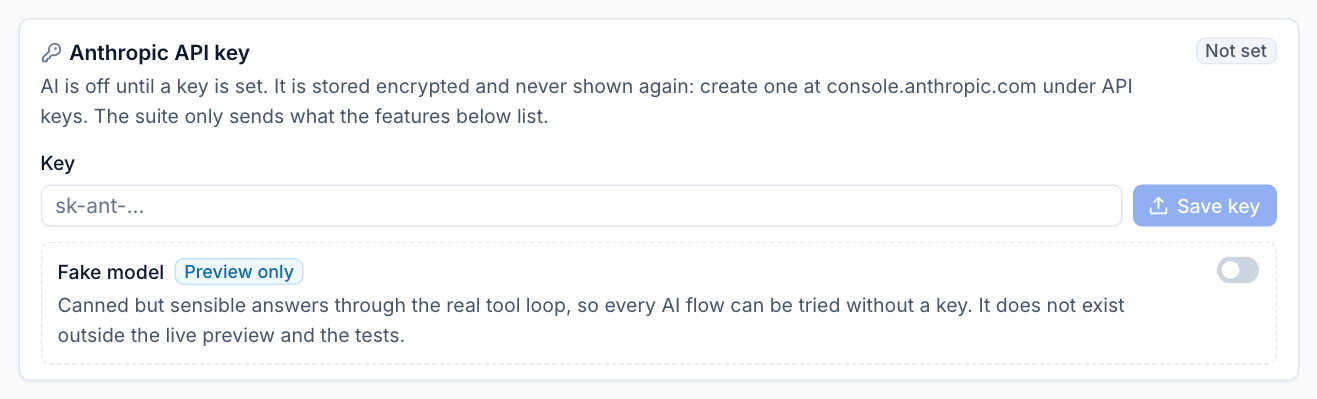
The key is stored encrypted and never shown again: afterwards Tenvara only says that a key is set and shows its last four characters. You can replace it or remove it at any time. Removing it switches every AI feature off.
Tip: Create a separate key (or workspace) in the Anthropic Console just for Tenvara. You can then see and limit its spend on Anthropic's side as well as with Tenvara's own caps.
Features and models
Under Features and models, each feature has a switch, a Model and an Effort.
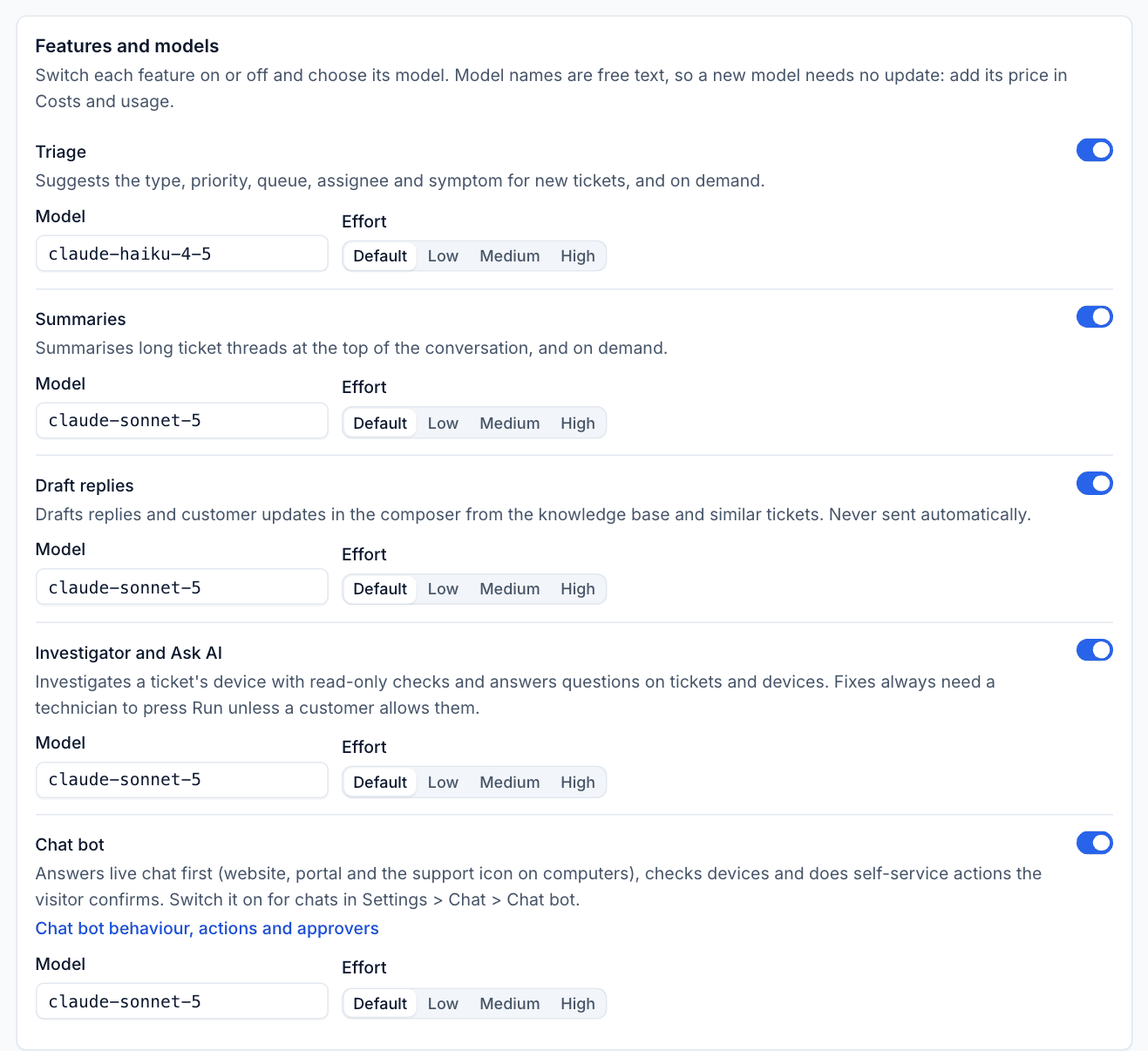
| Feature | Default model |
|---|---|
| Triage | claude-haiku-4-5 |
| Summaries | claude-sonnet-5 |
| Draft replies | claude-sonnet-5 |
| Investigator and Ask AI | claude-sonnet-5 |
| Chat bot | claude-sonnet-5 |
- Switch a feature off to hide it everywhere.
- Model is free text, so when Anthropic releases a new model you can type its name without waiting for a Tenvara update. Add its price in Costs and usage too, or its calls will show as free and the caps cannot see them.
- Effort is Default, Low, Medium or High. Higher effort can give better answers on harder problems, at more cost and time. Effort is never sent to Haiku models, which do not support it.
The Chat bot row only sets its model. Its behaviour, actions and approvers are in Settings > Chat > Chat bot.
When AI steps in by itself
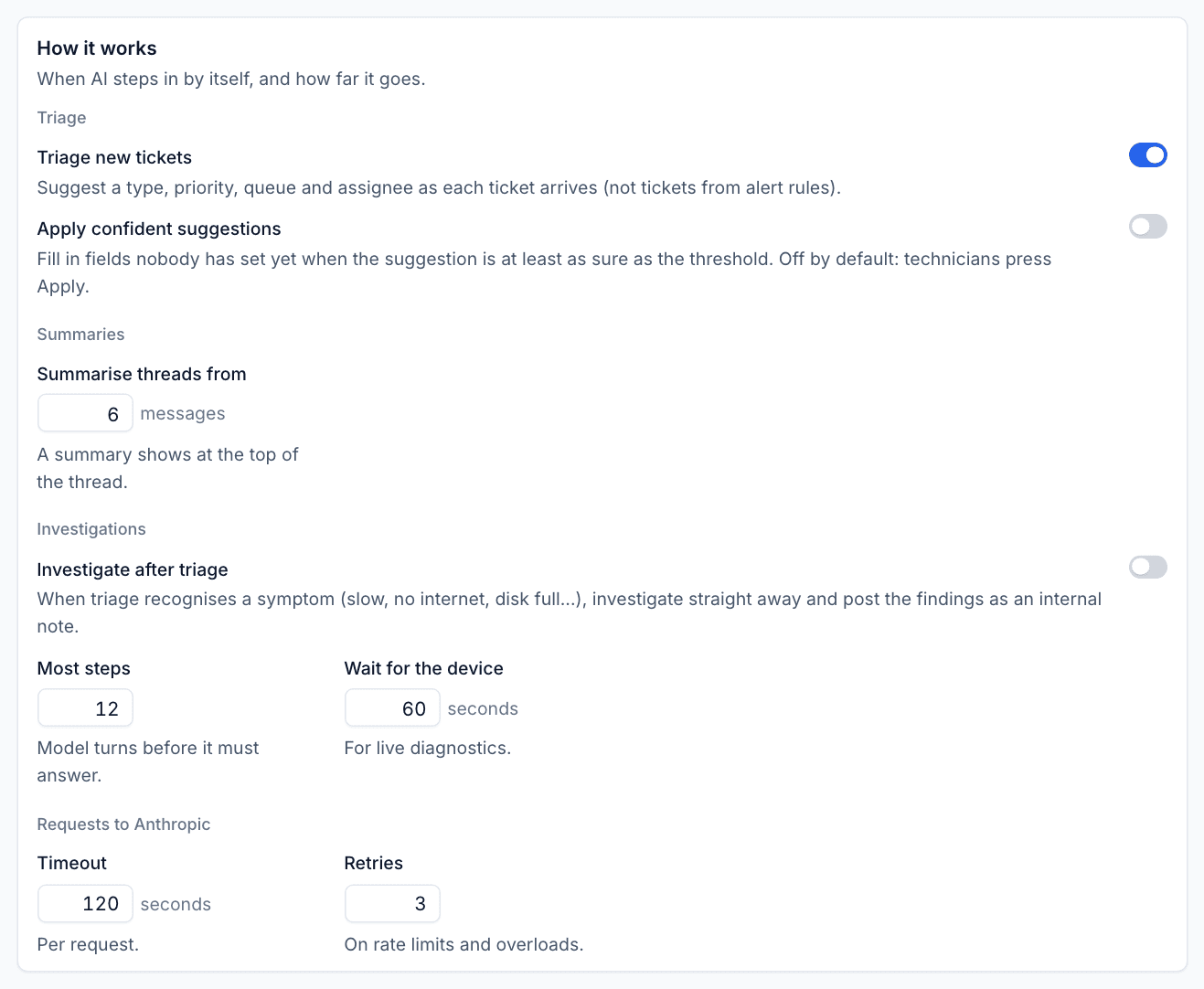
How it works decides what AI does without being asked.
Triage
- Triage new tickets (on by default): suggest a type, priority, queue and assignee as each ticket arrives. Tickets opened by alert rules are skipped, because the rule already set their fields.
- Apply confident suggestions (off by default): fill in fields nobody has set yet when the suggestion is at least as sure as the threshold (85% by default). Suggestions never overwrite a field someone already changed.
Summaries
- Summarise threads from: a summary appears at the top of a thread once it has this many messages (6 by default). It is made when someone opens the ticket, not on every message, so a busy thread costs one call per change that anyone reads.
Investigations
- Investigate after triage (off by default): when triage recognises a symptom such as slow, no internet or disk full, investigate straight away and post the findings as an internal note.
- Most steps: how many model turns an investigation may take before it must answer (12).
- Wait for the device: how long to wait for live diagnostics from the device (60 seconds). Offline devices are reported straight away rather than waited for.
Requests to Anthropic
- Timeout: seconds per request (120).
- Retries: how many times to retry on rate limits and overloads (3). If Anthropic asks Tenvara to wait more than 30 seconds, it stops and says it was rate limited, rather than leaving a technician watching a spinner.
House style
On Settings > AI > Prompts and fixes, House style sets how drafts and customer updates sound:
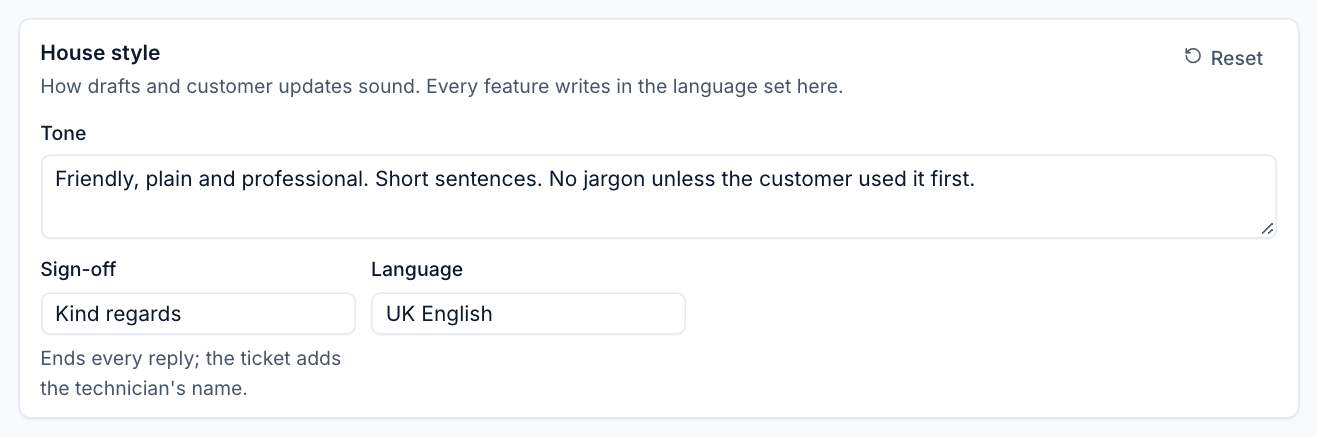
- Tone: for example "Friendly, plain and professional. Short sentences. No jargon unless the customer used it first."
- Sign-off: ends every reply. The ticket adds the technician's name.
- Language: every feature writes in this language, for example UK English.
Prompts
Under Prompts you can read and change what each feature is told to do: Triage, Summaries, Draft replies, Customer updates, Investigator and Ask AI, Ask AI and Chat bot. Each has a reset to the default. The rules that stop customer text being taken as instructions, and that AI only reads and suggests, are always added after your prompt and cannot be removed.
The investigation playbooks and fixes on the same tab are covered in Investigations, Ask AI and fixes.
Checking it works
- Open a ticket from a customer.
- Look at AI suggestions in the right-hand panel. If Triage new tickets is on, new tickets get suggestions within a few seconds.
- Choose Summarise the thread from the ... menu, or Draft a reply from the composer.
- Go to Settings > AI > Activity to see the calls and what they cost.
Was this page helpful?
Thanks for the feedback.