Creating tickets
Log a phone call or open a ticket on someone's behalf, and understand the other ways tickets arrive on their own.
Most tickets arrive by themselves: from email, the customer portal, chats and alerts. When someone phones or stops you in the corridor, you log it yourself with New ticket.
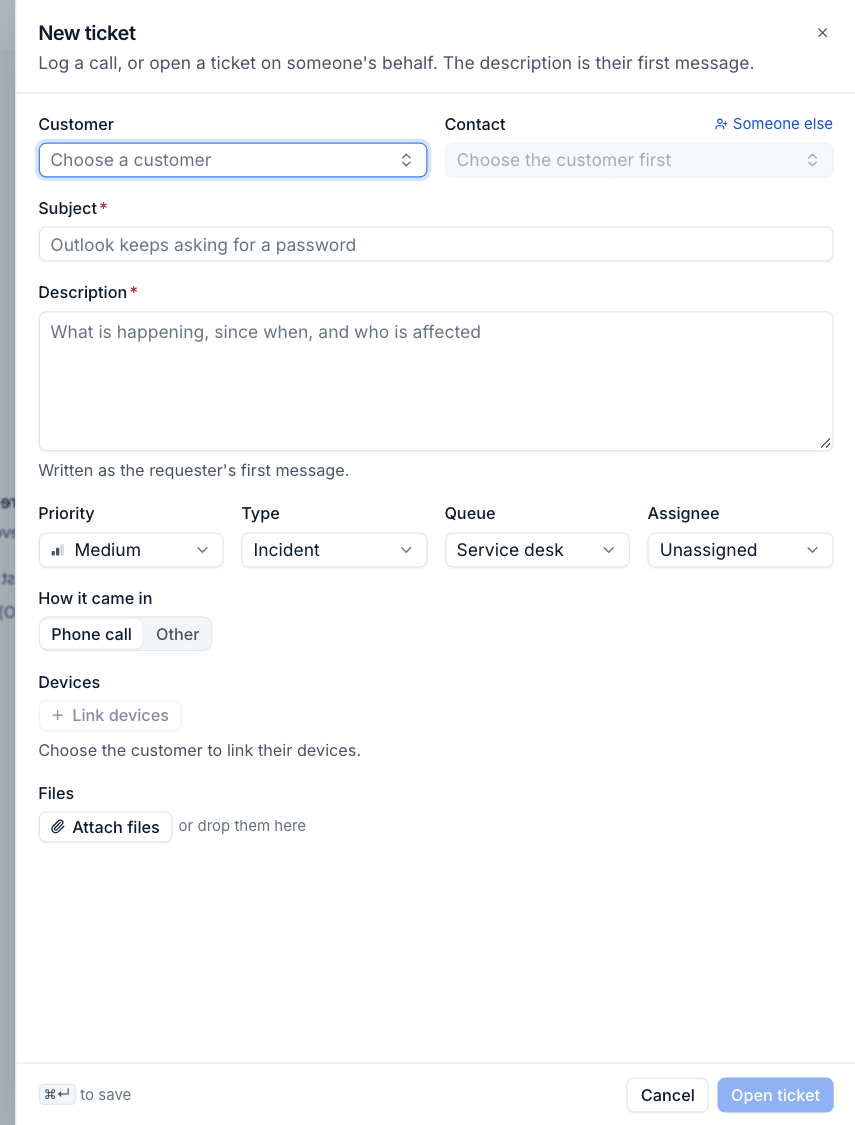
Open a ticket by hand
- In Tickets, press + at the top of the list (or next to Tickets in the sidebar), or press
c. - Choose the Customer.
- Choose the Contact who asked. If the person is not a contact yet, press Someone else and enter their name and email instead.
- Enter the Subject, a short summary such as "Outlook keeps asking for a password".
- Enter the Description: what is happening, since when, and who is affected. It is written as the requester's first message on the ticket.
- Set the Priority, Type, Queue and Assignee. Each starts at its default (for example Medium, Incident, Service desk and Unassigned).
- Under How it came in, choose Phone call or Other. This becomes the ticket's source, which you can filter and report on.
- Press Link devices to attach the devices it is about. The list shows the customer's devices, so choose the customer first.
- Press Attach files, or drop files onto the form, to add screenshots or documents.
- Press Open ticket (or
Cmd+Enter).
The ticket gets the next number, its SLA targets start from the priority, and it appears in the inbox straight away for everyone.
Tip: Opening a ticket for a contact who has not written to you before is the moment to make them a contact. Tickets from a known contact are matched to the right customer and site, and they can then sign in to the portal.
From a customer, contact or device
You can raise a ticket from where you already are, and Tenvara fills in what it knows:
- On a customer page, press New ticket in the header or on the Tickets tab. The customer is already chosen.
- On a contact page, press New ticket in the Tickets section. The customer and contact are already chosen.
- On a device page, press Raise ticket in its tickets section. The device is linked for you.
Tickets that arrive by themselves
| Source | How it works |
|---|---|
| Mail to a support mailbox becomes a new ticket, or is added to an existing one when it is a reply. The sender can get an acknowledgement with the ticket number. See Email to ticket and alert rules. | |
| Portal | A contact with portal access raises a ticket from the customer portal. |
| Chat | A technician turns a chat into a ticket, or a chat is raised as one. See Chats and tickets. |
| Alert | An alert rule opens a ticket for a matching alert, and resolves it when the alert clears. See Email to ticket and alert rules. |
| Accepted quote | When a customer accepts a quote, a ticket can be opened for the work, for example in the Projects queue. |
| Automation | An automation rule opened the ticket. |
| Staff | Opened by a member of your team in Tenvara. |
The source is shown at the top of the ticket (for example "Opened 17 Aug by email") and is available as a filter in the inbox.
Tickets with no customer
Email from someone Tenvara cannot match to a contact, or to a customer by their email domain, still becomes a ticket. It waits in triage with no customer. Open it, set the Customer in the details panel and, if they will write again, add them as a contact.
Queues for different kinds of work
Queues keep different kinds of work apart. The demo, for example, uses:
- Service desk for day-to-day requests and incidents (the default queue),
- Projects for planned work and onboarding,
- Alerts for tickets raised by monitoring, backup and security alerts.
Planned work such as a project or an onboarding lives as tickets in a queue like Projects. There is no separate projects module: use a queue, the Change or Service request type, and visits on the schedule to plan it.
After you open it
The new ticket opens on the right of the inbox, ready to work. See Working a ticket for replying, notes, statuses and everything else.
Was this page helpful?
Thanks for the feedback.