Notifications and channels
Set up Teams, Slack and text message channels, and choose which notifications reach you where, with quiet hours.
Tenvara tells people about things through the inbox in the top bar, and, once they are set up, by email, Microsoft Teams, Slack and text message. Administrators set up the channels once; each person then chooses what reaches them on which channel.
The inbox always keeps a copy of everything. Other channels are extra copies, never instead.
Setting up channels
Channels live in Settings > Automation > Channels (administrators only). Email uses the app's own mail settings and needs nothing here. Each of the other three can have one or more channels.
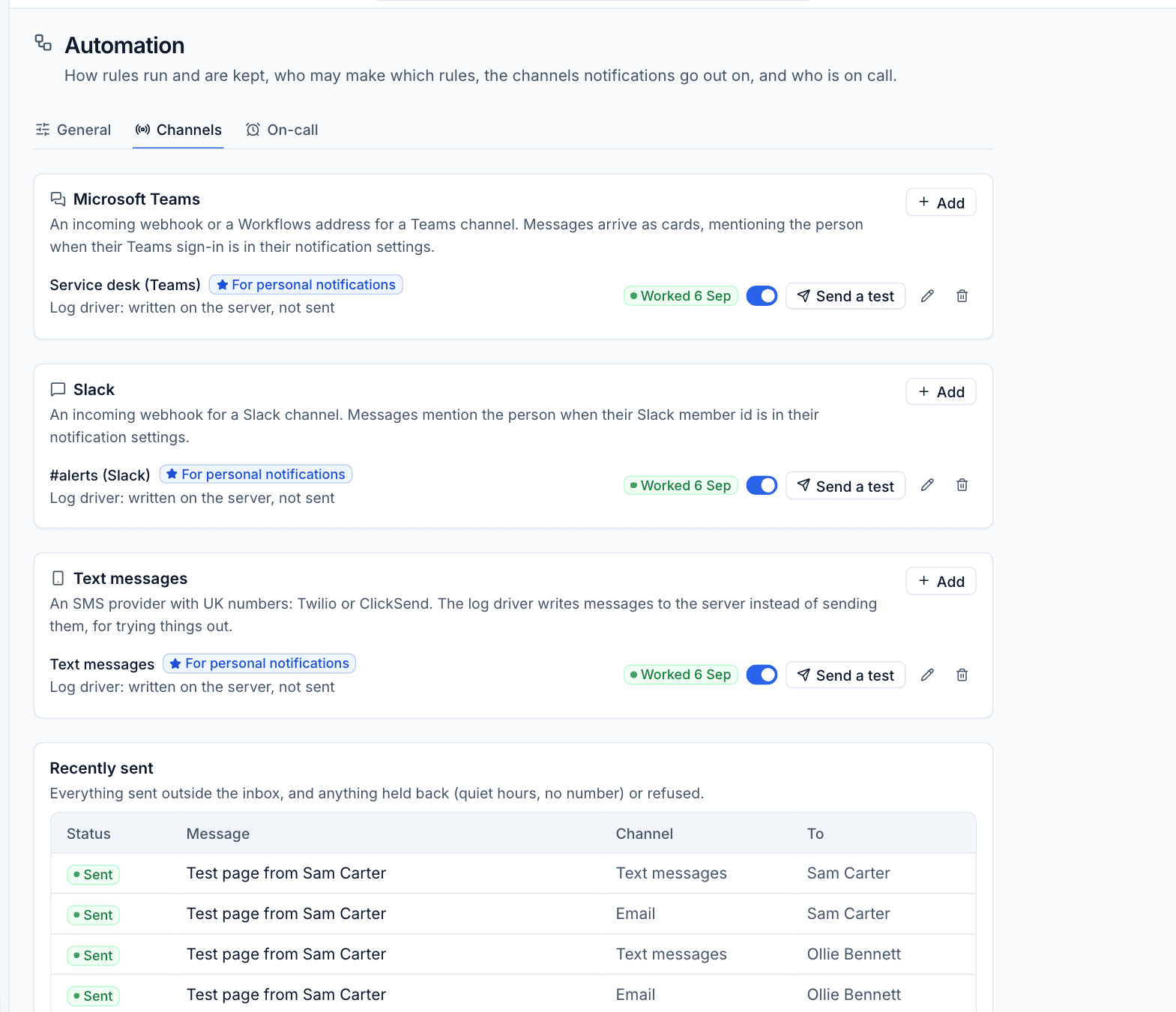
Microsoft Teams
- In Teams, open the channel, choose Workflows, pick "Post to a channel when a webhook request is received", and copy the address it gives you. An older incoming webhook address works too.
- In Tenvara, click Add in the Microsoft Teams card.
- Enter a Name, choose the Webhook driver and paste the Webhook address.
- Click Add the channel.
Messages arrive as cards, and mention the person by name when their Teams sign-in is in their notification settings.
Slack
- In Slack, create an incoming webhook for the channel and copy its address.
- Click Add in the Slack card, enter a Name and paste the address.
- Click Add the channel.
Messages mention the person when their Slack member id is in their notification settings.
Text messages
Text messages go through Twilio or ClickSend, to UK numbers.
- Click Add in the Text messages card.
- Choose the provider and enter its details: for Twilio the account SID, auth token and sending number; for ClickSend the user name and API key.
- Click Add the channel.
Warning: Webhook addresses and provider keys are passwords: anyone with a Teams or Slack webhook address can post to that channel. Tenvara stores them encrypted and never shows them again.
Managing channels
- One channel of each kind is marked For personal notifications: it is the one used to reach people. Other Teams and Slack channels can still be used by rules as Shared channels.
- The switch turns a channel on or off. The pencil edits it and the bin deletes it.
- Send a test sends a test message, and the channel shows the result of the last send (for example Worked 6 Sep).
- The Log only driver writes messages on the server instead of sending them, for trying things out.
Recently sent lists everything sent outside the inbox, with its Status, Message, Channel and who it went To, including anything held back (quiet hours, no mobile number) or refused, with the reason.
Your own notification settings
Everyone has their own Settings > Notifications.
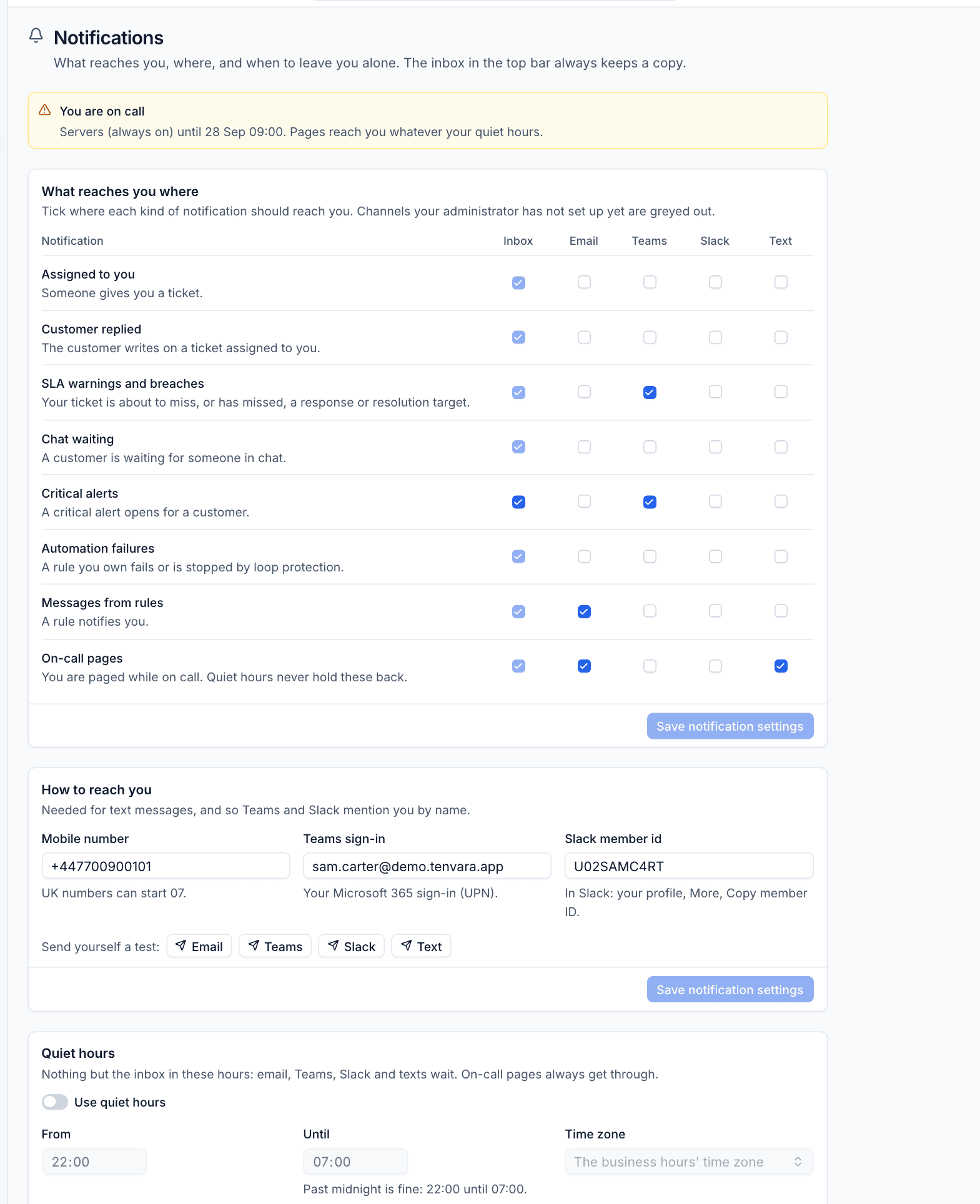
What reaches you where
Tick where each kind of notification should reach you. Channels your administrator has not set up are greyed out.
| Notification | When |
|---|---|
| Assigned to you | Someone gives you a ticket |
| Customer replied | The customer writes on a ticket assigned to you |
| SLA warnings and breaches | Your ticket is about to miss, or has missed, a response or resolution target |
| Chat waiting | A customer is waiting for someone in chat |
| Critical alerts | A critical alert opens for a customer |
| Automation failures | A rule you own fails or is stopped by loop protection |
| Messages from rules | A rule notifies you |
| On-call pages | You are paged while on call |
Click Save notification settings.
How to reach you
- Mobile number: needed for text messages. UK numbers can start 07.
- Teams sign-in: your Microsoft 365 sign-in, so Teams cards mention you.
- Slack member id: in Slack, open your profile, More, Copy member ID.
Send yourself a test on Email, Teams, Slack or Text to check it arrives. You can send up to six tests a minute. With automation switched off, the test tells you only the inbox is in use.
Quiet hours
Turn on Use quiet hours and set From, Until, the Time zone and the days (On). During quiet hours only the inbox gets anything: email, Teams, Slack and texts wait until the quiet hours end. Hours can run past midnight, such as 22:00 until 07:00.
On-call pages always get through, whatever your quiet hours. When you are on call, a banner at the top of the page says so and until when.
Was this page helpful?
Thanks for the feedback.