Conditions and placeholders
Narrow a rule down with conditions and groups, and fill in messages, notes and webhooks with placeholders.
Conditions decide whether a rule acts on a particular event. Placeholders fill real values (the alert title, the device name, the ticket link) into the text a rule writes.
Adding conditions
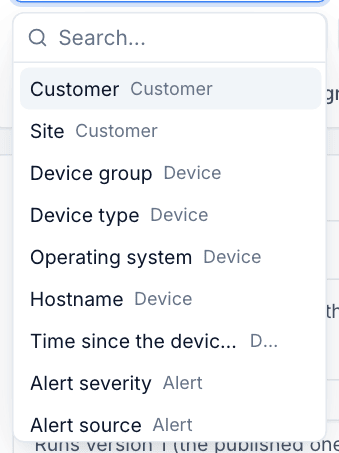
Under If, click Add a condition, then choose:
- The field, such as Alert source, Ticket priority or Operating system.
- The operator, such as is, contains or is not set.
- The value or values.
With more than one condition, Match All or Any of them. For something like "critical, or high and out of hours", click Add a group to make a group with its own All or Any. Groups go one level deep.
With no conditions at all, the rule acts on every event from its trigger for its customers.
Fields
Only the fields the trigger can supply are offered. An alert rule cannot test a ticket's priority before there is a ticket, for example, and a saved rule that asks for a field its trigger cannot supply is refused.
| Group | Fields |
|---|---|
| Customer | Customer, Site |
| Device | Device group, Device type, Operating system, Hostname, Time since the device was last seen |
| Alert | Alert severity, Alert source, Alert title, Alert message, Time since the alert opened |
| Ticket | Ticket status, Ticket status category, Ticket priority, Ticket queue, Ticket type, Ticket assignee, Where the ticket came from, Ticket subject, What the customer wrote, and the time since the ticket was opened, last changed or resolved |
| The change | For A ticket is updated, what it was before the change, such as Status category before this change |
| Time | Business hours: in or out of the hours set in Settings > Tickets |
Operators
Operators follow the kind of field:
- Text (titles, subjects, messages): contains, does not contain, is exactly, starts with, matches the pattern (a regular expression, length-limited and checked before use).
- Lists (severity, source, status, device type): is or is not one of the values you add.
- Numbers and times: more than, less than and similar comparisons, in minutes for times.
- Empty: is set or is not set, for example Ticket assignee is not set.
Examples
| You want | Conditions |
|---|---|
| Only Windows disk alerts from monitoring | Alert source is Monitoring, Alert title contains "disk", Operating system is Windows |
| Urgent tickets out of hours | Ticket priority is Critical, Business hours out of hours |
| A customer replied to a closed ticket | Trigger A ticket is updated with A customer reply, and Status category before this change is Resolved or Closed |
| Unassigned portal tickets in the working day | Trigger A ticket is created from The portal, Ticket assignee is not set, Business hours in business hours |
The run log records each condition's result and the value it saw, so when a rule did not act you can see exactly which condition said no. See The run log.
Placeholders
Any text box in an action (a ticket subject, a note, a message, a webhook address or body) can include placeholders in double braces. Click Insert placeholder above the box to pick one from the list for this trigger, or type it.
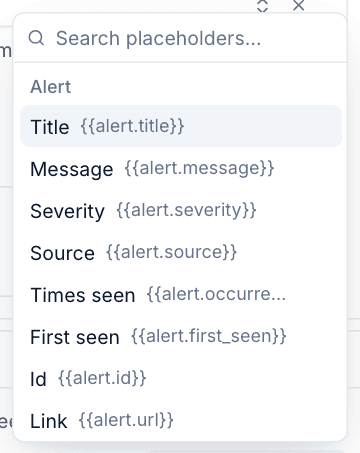
What is on offer depends on the trigger:
| Group | Placeholders |
|---|---|
| Alert | {{alert.title}}, {{alert.message}}, {{alert.severity}}, {{alert.source}}, {{alert.occurrences}} (times seen), {{alert.first_seen}}, {{alert.id}}, {{alert.url}} |
| Ticket | {{ticket.reference}} (#1234), {{ticket.number}}, {{ticket.subject}}, {{ticket.status}}, {{ticket.priority}}, {{ticket.queue}}, {{ticket.type}}, {{ticket.assignee}}, {{ticket.requester}}, {{ticket.requester_email}}, {{ticket.id}}, {{ticket.url}} |
| Device | {{device.hostname}}, {{device.os}}, {{device.type}}, {{device.ip_address}}, {{device.last_seen}}, {{device.id}}, {{device.url}} |
| Customer and site | {{customer.name}}, {{customer.code}}, {{customer.id}}, {{customer.url}}, {{site.name}} |
| Rule and time | {{rule.name}}, {{run.url}} (a link to this run), {{now.date}}, {{now.time}}, {{now.datetime}} |
| Earlier actions | {{created.ticket_reference}} and {{created.ticket_url}}, the ticket an earlier Create a ticket action opened |
Filters
Add a filter after a bar to change the value:
| Filter | Example | Result |
|---|---|---|
upper |
{{ device.hostname | upper }} |
HWA-DC01 |
lower |
{{ customer.code | lower }} |
hwa |
default |
{{ ticket.assignee | default: "nobody" }} |
nobody, when the ticket has no assignee |
truncate |
{{ alert.message | truncate: 80 }} |
The first 80 characters |
Placeholders only fill in values. There are no loops, calculations or calls.
How values are filled in
- A placeholder the trigger cannot supply is refused when you save.
- At run time, a value that happens to be missing (a device with no IP address, say) comes out empty. Use
defaultto show something else. - Values are refreshed after each action, so a note added after Assign the ticket names the new assignee.
- In a webhook address, values are URL-encoded, so a ticket subject can never change where the request goes. In a webhook's own JSON body, values are JSON-escaped.
Was this page helpful?
Thanks for the feedback.