The customer portal
What your customers' contacts see in the portal: signing in with an emailed link, tickets, quotes, reports, help articles, chat and their profile.
The customer portal is where your customers' contacts get help from you. They sign in with a link emailed to them (there are no passwords to forget), raise and follow tickets, reply with screenshots, accept quotes, read your help articles, download their monthly reports and chat with your team.
It lives at your instance's address with /portal on the end, for example https://support.yourmsp.co.uk/portal. The portal is headed with your portal name, set in Customer portal settings, so contacts see your company, not Tenvara.
Giving a contact access
Who can sign in is set on each contact:
- Open the contact (from Customers, or search with
Cmd+K). - In the Customer portal card, turn portal access on and choose what they can see: their own tickets, or every ticket for their company.
- Press Send sign-in invitation. The contact gets an email with a link to the portal.
Contacts can also go to the portal address themselves at any time and ask for a link. New contacts start with portal access off, unless you change that in Customer portal settings.
Signing in
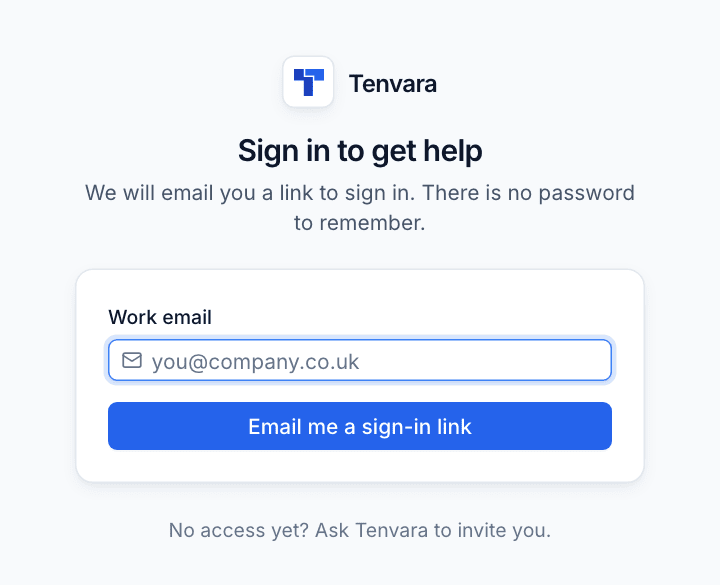
- The contact enters their Work email and presses Email me a sign-in link.
- They open the email and press the link.
- They are signed in on that device.
Contacts without access see "No access yet?" and are asked to get in touch with you to be invited. Sign out on the portal's Profile page signs them out on that device; next time, a new link is emailed.
Tickets
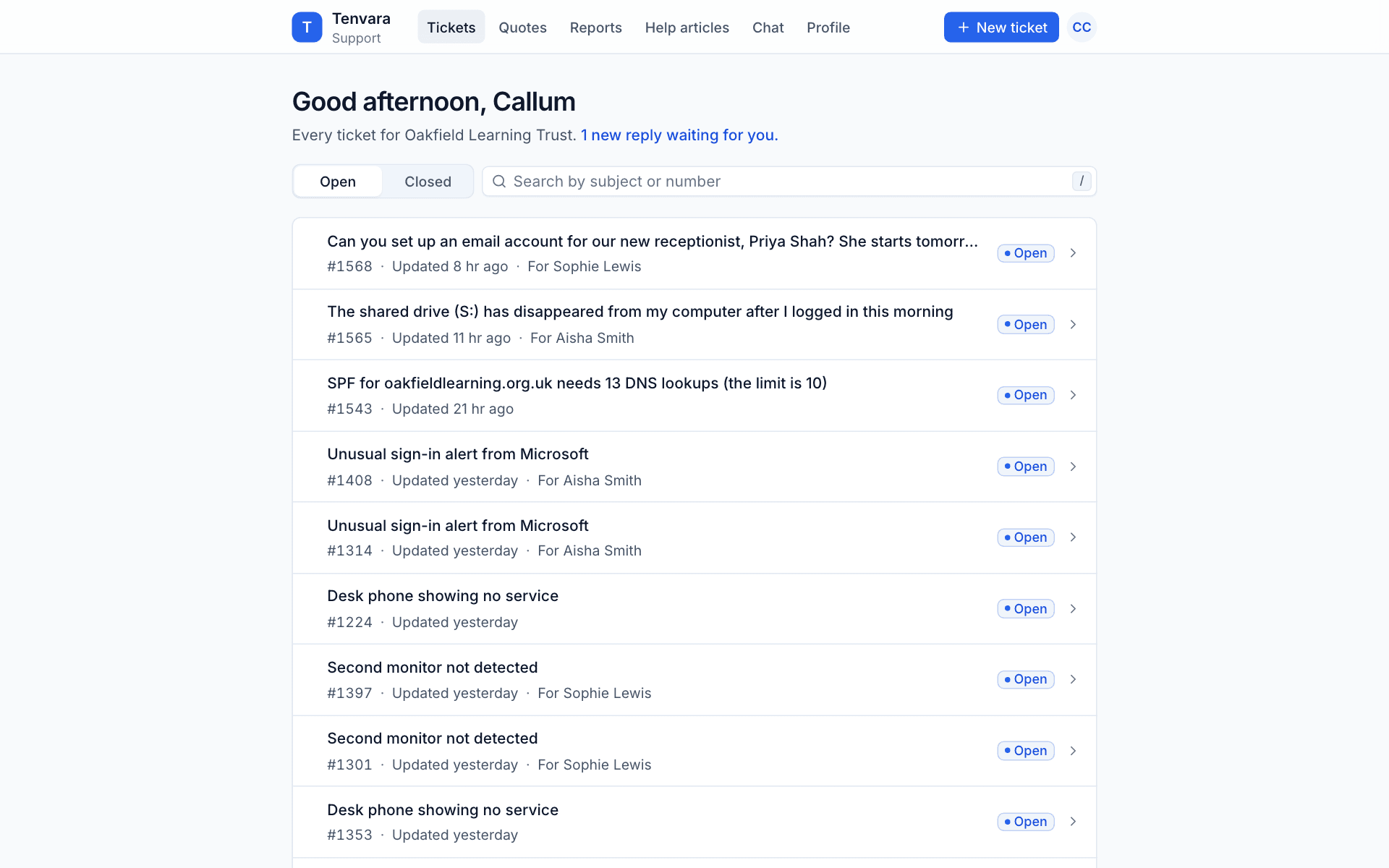
The first page is their tickets, with Open and Closed tabs and a search by subject or number. A contact who can see every ticket for their company sees who each ticket is for. The greeting says how many new replies are waiting for them.
Raising a ticket
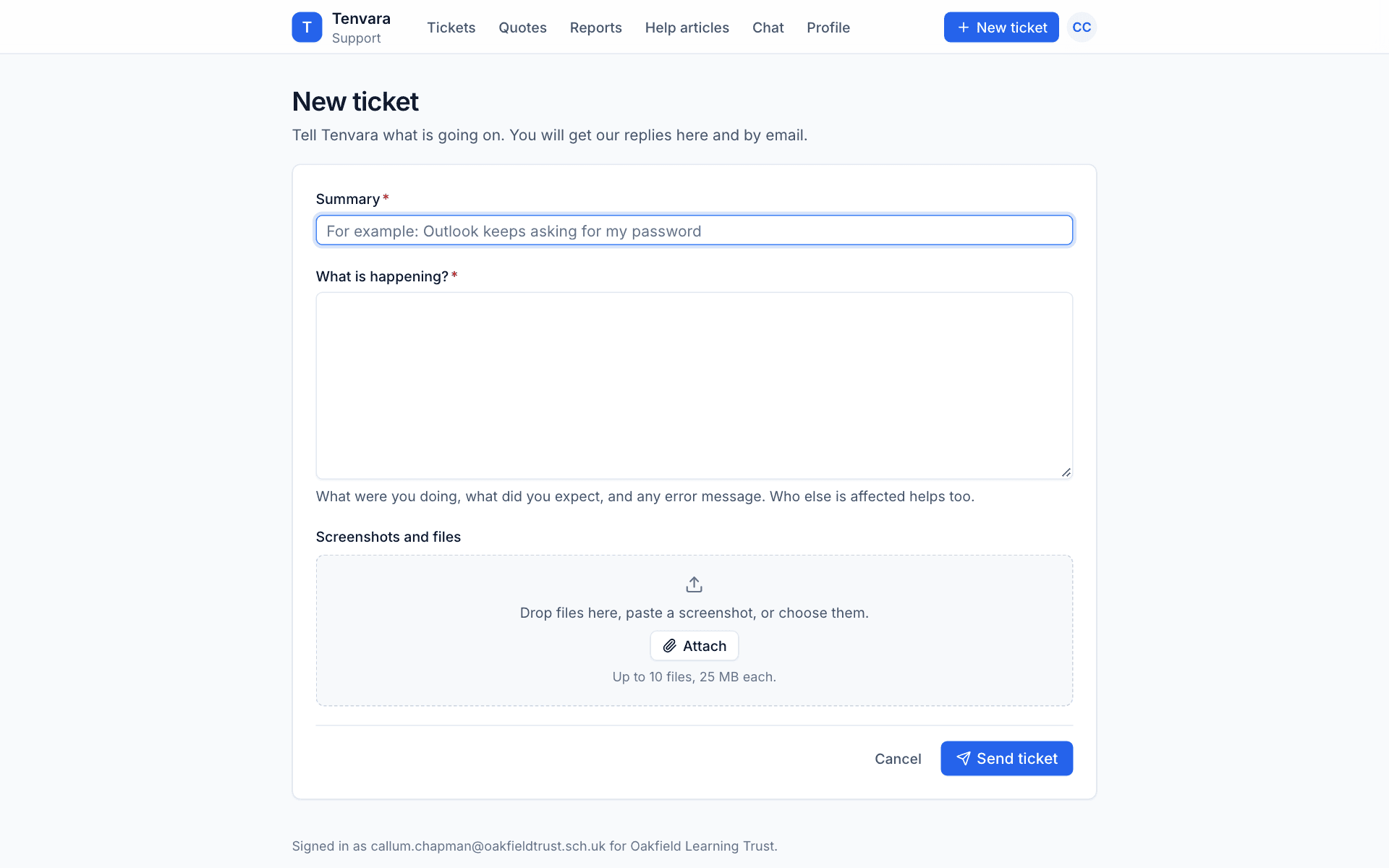
- Press New ticket.
- Enter a Summary, for example "Outlook keeps asking for my password".
- Describe What is happening?: what they were doing, what they expected and any error message.
- Add Screenshots and files: drop them in, paste a screenshot or press Attach. Up to 10 files, 25 MB each.
- Press Send ticket.
The ticket arrives in Tickets in Tenvara like any other, linked to the contact and their company. They get your replies in the portal and by email.
Following and replying
Opening a ticket shows the whole conversation. Contacts only ever see public replies, never your internal notes. When a ticket is waiting on them, a banner says "We are waiting for your reply".
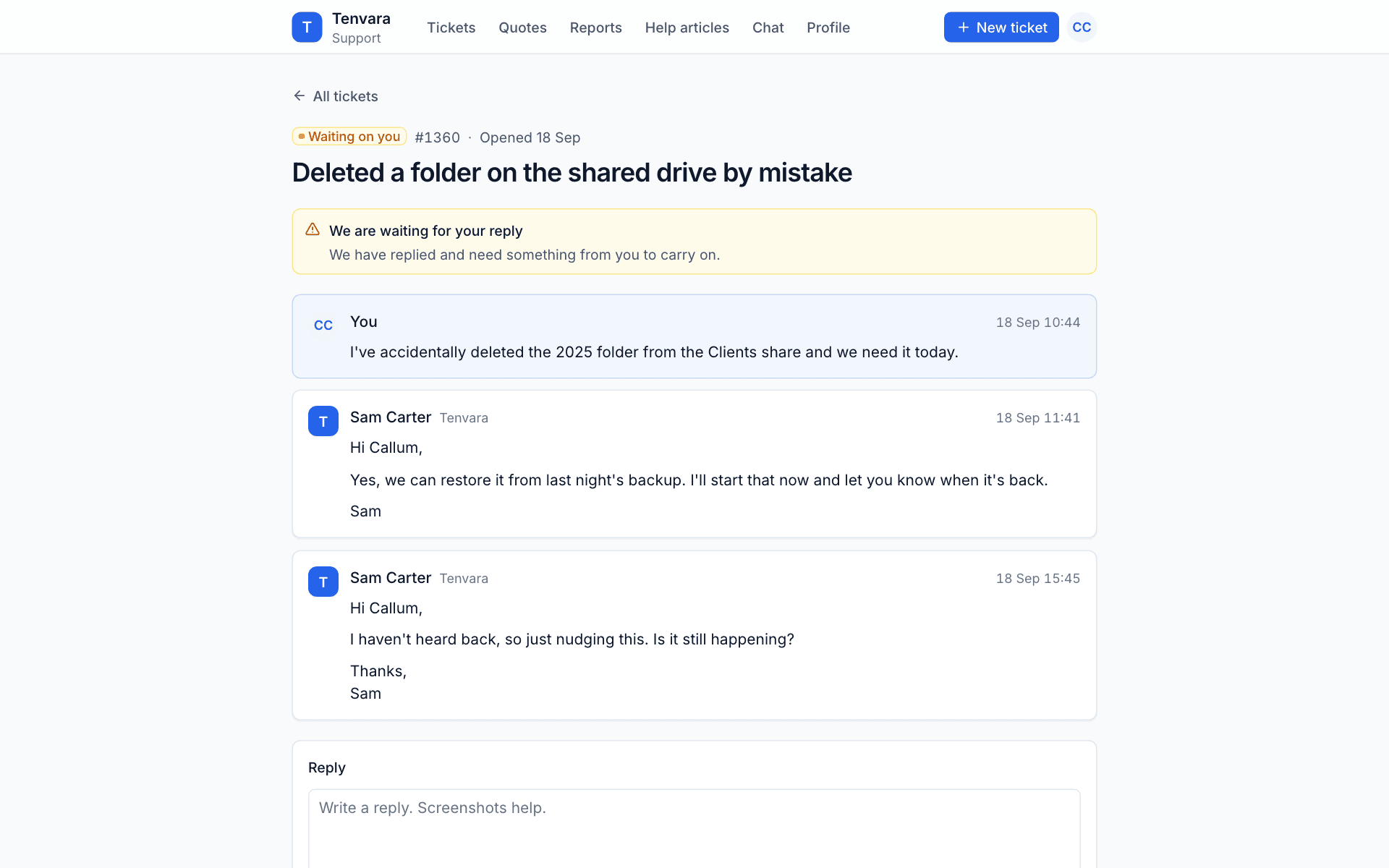
- Type in Reply, attach files if needed and press Send reply (or
Cmd+Enter). - Press This is sorted to tell you the problem is fixed.
Replies you send from Tenvara appear in the portal straight away, without refreshing.
Quotes
Quotes lists the proposals you have sent the company, with the one-off and monthly totals, when each was sent and how long it is valid. Quotes waiting for an answer are marked Waiting for you. The contact opens a quote to review it, tick any optional items and accept it online.
Reports
Reports holds the monthly reports you publish for the company, newest first: health score, tickets resolved, work within SLA, patch compliance and security detections, each with a PDF to download.
Help articles
Help articles are the knowledge base articles you publish to customers: some for everyone, some just for that company. Contacts can search them, for example "email on my phone", before raising a ticket.
Chat
Chat lets contacts chat with your team when you are open. Outside your opening hours it says so, gives the time you next open, and lets them leave their details and what is wrong so you can raise a ticket and pick it up. Past chats keeps every chat they have had with you, with its transcript. See Chat.
Profile
Profile shows the contact's name, email, organisation and what they can see ("Every ticket for your organisation", or their own). To change any of these they contact you. They can also choose the portal's Appearance (Light, Dark or follow their Device) and Sign out.
Note: The areas a contact sees follow the modules you use. With Chat or Reports switched off in Modules, those pages do not appear in the portal.
Was this page helpful?
Thanks for the feedback.