Customer report settings and templates
Set the schedule and delivery, choose recipients per customer, and design the report template.
Customer reports are set up in three places:
- Settings > Reports > Customer reports: the defaults for everyone, the email and how figures are judged.
- A customer's Reports tab: their recipients and anything they do differently.
- Reports > Customer reports > Templates: what the report holds, how it reads and how it looks.
Settings for everyone
Go to Settings > Reports > Customer reports (administrators).
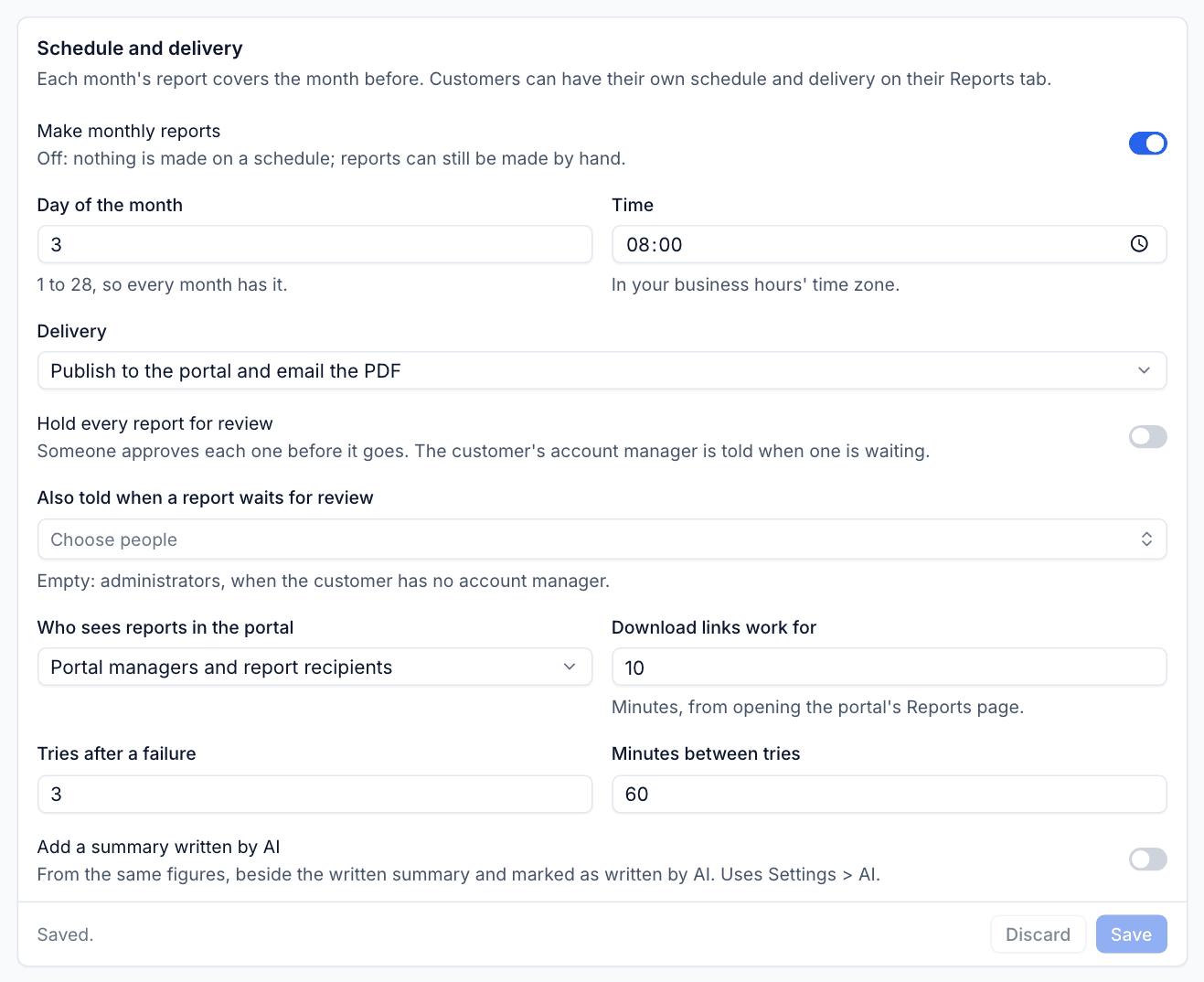
Schedule and delivery
| Setting | What it does |
|---|---|
| Make monthly reports | Off: nothing is made on a schedule, but you can still make reports by hand |
| Day of the month and Time | When each month's report of the month before is made. Day 1 to 28, time in your business hours' time zone |
| Delivery | Publish to the portal and email the PDF, email only, portal only, or neither |
| Hold every report for review | Someone approves each one before it goes. The customer's account manager is told when one is waiting |
| Also told when a report waits for review | Extra people to tell. Empty means administrators, when the customer has no account manager |
| Who sees reports in the portal | Portal managers and report recipients, managers only, or everyone |
| Download links work for | Minutes a portal download link lasts |
| Tries after a failure and Minutes between tries | How often a report that failed to make or email is tried again |
| Add a summary written by AI | Adds an AI summary beside the written one, marked as written by AI. Needs AI set up |
The email
Set the Subject, Message and Sign-off of the email that goes with each report. The report's headline numbers are added automatically. You can use these placeholders: {customer}, {period}, {month}, {company}, {account_manager}, {contact_first_name} and {portal_link}. Replies go to the account manager.
Measures
Measures decides how reports and the health score judge what they find:
- Operating systems past their support: reports use the dated support list in Settings > Security monitoring > Cyber Essentials first. For a system that list does not name, a device counts as unsupported when its version contains the text you give and none of the exceptions. The defaults cover old Windows (except LTSC and LTSB), Windows Server 2003 to 2012, older macOS versions and end-of-life Linux releases. Add a system for more.
- Availability is measured for: which device types count towards availability. Servers, virtual machines and network devices by default; desktops and laptops are usually switched off at night.
- Offline after: days without a check-in by the end of the month before a device counts as offline (7 by default).
A backup is behind by the thresholds in Backup's own settings, so reports and the backup pages agree.
Settings for one customer
Open the customer and go to their Reports tab. At the top: the latest report, the next report, the delivery and how many recipients. Below are all their reports, with Make ... again for the latest month.
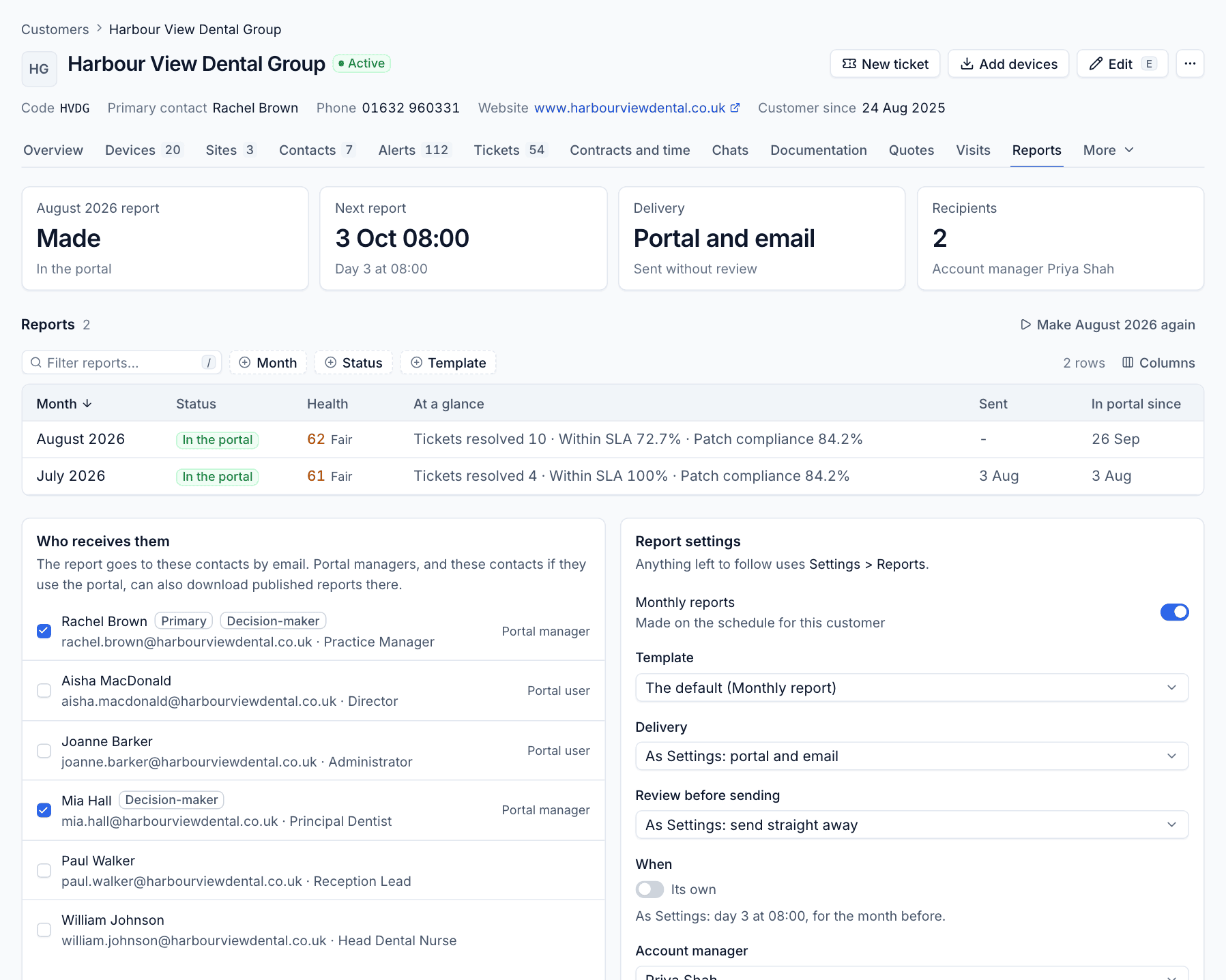
Who receives them
Tick the contacts who should get the report by email. Portal managers, and ticked contacts who use the portal, can also download published reports there.
Tip: A customer with no recipients still gets their report made and published, but the email step fails with "No one is set to receive this customer's reports". Tick at least one contact.
Report settings
Anything left as it is follows Settings > Reports:
- Monthly reports: on or off for this customer.
- Template: the default, or another template.
- Delivery and Review before sending: follow Settings, or choose their own.
- When: switch on Its own to give this customer a different day and time.
- Account manager: named in the report and told when a report waits for review.
- Sections: untick a section to leave it out of this customer's reports.
Report templates
Go to Reports > Customer reports and click Templates. Tenvara comes with one template, Monthly report, which every customer uses unless their Reports tab picks another. Click New template to add one, or open a template to change it.
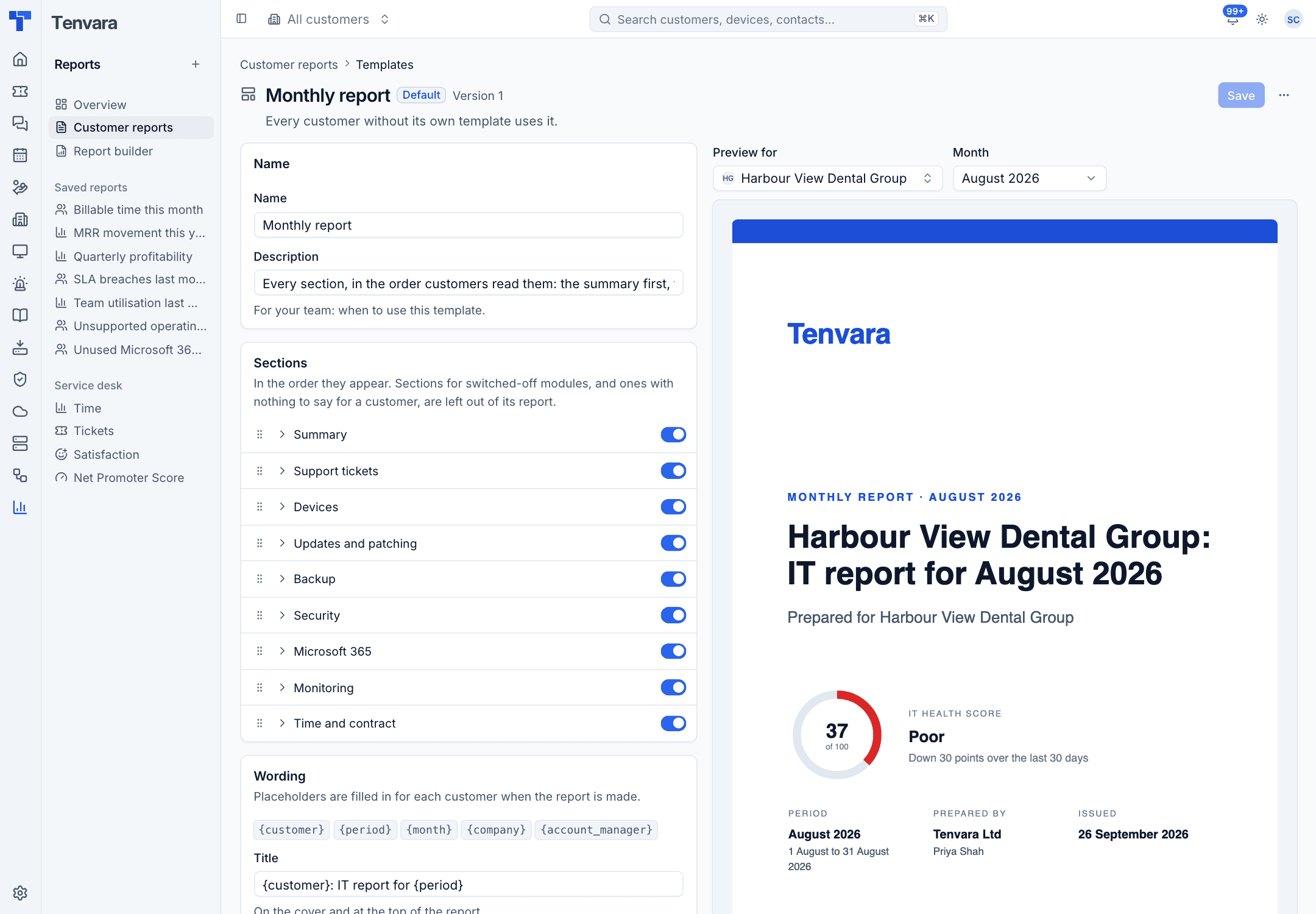
The editor has:
- Name and Description: for your team, to say when to use it.
- Sections: drag to reorder, switch each on or off, and expand one for its options. For example, Support tickets can show numbers only or the list of tickets, Devices can include the device list, and Security can include notable detections, protection coverage and Cyber Essentials.
- Wording: the Title, Introduction and Closing, with placeholders
{customer},{period},{month},{company}and{account_manager}. - Branding: Colour, Company name, Company details and Logo. Anything left empty comes from Settings > Proposals, so reports and proposals look the same.
- Layout: Page size (A4 or US Letter) and Cover page.
On the right, choose a customer under Preview for and a Month to see the report with their real numbers and your unsaved changes. Nothing is kept or sent. Click Save when you are happy; each save raises the template's version, and reports already made keep the version they were made with.
Was this page helpful?
Thanks for the feedback.