Triage, summaries and drafts
Use AI suggestions on new tickets, read thread summaries and draft replies and customer updates.
These three features work on the ticket itself: setting it up, catching up on it, and replying to it. None of them sends anything to the customer or changes a ticket without a technician pressing a button (unless you switch on Apply confident suggestions).
Triage suggestions
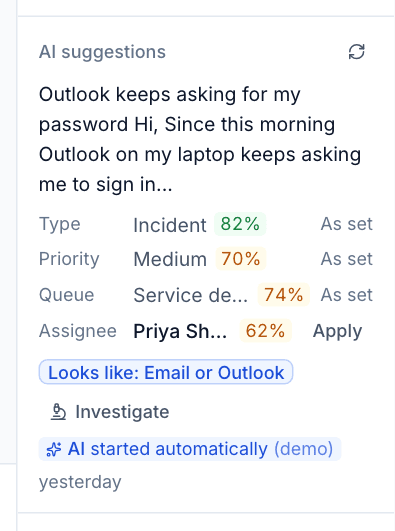
When a ticket arrives, triage reads it and suggests:
- Type, Priority and Queue, from your own lists.
- Assignee, from people's skills (when Scheduling has them), how many tickets they have open, and who has resolved this customer's tickets recently.
- The symptom it looks like (for example "Looks like: Email or Outlook"), which decides the investigation playbook.
Each suggestion has a confidence (green when high, amber when lower) and a one-line reason behind it.
Using suggestions
- Open the ticket and look at AI suggestions in the right-hand panel.
- For each field, As set means the ticket already matches. Otherwise click Apply to set that field.
- Click Investigate under the symptom to start an investigation with that symptom's playbook.
- Click the refresh icon to triage the ticket again, for example after the customer adds detail.
Fields are changed as you, exactly as if you had set them yourself, so SLA and activity behave as normal.
Triage runs automatically on new tickets when Triage new tickets is on in Settings > AI, and at any time on demand. Tickets opened by alert rules are not triaged automatically. When a ticket was triaged without anyone asking, the panel says AI started automatically.
Note: If the customer has been opted out of AI, the panel says so and nothing about the ticket is sent.
Thread summaries
Once a thread reaches the number of messages set in Settings > AI (6 by default), a Summary card appears at the top of the conversation the first time someone opens it. It gives:
- A short summary of the thread.
- The key points, as a list.
- Waiting on: whether the ticket is waiting on you or the customer.
- Next: the next step.
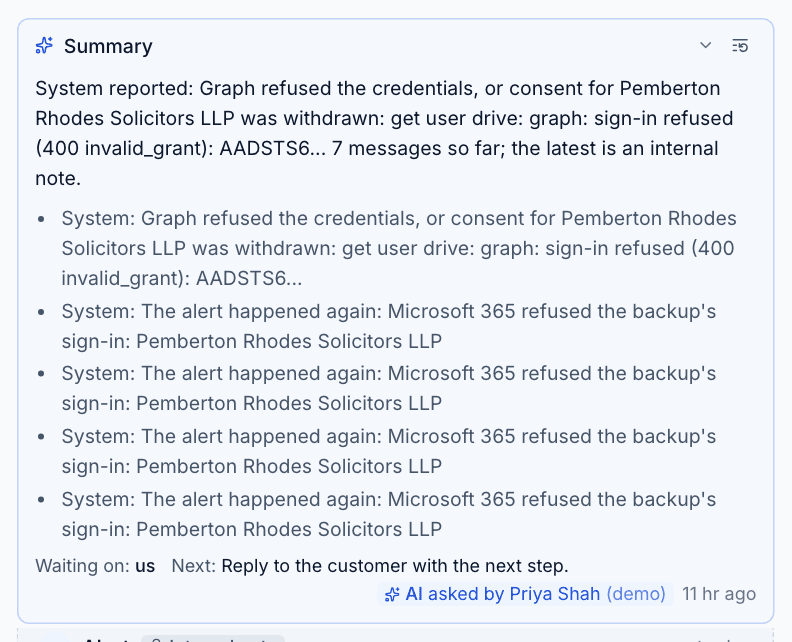
The summary is kept and reused until the thread changes, so reopening a ticket costs nothing. To make a fresh one, choose Summarise the thread from the ticket's ... menu. The card says who asked for it; collapse it with the arrow if you do not need it.
Drafting a reply
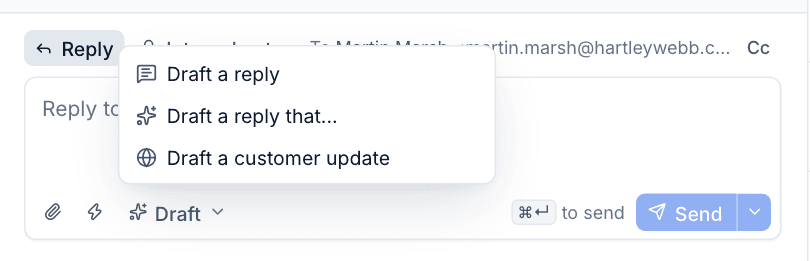
Click Draft in the composer (under the reply box) and choose:
- Draft a reply: a reply to the customer's latest message.
- Draft a reply that...: type what the reply should say or do, for example "explain we need a restart tonight and ask for a good time", and AI writes it.
- Draft a customer update: a plain-English update on progress, from the thread and the latest investigation.
The draft is grounded in:
- Your knowledge base, customer-visible articles first, then the customer's documentation and internal articles.
- Up to three similar resolved tickets at the same customer, with how they were fixed.
- The thread so far.
It is written in your House style (tone, sign-off and language from Settings > AI > Prompts and fixes).
Using a draft
- Choose a draft option. The draft appears in the composer after a few seconds.
- Check the sources it used, listed under the draft: the articles and tickets it drew on.
- Edit it as you like.
- Press Send when you are happy, or discard it.
Nothing ever sends a draft for you. Every draft is logged in Settings > AI > Activity with the articles and tickets it read.
Tip: Drafts are only as good as your knowledge base. Documenting common fixes as customer-visible articles gives better drafts, and better chat bot answers too.
What each costs
Triage uses a small, fast model by default and costs a fraction of a cent per ticket. Summaries and drafts use a larger model and usually cost a few cents each. See the exact figures per feature in Settings > AI > Costs and usage, and Costs and caps.
Was this page helpful?
Thanks for the feedback.