Logging time
Record time against tickets or customers, with the timer or by hand, and review everyone's time for billing.
Time is what turns the service desk into invoices. Every entry belongs to a customer, can sit on a ticket, is billable or not, and counts against the contract in force on the day it was worked. The contract then works out included hours and overage for the month (see Contracts and the Xero export).
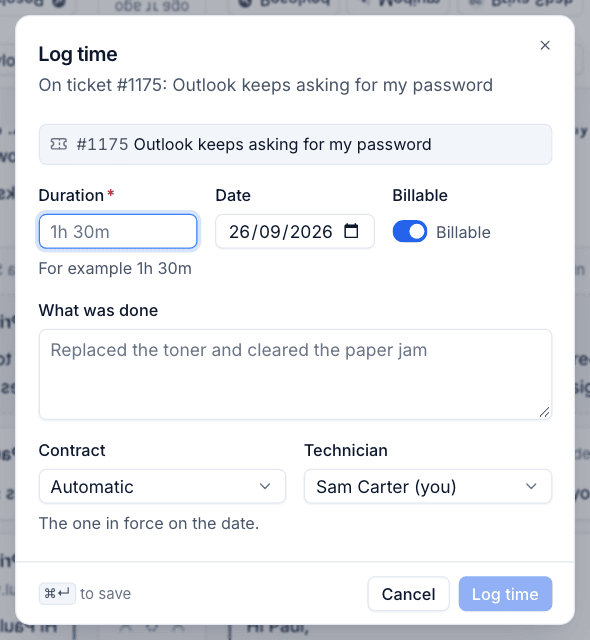
Log time on a ticket
- Open the ticket and press Log time in the Time section of the details panel, or choose Log time in More actions, or press
Shift+t. - Enter the Duration, for example
1h 30m,45mor2h. - Check the Date. It defaults to today.
- Leave Billable on for chargeable work, or turn it off for internal work, travel or anything you are not charging for.
- Describe What was done, for example "Replaced the toner and cleared the paper jam". Write it so someone reading the time list later understands the work.
- Leave Contract on Automatic to use the contract in force on that date, choose a particular contract, or choose No contract.
- Choose the Technician if you are logging for someone else.
- Press Log time (or
Cmd+Enter).
The Time section on the ticket then shows the total logged and how much of it is billable, for example "2h 35m logged, 2h 35m billable", and how many entries there are.
Use the timer
The timer saves you guessing afterwards.
- On the ticket, press Timer at the top (or in the Time section), or press
t. - Work the ticket. The running timer shows in the top bar, so you can see it from anywhere in Tenvara, and it keeps running if you reload the page.
- Press it again (or
ton the ticket) to stop, and log the time it recorded against the ticket.
Tip: Get into the habit of pressing
tas you open a ticket you are about to work on. It takes a second and makes time sheets far more accurate.
Log time without a ticket
Some work is for a customer but not about a ticket, such as a regular site visit or a review meeting.
- Go to Tickets > Time and press Log time, or use Log time on a contract or on the customer's Contracts and time tab.
- Choose the Customer.
- Fill in Duration, Date, Billable, What was done, Contract and Technician as above.
- Press Log time.
To put time on a ticket, log it from the ticket itself.
Review time
Tickets > Time lists everyone's time for the chosen period: Date, Technician, Customer, Work (with the ticket it was logged on), Billable and Time. My time shows only yours.
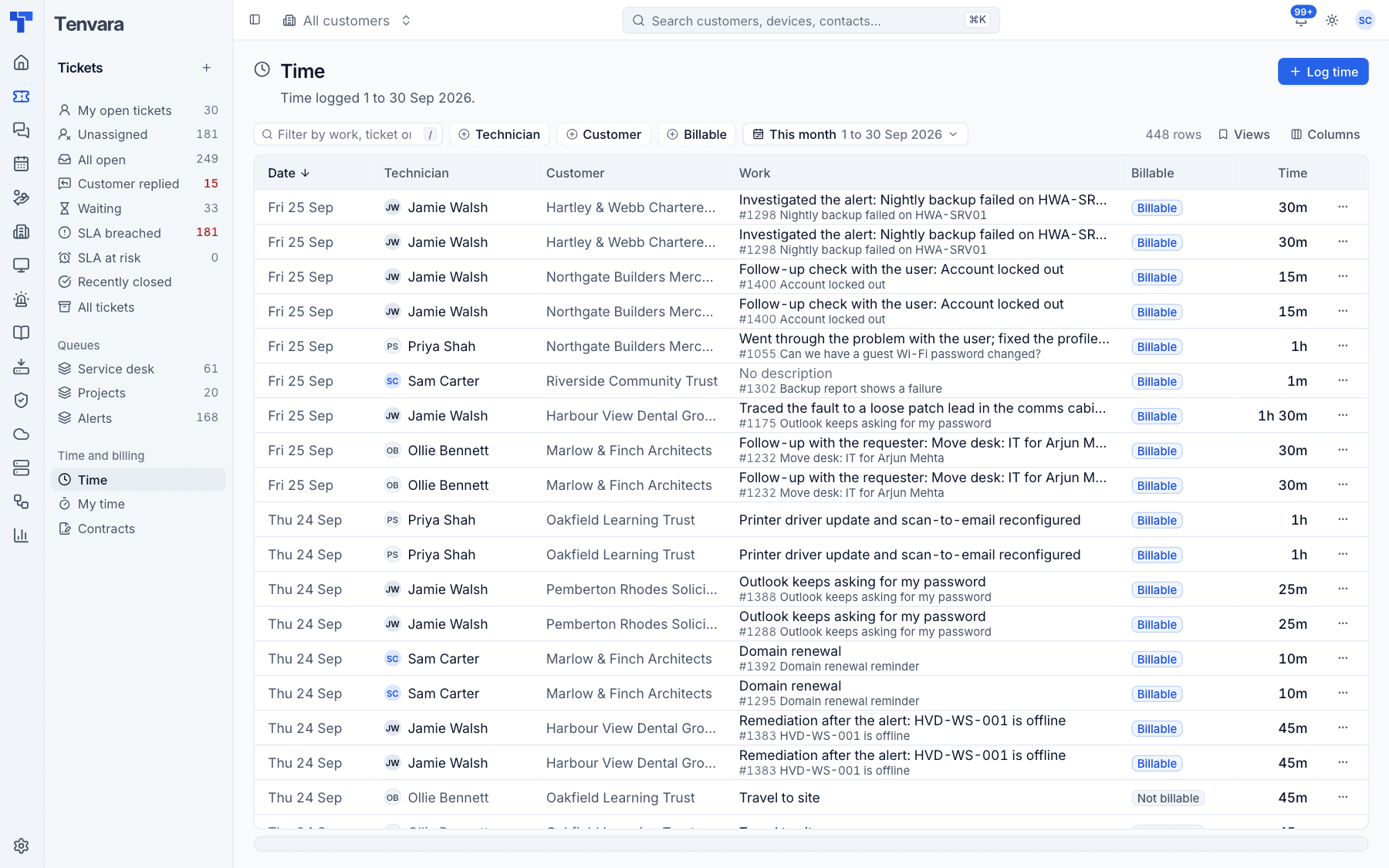
- Filter by text, Technician, Customer or Billable.
- Choose the period: This week, Last week, This month, Last month, This quarter, Last 90 days, This year, or your own From and To dates.
- Choose Columns and save the combination under Views.
- The ... menu on a row has Edit and Delete, to correct a duration, move an entry to another contract or switch it between billable and not billable.
Time on a customer and a contract
The customer's Contracts and time tab shows Billable this month, Not billable this month, the Last 90 days with its number of entries, and the monthly value of the contracts in force. Below the contracts it lists the last 90 days of time, with Open in Time and Log time.
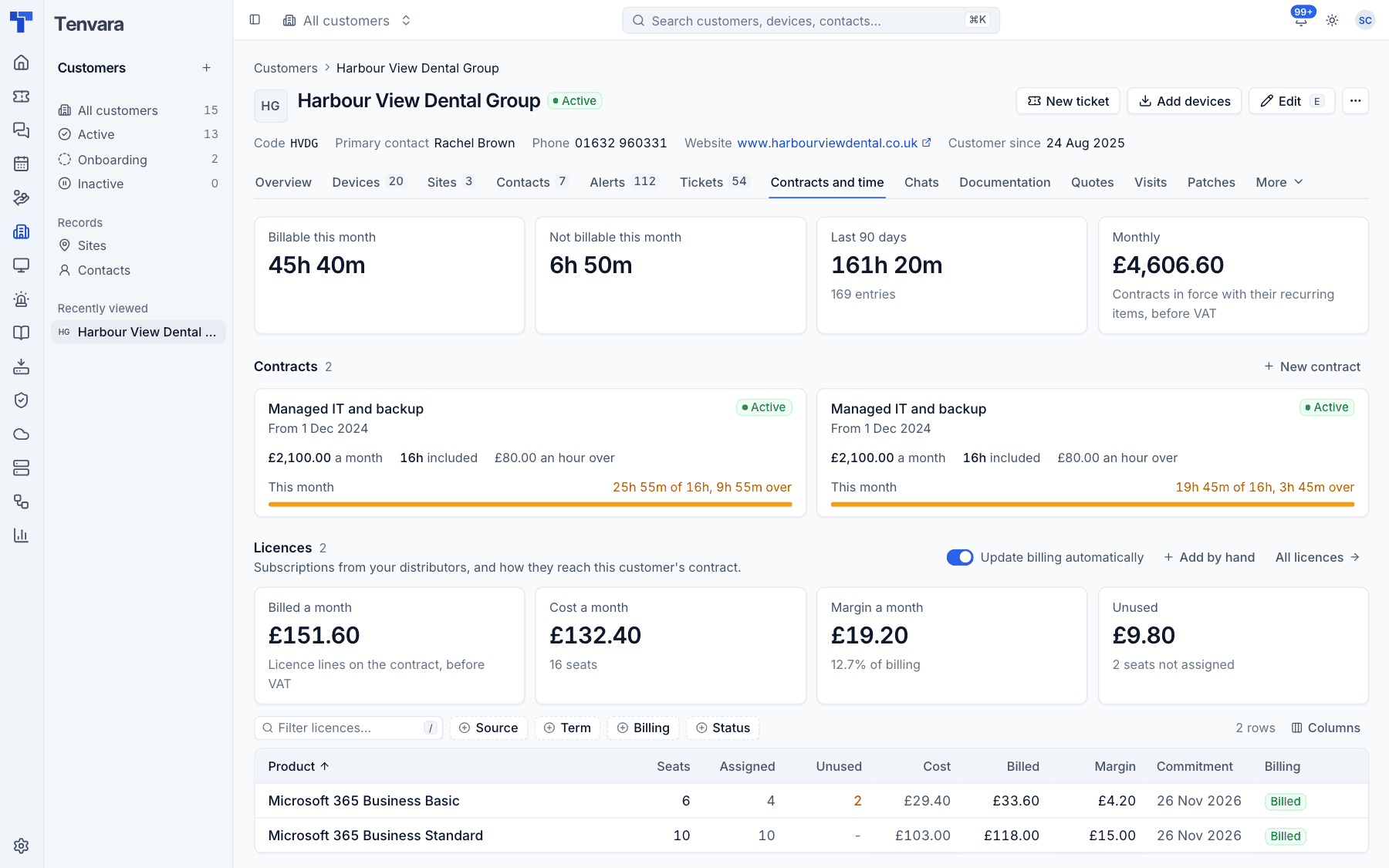
Each contract page shows the time logged against it, month by month.
Expenses
Parking, parts and mileage for a ticket are added in the Expenses section of its details panel with Add. Once approved, they are rebilled to the customer on the Xero export for the month they were spent, and marked billed so they never go twice. The contract page lists them under Rebilled expenses.
Reports on time
Reports has time by customer, technician or contract for a period, split into billable and not billable, alongside ticket volume, closure and SLA reports.
Was this page helpful?
Thanks for the feedback.