The customer portal and feedback
Give contacts a portal to raise and follow their tickets, control who can see what, and ask customers how you did.
The customer portal is where your customers' contacts sign in to see and raise tickets. There are no passwords: they sign in with a link emailed to them. Alongside it, feedback asks the requester to rate each resolved ticket, and asks decision-makers the Net Promoter Score question on a schedule.
Set up the portal
Settings > Customer portal controls it:
- Make sure Portal is On. Turning it off stops everyone signing in.
- Note the Address. Share it with customers, for example in your email signature or on your website; invitations and sign-in emails link to it too. It comes from your server's address; change
PORTAL_URLin the server's settings to use another. - Enter the Portal name: what contacts see at the top of the portal and in its emails, usually your company name. Check the Preview and press Save name.
- Under Access, choose whether to Give new contacts portal access. With it off, new contacts cannot sign in until someone turns portal access on for them.
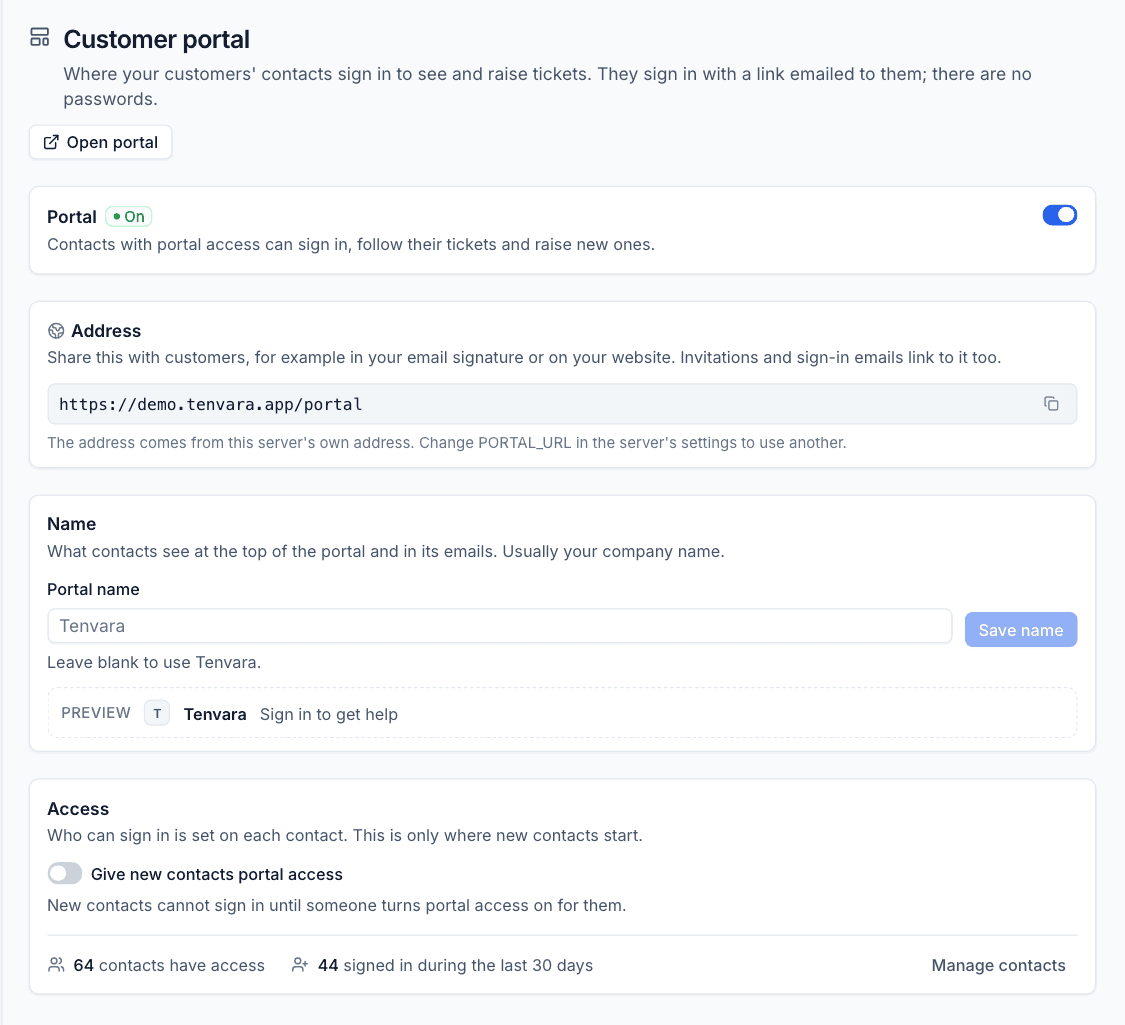
The bottom of the page shows how many contacts have access and how many signed in during the last 30 days, with Manage contacts. Open portal opens it in a new tab.
Give a contact access
Who can sign in is set on each contact:
- Open the contact and press Edit.
- Turn on Customer portal.
- Under They can see, choose Their own tickets or Every ticket for the customer.
- Press Save changes.
- Back on the contact page, press Send sign-in invitation in the Customer portal card, or choose Invite to portal in More actions. They get an email with a link to sign in.
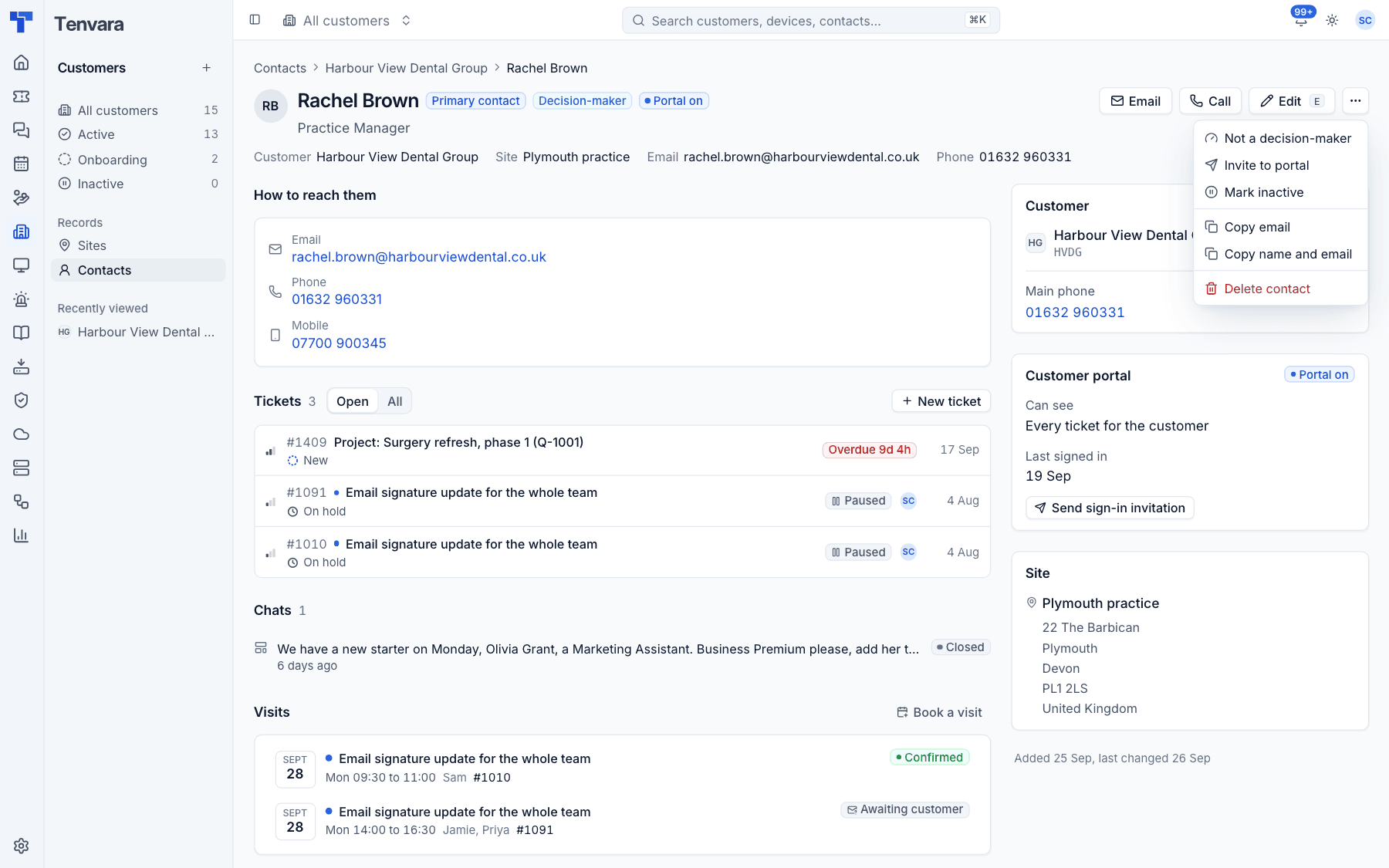
Turning Customer portal off signs the contact out. Marking a contact inactive when they leave stops them using it too.
What contacts can do in the portal
- See their tickets, or every ticket for their company if their access allows it.
- Raise a new ticket, with attachments.
- Reply on a ticket, with attachments, and mark a ticket as sorted when they are happy.
- Rate a resolved ticket.
They only ever see public replies, never internal notes. Statuses are shown in plain terms: a ticket in a status marked Waiting on the customer shows as "Waiting on you" once your team has replied, and other waiting statuses (on hold, waiting on a supplier) read as "Open". Updates arrive live while they have the portal open.
A reply from the portal reopens a waiting, resolved or closed ticket, just like an email reply.
Feedback on resolved tickets
Settings > Feedback asks customers how you did, follows up poor answers and runs the Net Promoter Score. It has four tabs.
Who is asked
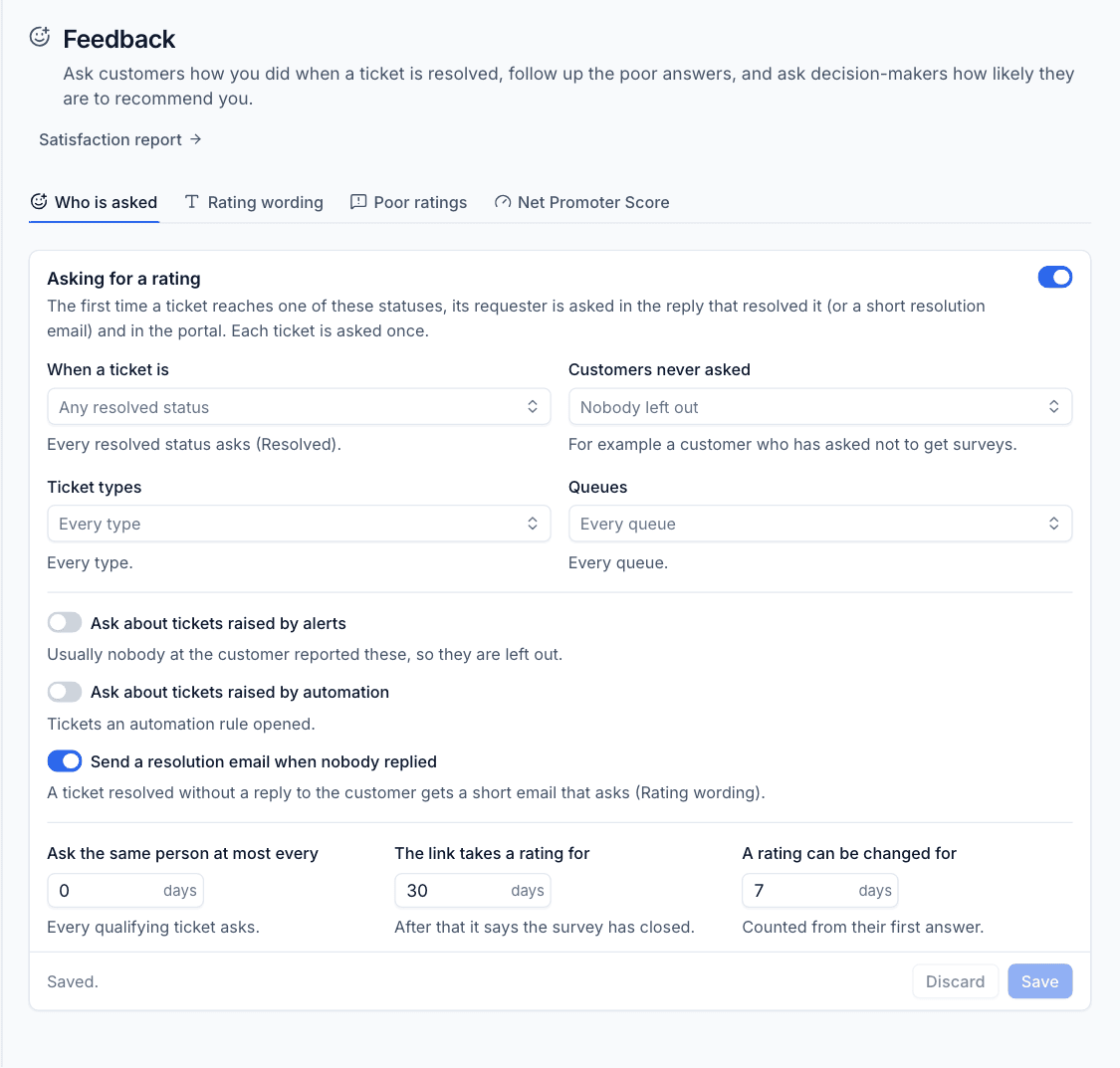
With Asking for a rating on, the first time a ticket reaches one of the chosen statuses its requester is asked, once per ticket: in the reply that resolved it (or a short resolution email) and in the portal. Choose:
- When a ticket is: which statuses ask (by default any resolved status),
- Customers never asked, for example a customer who has asked not to get surveys,
- which Ticket types and Queues ask,
- Ask about tickets raised by alerts and Ask about tickets raised by automation (off by default, as usually nobody at the customer reported these),
- Send a resolution email when nobody replied, so tickets resolved without a reply still ask,
- Ask the same person at most every so many days,
- how many days The link takes a rating for, and for how long A rating can be changed.
The email has three one-click answers: good, okay and bad. The customer can then add a comment. Merged tickets and follow-up tickets of a rating are never asked.
Rating wording
Edit the question, the three answers, the prompt for a comment, the thank you and the resolution email. Placeholders such as {{contact.first_name}}, {{ticket.reference}} and {{technician}} are filled in, and a live preview shows the result on your latest ticket.
Poor ratings
The technician who had the ticket always hears about their rating. Choose which ratings are followed up (Bad, and optionally Okay) and What happens:
- Note and notify: an internal note on the ticket with the rating and comment, and a notification to the team leads,
- New ticket: a follow-up ticket for the customer, assigned to the first team lead,
- Nothing.
Choose the Team leads (left empty, the administrators are used). They also see the team's score on Home. A comment that arrives later is added to the follow-up.
Net Promoter Score
Contacts flagged as Decision-maker are emailed "How likely are you to recommend us?" with a 0 to 10 scale and room for a comment. Choose How often (Quarterly, Twice a year, Once a year or Off), the starting month, the day and time, how long answers are taken for, and any Customers never asked. Send a round now sends one straight away.
Scores of 9 and 10 are promoters, 7 and 8 passives, and 0 to 6 detractors. For a detractor, choose to Tell the team leads, Open a ticket or do Nothing. The email wording is editable with a preview.
Where ratings show
- On the ticket, the Rating section of the details panel shows the answer, the comment and how it came in. From there you can ask again.
- The customer page has a Feedback card with twelve months of ratings, their Net Promoter Score and the latest comments.
- Reports > Satisfaction counts ticket and chat ratings per technician, customer, queue or month, with the response rate and comments. Reports > Net Promoter Score shows the score and answers by round.
- Home shows this month's score, the Net Promoter Score and poor ratings to team leads and administrators.
Was this page helpful?
Thanks for the feedback.