Reviews and the vault audit log
Keep articles current with owners, review dates and expiry, and see who revealed, copied or changed every secret.
Documentation is only useful while it is right. Tenvara helps with two things: reminding owners to review articles, and recording every look at a secret so you can answer "who has seen this password?" at any time.
Review dates and expiry
Every article can have:
- An Owner: the person responsible for it.
- A Review by date, and Then every so many months if it should be checked regularly.
- An Expires date for articles that stop being true on a known day, such as a temporary process.
Set these in the side panel when you write or edit the article. See Knowledge base articles.
Reminders
Each morning Tenvara sends the owner a notification for each article whose review date has arrived. If the article has no owner, the reminder goes to its author. Owners get one reminder per review date, not one a day.
Separately, owners are told seven days before an article expires.
What expiry does
An expired article stays readable for staff, but it:
- Stops being suggested on tickets.
- Leaves the customer portal.
The article is marked Expired in lists, so it is obvious it needs replacing or retiring.
The Review due list
Open Docs and choose Review due. It lists articles whose review is due in the next two weeks or overdue, and articles that are expiring or have expired, with the soonest first.
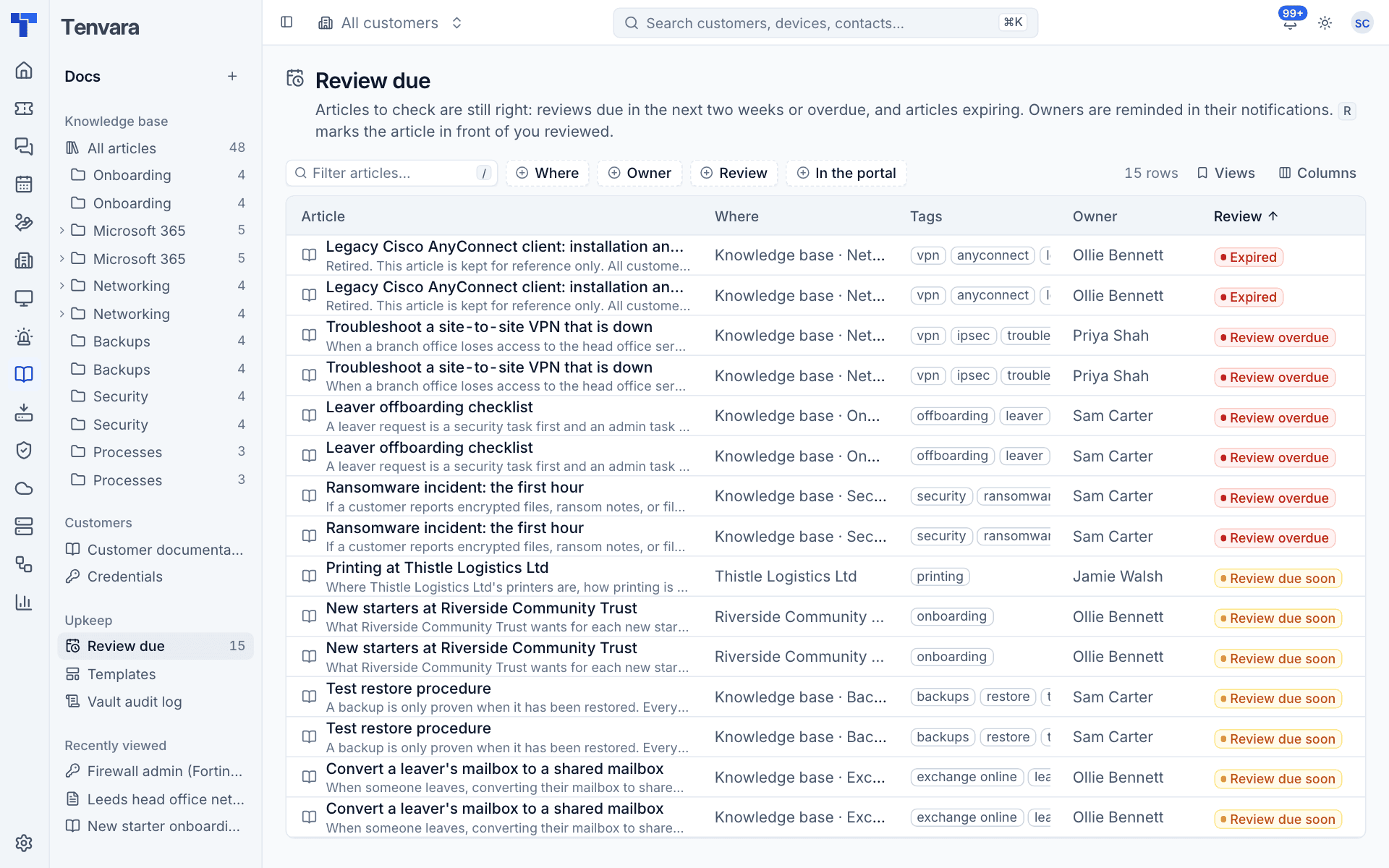
The Review column shows the state:
| Badge | Meaning |
|---|---|
| Expired | The expiry date has passed |
| Review overdue | The review date has passed |
| Review due soon | The review is due within two weeks |
Filter by Where (the knowledge base or a customer), Owner, Review or In the portal.
Reviewing an article
- Open the article from the list.
- Read it and fix anything that is out of date. Editing and saving makes a new version.
- Press Mark reviewed, or
R.
If the article repeats its review, the next review date moves on by the interval, and it leaves the list until then.
Tip: Sort the list by Owner in a team meeting and let each person take their own.
Rmarks the article in front of you reviewed, so working through a batch is quick.
The vault audit log
Open Docs and choose Vault audit log. It records who revealed, copied or changed which secret, when, and from which address and browser.
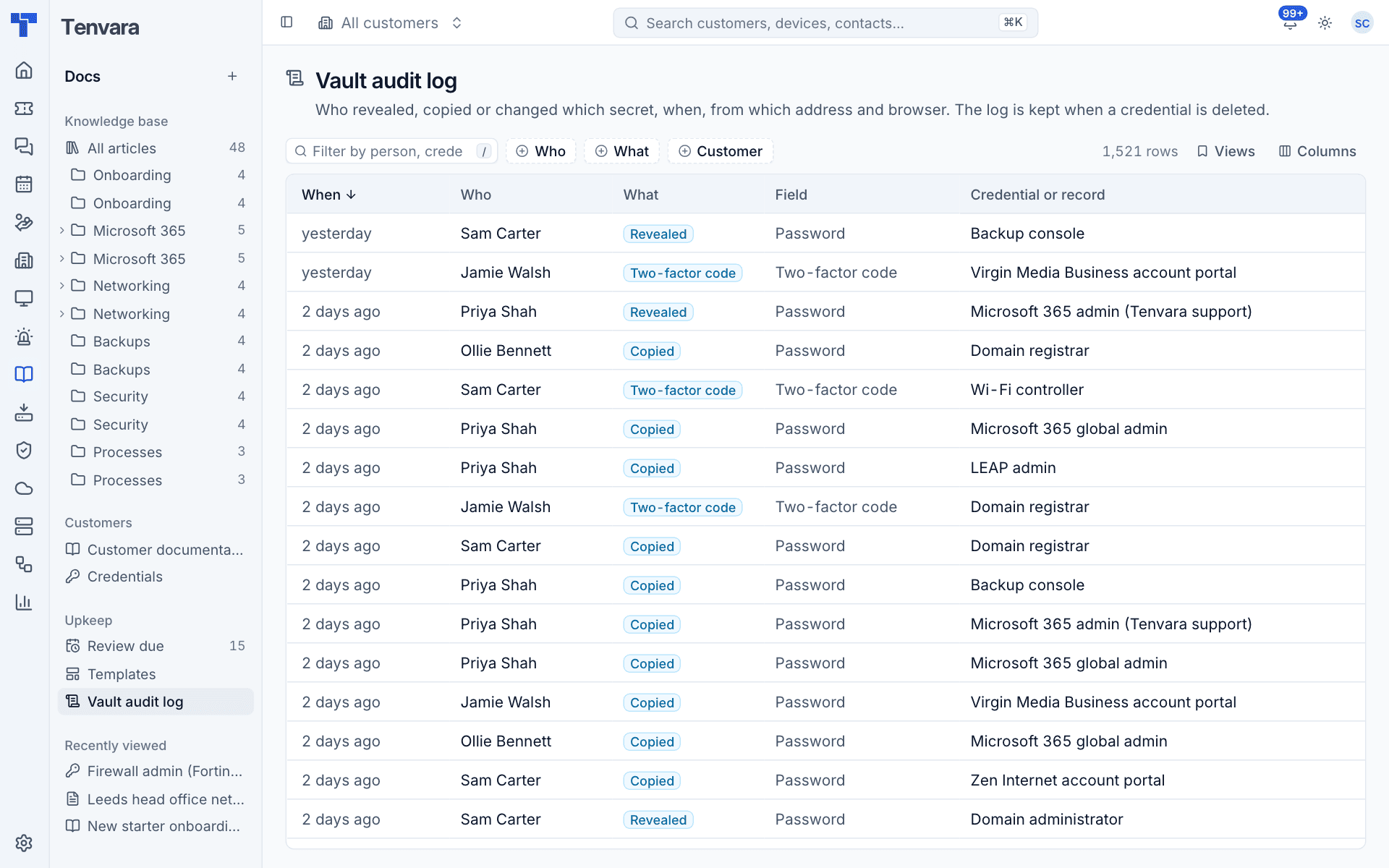
Each row shows:
| Column | What it holds |
|---|---|
| When | When it happened |
| Who | The person |
| What | Revealed, Copied, Two-factor code, Set (a secret was saved or changed) and deletions |
| Field | Which secret: Password, Two-factor code, a licence key or a record's secret field |
| Credential or record | What it belongs to. Click it to open it |
| Customer | Whose it is |
| Address | The IP address it came from |
Filter by Who, What or Customer, or type in the filter box to search by person, credential or address.
Things to know about the log
- It covers records too. Secret fields in records are in the vault, so revealing them is logged here in the same way.
- It survives deletion. Deleting a credential or a record keeps its audit entries. Removing a secret field from a template logs each secret it deletes.
- Administrators-only credentials stay private. Their entries are only visible to administrators.
- It is separate from activity. Reveals and copies never appear in the customer timeline or the general activity log, only here.
- Each credential has its own view. The Who has seen it table on a credential shows its part of the log.
Seeing the vault audit log needs the Manage level of the Credentials permission. See Roles and permissions.
Using the log after someone leaves
When a technician leaves, filter the log by Who for that person. Every credential they revealed or copied is listed, which is the list of passwords to change. Open each one from the log, change the password, and the Set entry records that it was done.
Self-hosted: the vault key
On a self-hosted install, the keys that protect the vault are derived from the application key (APP_KEY). If you rotate the application key, the vault needs one extra step or secrets will not open:
- Put the old key in
APP_PREVIOUS_KEYS(comma separated) and set the newAPP_KEY. - Restart Tenvara. Secrets still open with the old key.
- Run the rekey command:
It rewraps every secret's key under the new application key without re-encrypting the secrets themselves, and reports how many it changed.php artisan docs:vault-rekey - Once it reports nothing left under the old key, remove the old key from
APP_PREVIOUS_KEYS.
Warning: Without the old key, secrets cannot be opened at all. Keep a copy of the application key somewhere safe, away from the server.
On hosted Tenvara this is looked after for you.
Was this page helpful?
Thanks for the feedback.