The ticket inbox
Find the tickets that need you with built-in views, queues, filters, sorting and saved views, and work through them in bulk or from the keyboard.
Tickets opens the inbox: a split view with the ticket list on the left and the open ticket on the right. Opening a ticket keeps the list in place, so you can move from one ticket to the next without losing your spot. Each ticket also has its own address (/tickets/<id>), so you can share a link to it.
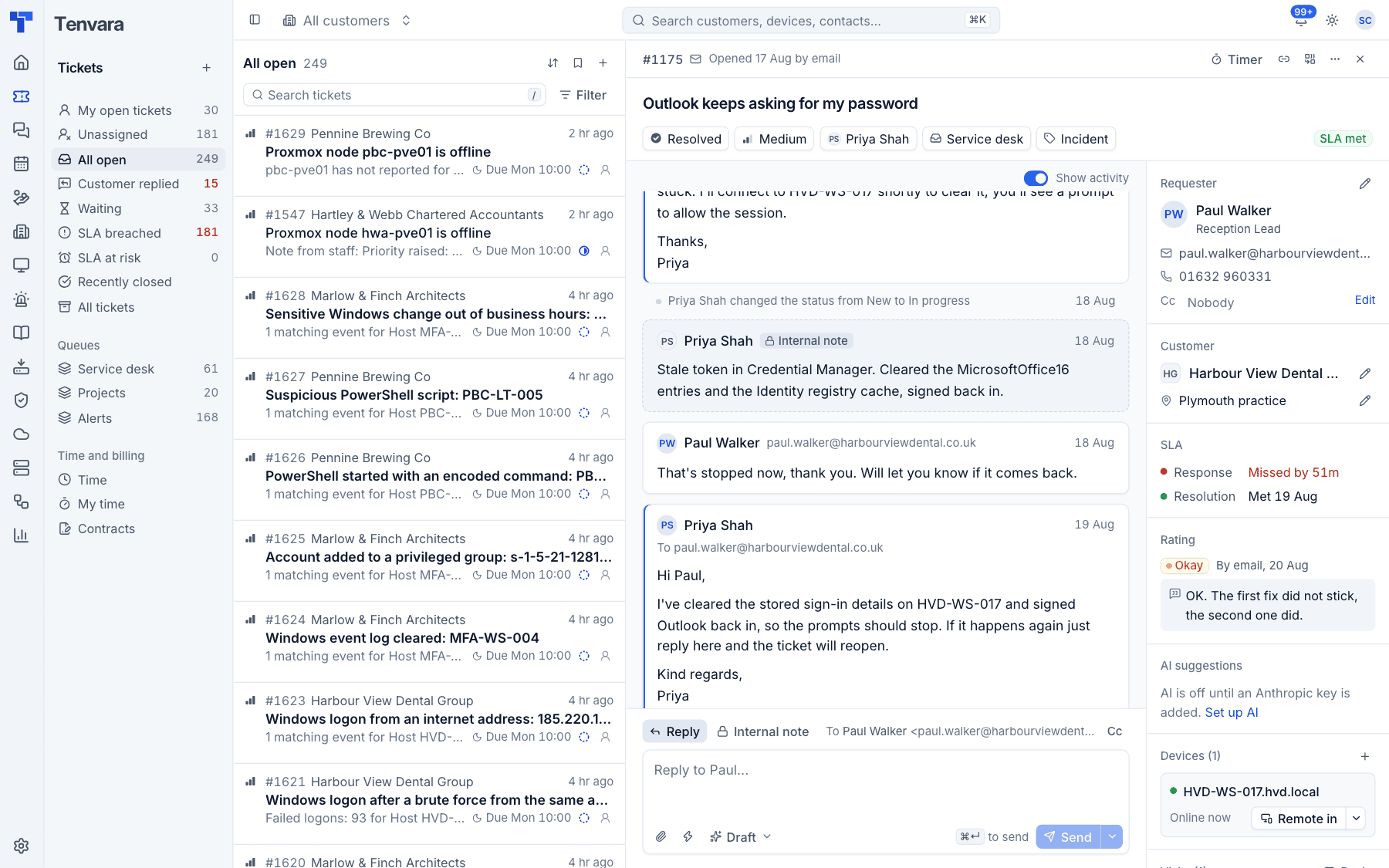
The list updates live. New tickets, replies and changes made by colleagues appear without reloading.
Built-in views
The sidebar has a view for each common question, with a live count:
| View | Shows |
|---|---|
| My open tickets | Open tickets assigned to you |
| Unassigned | Open tickets nobody has picked up |
| All open | Every ticket that is not resolved or closed |
| Customer replied | Tickets where the customer has written back and is waiting for you |
| Waiting | Tickets in a waiting status, such as waiting on the customer or a third party |
| SLA breached | Open tickets that have missed a response or resolution target |
| SLA at risk | Open tickets close to missing a target |
| Recently closed | Tickets resolved or closed lately |
| All tickets | Everything, whatever its status |
Under Queues each queue (for example Service desk, Projects and Alerts) has its own view of the open tickets in it. Queues are set up in Settings > Ticket setup (see Ticket setup and SLAs).
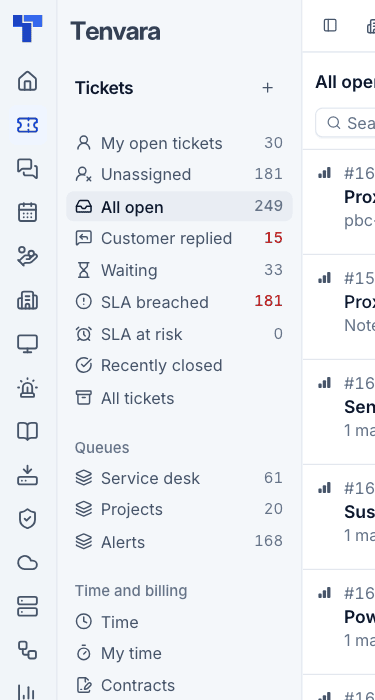
Every view follows the All customers switcher at the top of the page. Choose a customer there and the counts and lists narrow to that customer.
Reading the list
Each row shows the priority, the ticket number and customer, how long ago it last changed, the subject and the start of the latest message. Along the bottom are the SLA due time (or how overdue it is), the status and the assignee.
Search
Press / or click Search tickets and type. Search matches ticket numbers, subjects and content within the current view.
Filters
- Press Filter next to the search box.
- Choose what to filter by: Status, Assignee, Priority, Queue, Type, Customer, Source or SLA.
- Pick one or more values. The filter shows as a chip above the list; add more filters to narrow further, or remove a chip to clear it.
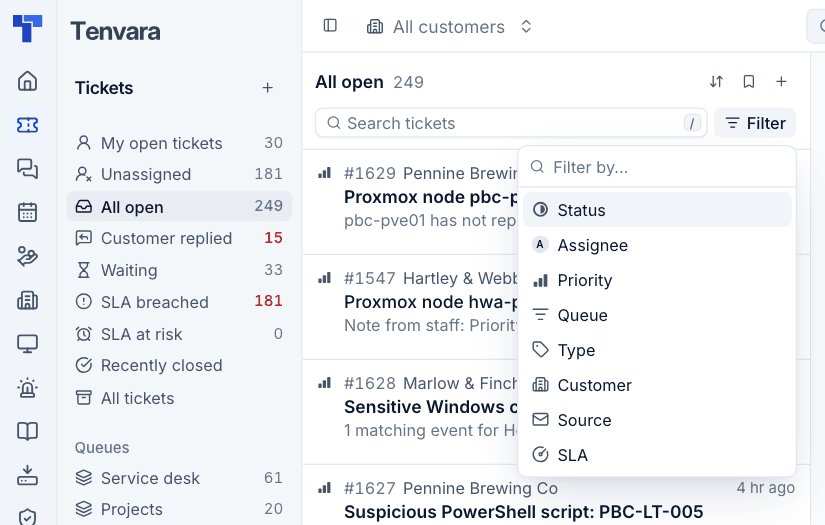
Source is how the ticket arrived: Email, Portal, Chat, Phone, Staff, Alert, Accepted quote or Automation. SLA picks tickets by the state of their SLA: Breached, At risk, On track, Paused, Met or No SLA.
Sorting
Press the sort button at the top of the list and choose what to sort by: Last activity (the default), Created, SLA due, Priority, Number, Status, Customer, Assignee, Subject or Updated, then Newest first or Oldest first.
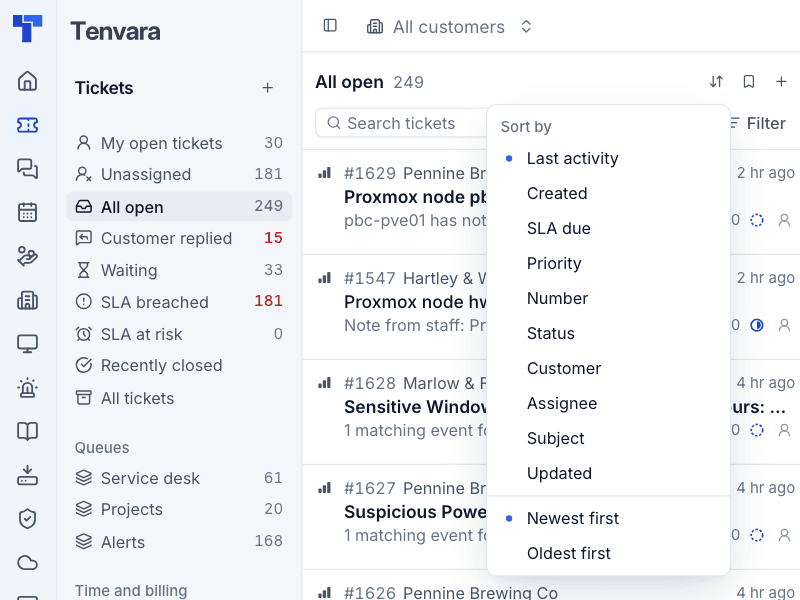
Tip: Sort by SLA due at the start of the day to work through tickets in the order their targets run out.
Saved views
When you have a combination of filters, search and sort you use often, save it:
- Set up the list the way you want it.
- Press the bookmark button at the top of the list and choose Save as a new view....
- Enter a Name.
- Turn on Share with the team if everyone should see it in their sidebar. Only you can change a shared view.
- Press Save view.
Saved views appear in the sidebar alongside the built-in ones.
Working in bulk
Select tickets with their check boxes, with x on the highlighted ticket, or with shift-click or Shift+x to select a range. A bar appears above the list:
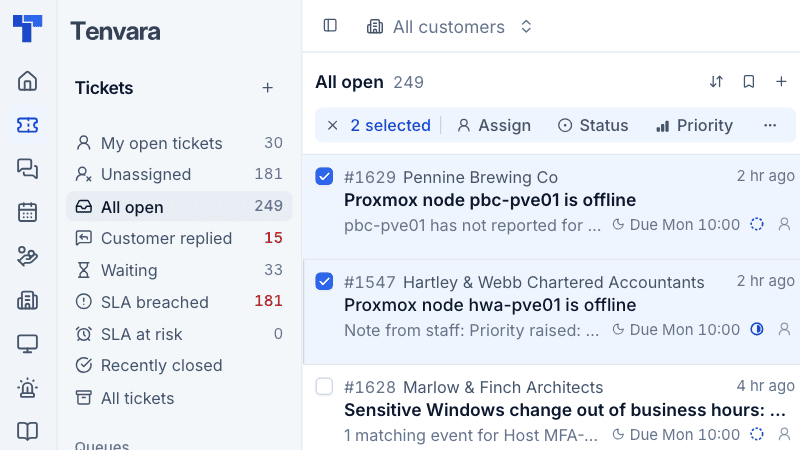
- Assign the selected tickets to someone.
- Change their Status or Priority.
- The ... menu has Move to a queue, Change type, Merge into one and Delete.
Merge into one combines the selected tickets. They must all belong to the same customer. Press the cross on the bar, or Esc, to clear the selection.
Working from the keyboard
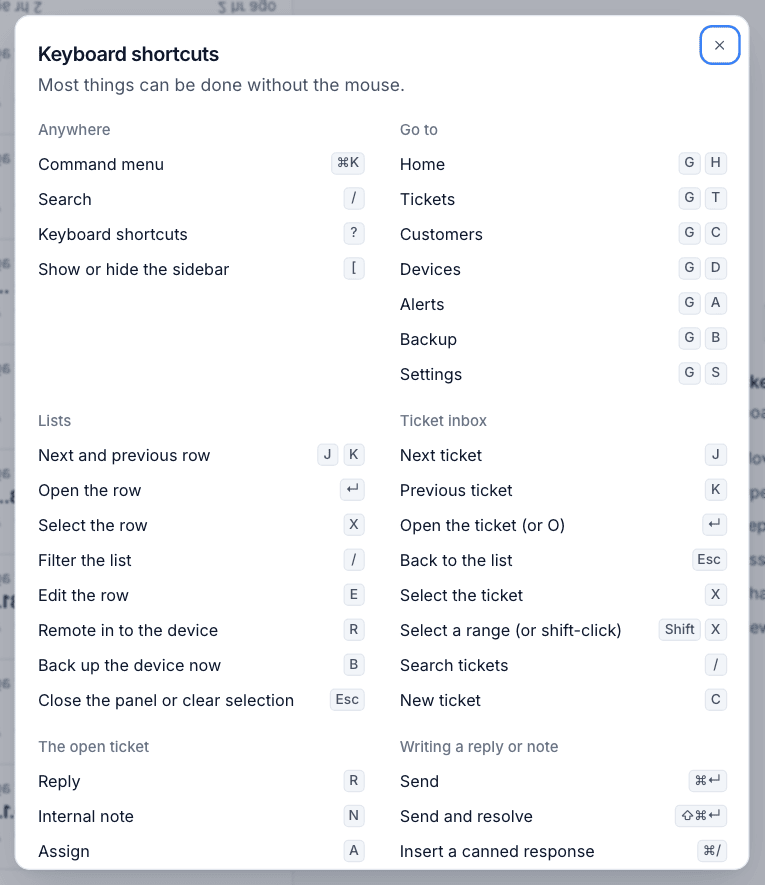
The inbox is built to be used without the mouse. Press ? at any time to see every shortcut.
| Key | In the list |
|---|---|
j and k |
Next and previous ticket |
Enter or o |
Open the ticket |
Esc |
Back to the list |
x |
Select the ticket |
Shift+x |
Select a range |
/ |
Search tickets |
c |
New ticket |
| Key | On the open ticket |
|---|---|
r |
Reply |
n |
Internal note |
a |
Assign |
i |
Assign to me |
s |
Change status |
p |
Change priority |
q |
Move to a queue |
y |
Change type |
l |
Link a device |
m |
Merge into another ticket |
t |
Start or stop the timer |
Shift+t |
Log time |
e |
Edit the subject |
In the reply box, Cmd+Enter (or Ctrl+Enter) sends, Cmd+Shift+Enter sends and resolves, and Cmd+/ inserts a canned response. Esc leaves the reply box and keeps your draft.
Time and billing links
The bottom of the inbox sidebar links to Time (everyone's time), My time (yours) and Contracts. See Logging time and Contracts and the Xero export.
Was this page helpful?
Thanks for the feedback.