Contracts and the Xero export
Set up each customer's recurring agreement, watch included hours and overage month by month, and export a month's invoices to Xero.
A contract is a customer's recurring agreement: a monthly fee, some hours included each month, and billable time beyond them charged at an overage rate. Contracts can also carry recurring items such as licences. Each month Tenvara works out what the customer used and what went over, and Export for Xero turns it into draft invoices. Invoicing itself stays in Xero.
The contract list
Tickets > Contracts lists every contract with its Customer, Status, Monthly value, Included hours, This month (billable hours used, with a bar that turns orange when it goes over), the Overage rate and the Term. The line at the top totals the monthly value of every contract in force, fees and recurring items, before VAT and overage.
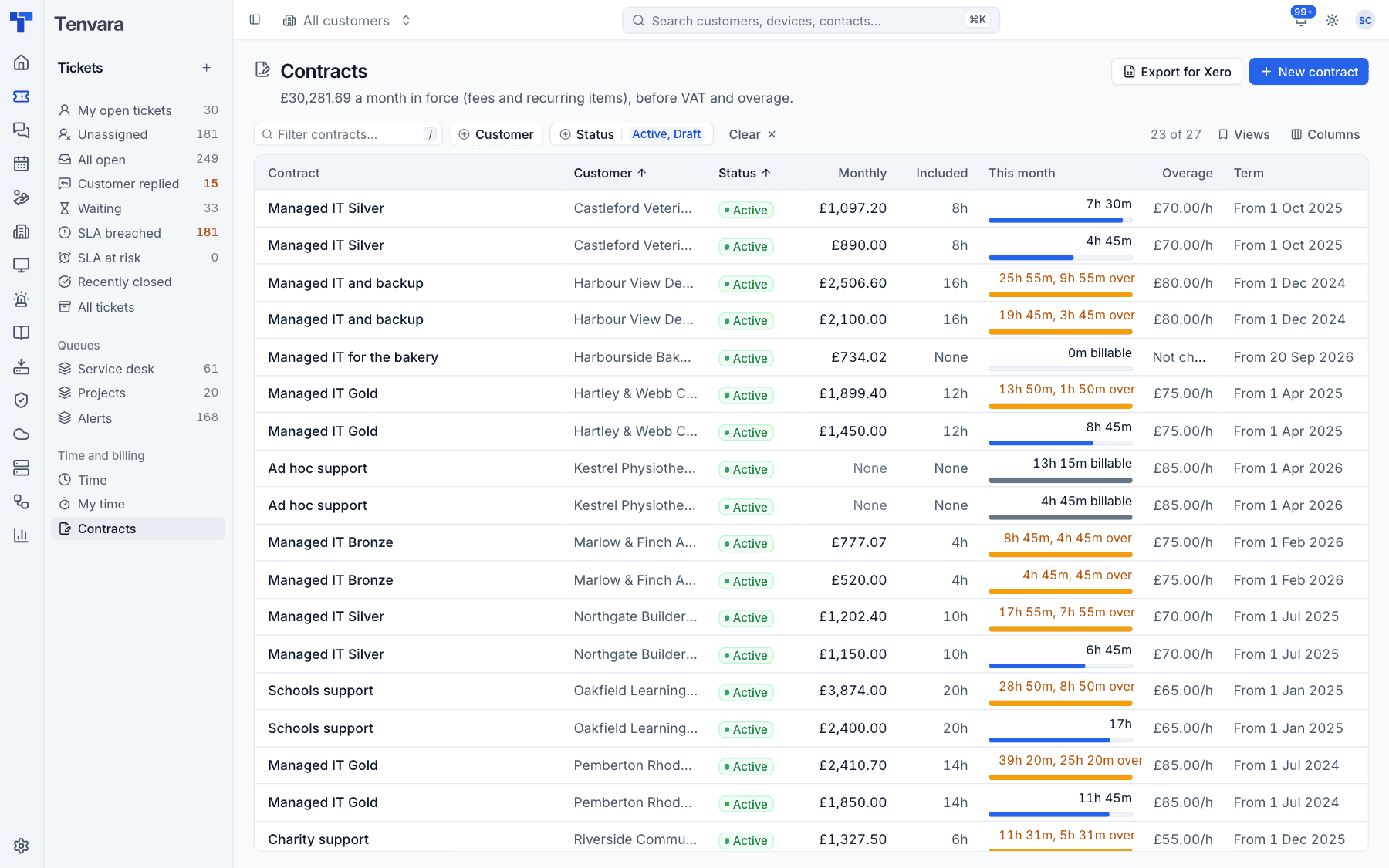
By default the list shows Active and Draft contracts. Filter by Customer or Status to see ended ones too.
Add a contract
- Press New contract (or New contract on the customer's Contracts and time tab).
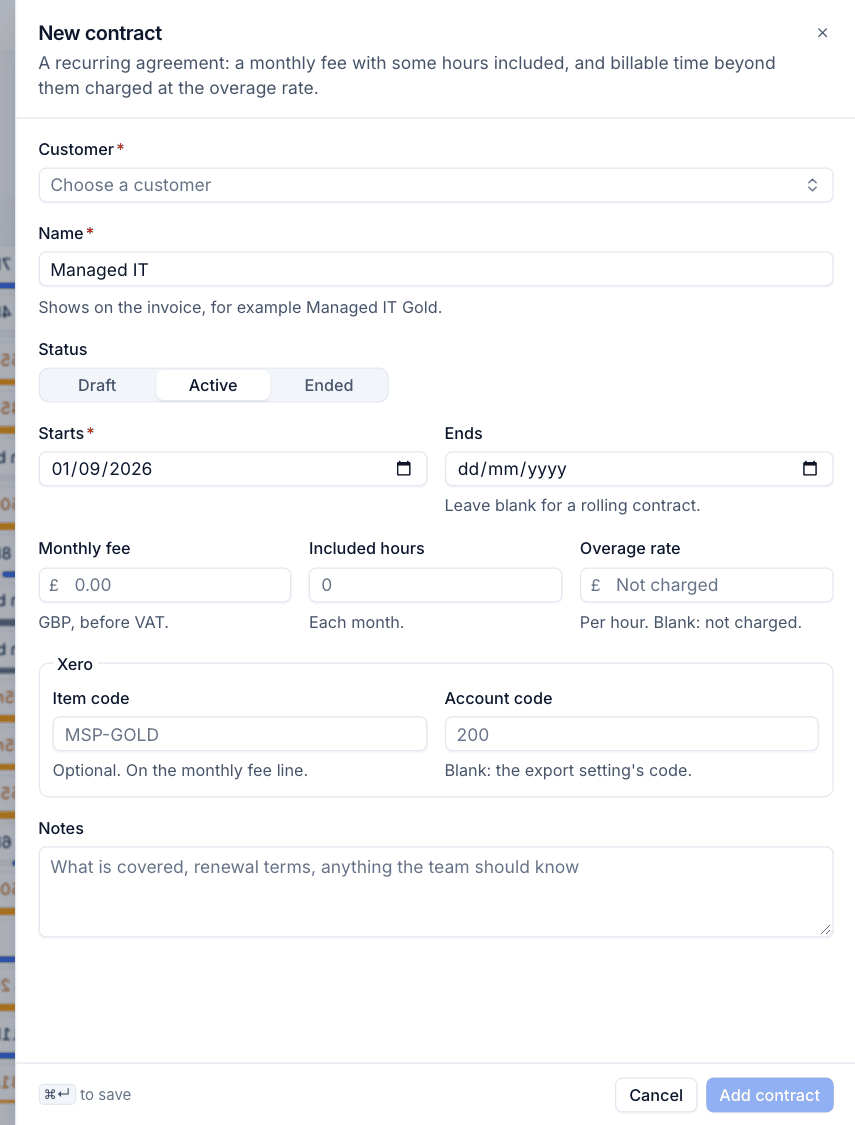
- Choose the Customer.
- Enter the Name. It shows on the invoice, for example "Managed IT Gold".
- Choose the Status:
- Draft while you are still agreeing it,
- Active once it is in force,
- Ended when it has finished.
- Set the Starts date, and the Ends date if it has one. Leave Ends blank for a rolling contract.
- Enter the Monthly fee (in pounds, before VAT), the Included hours each month and the Overage rate per hour. Leave the overage rate blank if time beyond the included hours is not charged.
- Under Xero, enter the Item code for the monthly fee line if you use Xero items, and an Account code if this contract should not use the default from the export settings.
- Add Notes: what is covered, renewal terms, anything the team should know.
- Press Add contract.
Common set-ups
| Agreement | Monthly fee | Included hours | Overage rate |
|---|---|---|---|
| Fully managed with a cap | £1,450 | 12 | £75 |
| Fixed fee, all you can eat | £900 | leave at 0 | leave blank |
| Pay as you go (ad hoc) | leave blank | leave at 0 | £85 |
| Licences and services only | leave blank | leave at 0 | leave blank |
With an ad hoc contract every billable hour is charged at the overage rate.
The contract page
Open a contract to see how it is doing.
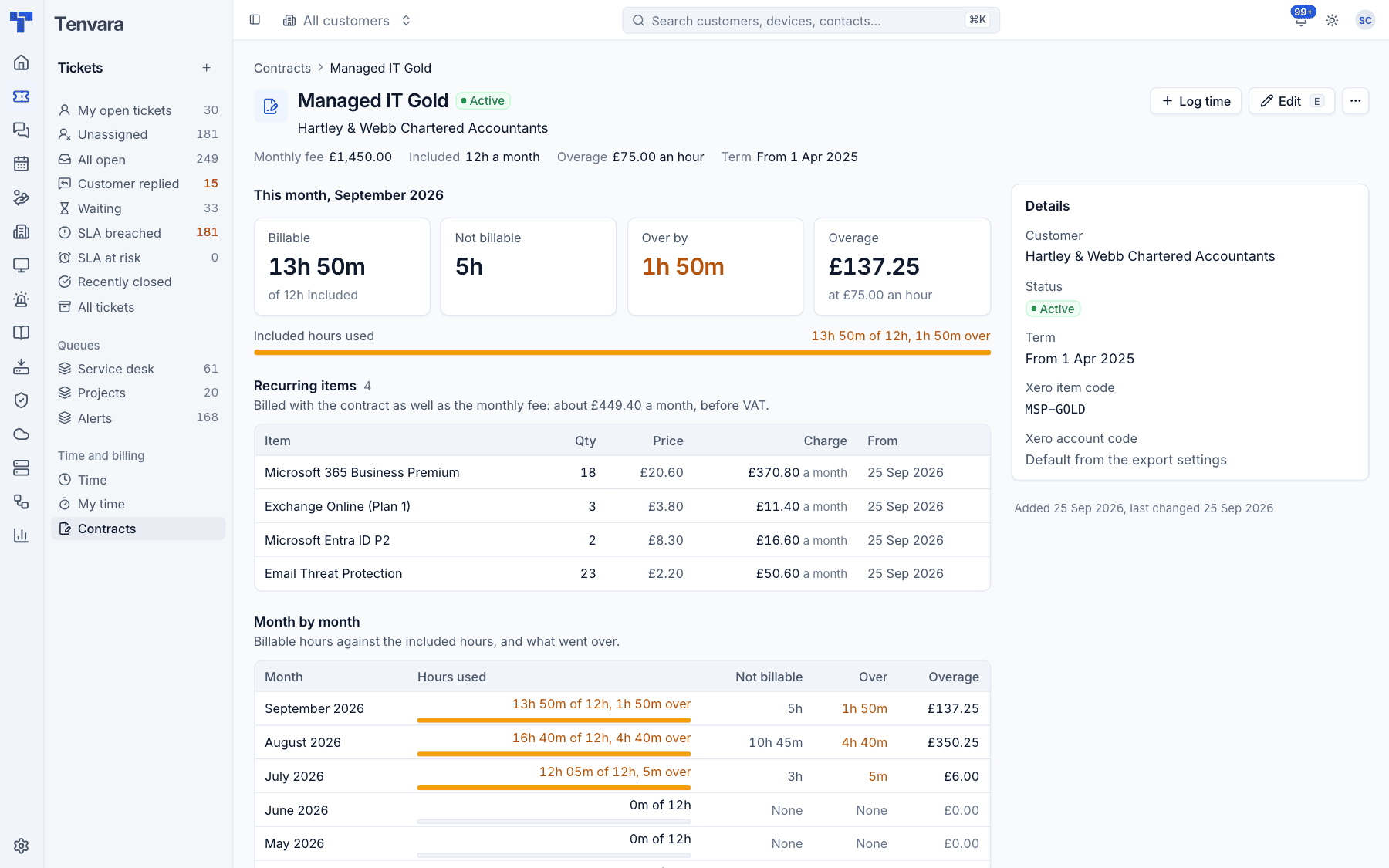
- The header shows the Monthly fee, Included hours, Overage rate and Term, with Log time, Edit and a More actions menu (End contract and Delete contract).
- This month shows Billable hours against the included hours, Not billable hours, how far it is Over by, and the Overage charge, with a bar for Included hours used.
- Recurring items are billed with the contract as well as the monthly fee, such as Microsoft 365 licences, each with its quantity, price, monthly charge and start date. Licences from your distributors can be kept up to date on the contract automatically: see Billing licences into contracts.
- Month by month lists each month's billable hours against the included hours, not billable hours, hours over and the overage charge.
- Rebilled expenses lists parking, parts and mileage to charge to this customer.
- Time on this contract lists every entry, filterable by technician and billable.
- Details shows the customer, status, term and the Xero item and account codes.
How time counts
- Only billable time counts against the included hours. Not billable time is shown but never charged.
- Time counts against the contract in force on the day it was worked, unless someone chose a contract, or No contract, when logging it.
- A contract that starts or ends part way through a month is charged pro rata by days: the fee and the included hours alike.
- If a contract changes (for example its dates), the time already logged follows it.
Export invoices for Xero
At the end of each month:
- Go to Tickets > Contracts and press Export for Xero.
- Choose the month.
- Check the preview. There is one draft invoice per customer, numbered like
INV-2026-09-HVDG, dated the last day of the month, with a line for each contract's monthly fee, recurring items (pro rata for part months), billable time beyond the included hours, and approved rebilled expenses and mileage. - Press Download CSV. The file is named after the month, for example
xero-invoices-2026-09.csv. - In Xero, import it with Import on the sales invoices screen. The invoices arrive as drafts for you to check and approve.
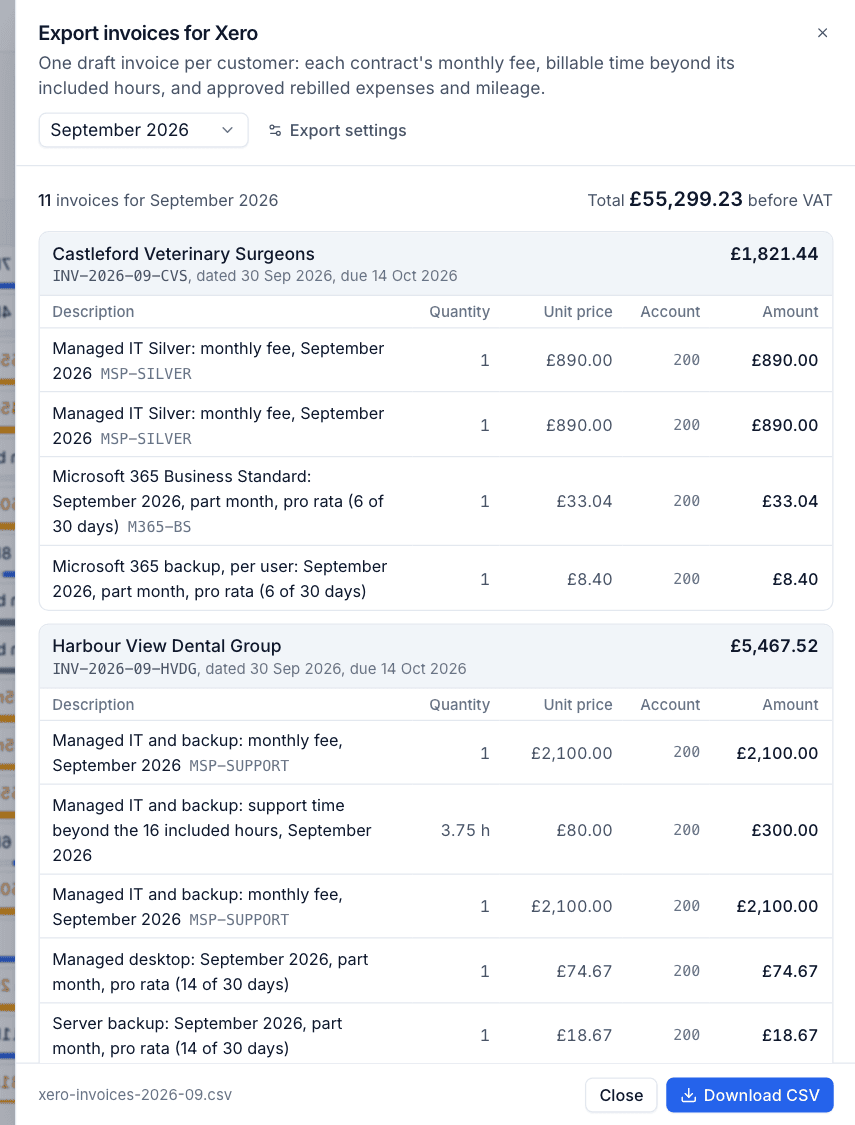
The CSV is in Xero's sales invoice import format, with dates as dd/mm/yyyy and prices before VAT.
Export settings
Press Export settings in the export to set:
| Setting | What it does |
|---|---|
| Invoice number prefix | Numbers look like INV-2026-09-ACME |
| Payment terms | Days after the invoice date (the month's last day) that the invoice is due |
| Sales account code | Your Xero revenue account, often 200. A contract's own account code wins over this one |
| Tax rate | Exactly as Xero names it, for example "20% (VAT on Income)" |
Warning: Import each month's file into Xero once. Importing the same file twice creates duplicate draft invoices in Xero. Approved expenses are marked billed so they never go on two months.
Was this page helpful?
Thanks for the feedback.