Device groups
Gather devices by customer, operating system, type or hostname, or by hand, so monitoring and patch policies can target them.
A device group is a set of devices that policies can apply to. Monitoring policies and patch policies can both be assigned to a group, and scripts can be run or scheduled against one. Groups can fill themselves from rules, so a new server joins the Servers group the moment it enrols.
Open Devices > Device groups.
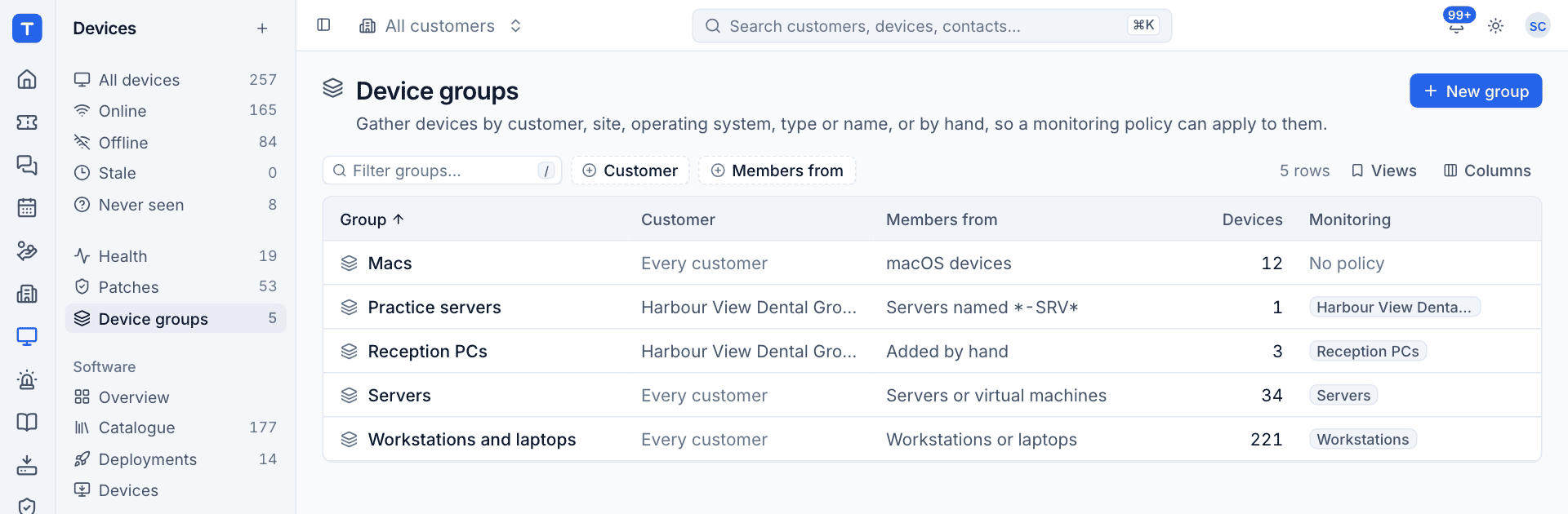
The list shows each group, the customer it belongs to (or Every customer), where its members come from in words (for example Servers named *-SRV* or Added by hand), how many devices are in it, and the monitoring policies that use it.
Create a group
- Click New group.
- Enter a Name and, optionally, a Description.
- Under Belongs to, leave Every customer or pick one customer. A group that belongs to a customer only ever holds that customer's devices.
- Set any Rules. Leave them all empty for a group you fill by hand.
- Customers: devices at these customers.
- Operating systems: Windows, macOS, Linux or Other.
- Device types: Workstation, Laptop, Server, Virtual machine, Network, Mobile or Other.
- Hostname: patterns with
*and?, separated by commas, for exampleHVD-SRV*, *-DC??. They are matched against the full and the short hostname, in any case.
- Watch the live count and list of matching devices update as you type, then click Create group.
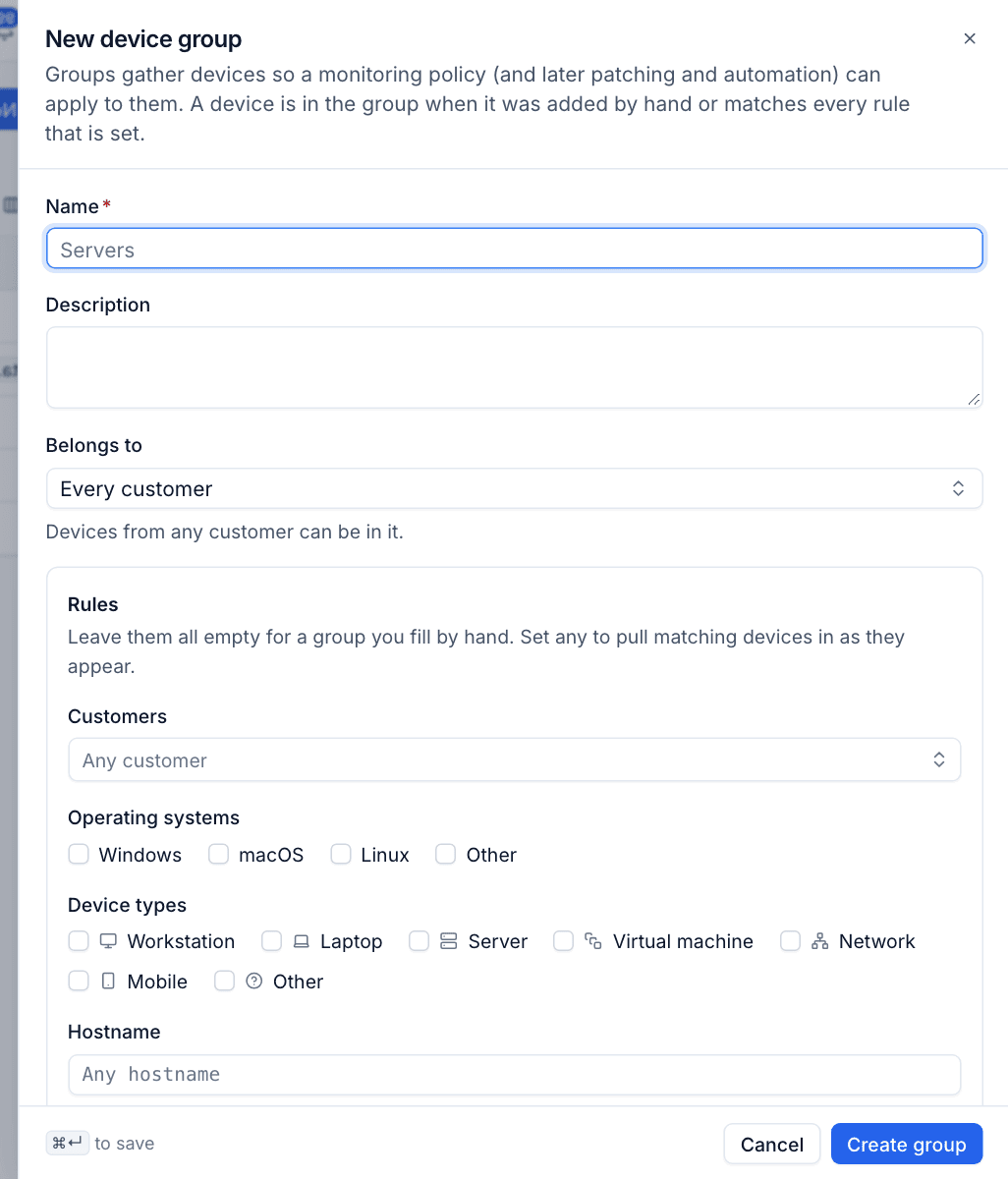
A device is in the group when it was added by hand, or when it matches every rule that is set.
The group page
Click a group to open it.
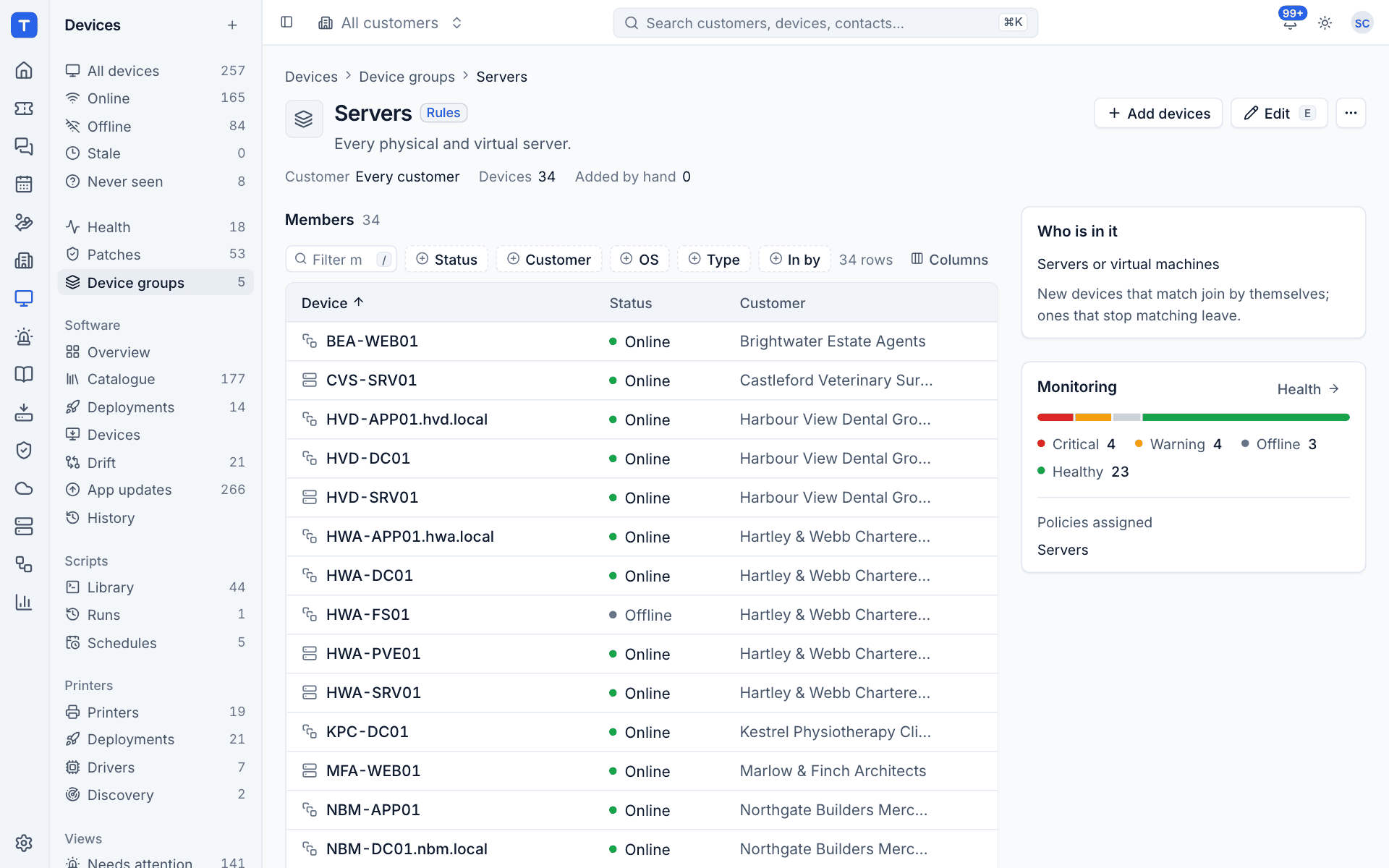
- Members lists every device in the group with its status, customer, operating system and type, and In by says whether it matched the rules or was added by hand.
- Who is in it repeats the rules in words. New devices that match join by themselves; ones that stop matching leave.
- Monitoring shows the members' health (critical, warning, offline and healthy) and the policies assigned to the group.
Add or remove devices by hand
- Click Add devices and pick the devices to add.
- To take a hand-added device out, use the actions on its row. Devices that are in by rule leave only when they stop matching.
Change or delete a group
Click Edit (E) to change the name, description, customer or rules. The group's other actions are in the ... menu.
Note: A group with monitoring policies assigned decides which checks its devices run. Changing its rules, members or customer, or deleting it, also needs the Monitoring manage permission, because it changes what those devices run.
Where groups are used
- Monitoring policies in Settings > Monitoring can be assigned to groups. See Monitoring policies.
- Patch policies in Devices > Patches > Policies. When a device is in several groups with policies, the one with the higher priority wins. See Patching.
- Scripts can run now or on a schedule against a Device group. See Running and scheduling scripts.
- Software deployments can target a group. See Software deployment.
- The Health page can be narrowed to one group with the picker at the top right.
Was this page helpful?
Thanks for the feedback.