Email security
Check SPF, DKIM, DMARC, MTA-STS and TLS reporting for every customer domain, write the records, read the reports and move each domain safely to reject.
Microsoft 365 > Email security looks after the mail authentication of every customer domain: whether the DNS records are right, what they should be, who is really sending as the domain, and when it is safe to move DMARC on towards reject.
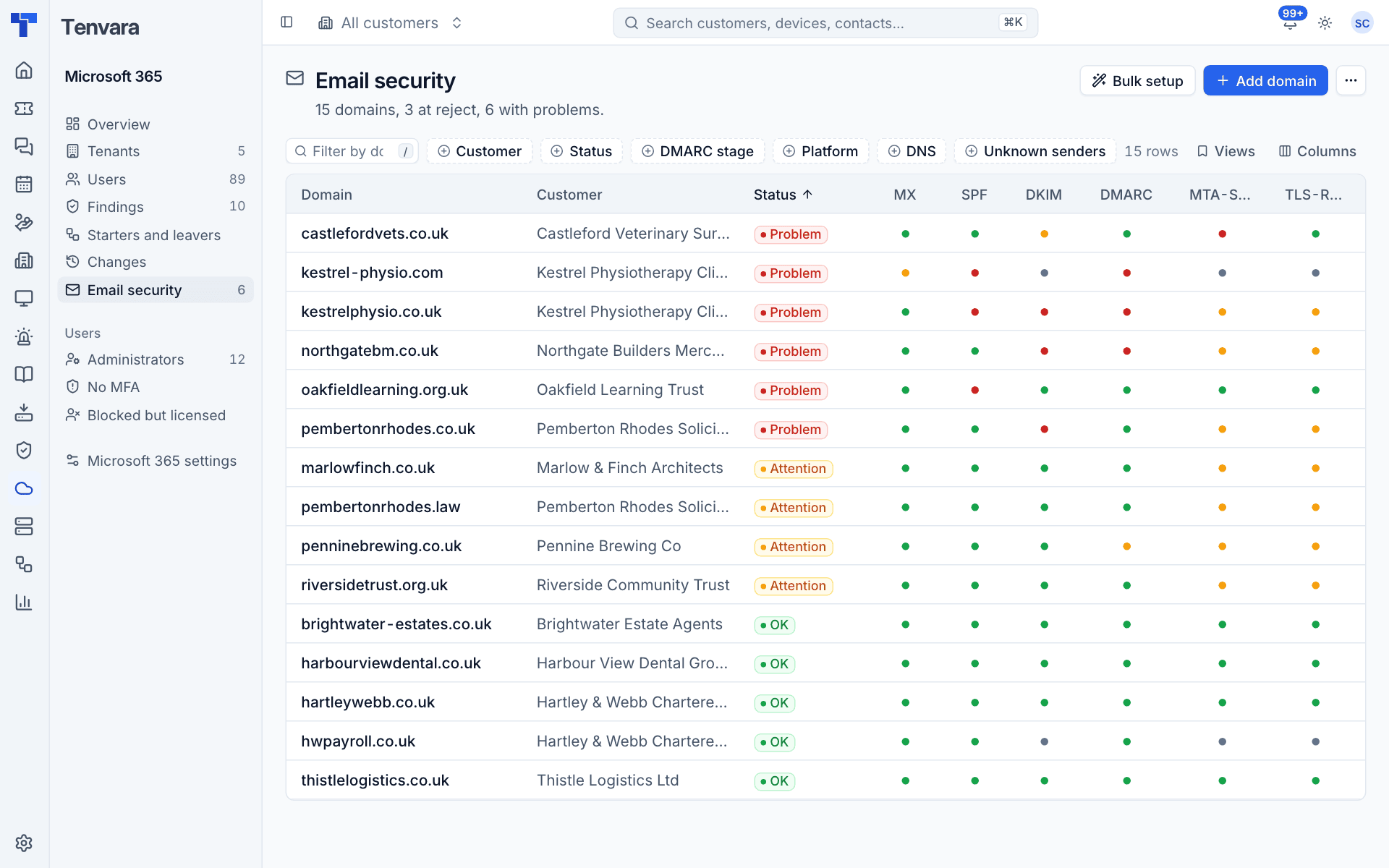
The domain list
Each domain shows its Customer, overall Status (OK, Attention or Problem), a dot for each check (MX, SPF, DKIM, DMARC, MTA-STS, TLS-RPT) and its DMARC stage. Filter by customer, status, stage, platform, DNS provider and unknown senders.
Where domains come from
- Every connected tenant's verified domains that carry email are added by themselves.
onmicrosoft.comaddresses and service hostnames (signature services, gateways and the like) are never added, and nothing is removed when a tenant stops listing a domain. - Press Add domain to add one by hand for any customer, for example a Google Workspace customer or a parked domain.
The mail platform (Microsoft 365, Google, other or no mail) is worked out from the MX records, and you can set it yourself.
The checks
Each domain is checked every hour and whenever you press Check now:
| Check | What it looks at |
|---|---|
| MX | Where inbound mail is delivered, including a gateway in front of Microsoft 365 |
| SPF | Which servers may send, with the DNS lookup count (over 10, or more than 2 empty lookups, is a problem) |
| DKIM | Both Microsoft 365 selector CNAMEs and a published key, or the common selectors for other platforms |
| DMARC | The policy, report addresses and whether it matches the domain's stage |
| MTA-STS | The record, and the policy fetched and compared with the live MX |
| TLS-RPT | Whether TLS failure reports are requested |
Autodiscover, DNSSEC and BIMI are also looked at, for information only. A lookup that fails is shown grey and never counted against the domain. The overall status is the worst of the six scored checks.
A domain's page
Open a domain to see its Customer, Tenant, Platform, DNS host and DMARC stage, with Check now. The tabs are Overview, DNS, SPF, Reports, Senders, TLS, MTA-STS, Ramp and History.
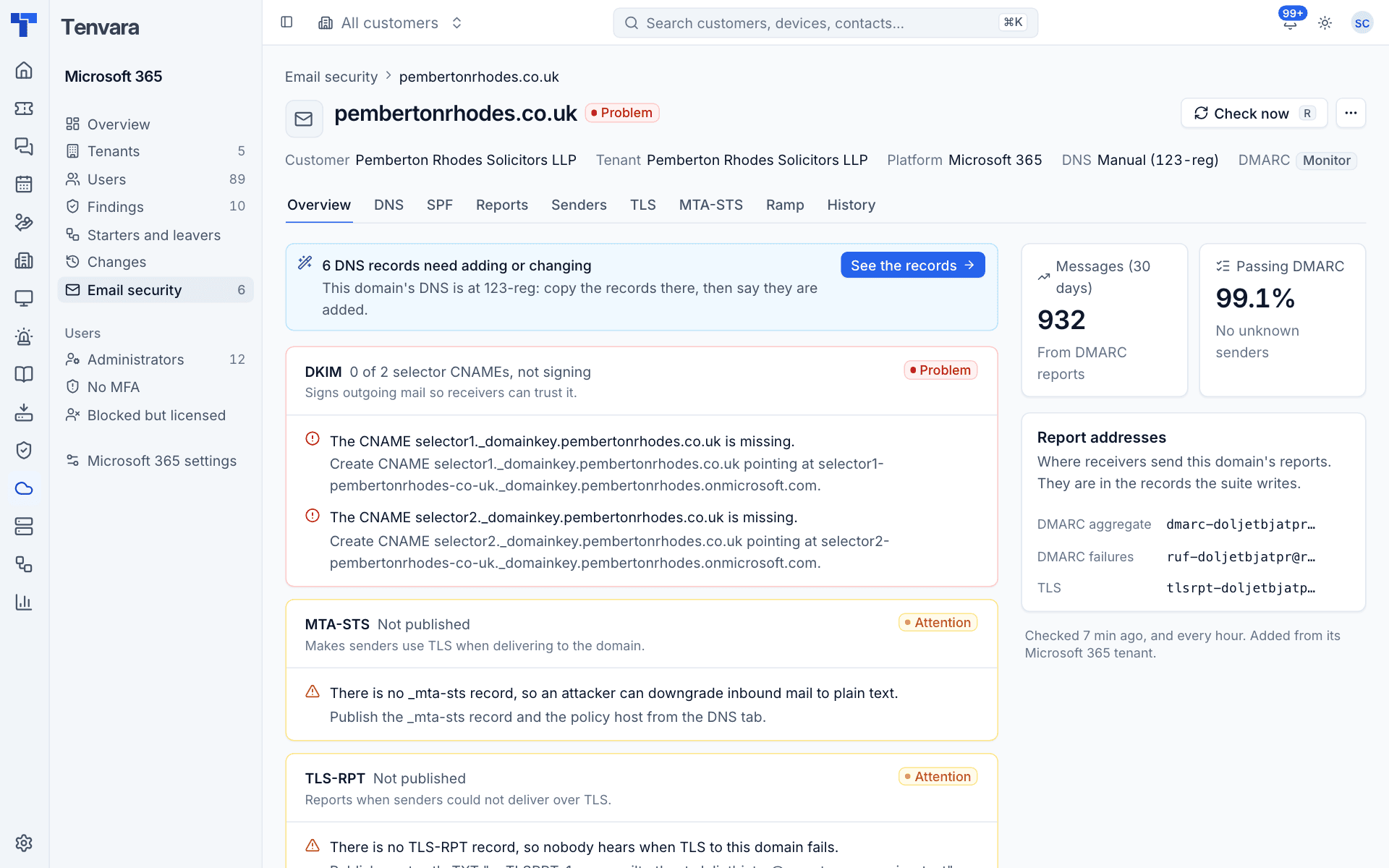
The Overview lists each check with what is wrong and exactly what to change, how many DNS records need adding or changing, messages and DMARC pass rate over 30 days from the reports, and the domain's report addresses.
Fixing the DNS
The DNS tab lists every record the domain should have, with its State (In place, To add, to change, or a conflict), Type, Name, what it Should be and Why.
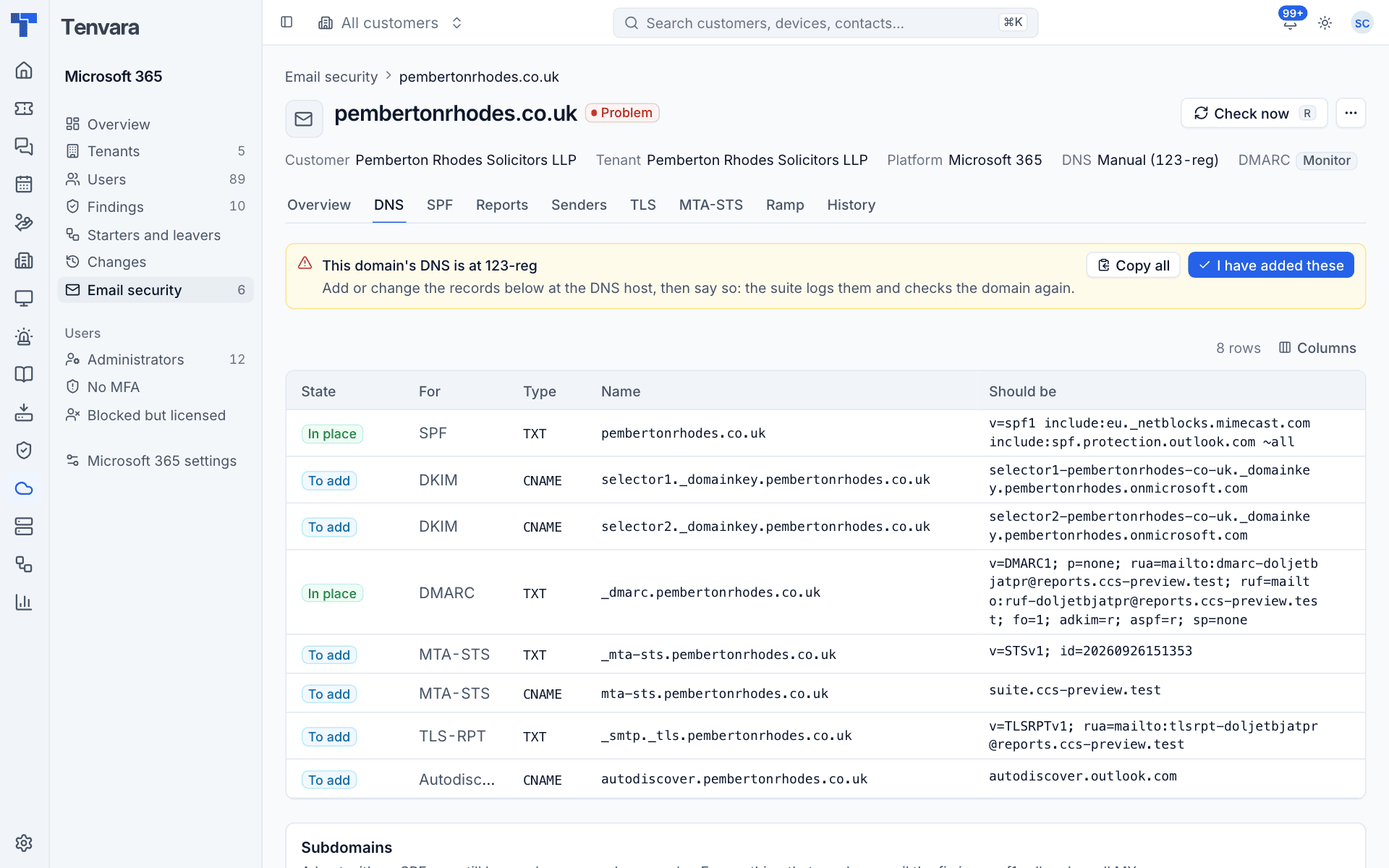
How you apply them depends on where the DNS is hosted:
- Cloudflare: with a Cloudflare account connected in Settings, Tenvara writes the records itself when you apply them.
- Anywhere else: press Copy all, add the records at the DNS host, then press I have added these. Tenvara logs them and checks the domain again.
Tenvara is careful with existing records. SPF is edited, never replaced, adding the platform's includes. An MX that points somewhere else is never overwritten. Unrelated TXT records are never touched. Every record written, refused or advised is kept in the domain's History.
For Microsoft 365 domains, DKIM is switched on in Exchange with the DKIM signs mail for every domain fix once the CNAMEs are in place (see Security findings).
Bulk setup writes every record that needs writing for all the domains Tenvara can write to and fully work out.
Reports and senders
Tenvara publishes its own report addresses in each domain's DMARC and TLS-RPT records, then reads the aggregate, failure and TLS reports receivers send.
- Reports shows the DMARC reports received, TLS the TLS reports.
- Senders lists who sends as the domain, named from a catalogue of 44 known services (Microsoft 365, Google Workspace, Mimecast, HubSpot and so on) or by IP address, with messages, DMARC pass and SPF and DKIM alignment. Mark each as Approved, Unknown or Unauthorised.
An unknown sender with 20 or more messages, or an approved one failing more than 10% over the last seven days, raises an alert.
Moving to reject
The Ramp tab takes a domain from monitoring to reject in stages: Monitor (p=none), Quarantine 25%, Quarantine and Reject. It shows the record for the next stage and what must be true first.
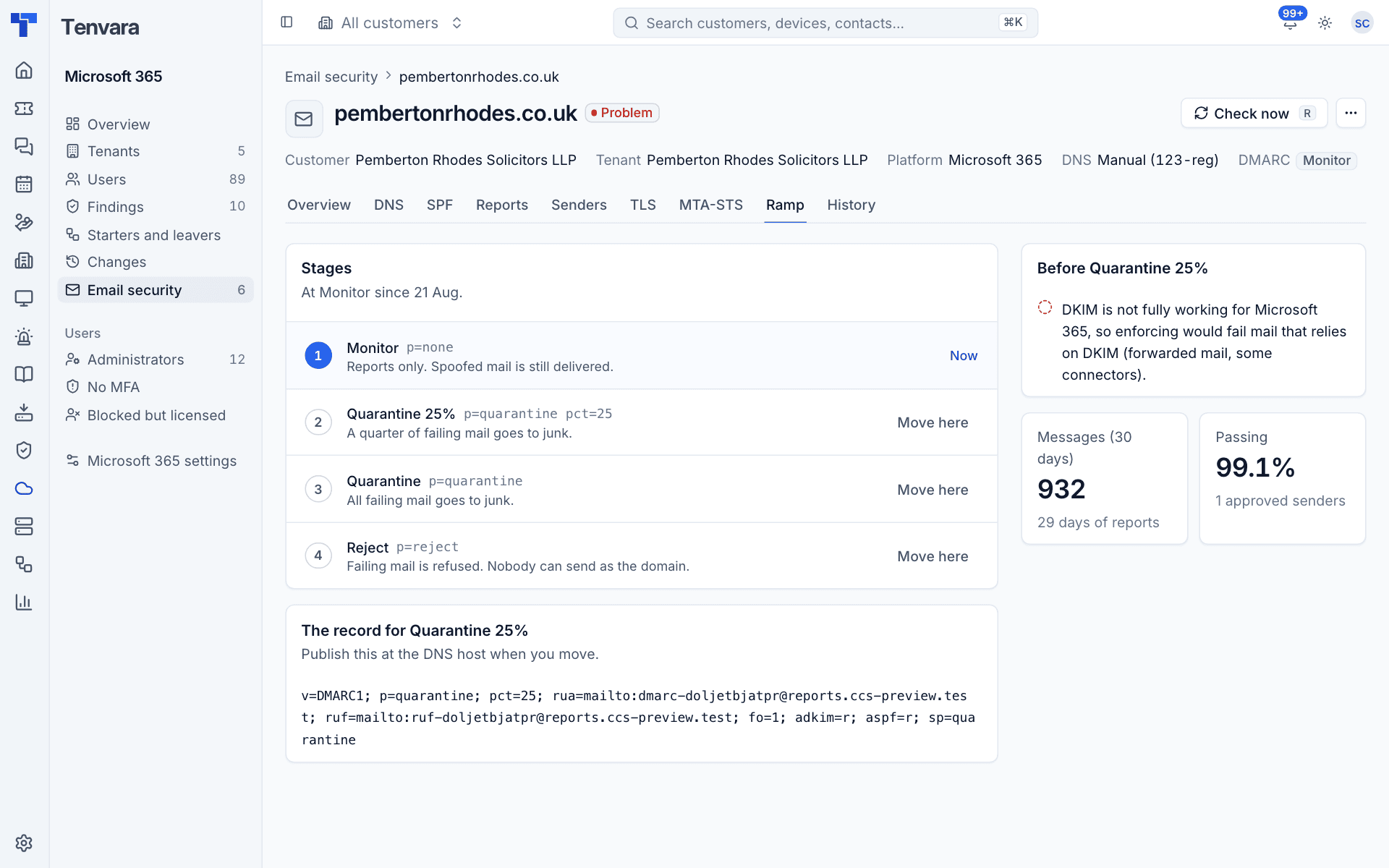
Tenvara only advises moving on when, over the last 30 days: SPF and DMARC are not failing, DKIM works for Microsoft 365, there are enough days of reports (14 at monitor, 7 after), it is at least seven days since the last move, at least one sender is approved, no unknown sender has 20 or more messages, and every approved sender passes at least 98%. You always make the move yourself with Move here; Tenvara writes the DMARC record where it can. An alert tells you when a domain is ready.
When a domain arrives already reporting to another DMARC provider, Tenvara keeps sending them copies for 14 days before cutting over, and you can cut over sooner or extend.
MTA-STS
MTA-STS makes other mail servers use TLS when delivering to the domain. Tenvara hosts the policy for you: mta-sts.<domain> only needs a CNAME pointing at your Tenvara host. The MTA-STS tab shows the policy served, TLS sessions and failures over 14 days, and the settings (Mode, Max age, MX hosts).
Start in testing mode. Tenvara advises enforcing once the MTA-STS and TLS-RPT checks pass and TLS reports show at least 7 days of reports and 20 sessions with no failures. Enforce anyway is there if you are sure.
Settings
Settings > Microsoft 365 > Email security (administrators) holds:
- The Report domain and MTA-STS host, with the records to create for the report domain in your own DNS. Choose these once: changing either later changes every domain's records.
- How reports arrive: a Reports mailbox in your own Microsoft 365, read every five minutes, or an SMTP relay webhook signed with a secret.
- Cloudflare accounts: a token with Zone DNS edit, Zone read and Config Rules edit lets Tenvara write records for every domain in the account.
- The Sender catalogue, where you can add or edit services.
Was this page helpful?
Thanks for the feedback.