Searching security events
Search every security event across devices, Microsoft 365, network devices and integrations, with the search language, saved searches, live tail and export.
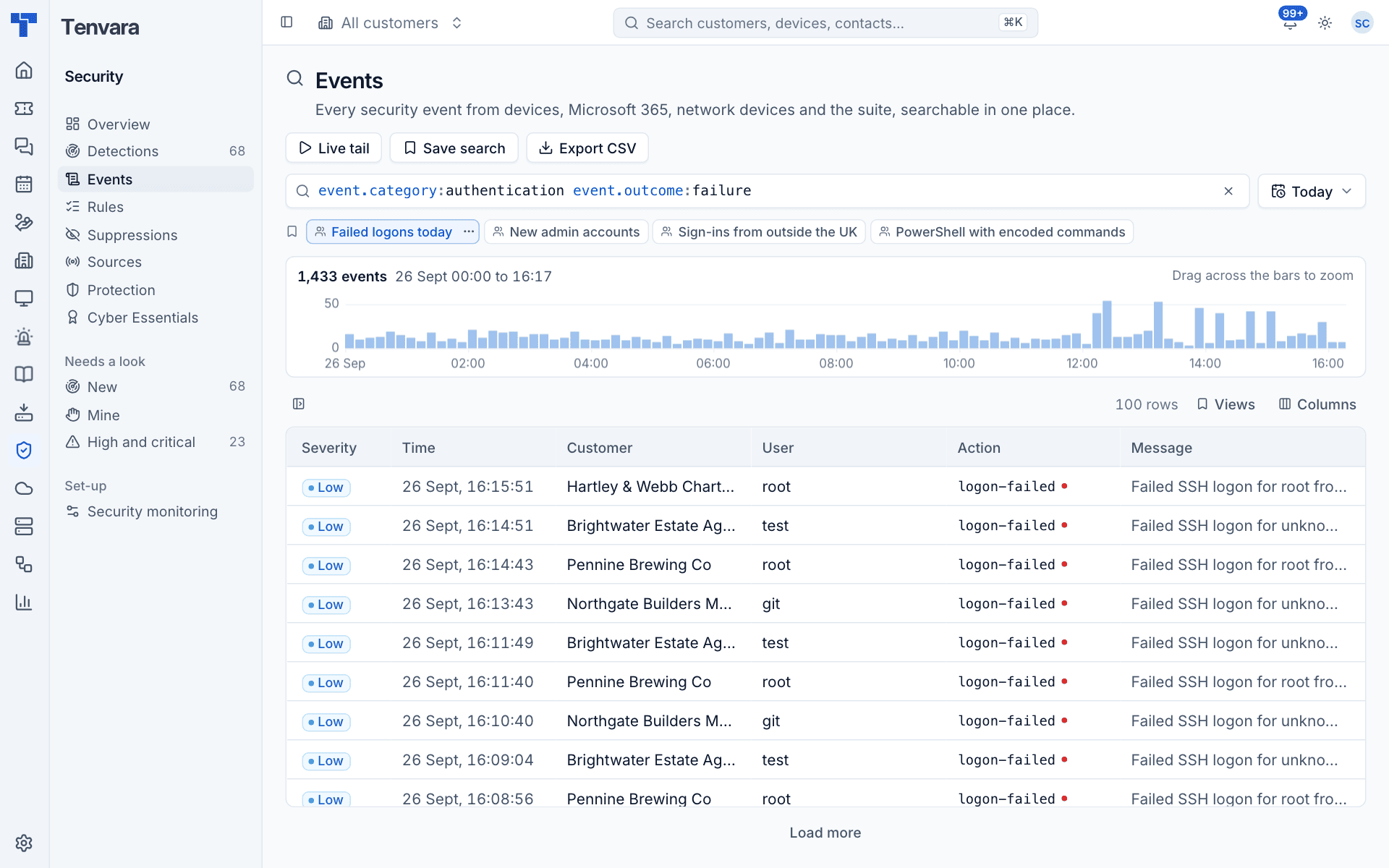
Security > Events searches every security event Tenvara holds, from every source, in one place. Use it to investigate a detection, answer "who signed in to that server last night", or check a hunch across every customer.
Running a search
- Type in the search bar (press
/to jump to it). Suggestions offer field names, then the top values of that field over the current time range. PressTaborEnterto take one. - Choose the time range (Last 15 minutes to Last 30 days, Today, or between two times).
- Add a customer or device if you want to narrow it.
- Press
Enter. Up and down arrows in the bar walk through your earlier searches.
The results show the number of events and the exact time span, a histogram (drag across the bars, or click one, to zoom in), and the events newest first. By default the columns are Severity, Time, Customer, Device, User, Action and Message; any other field can be added from Columns. The list loads more as you scroll, and j, k and Enter move through it.
A mistake in the search is underlined where it is, with a suggestion for an unknown field ("Did you mean ...?").
The search language
| Type | Means |
|---|---|
user.name:administrator |
The field is this value |
-host.name:HVD-SRV01 or NOT host.name:HVD-SRV01 |
The field is not this value |
dst.port:>=1024, severity:>medium |
Comparisons. Severity takes info, low, medium, high, critical or 0 to 5 |
src.ip:10.0.0.0/8 |
An address in a range |
process.name:power*, process.cmdline:*-enc* |
Starts with, contains |
user.upn:* |
Has a value |
event.action:(logon-failed OR account-locked) |
One of several values |
user.name:alice OR host.name:PC01 |
Either term |
labels.logon_type:10 |
A label (extra values some events carry) |
"failed to log on", mimikatz |
Free text in the message, host, user, process, command line, file or app |
Terms side by side must all match. Short names work too: user, host, action, category, outcome, country, process, cmdline, app, upn, src, dst, port, sev and others.
Some useful searches:
action:logon-failed user:administrator
source:m365 action:sign-in -country:GB
action:member-added labels.privileged:true
process:powershell.exe cmdline:*-enc*
action:(malware-detected OR protection-disabled)
Tip: Host names are stored as the device reports them (upper case for Windows), so
host.name:*pc01*is the easy way to match without worrying about case.
Events you will see
Each event has a normalised action, so the same search works across sources. Common ones:
| Action | From |
|---|---|
logon, logon-failed, logoff |
Windows, macOS, Linux (SSH) |
account-created, account-deleted, password-reset, member-added |
Windows, macOS, Linux, Microsoft 365 |
process-started, script-block, service-installed, scheduled-task-created |
Windows |
malware-detected, protection-disabled, firewall-disabled, log-cleared |
Windows and macOS |
elevated, elevation-failed |
sudo and su on macOS and Linux |
sign-in, sign-in-failed, risk-detected |
Microsoft 365 |
inbox-rule-created, mail-forwarding-set, file-downloaded, sharing-link-created |
Microsoft 365 audit log |
connection-blocked, ips-alert, vpn-logon-failed, admin-logon-failed |
Network devices |
alert, alert-resolved |
Security integrations |
Looking at one event
Click an event to open it in the side panel. It shows when it happened, the customer, device, user, source and outcome, then every field and label. Hover a field to filter for it, filter out it, or copy it. The raw record from the source is at the bottom, with a copy button.
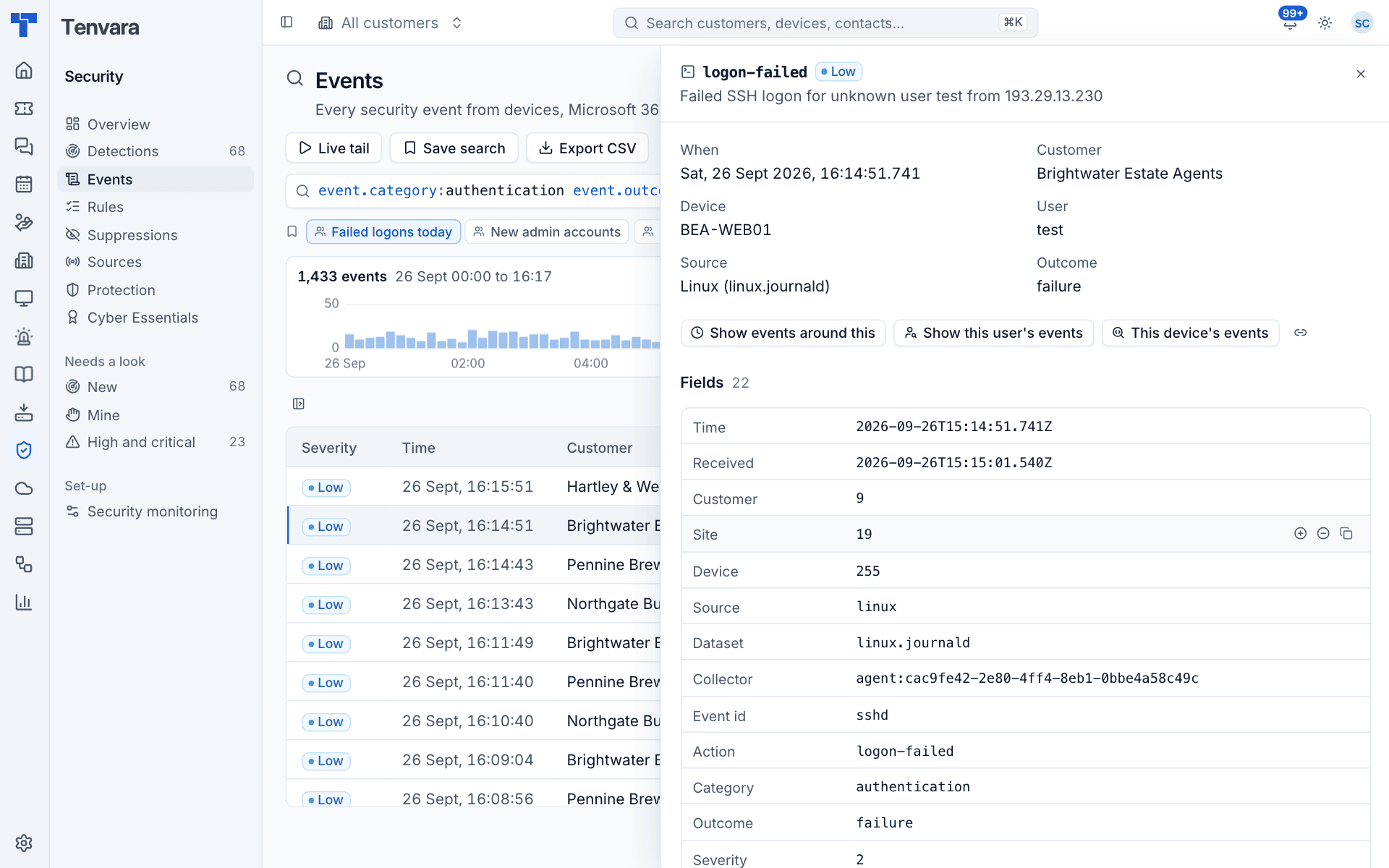
The buttons across the top pivot the search:
- Show events around this: five minutes either side, on the same device.
- Show this user's events: the last week.
- This device's events: everything from the device.
The link button copies a link straight to the event.
Saved searches, live tail and export
- Save search keeps the current search and range. Saved searches appear as buttons under the bar (for example "Failed logons today" or "New admin accounts"). Save them for yourself or share them with everyone.
- Live tail checks for new events every few seconds and adds them at the top. It pauses while an event is open or the tab is hidden.
- Export CSV downloads up to 100,000 matching events, with customer and device names beside their ids. Every export is recorded in the activity log.
Every search is a link: copy the address to share exactly what you are looking at.
How long events are kept
By default events are kept 90 days, the raw records behind them 30 days, and hourly counts (for charts) 400 days. Administrators can change these in Settings > Security monitoring > General. See Event sources and collection.
Was this page helpful?
Thanks for the feedback.