Integrations and alerting
Connect Microsoft Defender, SentinelOne and Huntress so their alerts become detections, and choose which detections raise alerts and tickets.
Tenvara can read the EDR and antivirus consoles you already use. Their alerts become detections alongside the ones Tenvara's own rules find, and their agents' health shows on each device's protection. This page also covers how detections turn into alerts and tickets.
Supported consoles
| Console | What Tenvara reads | Credentials |
|---|---|---|
| Microsoft Defender | Defender XDR alerts (Defender for Endpoint, Office 365 and Identity) from customers' connected Microsoft 365 tenants | None: it uses the Microsoft 365 app registration, which needs SecurityAlert.Read.All |
| SentinelOne | Threats and agent health from a management console (API v2.1) | A service user's API token with the Viewer role, or IR Team to resolve threats from Tenvara, and the console address |
| Huntress | Incident reports and agent health (API v1), with its organisations mapped to customers | An API key and secret |
Defender's sensor health comes from the Tenvara agent on each device, since Microsoft does not list Defender for Endpoint machines through Graph.
Connecting a console
- Go to Settings > Security monitoring > Integrations and press Connect a console.
- Choose the Console and give it a Name.
- Under Whose console, switch on One customer's console if it belongs to a single customer. Otherwise its sites or organisations are matched to your customers.
- Enter the credentials (not needed for Defender).
- Under Severities, choose how the console's severities become detection severities. High and above raise alerts by default.
- Choose whether to Resolve the detection when the console resolves its alert (keeps both lists in step when the console is worked first), and whether to Keep its alerts as security events so they can be searched and used by rules.
- Press Test connection, then Connect. Tenvara pulls from it straight away and then every few minutes.
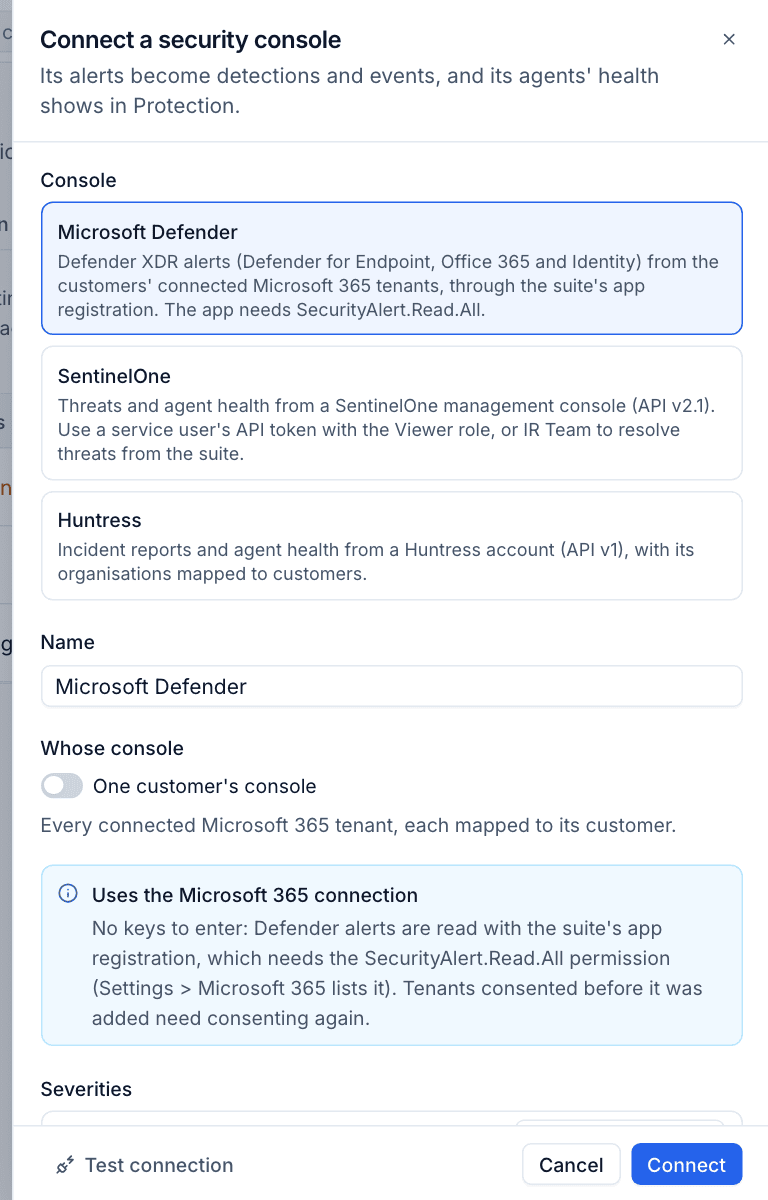
Note: Tenants that were consented before SecurityAlert.Read.All was added to the app registration need consenting again before Defender alerts can be read.
Looking after a console
The integrations list shows each console with its State, the Customers it covers and its Agents (with how many are unhealthy). Click one to open it:
- Pull now reads it straight away; Change edits its settings and credentials (leave a secret blank to keep it).
- Sites shows each site or organisation and the customer it is mapped to. Change a mapping if the guess was wrong; your choice is kept.
- Agents lists each agent with its health (for example Healthy or infected) and the Tenvara device it is matched to, by serial number then hostname. Use Change or Link to a device to fix a match.
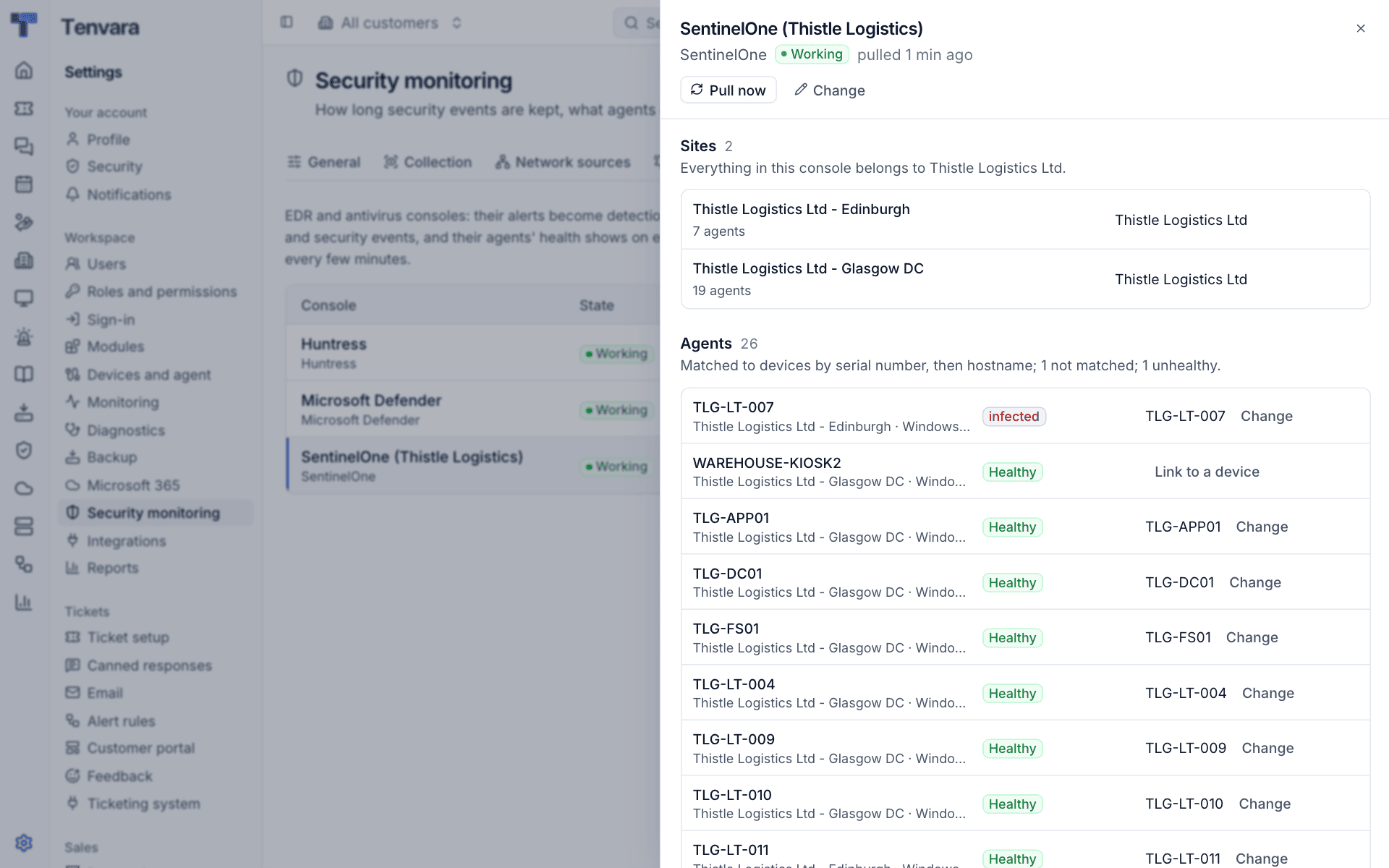
A console whose credentials are refused, or that fails three pulls in a row, raises an alert; the next good pull clears it. Removing a console keeps the detections it made.
How console alerts are handled
- Each vendor alert becomes one detection, with the vendor's severity mapped, the device and user it concerns, and the vendor's own words, file, process and link in the evidence.
- An alert already resolved when first seen is kept as history, not a new detection.
- When the vendor resolves an alert or marks it a false positive, the detection follows with a note.
- For SentinelOne, resolving the detection in Tenvara can resolve the threat in the console too.
- Customers covered by SentinelOne or Huntress get a protection finding for any device missing the agent.
Which detections raise alerts
Go to Settings > Security monitoring > Alerting (administrators).
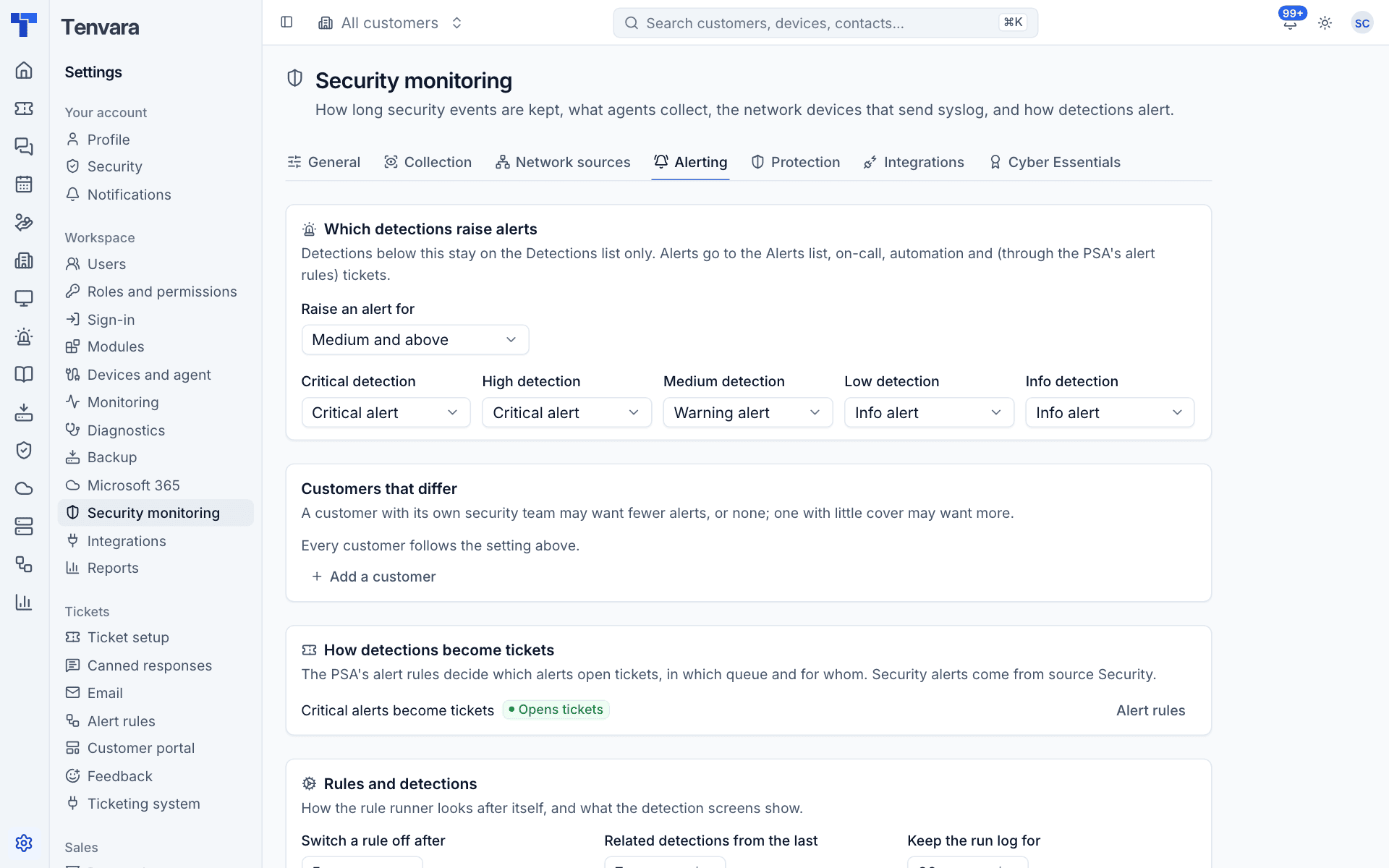
- Under Which detections raise alerts, choose Raise an alert for: Info and above to Critical and above, or Never. The default is Medium and above. Detections below it stay on the Detections list only.
- Choose which alert severity each detection severity raises. By default critical and high detections raise critical alerts, medium ones warnings, and low and info ones information alerts.
- Under Customers that differ, press Add a customer to give one customer its own setting (for example fewer alerts for a customer with its own security team).
Alerts go to the Alerts list, on-call, automation and, through the PSA's alert rules, tickets.
Turning detections into tickets
Under How detections become tickets, Tenvara shows whether an alert rule for source Security exists. If not, one button adds the suggested rule: critical and warning security alerts open a ticket, which resolves when the detection closes. Use Alert rules to change which queue and who gets them.
Rules and detections
The same page sets how the rule runner looks after itself:
- Switch a rule off after a number of failed runs in a row (5 by default), with an alert saying why.
- Related detections from the last so many days, shown on each detection.
- Keep the run log for so many days.
- Notable events on the device page: which actions are listed in a device's Security block for the last 24 hours (for example
logon-failed,account-created,malware-detected,log-cleared).
Was this page helpful?
Thanks for the feedback.