Users, groups and mailboxes
Find anyone across your customers' tenants, see their sign-in, MFA, licences and mailbox, and make everyday changes.
Microsoft 365 > Users lists everyone in every connected tenant. Open a user to see their account at a glance and change it from the Actions menu.
The users list
Each row shows the Name and sign-in address, Tenant, Type (a badge for Admin, Guest, Shared mailbox or Room), Sign-in (Can sign in or Blocked), MFA (Registered, or Not known in tenants without Entra ID P1), Licences and Last sign-in.
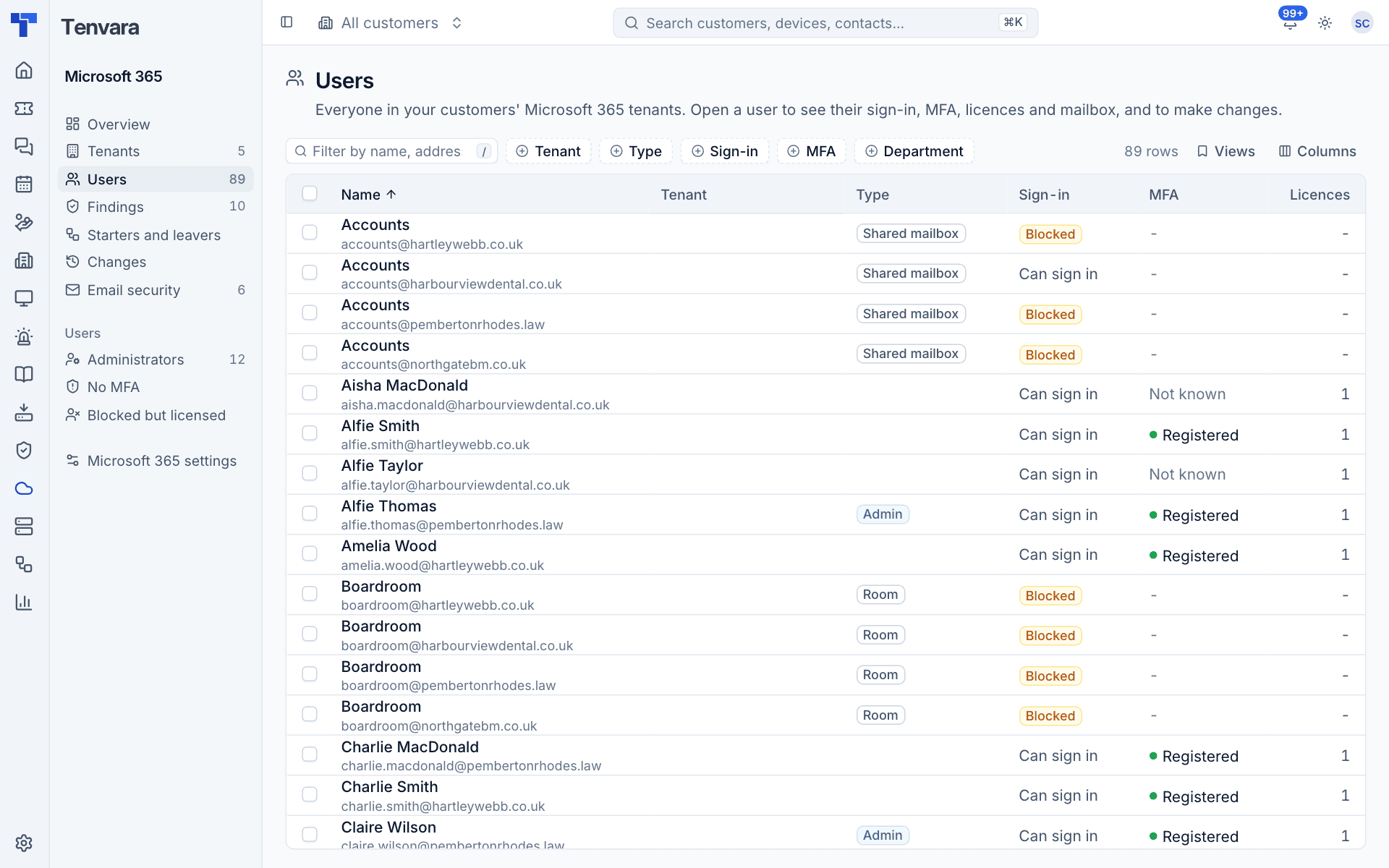
Filter by tenant, type, sign-in, MFA and department, or type in the filter box. The Views menu has ready-made views:
| View | Who is in it |
|---|---|
| Administrators | Anyone holding a directory role |
| No MFA | People with no MFA method registered |
| Blocked but licensed | Blocked accounts still holding licences (wasted seats) |
| Guests | Guest accounts |
| Not signed in for 90 days | Inactive accounts |
| Risky | Users Entra ID Protection rates at risk (needs Entra ID P2) |
The first three are also in the sidebar. A tenant's Users tab shows the same list for one tenant.
Note: MFA registration and last sign-in dates need Entra ID P1. Without it they show as Not known, never as "none".
The user panel
Click a user to open the side panel. It shows:
- Customer, Tenant, Sign-in, MFA and Last sign-in.
- Profile: job title, department, manager, office, mobile, usage location, when the account was created and the password last changed, and whether it is cloud-only or synced from on-premises Active Directory.
- MFA methods, Licences and Groups.
- Mailbox: type, address, size, whether it is shown in the address book, and any forwarding.
- Recent sign-ins worth a look: failed, legacy or risky sign-ins.
- Changes made here: anything changed for this user through Tenvara.
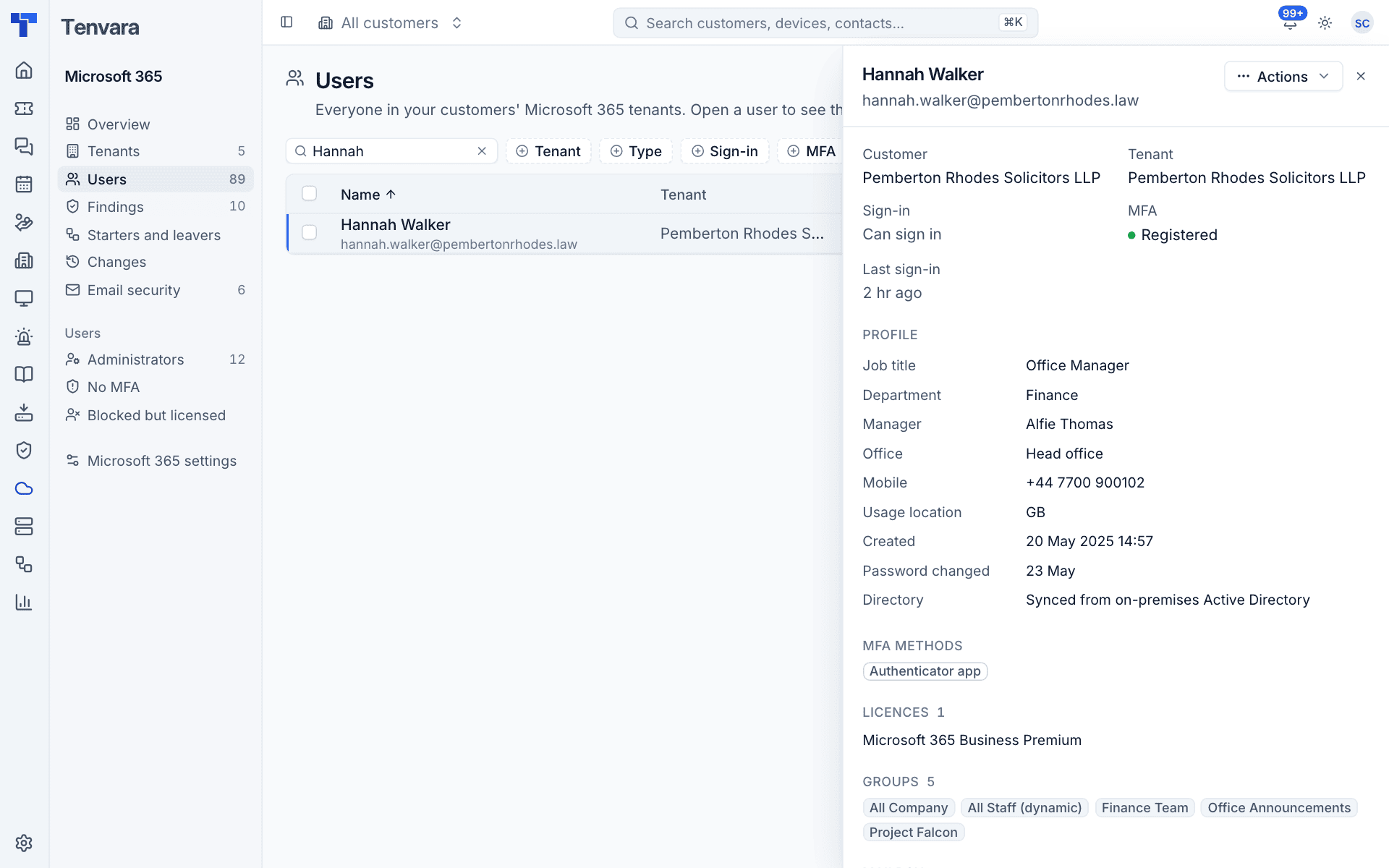
The same card appears on the contact's page when the user's address matches a contact of that customer.
Making a change from the Actions menu
Press Actions in the panel. Changes that need input open a small form first, then the change dialog shows what will happen. See Making changes safely for previews, confirmation, approval and undo.
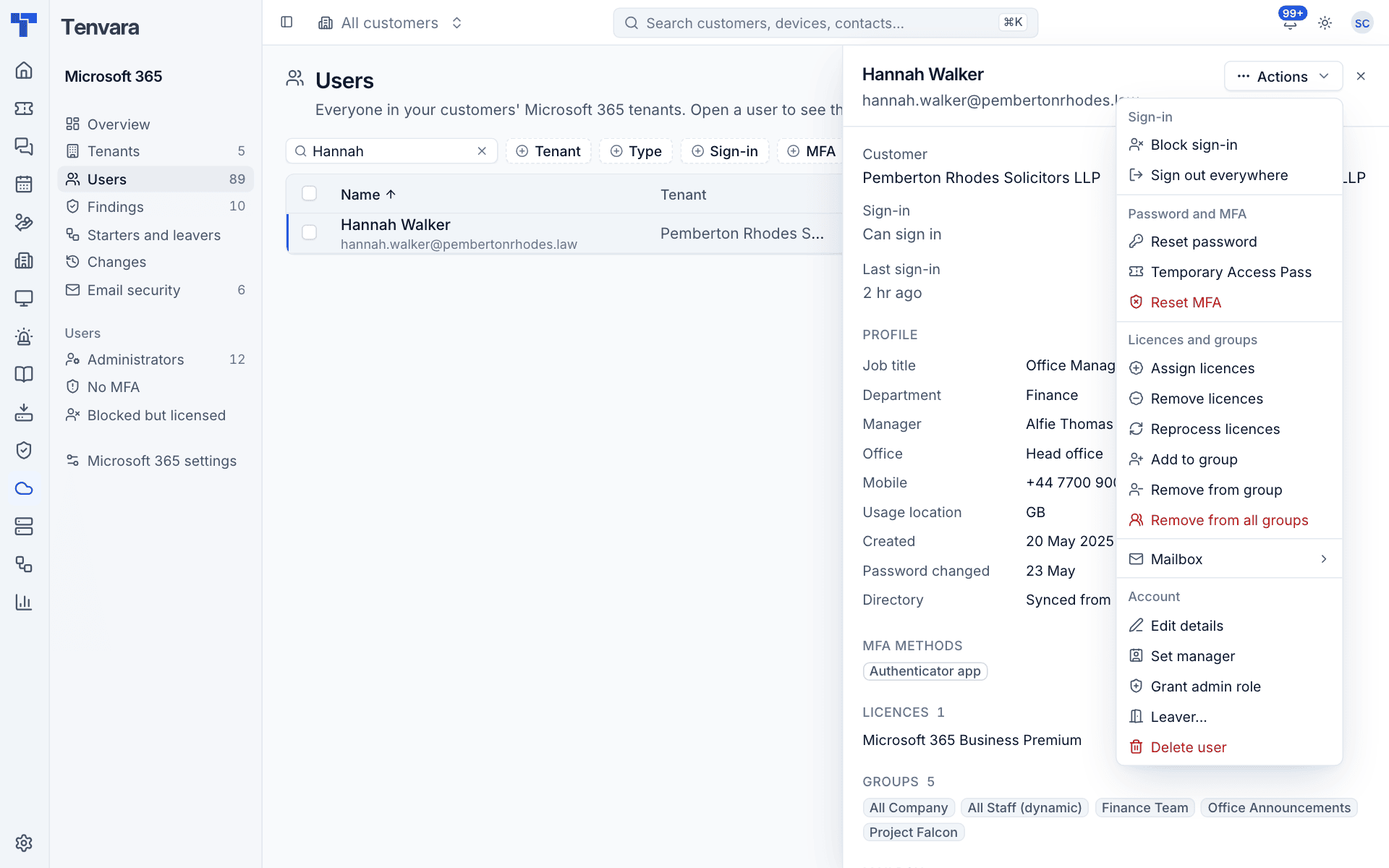
| Group | Actions |
|---|---|
| Sign-in | Block sign-in (or unblock), Sign out everywhere |
| Password and MFA | Reset password, Temporary Access Pass, Reset MFA |
| Licences and groups | Assign licences, Remove licences, Reprocess licences, Add to group, Remove from group, Remove from all groups |
| Mailbox | Forward mail, Stop forwarding, Automatic reply, Give someone access, Let someone send as, Convert to shared mailbox, Hide from address book, Remove mobile devices |
| Account | Edit details, Set manager, Grant admin role, Leaver..., Delete user |
A few things worth knowing:
- Reset password and Temporary Access Pass show the new password or pass once, in the result. Tenvara never stores them.
- Reset MFA removes every registered method but keeps the password; the user registers again at their next sign-in. A Temporary Access Pass helps them do that.
- Assign licences shows the free seats from the last sync and warns when there are none or the user has no usage location.
- Remove licences leaves licences given through a group alone (Microsoft refuses to remove those directly).
- Resetting the password or MFA of an administrator, or changing membership of a group that can hold administrator roles, is treated as high risk and needs an administrator's approval if you are not one.
- Users synced from on-premises Active Directory refuse edits and password resets unless writeback is set up. The preview says so.
Bulk changes
Select several rows in the users list to Block, Sign out, Reset MFA or Remove licence in one go. For destructive ones you type the number of people to confirm. More than 25 people, or people in more than one tenant, goes to an administrator for approval.
Mailboxes
A tenant's Mailboxes tab has three views across the top: Mailboxes, Forwarding and Inbox rules, each with a count. Worrying ones come first.
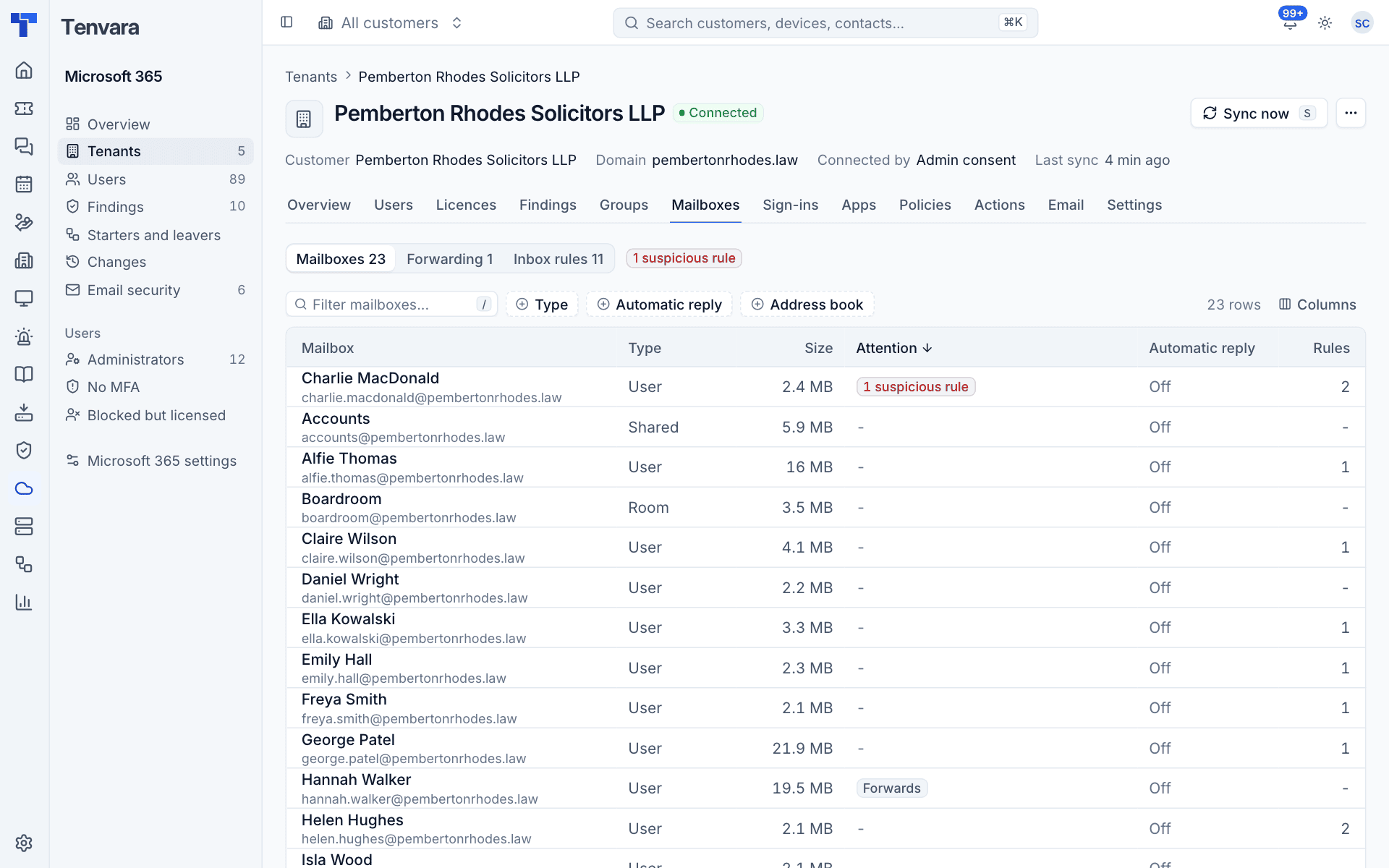
- Mailboxes lists each mailbox with its Type (User, Shared, Room, Equipment), Size, Attention (for example Forwards or 1 suspicious rule), Automatic reply, Rules and Access (people with full access or send as). Click one to open its side panel with its forwarding, rules and permissions.
- Forwarding is one list of everything that sends mail on: forwarding set on the mailbox and inbox rules that forward or redirect. Addresses outside the tenant's verified domains are marked as outside.
- Inbox rules lists every rule, suspicious and enabled ones first.
Suspicious inbox rules
Sync marks a rule as suspicious, conservatively, when it forwards or redirects to an outside address, moves mail into RSS Feeds, RSS Subscriptions, Conversation History, Notes, Junk Email or Deleted Items, or deletes mail from particular senders. Ordinary filing is not flagged. Every enabled suspicious rule raises an alert (critical when it forwards), which clears when the rule is disabled or removed.
To deal with one, open the mailbox and disable the rule. Rules are disabled, never deleted, because a rule is evidence of what happened. The leaver process can also disable all of a person's rules.
Groups
Group membership can be changed from the user (Add to group, Remove from group, Remove from all groups) or from the group itself on the tenant's Groups tab. See Tenants and the tenant page.
Was this page helpful?
Thanks for the feedback.