The chat console
Find your way around the three panes of the chat console, set your status, and use sounds, notifications and keyboard shortcuts.
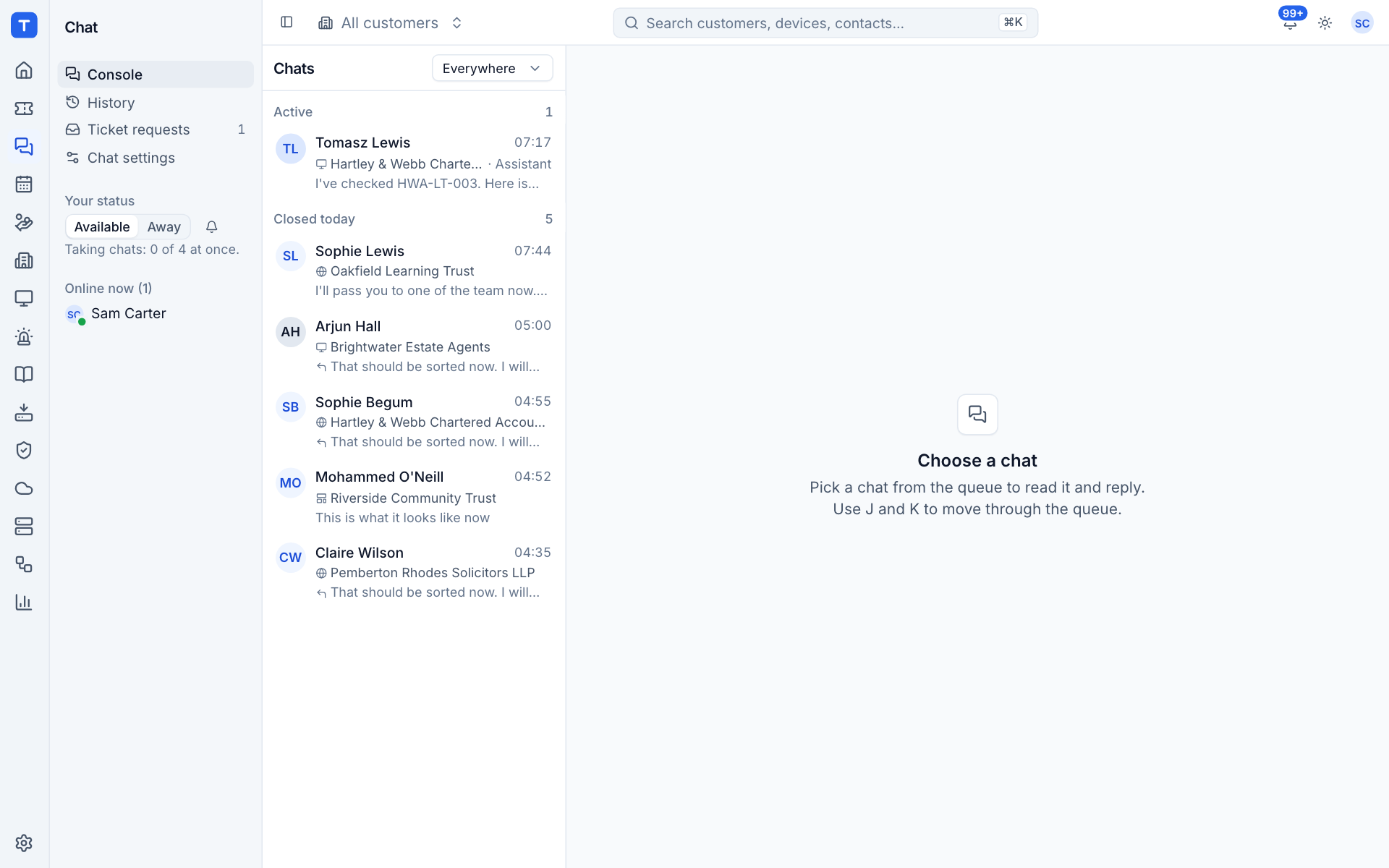
The console at Chat > Console is where technicians answer chats. It uses the full width of the screen in three panes: the queue on the left, the conversation in the middle and the context about the visitor on the right.
Your status
Before you take chats, check Your status in the sidebar:
- Available: new chats ring for you, and you count towards chat being open.
- Away: no ring, and you do not count as available. If Closed when nobody is online is on and everyone is away, chat shows as closed to visitors.
Under the switch, Taking chats shows how many chats you have out of the most one technician can have at once (set in Settings > Chat > Timings). The bell icon beside the switch mutes or unmutes the console's sounds. Your status and sound choice are remembered.
Online now lists the technicians who are online. Anyone with a Tenvara window open checks in every 30 seconds, so you can see who is around to transfer to.
The queue
The left pane lists chats in groups:
| Group | What is in it |
|---|---|
| Waiting | Chats nobody has taken, oldest first, with how long they have waited. A pulsing ring turns red after two minutes. |
| Mine | Chats you have taken or been invited to |
| Active | Other technicians' chats, and chats the AI assistant is answering (marked Assistant) |
| Closed today | Chats that ended today |
Each row shows the visitor, the customer, where the chat came from (a globe for Website, a portal icon for Portal, a screen for Device), the last message and an unread count.
Use the Everywhere menu at the top of the queue to show only Website, Portal or Device chats. The customer switcher at the top of the page narrows the queue to one customer.
The conversation
Choose a chat to open it in the middle pane. The header shows the visitor, the chat's status (Waiting, Active, With the assistant or Closed), where it came from, the customer, the reference (such as C-1045), who has it, and whether the visitor is on the page now (Here now or Not on the page).
In the conversation:
- Messages from the visitor are on the left and your team's on the right. The assistant's messages are tagged AI.
- Grey system lines record the chat's steps: waiting, joined, transferred, invited, left, the idle warning, ended and reopened.
- Internal notes are dashed and marked Staff only. The visitor never sees them.
- Pictures show inline and other files can be downloaded.
- Seen appears under your last reply once the visitor has read it, and you see when the visitor is typing.
The message box is at the bottom. See Answering a chat for replying, notes and canned replies.
The context panel
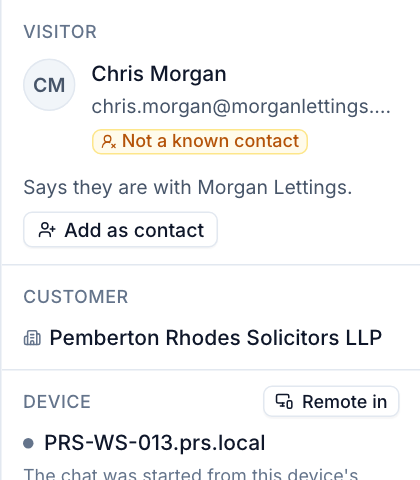
The right pane tells you who you are talking to. Hide or show it with the panel button at the top right of the conversation.
- Visitor: their name, email, job title and phone, and the company they typed. An unknown visitor is marked Not a known contact, with Add as contact.
- Customer: the customer the chat belongs to and how Tenvara decided (for example Matched by their email address).
- Device: for tray chats, the computer with its online status, who was signed in, and Remote in to start a remote session straight away.
- Open tickets: the customer's open tickets, the contact's own first. Add chat on a ticket puts this chat's transcript on it. Add to ticket at the top lets you pick any ticket.
- Recent chats: the visitor's earlier chats.
- About: where the chat came from, when it started, how long the visitor waited and the reference.
Keyboard shortcuts
| Key | What it does |
|---|---|
j and k |
Move down and up through the queue |
a |
Accept the chat |
t |
Convert to ticket |
e |
End the chat |
Esc |
Back to the queue |
Enter |
Send the message |
Shift + Enter |
New line in the message |
/ at the start of a message |
Search canned replies |
[ |
Collapse or expand the Chat sidebar |
Sounds and notifications
The console plays:
- a two-note ring when a chat is waiting;
- a ping when a message arrives;
- a tick when your message is sent.
Mute them with the bell beside your status.
When the Tenvara tab is hidden, your browser shows a notification when a chat starts waiting, when a chat is transferred to you, or when your visitor writes. Allow notifications for Tenvara in your browser the first time it asks.
The Chat item on the rail shows a count of waiting chats plus your unread messages, so you can see from any page that someone needs you.
A chat that waits longer than Tell the team after (2 minutes by default) also sends a notification to the technicians who are available, or to everyone who takes chats if nobody is.
Was this page helpful?
Thanks for the feedback.