Devices and agent
How the Tenvara agent behaves on every device: automatic updates, the check-in interval, remote session consent and which agent modules run.
Every device reports in through one Tenvara agent. Settings > Devices and agent sets how that agent behaves everywhere: whether it updates itself, how often it sends live status, what happens on the device when someone remotes in, and which of its modules run. A single device can override the modules from its own page.
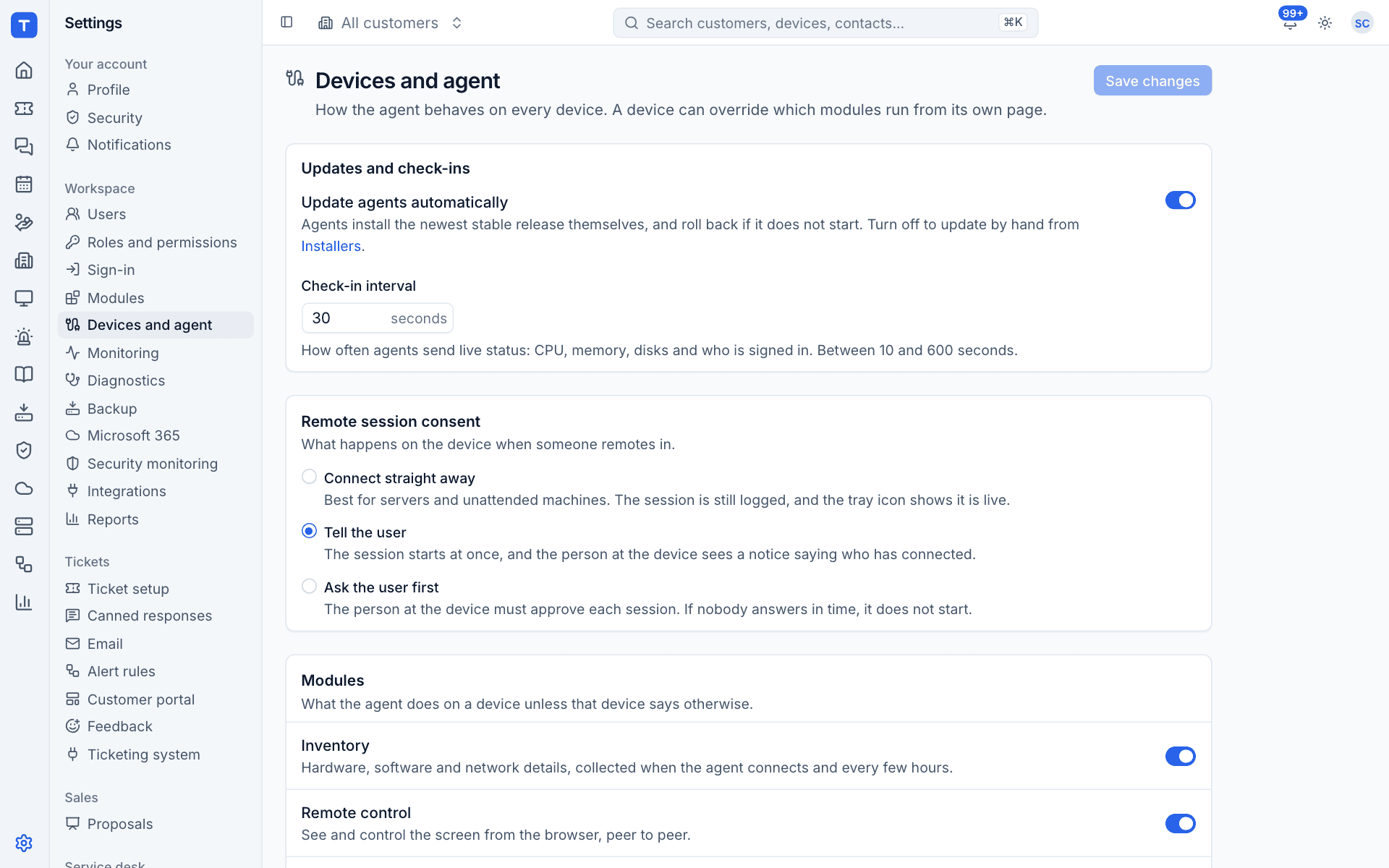
Changes on this page are not saved until you press Save changes at the top. They reach online agents straight away, and offline agents the next time they connect.
Updates and check-ins
Update agents automatically
On (the default), agents install the newest stable release themselves and roll back if it does not start.
- Each agent checks for an update a minute after it connects and every six hours after that, and is told straight away when a new release is available.
- Every update is signed by your Tenvara server and checked by the agent before it is installed. An agent refuses an update that is not signed by the server it enrolled with, is not for its platform, or does not match its checksum.
- On macOS and Linux, if the new version does not start and stay up, the agent puts the previous version back and reports the failed update. On Windows, the installer's own rollback does the same. A version that was rolled back is not tried again for 24 hours.
Turn it off to update by hand: the agent packages are under Devices > Installers, for your software deployment tools.
Tip: Leave automatic updates on. Updates carry fixes for the agent itself, and new modules only work on agents new enough to have them.
Check-in interval
How often agents send live status: CPU, memory, disks and who is signed in. Between 10 and 600 seconds; 30 is the default. A shorter interval makes the device list more live at the cost of a little more traffic. It does not change how often monitoring checks run: that is set in monitoring policies.
Remote session consent
What happens on the device when someone remotes in:
| Option | What happens | Best for |
|---|---|---|
| Connect straight away | The session starts at once. It is still logged, and the tray icon shows it is live | Servers and unattended machines |
| Tell the user | The session starts at once, and the person at the device sees a notice saying who has connected | Most workstations |
| Ask the user first | The person at the device must approve each session. If nobody answers in time, it does not start | Customers who want to approve every session |
Choose the option you have agreed with your customers. Every session is logged, whichever you choose.
Modules
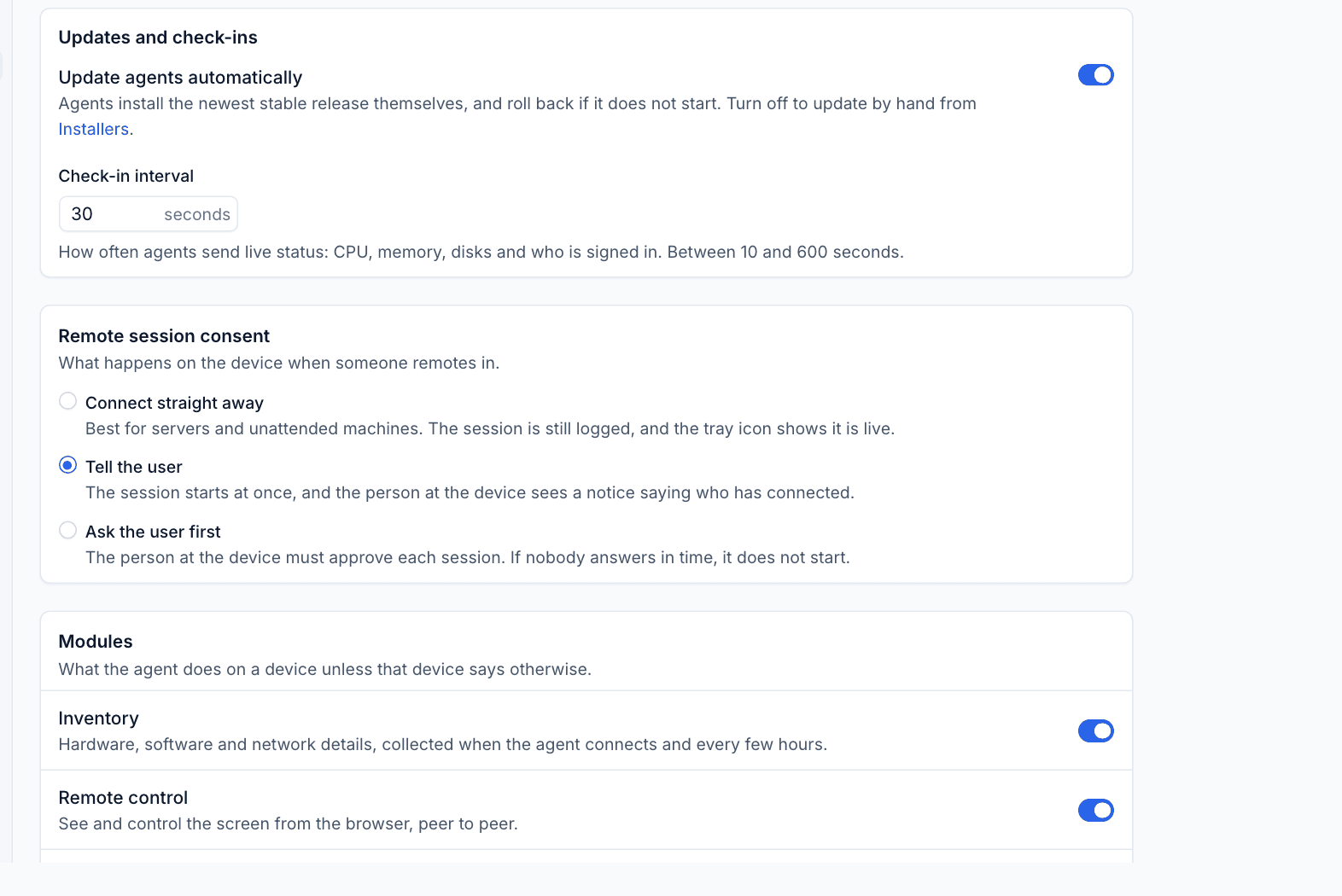
The agent carries every module; this list decides which ones run on a device unless that device says otherwise.
| Module | What it does on the device |
|---|---|
| Inventory | Hardware, software and network details, collected when the agent connects and every few hours |
| Remote control | See and control the screen from the browser, peer to peer |
| Monitoring | Metrics, services, patches and checks (ping, port, web, process, service, event log), with alerts |
| Backup | Endpoint backup through the backup helper, installed when a device is protected |
| Patch management | Operating system updates: scans, approved installs in maintenance windows, reboots by policy |
| Software | Installs, updates and removes software from the catalogue (winget, Homebrew, packages) |
| Scripts | Runs signed scripts from the library, with live output |
| Printers | Adds, updates and removes the printers deployed to the device |
| Hypervisor role | On a Proxmox VE node: reports the cluster, guests and storage, and runs guest actions. Idle elsewhere |
| Web server role | On a Linux web server: reports sites, certificates and services, and runs hosting actions. Idle elsewhere |
| Diagnostics | Read-only checks a technician runs on demand: processes, memory, disks, startup items, services, network, crashes, security and battery |
| Chat | Chat with support from the tray, in a small window that opens your chat |
| Security monitoring | Reads the security event logs (Windows Event Log, the macOS unified log, journald) and reports the device's protection: antivirus, firewall, encryption and local admins |
Each switch reads "on by default". Turning one off here stops it on every device that does not override it: the module stops, and a device asked to use it answers that the module is turned off for that device.
Change the default modules
- Go to Settings > Devices and agent.
- Under Modules, switch modules on or off.
- Press Save changes.
Override one device
A single device can run a different set, for example remote control switched off on a server that must never be remoted into, or the web server role switched off on a machine you do not host sites on. Open the device and change its modules there. The device keeps its own choice until you set it back to follow the defaults.
Note: Agent modules are separate from Modules. Switching the Patch management module off in Modules hides the area in Tenvara; switching the agent's Patch management module off here stops devices scanning and installing updates. To stop using something completely, do both.
Adding devices
Enrolment tokens and install commands are in Devices > Add devices, and the packages for software deployment tools are in Devices > Installers. See Installing the agent.
Was this page helpful?
Thanks for the feedback.