Documentation on tickets and in the portal
Get article suggestions on tickets, insert articles into replies, and publish help articles to customers in the portal.
Documentation earns its keep when it turns up at the right moment: while a technician is working a ticket, and when a customer is looking for an answer themselves.
Articles on a ticket
Open a ticket and look at the Articles panel in the details on the right.
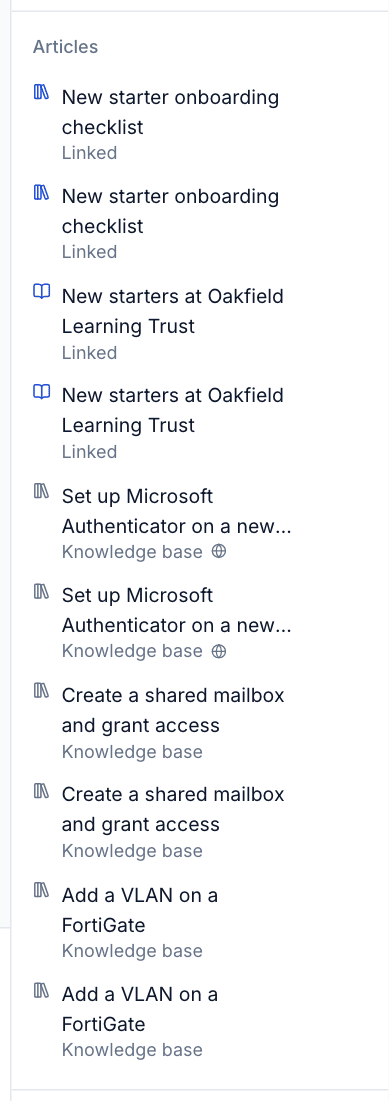
It lists:
- Linked articles first: the ones already linked to this ticket.
- Then suggestions: current articles that match the ticket. Tenvara compares the ticket's subject (which counts double) and its first message against the text of your articles. The ticket's customer's own documentation is ranked above the knowledge base.
Each suggestion shows where it lives: Knowledge base, or the customer's name for a customer article. A globe icon means it is published in the customer portal.
Expired articles are never suggested.
What you can do with a suggestion
Each article in the panel has buttons beside it:
- Insert into the reply: adds the article to the reply you are writing. If the contact can read it in the customer portal, Tenvara inserts its title and its portal address, so the customer can follow the link. If not, it inserts just the title.
- Link to this ticket: links the article, so it shows as Linked here and the ticket appears on the article under Linked to.
- Unlink: removes a link.
- Click the title to open the article.
Tip: Linking the article you used to fix a ticket keeps it at the top of this ticket's list, and the ticket then shows on the article, so the next person can see where it was used.
Linking from the article side
You can also link from the article: open it, press Link in the Linked to panel and choose the ticket. The same works for devices, contacts and sites.
Help articles in the customer portal
When Documentation is switched on, the customer portal has a Help articles page. Contacts see:
- For their customer: their own customer's articles that you have published to the portal.
- Everyone: knowledge base articles published to every customer.
The page has a search box, and images and attachments in articles work there too. See The customer portal for the portal itself.
Customers never see:
- Articles that are not published (Staff only).
- Expired articles.
- Any other customer's documentation.
- Records or credentials. Only articles can be published.
Publishing an article
For a knowledge base article:
- Open the article.
- Open ... and choose Publish to the customer portal. Or edit it and turn on In the customer portal, which says every customer can read it under Help articles.
For a customer article, the same switch publishes it to that customer's contacts only.
To take an article off the portal, use the same menu item or switch it off.
Published articles show an In the portal badge in lists, and the knowledge base can be filtered by In the portal.
What to publish
Good portal articles answer the questions customers ask most:
- How to get a visitor on to the guest Wi-Fi.
- How to set up Microsoft Authenticator on a new phone.
- How to spot a phishing email.
- Where the printers are and what to do when one stops.
Write them for the customer, not a technician: plain steps, screenshots, and no internal notes. Keep internal detail in a separate staff-only article.
Note: Moving a published article to another customer, or into the knowledge base, takes it off the portal unless the same change publishes it again. This stops an article written for one customer showing up for another by accident.
Documentation in search
Press Cmd+K anywhere to search. Documentation results include:
- Articles, by full text: title, tags and body.
- Records, by name.
- Credentials, by name, username and address. Secrets are never searched.
On a docs page, Cmd+K also offers that page's actions, such as revealing or copying a password on a credential.
Was this page helpful?
Thanks for the feedback.