The credentials vault
Store customer logins, two-factor secrets and licence keys encrypted, reveal and copy them with every access logged, and link them to devices.
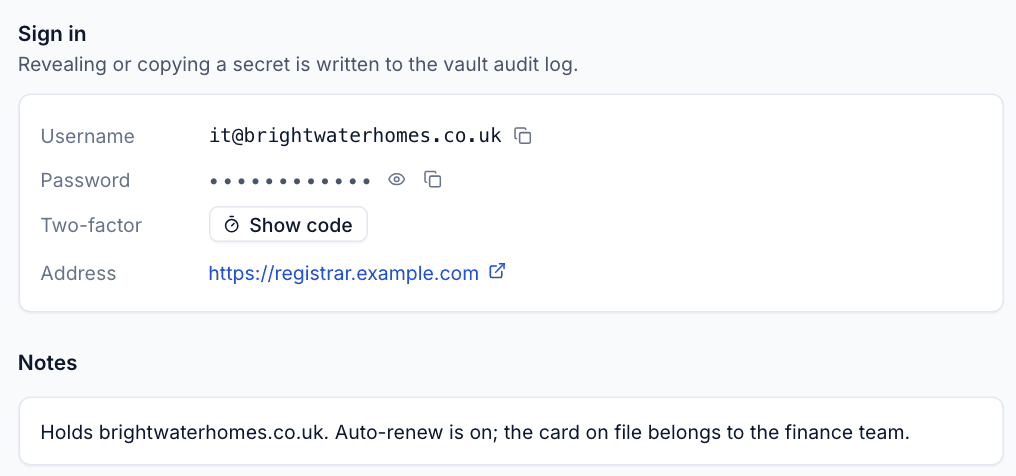
A credential holds the sign-in details for one thing a customer uses: a username, password, two-factor secret, licence key, web address and notes. It belongs to one customer and, optionally, one site, and can be linked to devices so the login is there when someone works on them.
How secrets are protected
- Encrypted one by one. Each secret has its own random key and is encrypted with AES-256-GCM. The encryption is tied to the credential and field it belongs to, so a secret copied onto another credential will not open.
- Never in lists or search. Secrets are not in any list, search result or the activity log. Search finds credentials by name, username and address only.
- Every look is logged. Revealing, copying and showing a two-factor code are each recorded in the vault audit log with the person, the field, their address and browser.
- Rate limited. Reveals, copies and two-factor codes together are limited to 30 a minute per person, so a script cannot empty the vault quickly.
- Two-factor secrets stay on the server. Tenvara works out the current code on the server, so the secret itself never reaches the browser.
The Credentials list
Open Docs and choose Credentials.
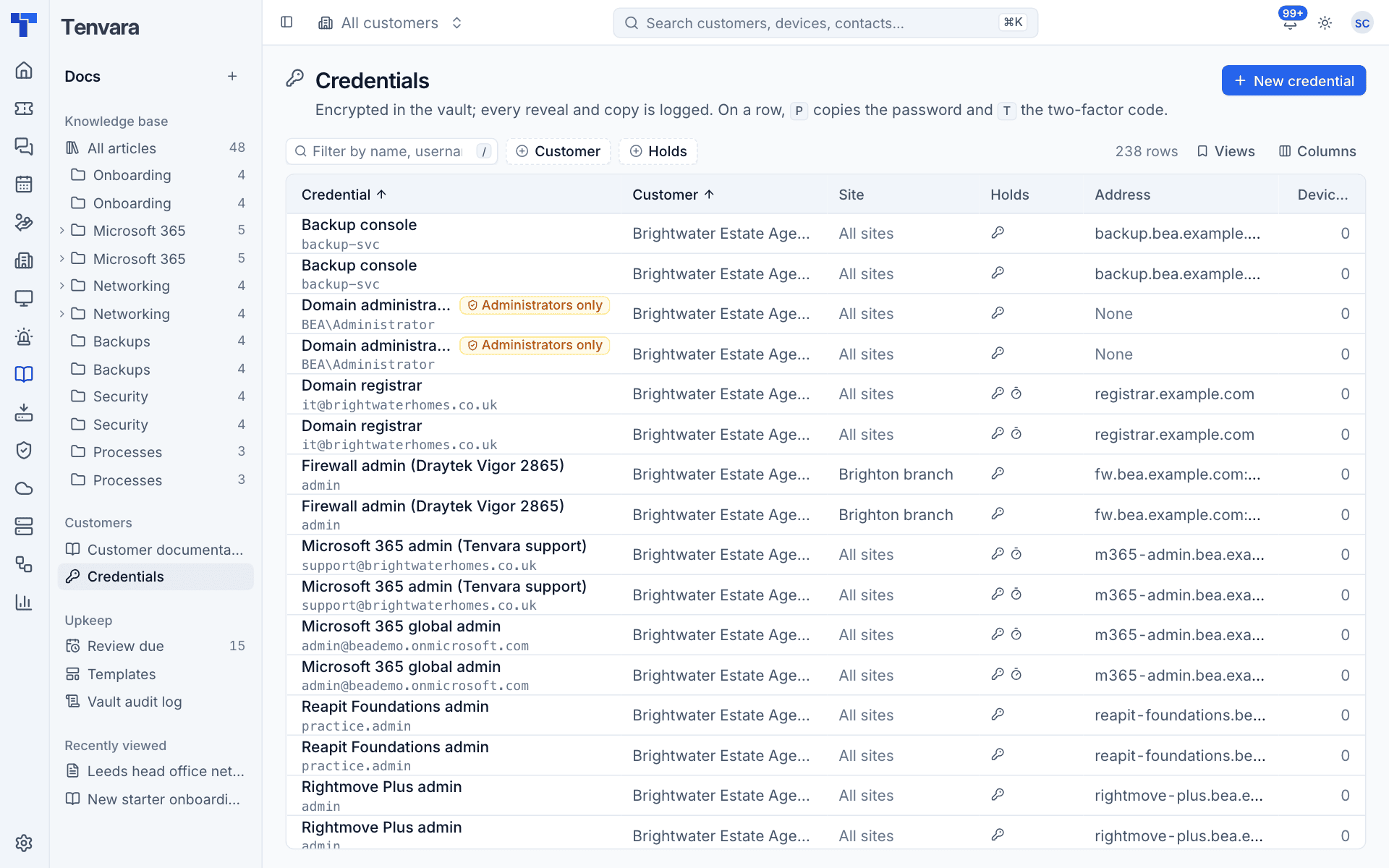
Each row shows the credential's name and username, the Customer and Site, what it Holds (the icons show a password, two-factor code and so on), the Address, how many Devices it is linked to, and when the password was last set. Credentials for administrators only carry an Administrators only badge.
On a row, press P to copy the password and T to copy the two-factor code without opening it. Filter by Customer or by what it Holds.
Adding a credential
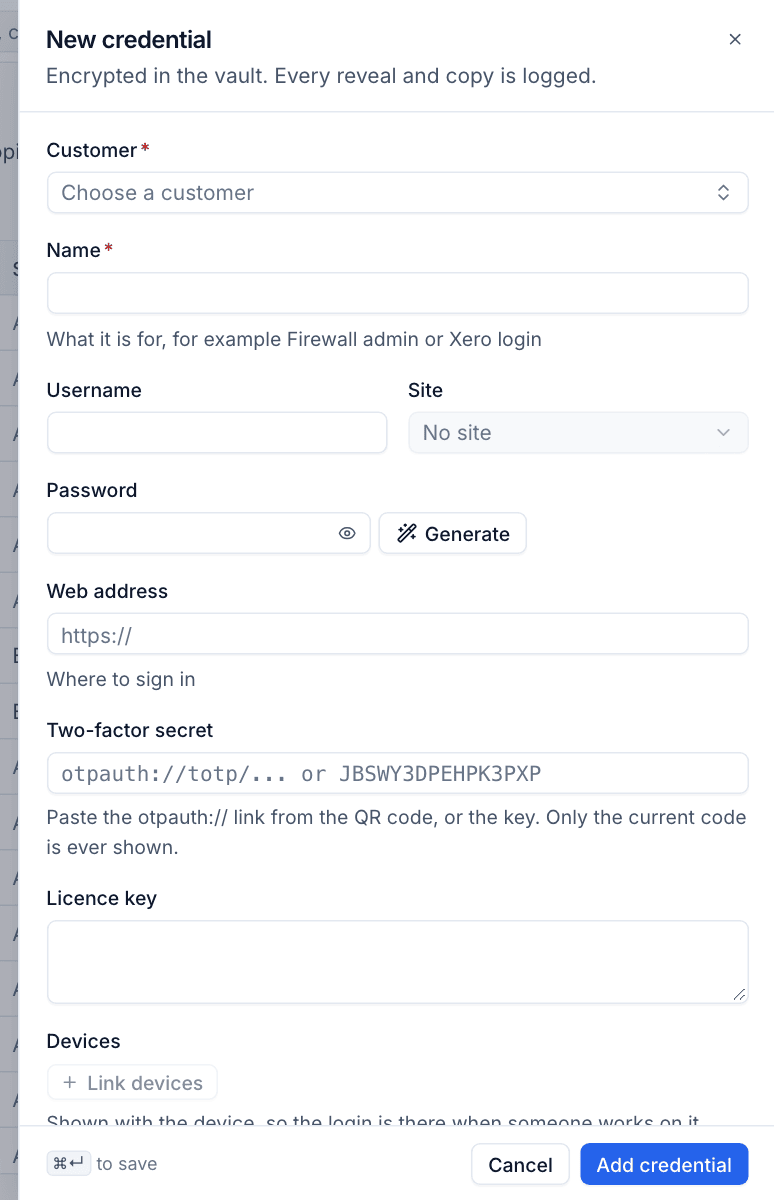
- Press New credential on the Credentials list, a customer's Documentation tab, or Add credential on a device.
- Choose the Customer, then enter a Name that says what it is for, for example "Firewall admin" or "Xero login".
- Enter the Username and, if it is for one site, choose the Site.
- Enter the Password, or press Generate to make one (below).
- Enter the Web address where you sign in.
- For a Two-factor secret, paste the
otpauth://link from the QR code, or the key itself. - Enter a Licence key if there is one.
- Under Devices, press Link devices to show the credential on those devices.
- Add Tags and Notes if useful.
- Tick Administrators only for break-glass accounts (below).
- Press Add credential, or Cmd+Enter.
The password generator
Press Generate beside the password to open the generator.
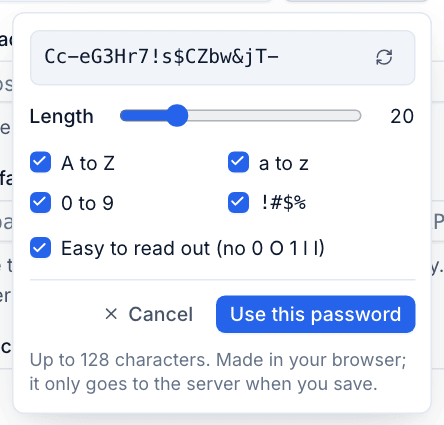
- Set the Length with the slider (up to 128 characters).
- Choose the character sets: A to Z, a to z, 0 to 9 and symbols.
- Tick Easy to read out (no 0 O 1 l I) for a password you will read over the phone.
- Press the refresh icon for another, then Use this password.
The password is made in your browser and only goes to the server when you save.
Administrators only
Tick Administrators only for accounts such as a domain administrator or a global admin kept for emergencies. Nobody else sees the credential at all: not in lists, search or on devices. Its audit entries are visible to administrators only too.
Using a credential
Click a credential to open it.
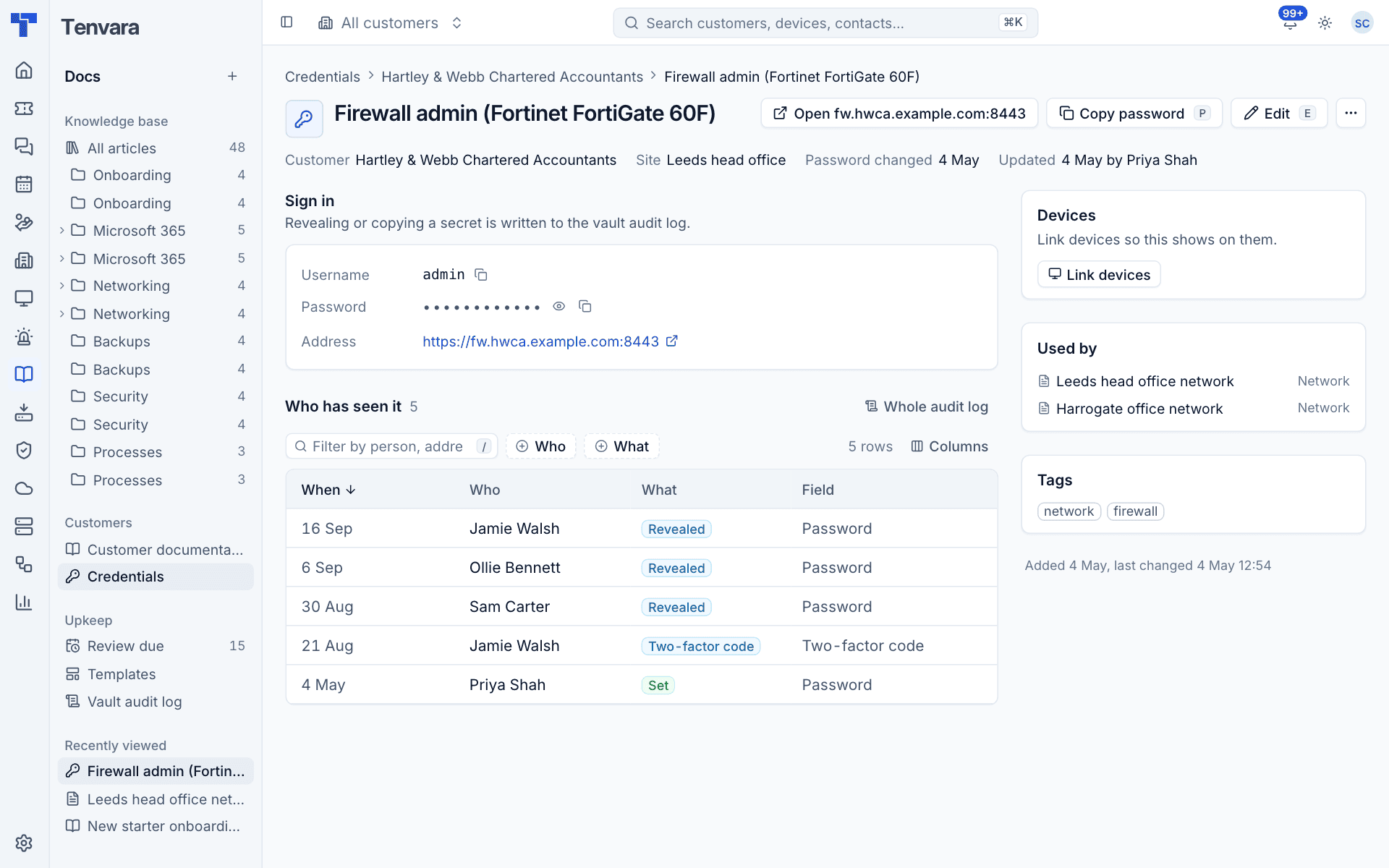
- Open the address in a new tab with the button at the top.
- Copy password copies it without showing it (
P). - The eye icon beside a secret reveals it; the copy icon copies it.
- Two-factor shows a Show code button. The current code appears with a countdown, and the next one is fetched when it runs out.
Keyboard shortcuts
| Key | Action |
|---|---|
R |
Reveal the password |
P |
Copy the password |
T |
Copy the two-factor code |
E |
Edit the credential |
The same actions are in Cmd+K while a credential is open.
Who has seen it
The Who has seen it table lists every reveal, copy, two-factor code and change for this credential, with who, what, which field and from which address. Whole audit log opens the full vault log. See Reviews and the vault audit log.
Devices and Used by
- Devices lists the devices the credential shows on. Press Link devices to add more.
- Used by lists records that link to this credential, for example the network record whose firewall login it is.
More actions
The ... menu has Copy username and Delete credential. Deleting a credential keeps its audit entries.
Credentials on devices
A linked credential appears in the device's Documentation section with its username and masked secrets, and reveal and copy buttons beside each. This is usually the quickest way for a technician to get a login while working on a machine.
Tip: Link a server's local administrator or backup console login to the server itself. Whoever picks up an alert for it then has the login on the same page.
Changing a password
- Open the credential and press Edit (or
E). - Enter the new password or generate one.
- Save.
Password changed in the header shows when the password was last set, and the change is written to the audit log as Set.
Was this page helpful?
Thanks for the feedback.