Backup overview
How Tenvara backs up devices and Microsoft 365, how the Backup area is laid out, and how to read the overview page.
Tenvara backs up two things:
- Devices, through the agent you already install: whole volumes as images, virtual machines on Hyper-V hosts and Proxmox VE nodes, and chosen folders file by file (the only kind on a Mac).
- Microsoft 365, straight from Microsoft for each customer tenant: mailboxes, OneDrive, calendars, contacts, SharePoint sites and Teams.
Both land in the same encrypted, deduplicated storage, are scheduled and kept the same way, and are restored through one guided Restore flow.
How it works
Devices
When you protect a device, the agent downloads a small backup helper onto it and keeps it running and up to date. There is nothing to install by hand, and the helper only goes onto devices you protect.
- The helper reads the data on the device and sends it to your backup storage over HTTPS. It encrypts the data before it leaves, so the backup server never sees your files in plain text during a backup.
- Each customer has one repository for its devices. Identical data across that customer's machines is stored once, so backing up ten similar laptops costs little more than one.
- Only changed data is sent after the first backup.
- Restores run on the device itself, from the same repository.
Microsoft 365
Microsoft 365 backup reads each connected tenant through Microsoft Graph, using one app registration you set up once and each customer's admin consent. Each run fetches only what changed since the last one, so frequent runs stay small.
Storage and encryption
Backups are stored in one repository per customer and source, either in a folder on the backup server or in S3-compatible storage. Everything is encrypted with a master key that Tenvara creates on first start. See Setting up backup.
Warning: If the master key is lost, no backup can ever be restored. Keep a copy of it away from the backup server. The Status tab in backup settings shows how.
The Backup sidebar
Open Backup from the rail. The sidebar has:
| Item | What it shows |
|---|---|
| Overview | The page described below |
| Devices | Every device with the agent and whether it is backed up |
| Microsoft 365 | Each customer's tenant and what is protected in it |
| Jobs | Every backup, restore, download, directory sync and maintenance run |
| Restore | The guided restore flow |
| Devices views | Protected, Failing, Overdue and Not protected |
| Jobs views | Running now, Failed and errors, Restores and downloads |
| Backup settings | Storage, defaults, the Microsoft 365 app registration and status |
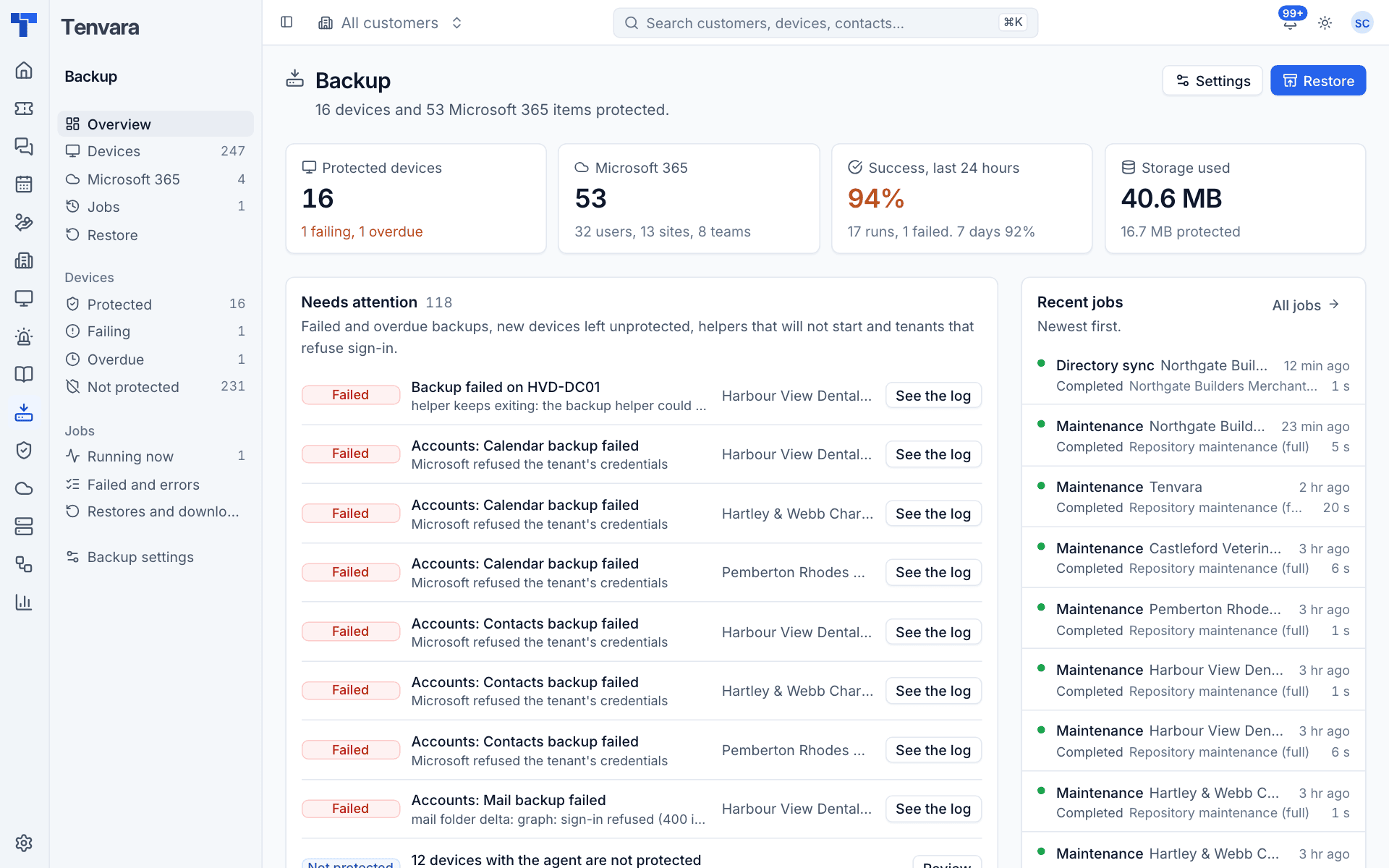
Reading the overview
The top row sums up backup across every customer:
- Protected devices: how many devices are protected, with how many are failing or overdue underneath.
- Microsoft 365: how many users, sites and teams are protected.
- Success, last 24 hours: the share of runs that succeeded, with the number of runs and failures, and the figure for the last seven days.
- Storage used: how much space backups take, and underneath how much data they protect. The difference is what deduplication and compression save.
Below that:
- Needs attention lists failed and overdue backups, new devices left unprotected, helpers that will not start and tenants that refuse sign-in, most serious first. Each has a button to act on it, such as See the log or Review.
- Last 14 days gives each customer a strip of their daily backup results, so a pattern of failures stands out.
- Recent jobs lists the newest jobs. All jobs opens the Jobs list.
Settings and Restore at the top right go straight to backup settings and the restore flow.
Where else backup shows up
Backup is built into the rest of Tenvara rather than living only in its own area:
- Customer page: a Backup tab lists that customer's devices and tenants with protection, Back up now and Restore, their recent jobs, and their schedule and retention. The overview has a short backup summary.
- Device page: a Backup section with the protection switch, what is backed up, the schedule, recovery points and recent jobs. See Protecting devices.
- Devices list: a backup column and views, and Back up now on the row and in Cmd+K.
- Alerts: failed and overdue backups raise alerts that your alert rules can turn into tickets. See Backup alerts and troubleshooting.
- Home: a backup line with how many are protected, how many are failing, and success in the last 24 hours.
Backup and the Backup module
Backup is a module. In Modules you can switch Backup off. While it is off, no scheduled backups, directory syncs or checks run. Queued jobs wait and start once it is on again, and running jobs finish. Anyone who could see backup sees "Backup is switched off" instead of the backup pages.
Who can see and change backup is set in Roles and permissions.
In this section
- Setting up backup: storage, the encryption key and the backup helper.
- Protecting devices: volumes, folders and virtual machines, and per-device settings.
- Schedules and retention: when backups run and how long they are kept.
- Microsoft 365 backup: connecting tenants and choosing what to protect.
- Jobs: following, reading and cancelling backup work.
- Restoring: getting files, mail and more back.
- Backup alerts and troubleshooting: what each alert means and how to clear it.
Was this page helpful?
Thanks for the feedback.