Printing overview
How Tenvara puts printers on devices through the agent, what the Printers list shows and where printing turns up elsewhere in the app.
Tenvara looks after the printers your customers use: it installs them on their Windows, macOS and Linux devices, keeps the right driver and default printer in place, and watches each printer's status, toner and page count. Everything is done by the Tenvara agent you already install on devices, so there is no print server, no bridge box at the site and nothing extra to deploy.
How it works
- You add a printer for a customer: its name, site, address, connection and, if you like, its make and model. See Adding printers and finding them on a network.
- Tenvara picks a driver for each operating system: one you uploaded, one your model mapping points to, or a driver built into the operating system. See Drivers and model mapping.
- You deploy the printer to a site, the whole customer, a device group or chosen devices, optionally as their default printer. See Deploying printers to devices.
- Each device's agent works out what it should have, installs what is missing, fixes what failed, removes what is no longer wanted and reports back.
- One agent at each site checks that site's printers over SNMP every few minutes, so you see status, toner and pages printed. See Printer status, toner and alerts.
A few design points worth knowing:
- Printers go to devices, not users. A printer is installed per machine. Only the default printer is set per user, in each signed-in user's session.
- Every queue is local and prints straight to the printer. There is no Point and Print and no shared queue on a server, so the PrintNightmare restrictions never get in the way, and printing keeps working if Tenvara is unreachable.
- Tenvara only touches what it added. Printers someone set up by hand, or through another tool, are left alone. The device page counts them separately.
- Managed printing is out of scope. There is no held-job release, secure print or scanning.
The Printers area
Open Devices from the rail. The Printers group in the sidebar has:
- Printers: every printer, with its status and toner.
- Deployments: which printers go to which devices, and which is their default.
- Drivers: uploaded driver packages and the built-in drivers, with the model mapping.
- Discovery: network scans run from a device at a site, and the printers they found.
Reading the Printers list
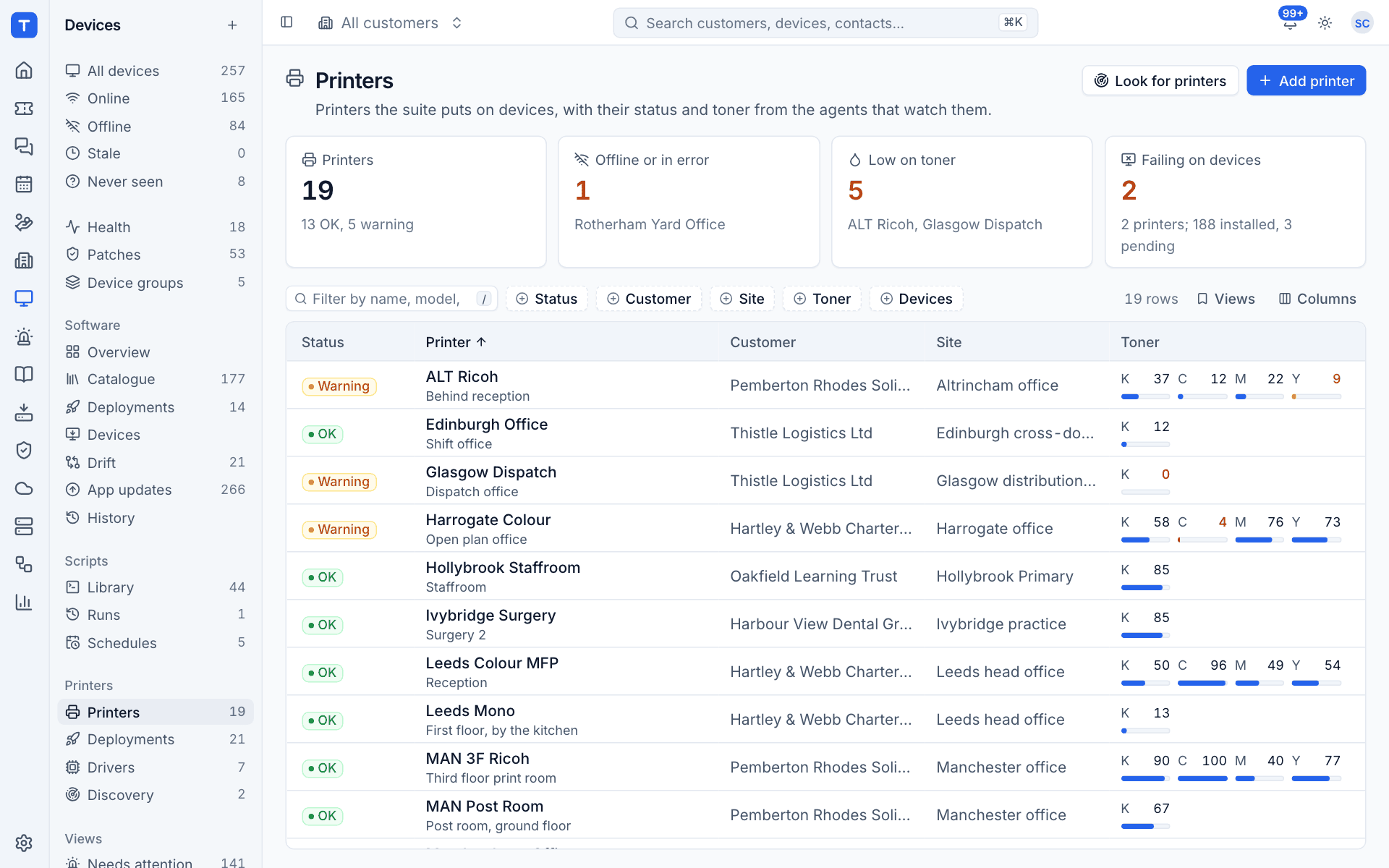
The four figures at the top sum up the fleet:
| Figure | What it counts |
|---|---|
| Printers | Every printer, with how many are OK and how many have a warning |
| Offline or in error | Printers that did not answer their last check, or report an error such as a jam or an empty tray. The first few are named |
| Low on toner | Printers with any toner under their alert level |
| Failing on devices | Printers that failed to install on at least one device, with the totals installed and pending |
Click a figure to jump to the matching view. The table shows each printer's Status, name and location, Customer, Site, a bar per Toner colour (K, C, M, Y) and the number of Devices it is on, with any pending or failed installs underneath.
Filter by Status, Customer, Site, Toner and Devices, or type in the filter box to match a name or model. The saved Views include Needs attention (offline, in error or warning), Low on toner and Failing on devices. Click a row to open the printer's page.
The All customers picker in the top bar narrows everything to one customer, as it does elsewhere.
Printer statuses
| Status | Meaning |
|---|---|
| OK | The printer answered and reports nothing wrong |
| Warning | Paper or toner is low, service is requested, or any toner is at 5% or less |
| Error | Out of paper or toner, a door is open, a jam, or the printer reports itself down |
| Offline | Neither SNMP nor the print port answered |
A printer with SNMP switched off is not offline: if its print port answers, it shows OK with a note asking you to turn on SNMP so toner and alerts can be read.
Where else printing shows up
- Device page: a Printers block lists the printers Tenvara put on that device, their state and driver, and the default for each user. See Deploying printers to devices.
- Customer page: the Overview has a Printers card (how many are OK or offline, and installs pending), and the Printers tab lists the customer's printers and deployments with an Add printer button.
- Alerts: printers failing to install, printers offline for an hour and low toner raise alerts, which can open tickets through your alert rules.
- Search (Cmd+K): jump to printers by name.
Permissions
Printing has its own area in Roles and permissions. View lets someone see every printing screen. Manage is needed to add, edit and delete printers, upload drivers, change the model mapping, deploy printers, run discoveries, print test pages and check a printer now.
If printing is switched off in Modules, the Printers group disappears from the sidebar for everyone.
Was this page helpful?
Thanks for the feedback.