Sending a quote and versions
Send a quote by email or through the customer portal, manage its links, revise it as a new version and compare versions in the history.
Sending a quote freezes what you sent. If the customer wants changes, you edit it as a new version; the customer keeps seeing the version they were sent until you send the next one. The History tab keeps every version, every link and everything that happened.
Send a quote
- Check the Preview tab: it is exactly what the customer will see.
- Press Send (or Send v2, Send v3 for a later version).
- Leave Email a link to the proposal on to email the contact. Check the To address, add any Cc addresses, and write a Note if you like. The note goes at the top of the email, above the totals and the button.
- Turn on Publish to the customer portal if contacts should also see it in the portal, under Quotes, and accept it there.
- Press Send quote.
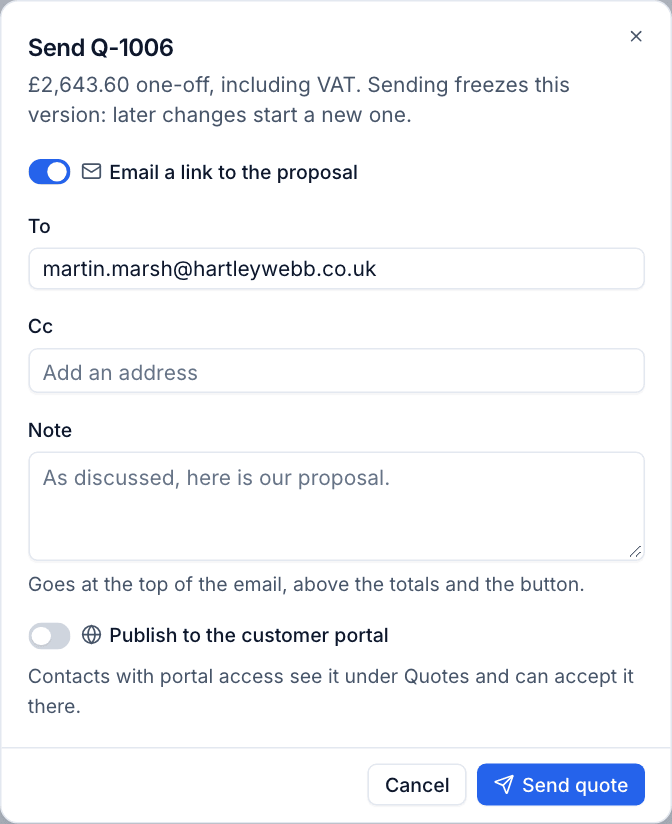
The quote becomes Sent, and its version is frozen. A quote for a lead also marks the lead Qualified.
The email is branded with the quote's template and carries the totals and a button to open the proposal.
Note: Who a quote is for is fixed once it is sent, because its links and the portal show it to that customer. To quote someone else, duplicate it.
Links
The button in the email opens the proposal on a page of its own, with no sign-in. Each link is random and Tenvara keeps only a fingerprint of it, so a link is shown once: in the email, or when you make a new one.
- The link opens the version that was sent.
- It stops working when the quote expires, or when you revoke it.
- After the customer accepts or declines, the link shows the answered quote and the signed PDF for 90 days, then closes. You keep the quote and its signed PDF for good.
- A revoked or wrong link says it does not open a proposal; an expired or closed one says so and names your company.
Manage links on the History tab, under Customer links: each shows who it was emailed to, when it was made and whether it has been opened.
- New link makes a fresh link and shows it once, so you can copy it into a message of your own.
- Revoke stops a link working, for example if it was forwarded to the wrong person.
The customer portal
Signed-in contacts see a Quotes page in the customer portal with the quotes published to them. Portal managers see every published quote for their customer. They can open, download and accept them there exactly as from a link. See The customer portal.
Revise a sent quote
- Open the sent quote and press Edit as v2 (the next version number).
- A banner says Editing v2: the customer still has v1. Change the lines, wording or options.
- Press Send v2 when ready. The customer's links and the portal now show the new version.
To throw away an unsent version, use the quote's ... menu.
- A new version picks up the current VAT rates.
- The valid until date can be moved after sending, from Edit details. A new date puts an expired quote back with the customer. The link, portal, PDF and Xero files all show the current date, and it is the date acceptance checks.
- An accepted quote cannot change. Use Duplicate as a new quote to start again from it.
History
The History tab has three parts.
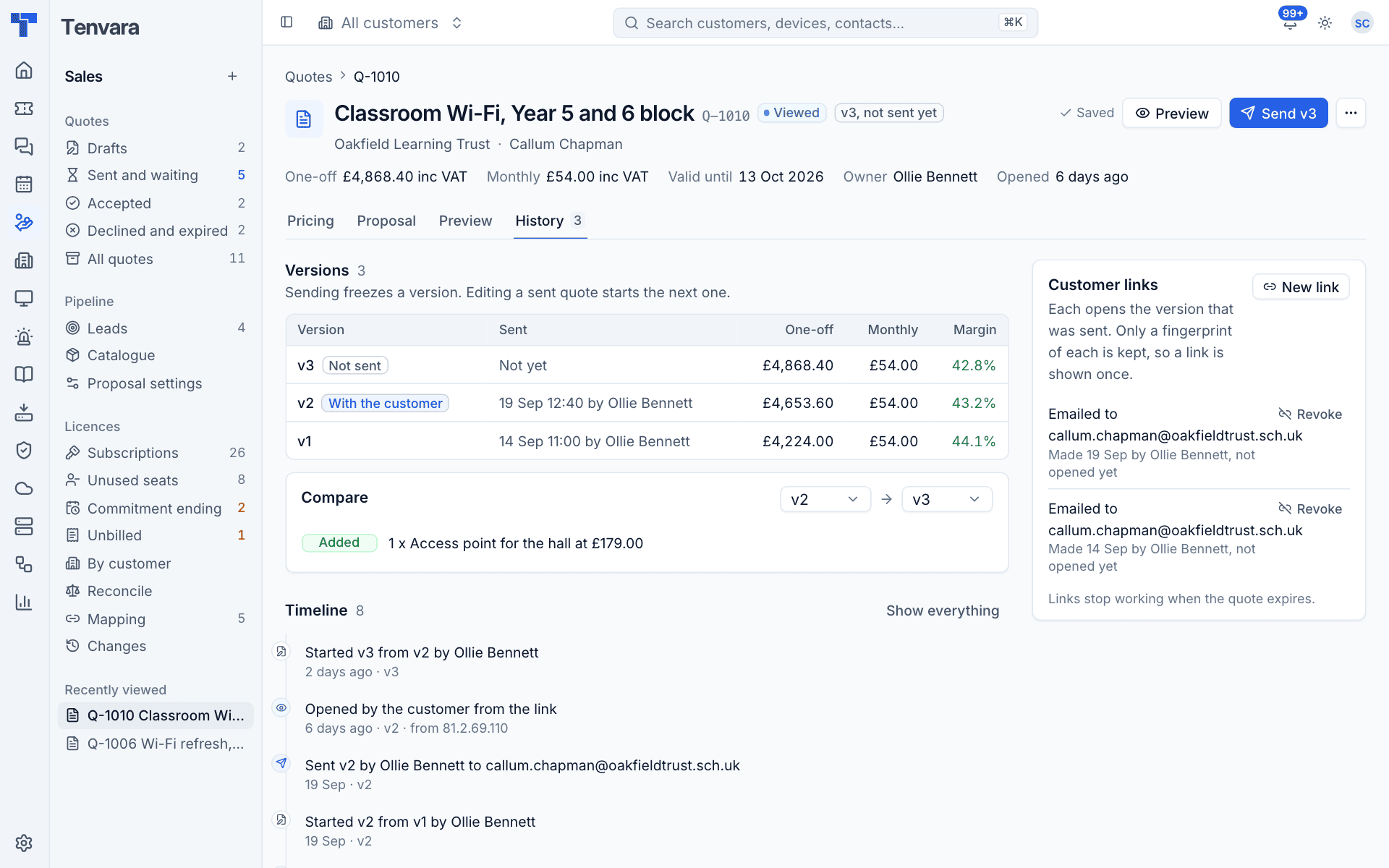
- Versions: every version with when it was sent and by whom, its one-off, monthly and margin figures, and which one is With the customer or Accepted.
- Compare: pick any two versions to see what was Added, Removed and Changed, line by line, for example "1 x Access point for the hall at £179.00" or "Quantity 4 to 5".
- Timeline: created, sent (and to whom), opened by the customer (with where from), new versions, links made and revoked, accepted, declined, expired and what acceptance did. Show everything expands it.
Duplicate a quote
Duplicate as a new quote copies the latest version into a new draft with a new number. Use it to quote a similar job for another customer, to requote after a decline or expiry, or to change an accepted quote.
Was this page helpful?
Thanks for the feedback.