Testing, dry run and versions
Try a rule against a real event without doing anything, let it run in dry run first, and see every version of a rule.
A rule that acts on every alert or ticket can do a lot of good or a lot of damage. Tenvara gives you three ways to be sure before it acts: Test in the builder, dry run, and a full version history.
Testing a rule
Test works the rule out, as it is on screen and even before you save it, against something real. Nothing is done and nothing is logged.
- Open the rule and click Test.
- Pick a recent event that fits the trigger: a recent alert, ticket, device or customer. For a scheduled rule, it works out a scheduled run. Use the search box to find the one you want.
- Read the result.
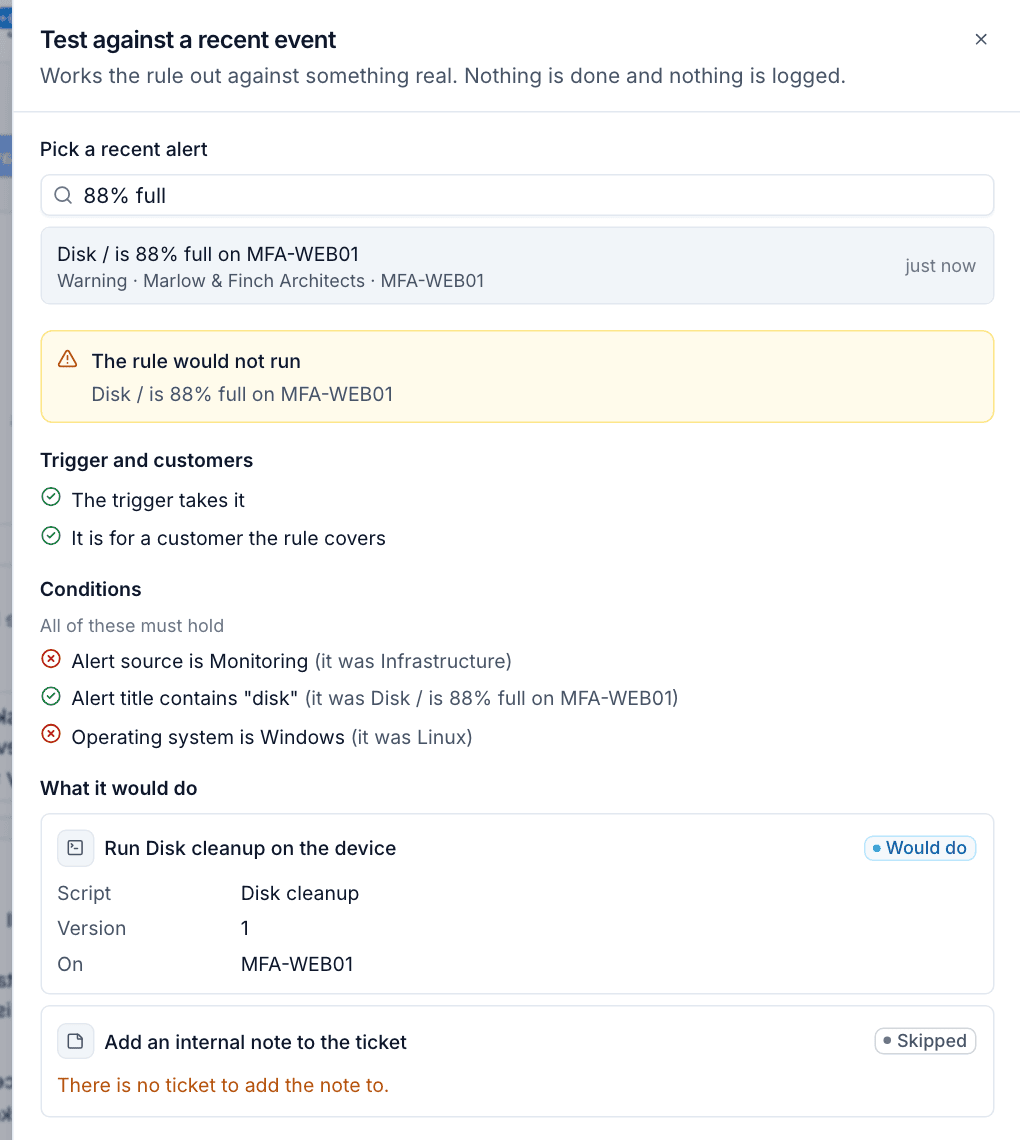
The result shows:
- whether the rule would run or would not run for that event
- Trigger and customers: whether the trigger takes this event and whether it is for a customer the rule covers
- Conditions: each one with a tick or a cross and the value it saw, for example "Operating system is Windows (it was Linux)"
- What it would do: each action filled in with real values, marked Would do or Skipped with the reason, for example "There is no ticket to add the note to"
Change the rule and test again until the result is what you expect. Test against an event the rule should act on and one it should not.
Tip: Test is the fastest way to find out why a rule did not fire. Pick the event you expected it to act on and see which condition said no.
Dry run
A rule in dry run fires on real events and records a run for each, but only logs what it would have done, filled in with the real values. It changes nothing, sends nothing and calls nothing.
- Turn Dry run on or off in the rule panel in the builder, then Save.
- Rules made from templates start in dry run.
- Rules in dry run have a Dry run badge in the rules list, and their runs show Dry run as the outcome. In dry run in the sidebar lists them.
Leave a new rule in dry run for a day or a week, look at its runs in the run log, and switch dry run off once every run is what you wanted.
Versions
Every real change to a rule saves a new version: a snapshot of the whole rule. Renaming a rule or changing the rule order does not count as a change.
- History in the rule panel lists each version, who made it and when.
- Every run records the version it ran, shown in the run log (v1, v2 and so on).
- A run's page shows The rule as it ran, so you can see exactly what a rule looked like at the time, even after it has been changed.
This makes it safe to change a busy rule: if results change afterwards, the run log tells you which version produced them.
A safe way to roll out a rule
- Build the rule, or start from a template.
- Test it against a few recent events, including one it should ignore.
- Save it with Dry run on.
- Check its runs in the run log after a day or so.
- Turn Dry run off and save.
- Watch Failed runs for the first few days. The owner is told about failures too.
Was this page helpful?
Thanks for the feedback.