Actions
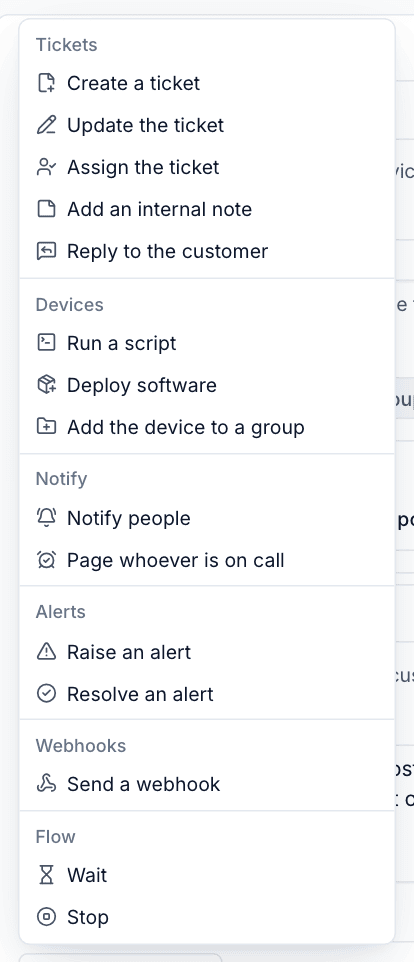
Every action a rule can take, from opening tickets and running scripts to notifying people, paging on-call and sending webhooks.
Under Then, a rule does its actions in order. Click Add an action to add one, drag the handle on the left of an action to move it, and use the cross to remove it. Click an action's title to fold it away.
How actions run
- Actions run one after another, and each sees what the previous one did: after Create a ticket, later actions can note, assign or reply on that ticket.
- If an action fails, the actions after it are skipped and the rule's owner is told (at most once an hour per rule).
- If an action has nothing to act on (a note when there is no ticket yet, a script on a device with no agent) it is skipped with the reason. That is not a failure.
- Every text box takes placeholders. See Conditions and placeholders.
Tickets
| Action | What it does |
|---|---|
| Create a ticket | Opens a ticket with a Subject, a Description (the first message; empty uses the subject), the Customer (empty means the trigger's customer), and optionally a Status, Priority, Queue, Type and Assign to. Link the device links the trigger's device. The ticket is linked to the alert that started the rule, and its source is automation |
| Update the ticket | Sets the ticket's Status, Priority, Queue, Type or assignee. Leave as it is changes nothing |
| Assign the ticket | Gives the ticket to a person, to whoever is on call, or to The technician with the fewest open tickets |
| Add an internal note | Adds a note for the team. The customer never sees it |
| Reply to the customer | Emails a public reply to the customer, in the rule owner's name like any reply, and can Then set the status to something, such as waiting on the customer |
Warning: Reply to the customer sends real email to real customers. Build and test the rule in dry run first, and keep the wording neutral: it goes out under the owner's name.
Devices
| Action | What it does |
|---|---|
| Run a script | Runs a Script from the library on The device or on A device group, with its Parameters. It runs the version that is published at the time. Secret parameters cannot be set in a rule (rules can be read by anyone who can view automation); give them a default in the script instead |
| Deploy software | Installs or uninstalls an App from the software catalogue on the device or a device group |
| Add the device to a group | Puts the device in a Device group as a static member, so the group's monitoring, patching and printers follow |
A rule that runs a script as system on more than 25 devices needs an administrator as its owner. Script and software actions are also checked against the Scripts and Software modules' own permissions each time they run.
Notify
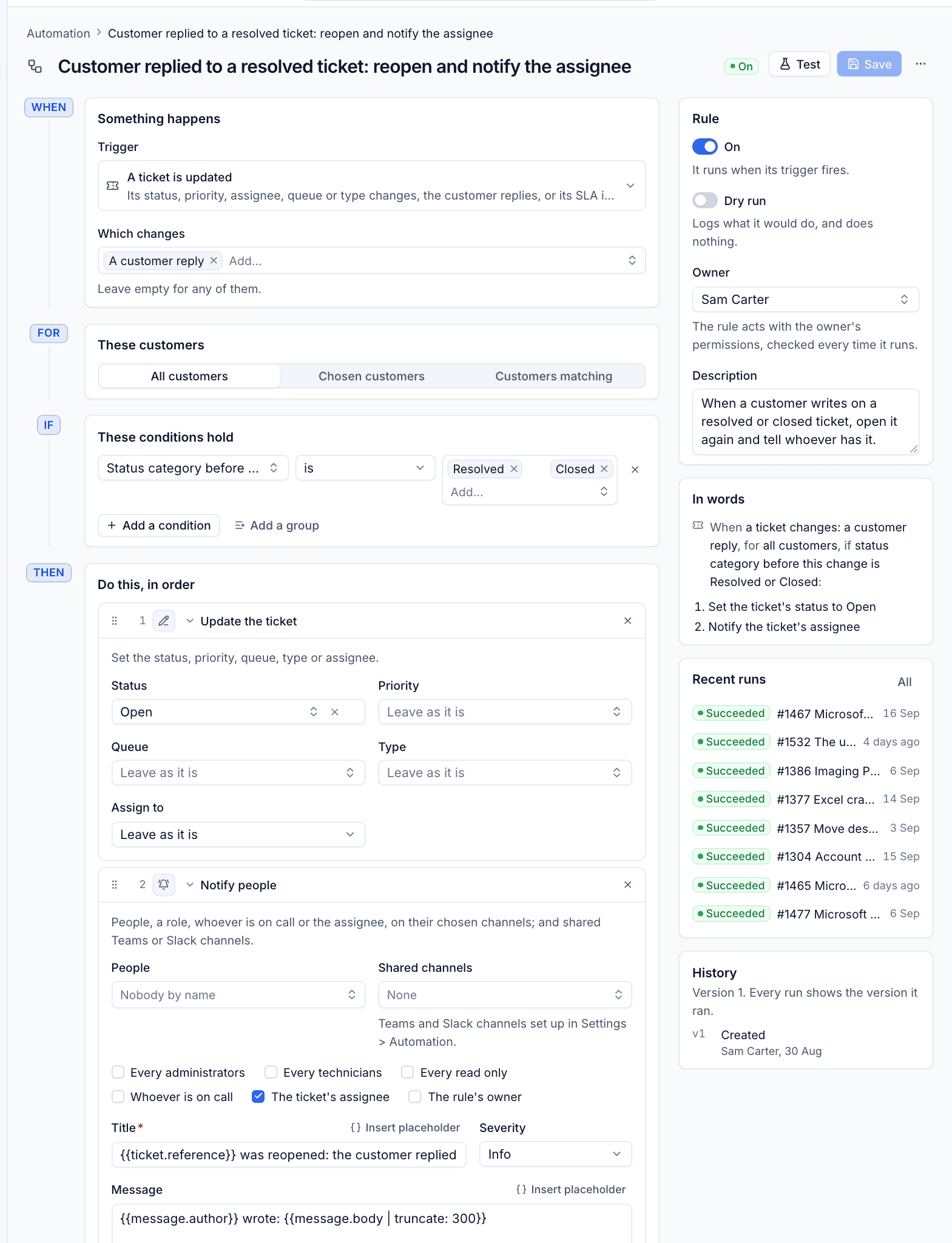
Notify people
Sends a message with a Title, a Severity and a Message to:
- People by name
- everyone with a role (Every administrators, Every technicians and so on)
- Whoever is on call
- The ticket's assignee
- The rule's owner
- Shared channels: Teams and Slack channels set up in Settings > Automation
Each person gets it on the channels they chose for Messages from rules in their own notification settings, and the inbox always keeps a copy. See Notifications and channels.
Page whoever is on call
Pages the on-call person with a Title, Message and Severity, through an Escalation policy (or the default one), escalating until someone acknowledges. If on-call is not set up, the action is skipped. See On-call rotas and paging.
Alerts
| Action | What it does |
|---|---|
| Raise an alert | Opens an alert with a Title, Severity, Message and Key, where alert rules and on-call pick it up. Alerts with the same key are one alert; empty means one per subject |
| Resolve an alert | Resolves The trigger's alert, or One this rule raised |
Raising an alert from a scheduled or metric rule is a neat way to turn your own checks into first-class alerts.
Webhooks
Send a webhook POSTs JSON to another system: a status page, a chat tool, a PSA or your own scripts.
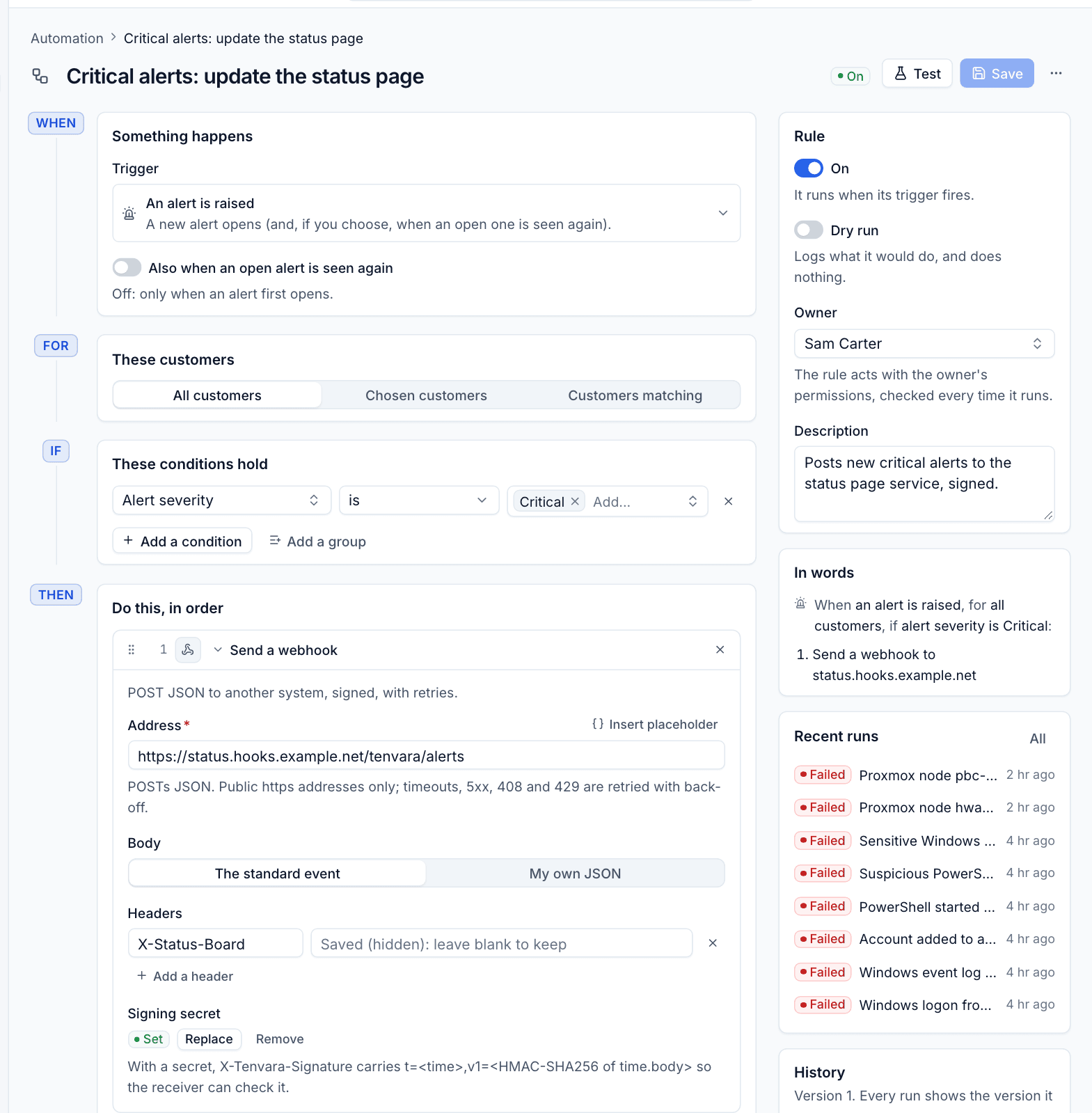
- Enter the Address. It must be a public
httpsaddress. Placeholders are allowed and are URL-encoded. - Choose the Body: The standard event (Tenvara's own JSON describing the event, the subject and the rule) or My own JSON, where placeholder values are escaped for you.
- Add Headers if the receiver needs them, for example an API key.
- Set a Signing secret so the receiver can check the request came from you.
How webhooks behave:
- Signed: with a secret, a signature header carries
t=<time>,v1=<HMAC-SHA256 of time.body>. The receiver recomputes the HMAC over the time, a dot and the raw body with the same secret, compares, and rejects old timestamps. The exact header name is shown under Signing secret. - Secrets stay secret: the signing secret and header values are stored encrypted and never shown again. The builder shows "Saved (hidden): leave blank to keep"; leave it blank to keep the saved value, or type a new one.
- Retried: timeouts, 408, 429 and 5xx answers are tried again, 4 attempts by default with waits of 1, 5 and 30 minutes. The run waits in the log between attempts. Change this in Settings > Automation.
- Safe: private, loopback and link-local addresses (which include cloud metadata services) are refused, every address the name resolves to is checked, and redirects are not followed.
Flow
| Action | What it does |
|---|---|
| Wait | Pauses for a number of minutes or hours, then carries on with the next action. The run shows as Waiting in the run log and carries on even across restarts |
| Stop | Ends this rule, and no later rules in the order run for this event |
Use Wait to space actions out, for example to give a script time to finish before a later action adds a note or notifies someone. Conditions are checked once, before the first action, not again after a wait. Use Stop at the end of a specific rule to keep a general rule below it from also acting.
Was this page helpful?
Thanks for the feedback.