Setting up backup
Choose where backups are stored, keep the encryption key safe, check the backup helper builds, and link the Microsoft 365 app registration.
Before you protect anything, check three things in backup settings: where backups are stored, that you have a copy of the encryption key, and (for Microsoft 365) that the app registration is in place.
Open Settings and choose Backup, or press Backup settings in the Backup sidebar. The page has four tabs: Storage, Defaults, Microsoft 365 and Status. Schedules and retention on Defaults are covered in Schedules and retention.
Storage
The Storage tab shows what is in use now and lets you change it.
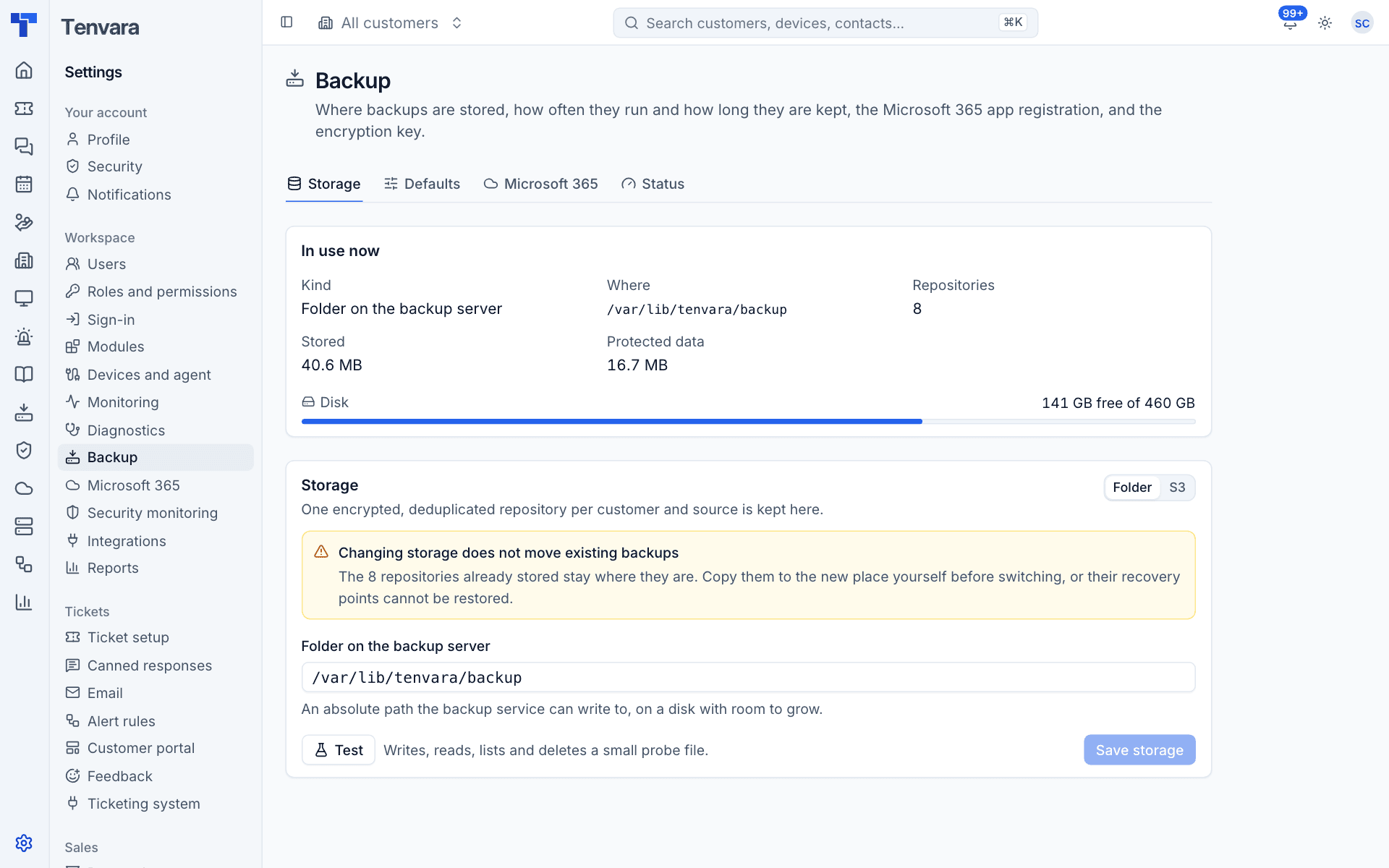
In use now shows:
- Kind and Where: a folder on the backup server, or an S3 bucket.
- Repositories: how many customer repositories are stored. Each customer has one per source (devices, Microsoft 365).
- Stored and Protected data: space used, and how much data that protects.
- Disk: for a folder, how much free space is left.
Using a folder on the backup server
- Under Storage, choose Folder.
- Enter Folder on the backup server: an absolute path the backup service can write to, on a disk with room to grow.
- Press Test. It writes, reads, lists and deletes a small probe file.
- Press Save storage.
Using S3-compatible storage
S3 works with AWS and other S3-compatible object storage.
- Under Storage, choose S3.
- Enter the Endpoint: host and port, without
https://. Path or virtual-host style addressing is chosen for you. - Enter the Bucket and Region, and optionally a Prefix (a folder inside the bucket).
- Enter the Access key and Secret key. The secret key is stored encrypted and never shown again.
- Leave Use HTTPS and Check the certificate on unless your storage needs otherwise.
- Press Test these settings, then Save storage.
Warning: Changing storage does not move existing backups. Repositories already stored stay where they are. Copy them to the new place yourself before switching, or their recovery points cannot be restored. Tenvara asks you to confirm this before it saves.
Storage checks
Every 15 minutes Tenvara writes, reads and deletes a probe in your storage, and for a folder checks the free space. If storage cannot be written, or a folder has less than 10% free, it raises a storage alert. A first Microsoft 365 backup of a tenant also needs room: on folder storage it only starts with 15% free, and stops taking on more below 8%.
The encryption key
Every backup is encrypted with a master key held in a file called keys.json in the backup service's data folder. Tenvara creates it the first time the backup service starts.
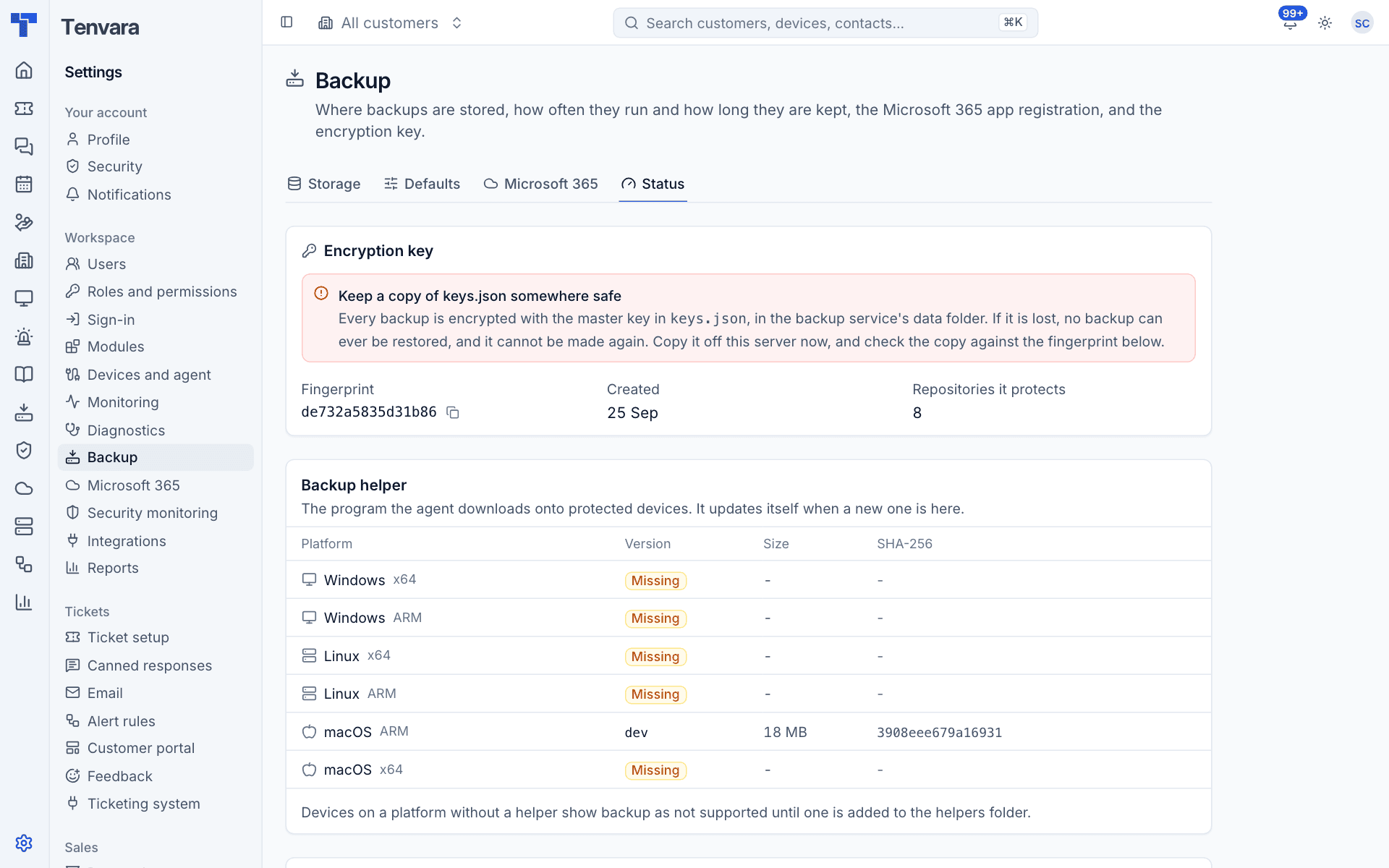
On the Status tab, Encryption key shows:
- Fingerprint: a short code that identifies the key. Copy fingerprint copies it.
- Created: when the key was made.
- Repositories it protects.
Warning: If
keys.jsonis lost, no backup can ever be restored, and it cannot be made again. Copy it off the backup server now, store it somewhere safe (a password manager or an offline copy), and check the copy against the fingerprint.
The backup service refuses to start if repositories exist but the key is missing or does not match the fingerprint, rather than quietly making a new key. If that happens, put your saved copy of keys.json back.
On hosted Tenvara the key is looked after for you.
The backup helper
The Backup helper table on Status lists the helper builds for each platform: Windows and Linux (x64 and ARM) and macOS (ARM and x64), with their version, size and checksum.
- The agent downloads the right build when a device is protected, and updates it when a newer one is here. The helper waits until it is idle before it updates.
- A platform marked Missing has no build yet. Devices on that platform show backup as not supported until one is added.
Service at the bottom shows the backup service version, the kind of storage and the address agents use to reach it.
Microsoft 365 app registration
Microsoft 365 backup and Microsoft 365 management share one app registration, so customers only consent once. The Microsoft 365 tab explains this and links to Open Microsoft 365 settings, where it is normally set up.
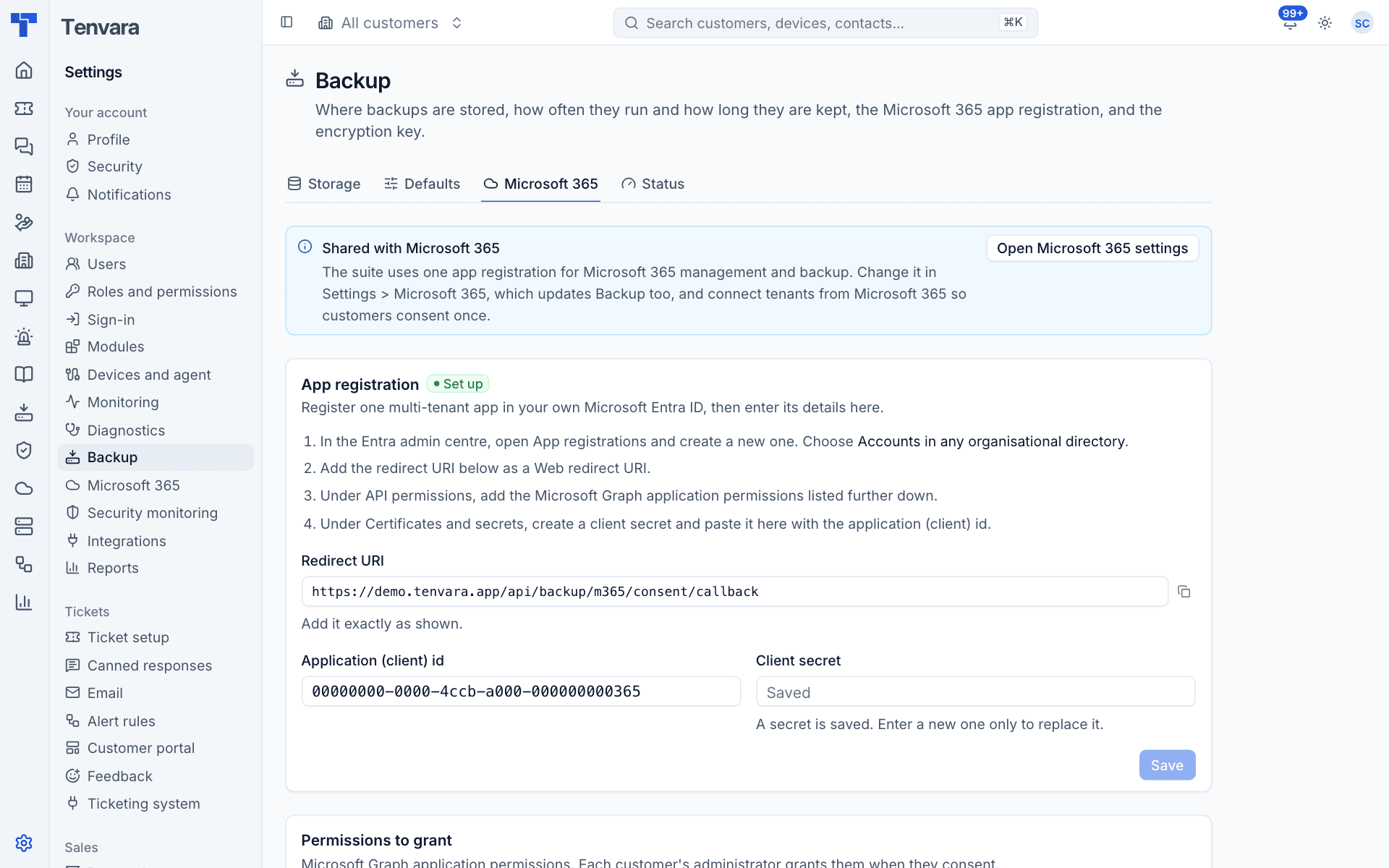
If you set it up here:
- In the Entra admin centre, open App registrations and create a new one. Choose Accounts in any organisational directory.
- Copy the Redirect URI shown on this tab and add it as a Web redirect URI.
- Under API permissions, add the Microsoft Graph application permissions listed under Permissions to grant.
- Under Certificates and secrets, create a client secret.
- Enter the Application (client) id and Client secret here and press Save.
The permissions the app needs are:
| Permission | Why |
|---|---|
User.Read.All, Group.Read.All, Directory.Read.All |
Find users, groups, Teams, sites, domains and licences |
MailboxSettings.Read |
Tell user, shared and room mailboxes apart |
Mail.ReadWrite, Calendars.ReadWrite, Contacts.ReadWrite |
Back up and restore mail, calendars and contacts |
Files.ReadWrite.All, Sites.ReadWrite.All |
Back up and restore OneDrive and SharePoint |
Team.ReadBasic.All, Channel.ReadBasic.All, ChannelMessage.Read.All |
List Teams and back up channel messages |
Note: Teams channel messages use a protected Microsoft API. Request access for your app at
aka.ms/teamsgraph/requestaccess. Until Microsoft approves it, everything else backs up and Teams shows as failed.
Then connect each customer's tenant: see Microsoft 365 backup.
Checklist
- Storage chosen and Test passes.
-
keys.jsoncopied somewhere safe and the fingerprint checked. - Helper builds present for the platforms you support.
- Defaults set for schedule and retention.
- Microsoft 365 app registration saved, if you back up Microsoft 365.
Was this page helpful?
Thanks for the feedback.