Detection rules and suppressions
The built-in detection rules, tuning a rule for one customer, testing and writing your own rules, and suppressing hits you do not want.
Detection rules say which events to look at and what makes a detection. Tenvara ships a pack of 61 built-in rules and runs them every few minutes over every customer's events.
The rules list
Security > Rules lists every rule with its Severity, Source, what it Looks for, Hits this week, Open detections, Last run and an On switch. Filter by severity, source, category, kind of rule, MITRE tactic, on or off, and built-in or your own.
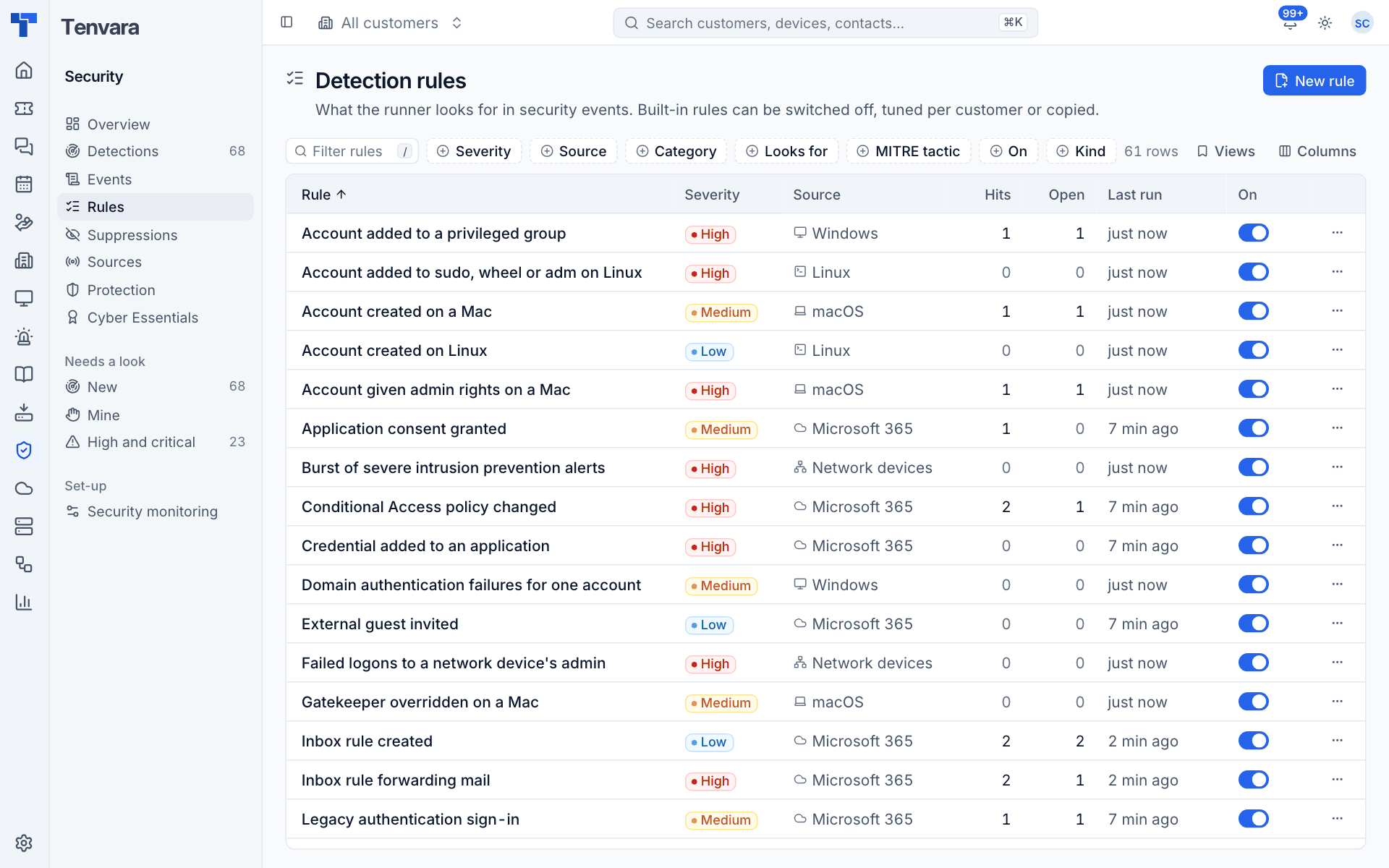
The built-in pack covers:
- Windows: brute force, brute force then a logon, password spray, lockouts, Kerberos and NTLM failures, logons from the internet, remote desktop from a new address, privileged group additions, accounts created, logs cleared, sensitive changes out of hours, audit policy, services and PsExec-style services, scheduled tasks, Defender malware and tampering, suspicious and encoded PowerShell, Office starting a shell, firewall off.
- macOS: sudo failures, sudo failures then a new admin, admin added, accounts, XProtect, Gatekeeper overrides, firewall off.
- Linux and SSH: SSH brute force, root over SSH, sudo failures, sudo, wheel and adm additions, accounts.
- Microsoft 365: brute force, password spray, failures then a sign-in, sign-in from a new country, legacy authentication, MFA prompts not completed, Entra ID Protection risk, forwarding inbox rules, mailbox forwarding, inbox rules, mailbox permissions, admin roles, MFA methods removed and registered, app consent, app credentials, Conditional Access changes, guests, mass download.
- Network devices: bursts of IPS alerts, severe IPS alerts, port scans, VPN brute force, admin logon failures.
- Tenvara itself: sign-in failures, many credentials revealed by one person, two-factor resets and role changes.
Kinds of rule
| Looks for | A detection is |
|---|---|
| Every match | Every group of matching events |
| Threshold | At least a number of events for one group within the lookback |
| Distinct count | At least a number of different values for one group (many accounts from one address: a spray) |
| First seen | Something not seen in the baseline before (a user's new country) |
| Absence | Something that used to send events and has stopped |
| Sequence | A burst of one thing, then another for the same group within a time (failures, then a success) |
A rule's page
Click a rule to see Why it matters, What it looks for (in words, or as YAML), its recent detections, the Runs (each window it looked at, with customers, hits, detections opened and merged, held back and how long it took), its details, which customers it works differently for, and its Versions.
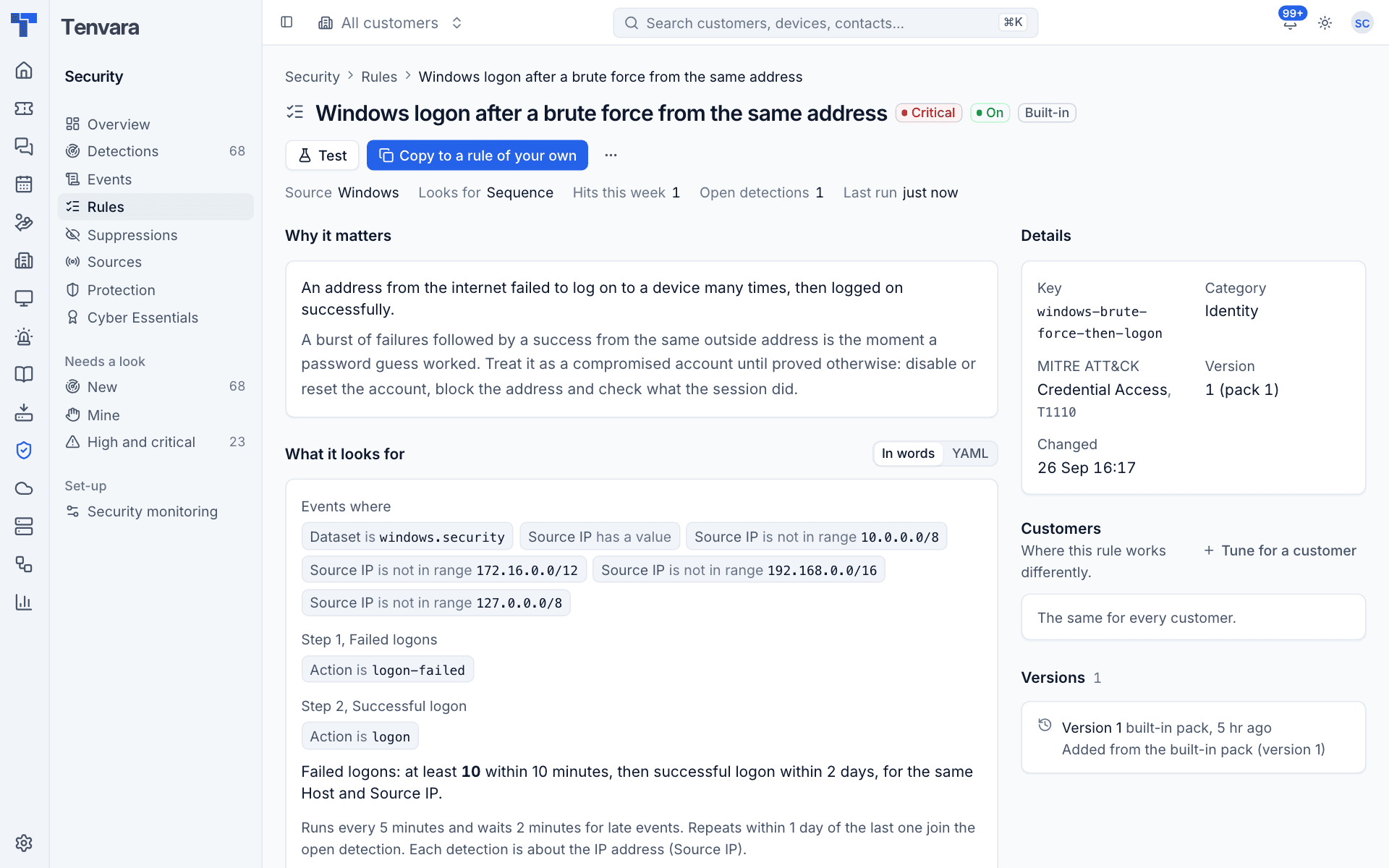
Built-in rules cannot be edited in place. You can switch them off, tune them per customer, test them, or copy them with Copy to a rule of your own.
Tuning a rule for one customer
When a rule is too noisy (or too quiet) for one customer:
- Open the rule and press Tune for a customer.
- Choose the Customer.
- Set a Threshold of their own (leave empty to use the rule's), a Severity of their own, or Mute it for a day, a week, 30 days or until a date.
- Add a Note saying why this customer is different.
- Press Save.
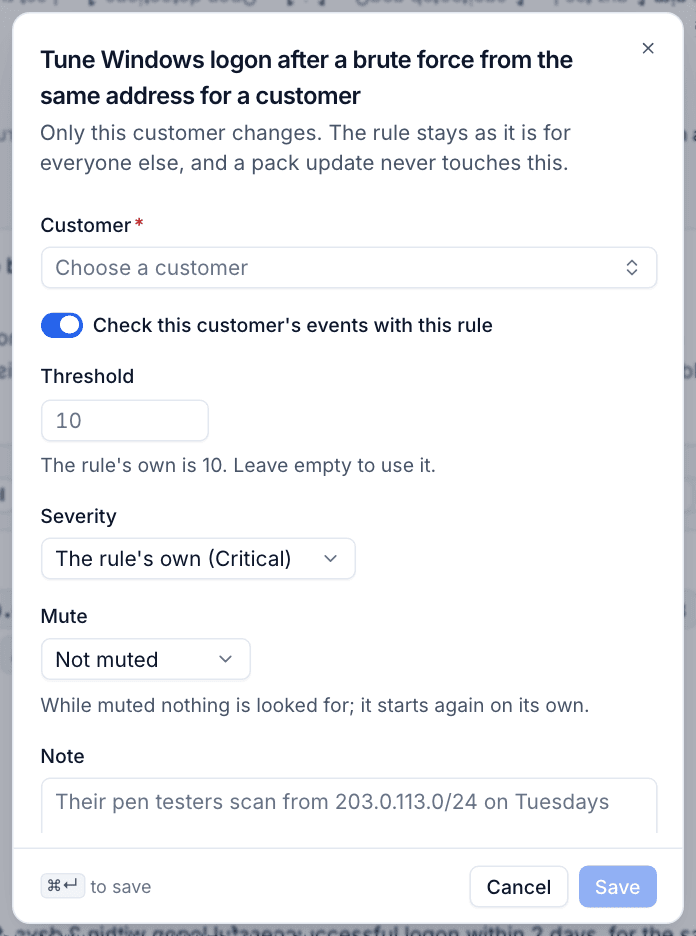
Only that customer changes, and a pack update never touches it.
Testing a rule
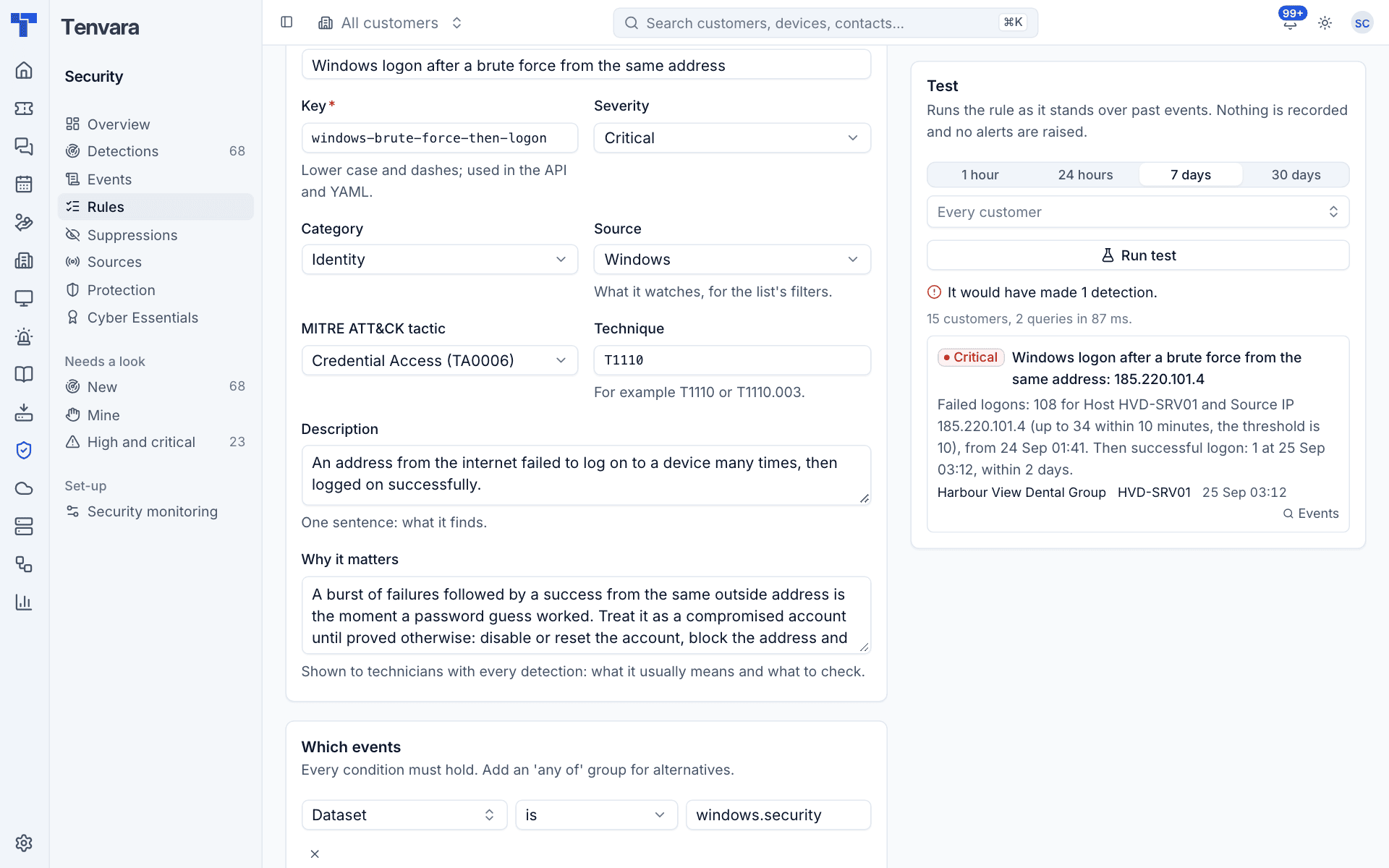
Press Test on a rule to run it as it stands over past events (the Test panel beside the rule form): the last hour, 24 hours, 7 days or 30 days, for every customer or one. It shows how many detections it would have made and what they are. Nothing is recorded and no alerts are raised.
Writing your own rule
- Press New rule (or Copy to a rule of your own on an existing one).
- Under About the rule, give it a Title and Key, the Severity, Category, Source, MITRE ATT&CK tactic and technique, a one-sentence Description, and Why it matters (shown to technicians with every detection).
- Under Which events, add conditions. Every condition must hold; add an "any of" group for alternatives.
- Under What makes a detection, choose what it looks for, what to Group by (a user, host or address; every rule also groups by customer), the count, and what each detection is About.
- Under When it runs, set how often, how far it looks back, and how long it waits for late events.
- Use the Test panel beside the form to see what it would have found, then press Save rule.
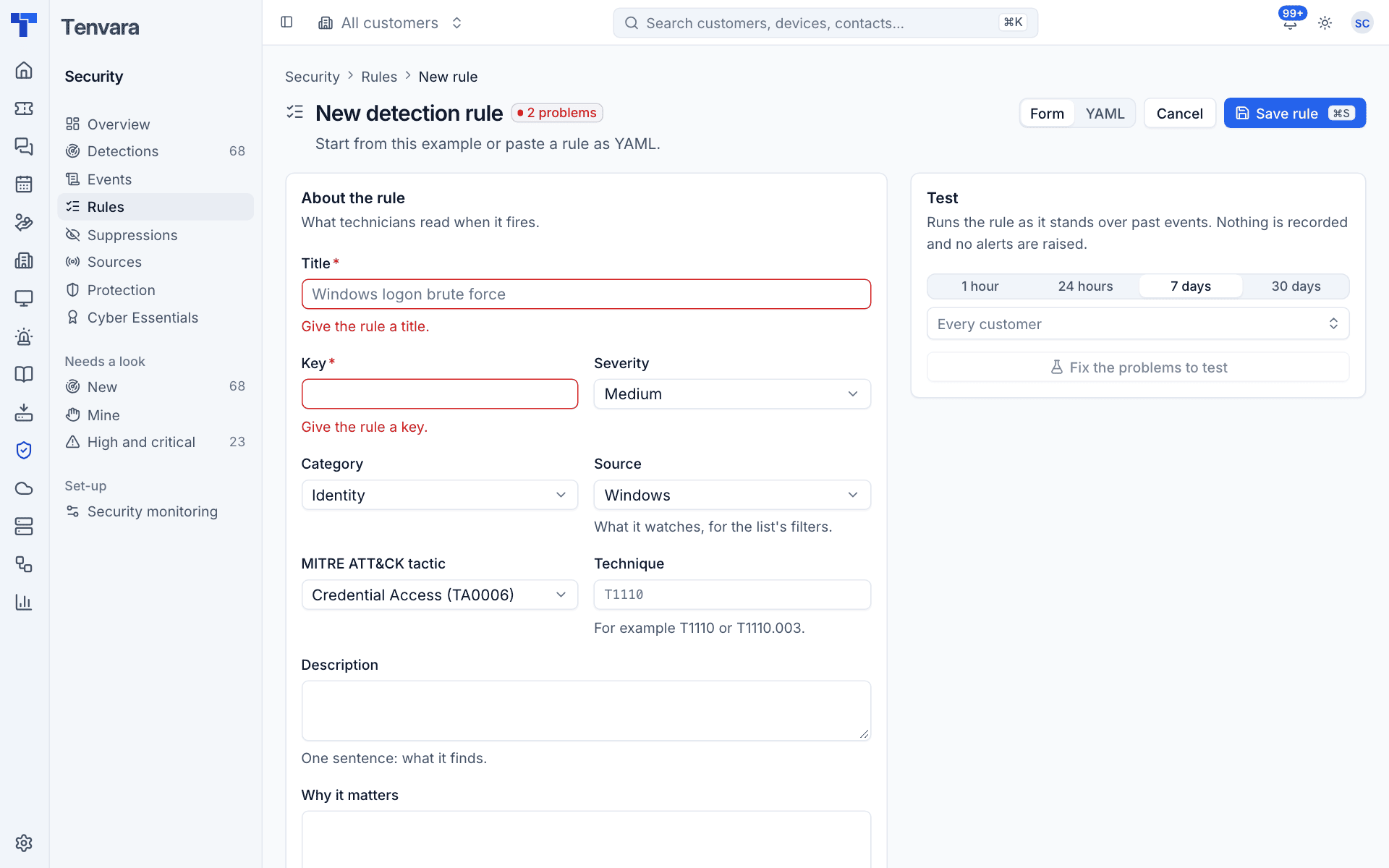
You can switch between Form and YAML at any time, and paste a rule as YAML. The editor checks the rule as you type. A copy of a rule starts switched off. Every saved change is a new version, with what changed in words.
Note: If a rule fails five runs in a row, it is switched off with an alert saying why. Switching it back on clears the alert.
Suppressions
A suppression holds back hits that match it: they are counted, but do not become detections. Most come from marking a detection a false positive with Do not show hits like this again.
Security > Suppressions lists them with the Reason, conditions, Rule, Customer, how many hits each Held back and when it Expires. The views are Active and expired. Press New suppression to add one by hand:
- Enter a reason.
- Add conditions on the values a hit carries (the fields the rule groups by, the customer and device). All must hold.
- Optionally limit it to one rule and one customer.
- Set when it expires.
A condition on a field a hit does not carry never matches, so a suppression written for one rule cannot silence another by accident.
Was this page helpful?
Thanks for the feedback.