The catalogue
Keep the products, services, licences and labour you sell, with cost, price, margin and billing, group them into bundles, and import or export them as CSV.
The catalogue is your price list. Every quote line can come from it, so you type a laptop or a managed service once and add it to quotes in a couple of keystrokes. Quotes copy what they need from the catalogue at the time, so changing a price later never alters a quote already written or sent.
Open Sales > Catalogue.
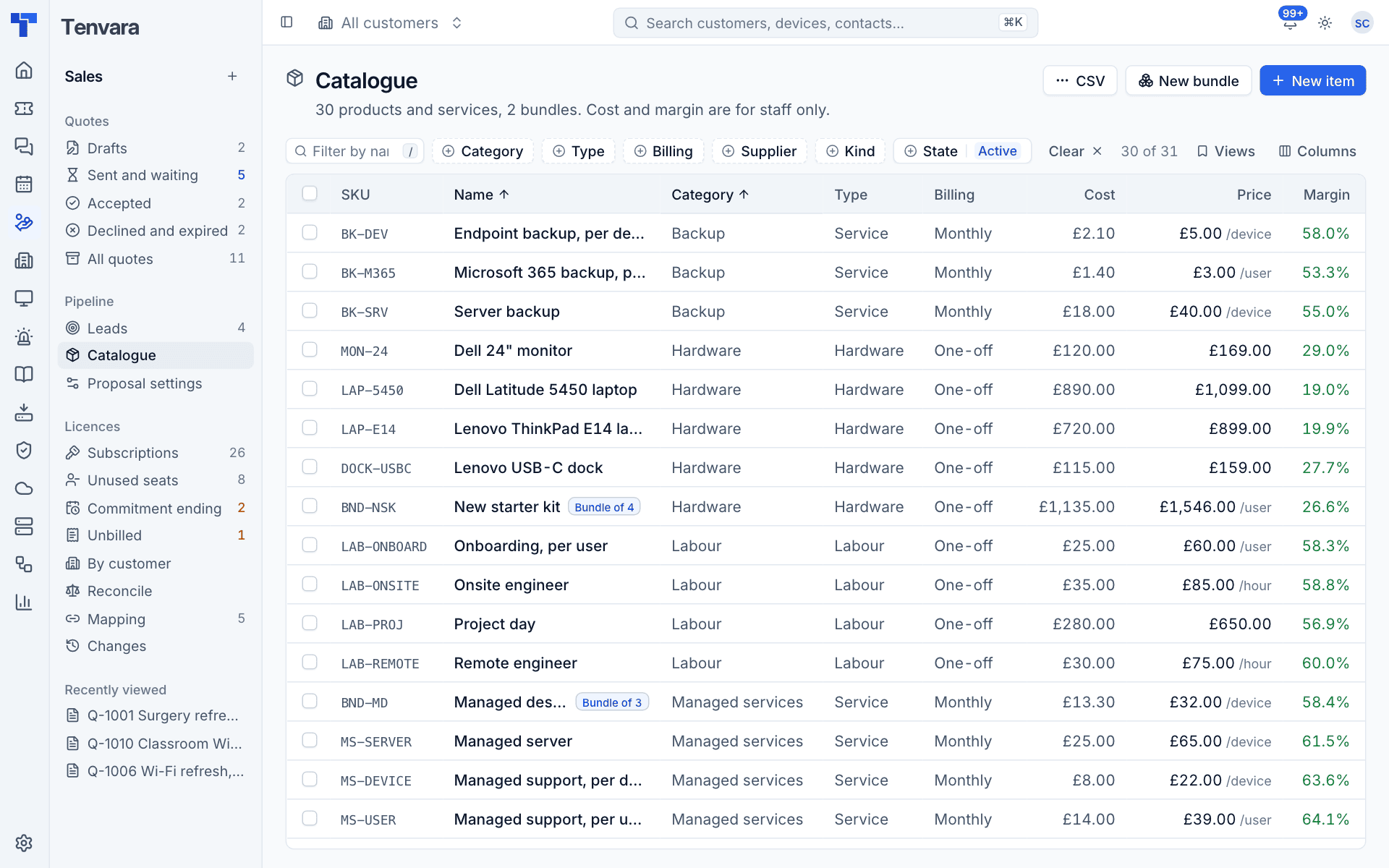
The line under the title counts products, services and bundles, and reminds you that cost and margin are for staff only.
The list
Each row shows the SKU, Name, Category, Type, Billing, Cost, Price (with its unit, such as /user or /device) and Margin. Bundles carry a Bundle of badge with how many items they hold.
- Filter by Category, Type, Billing, Supplier, Kind (item or bundle) and State (active or archived).
- Saved views include active items, recurring items, bundles, thin margins and archived.
- Select rows to archive or restore them in bulk.
Add an item
- Press New item.
- Enter the Name and, ideally, a SKU. The SKU is how CSV imports recognise the item later.
- Add a Description. It is shown under the item on quotes, so write it for the customer, for example "Wi-Fi 6 ceiling access point."
- Set the Category (your own grouping, such as Hardware or Backup), the Type (Hardware, Software, Licence, Service or Labour) and the Unit (Each, Per user, Per device, Per hour or Per site).
- Choose the Billing: One-off, Monthly, Quarterly or Annually.
- Enter the Cost (staff only) and the Price before VAT. The Margin is worked out for you; type a margin instead and the price is set from it.
- Choose the VAT rate, and add the Supplier, Xero item code and Xero account code if you use them. An empty account code falls back to the export settings.
- Press Add to the catalogue.
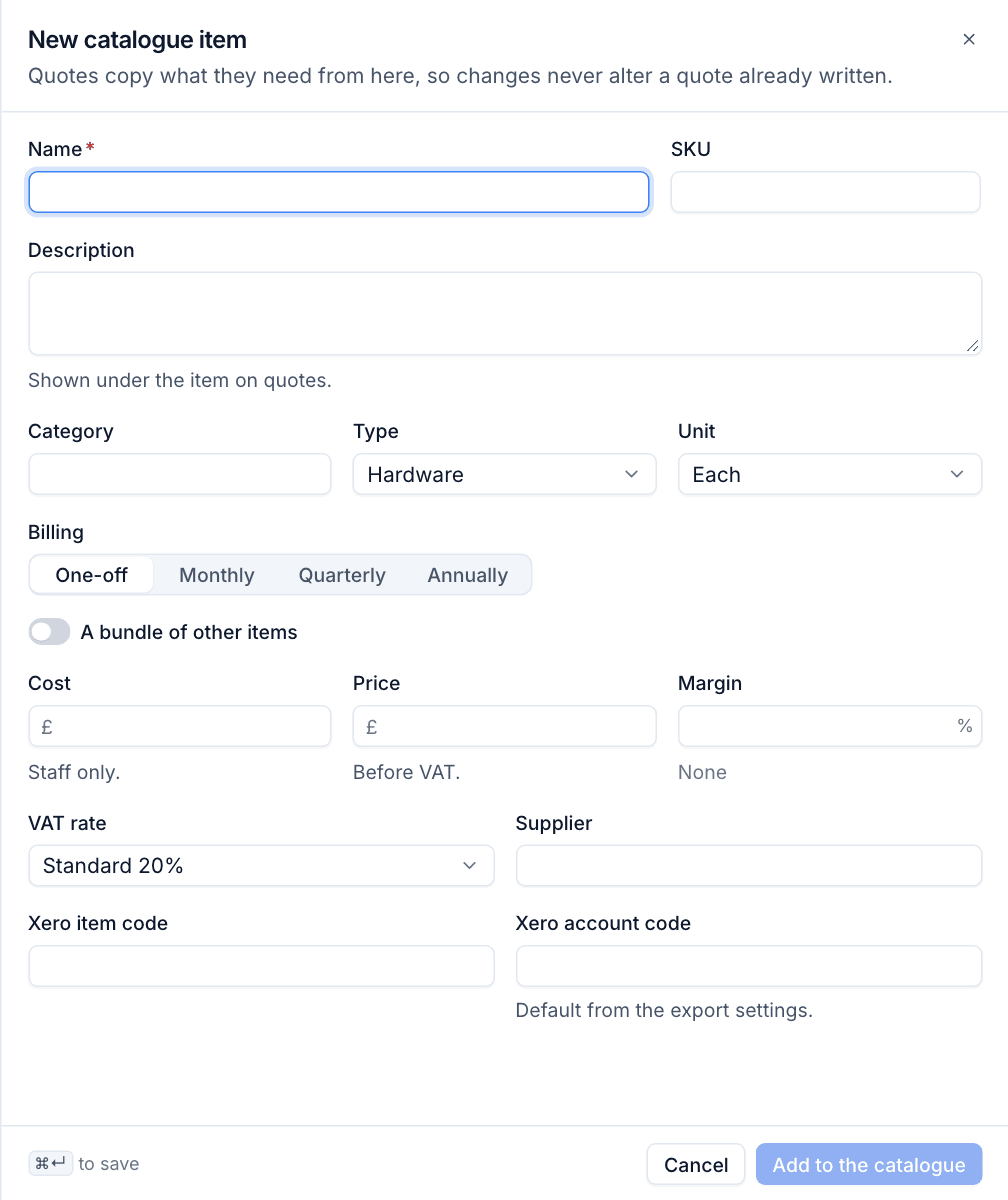
Click any row to edit it, then press Save item.
Bundles
A bundle sells several items as one line, such as "Managed desktop": support, backup and EDR for one computer at one monthly price. On a quote it is one line with its contents listed underneath, and once accepted it is one contract line and one invoice line.
- Press New bundle (or turn on A bundle of other items on an item).
- Fill in the name, SKU, description, category, type, unit and billing as for an item.
- Under In the bundle, use Add an item... to add each item and its quantity.
- Choose Priced as the sum (the price follows the contents) or A fixed price (type your own).
- The Cost is always the sum of the contents, so the margin stays honest.
- Press Add to the catalogue.
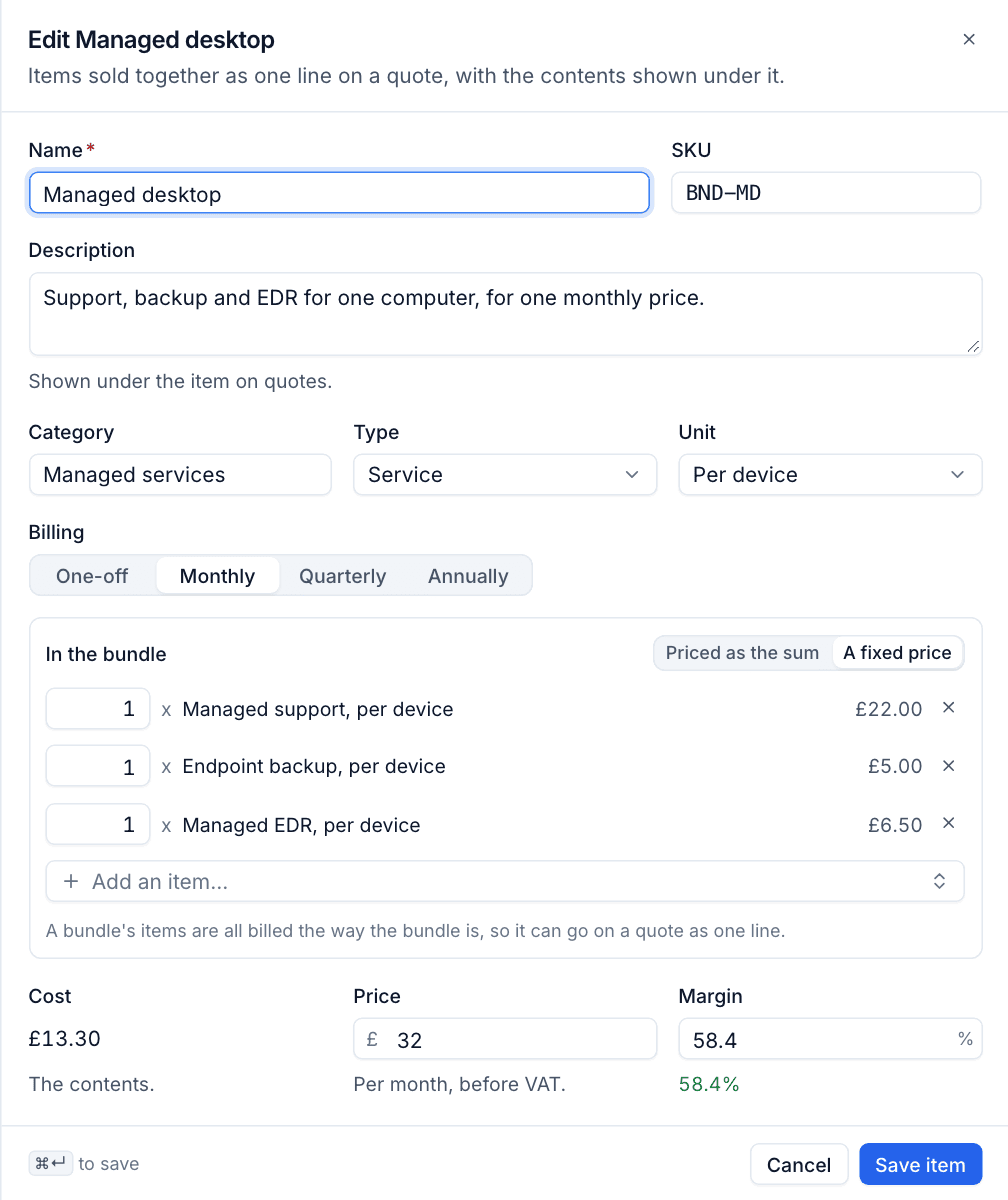
Note: Every item in a bundle must be billed the same way as the bundle (all monthly, for example), so the bundle can go on a quote as one line and on a contract as one charge.
Archive or delete
Archive items you no longer sell: they leave the catalogue picker but stay on the quotes that used them. An item inside a bundle cannot be deleted until it is taken out of the bundle; archive it instead. Deleting an item never changes a quote, because quotes keep their own copy of each line.
Import and export CSV
Press CSV for Export as CSV and Import a CSV.
- Export writes every column, which makes it the easiest template for an import.
- Import takes the same columns. Each row updates the item with the same SKU (or, without a SKU, the same name), or adds a new one.
- Bundles come across too: a bundle row names its contents, and they are linked once every row is in, so a bundle can name items further down the file.
- The whole file is checked first and applied all or nothing. If anything is wrong, you get a list of problems by row and nothing changes.
Tip: To update prices in bulk, export, change the price column in a spreadsheet and import the file again.
Was this page helpful?
Thanks for the feedback.