Privacy and customer controls
Exactly what is sent to Anthropic, how to redact it, how to opt customers out, and how to audit every AI action.
AI assist sends data to Anthropic to get an answer. This page explains what goes, what never goes, how to hold a customer back entirely, and how to see every AI action after the fact.
What is sent, per feature
Go to Settings > AI > General and open What leaves the suite. Each feature lists exactly the kinds of data it sends. Expand a feature to see its list.
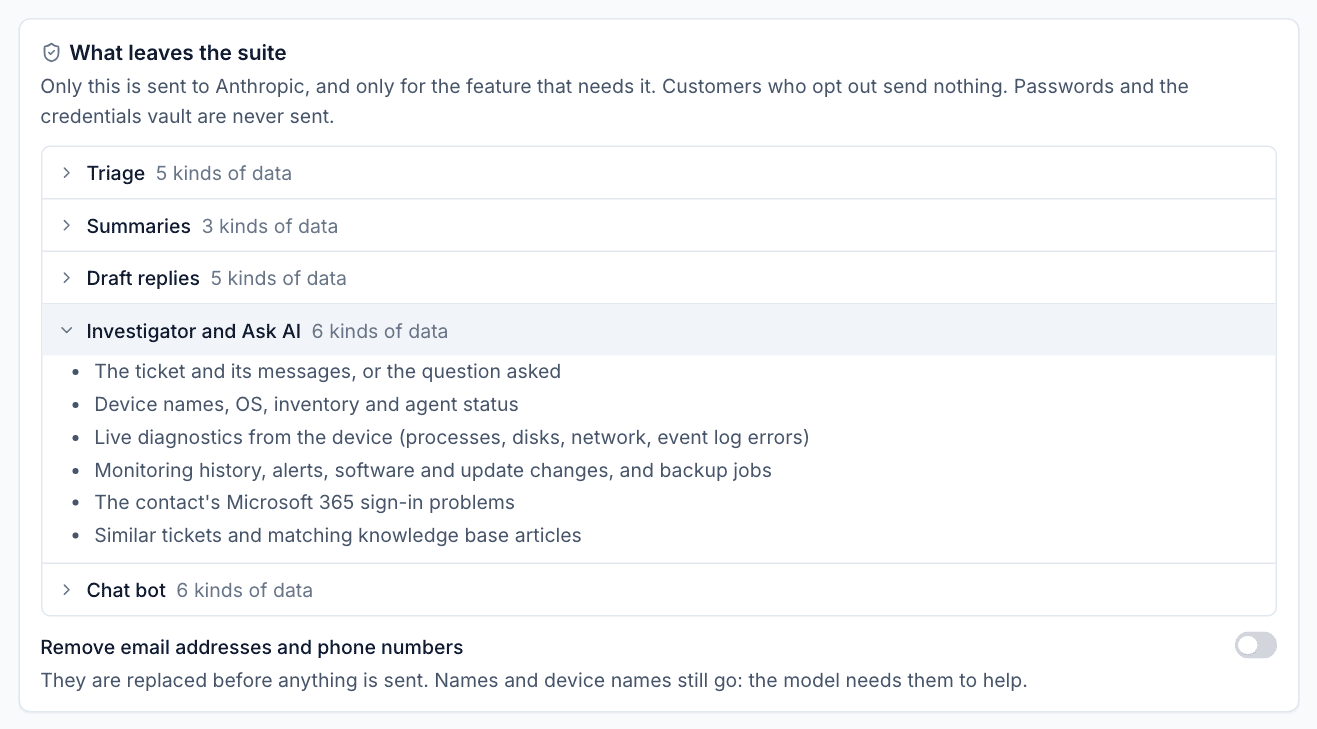
For example:
- Summaries send every message on the ticket (internal notes included), the names and email addresses of the people in the thread, and the customer name.
- Investigator and Ask AI send the ticket and its messages (or the question asked), device names, OS, inventory and agent status, live diagnostics from the device (processes, disks, network, event log errors), monitoring history, alerts, software and update changes and backup jobs, the contact's Microsoft 365 sign-in problems, and similar tickets and matching knowledge base articles.
Only the feature that needs the data sends it. A feature that is switched off sends nothing.
Never sent: passwords and the credentials vault, whatever feature or customer.
Removing email addresses and phone numbers
Switch on Remove email addresses and phone numbers under the list. They are replaced before anything is sent, including in the results of the checks the investigator runs. Names and device names still go, because the model needs them to help.
How Anthropic handles it
Requests go to Anthropic's API with your own key, under your agreement with Anthropic. Check Anthropic's current commercial terms and data retention for API use, and tell customers who ask that AI assist uses Anthropic as a processor.
Opting a customer out
Some customers will not want their data sent to an AI provider. Opt them out and nothing about them is sent: every AI feature refuses for their tickets, devices and chats, and says why. This also covers checks that could otherwise reach them from elsewhere, such as Ask AI on a ticket not yet matched to a customer.
From the customer's page
Open the customer's Overview and find the AI assist card.
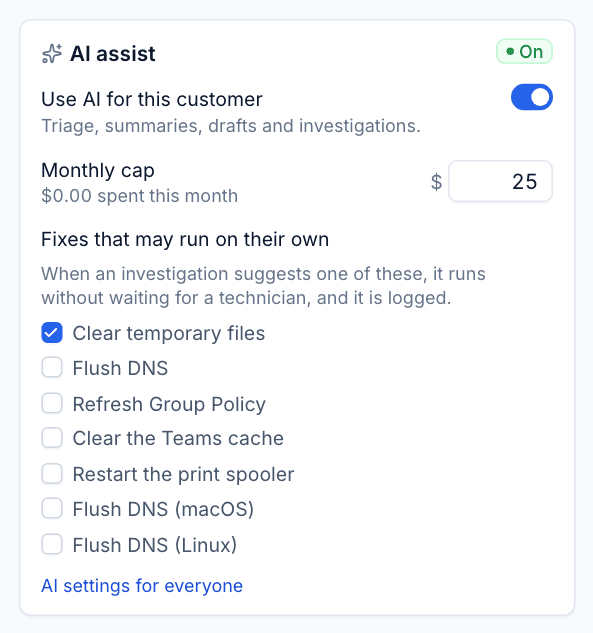
- Switch off Use AI for this customer to opt them out.
- Optionally set a Monthly cap in US dollars, on top of the overall caps. It shows what has been spent this month.
- Under Fixes that may run on their own, tick any low-risk fixes the customer allows to run without a technician pressing Run.
AI settings for everyone jumps to Settings > AI.
From Settings
Settings > AI > Customers lists every customer with their own settings: whether they use AI or are Opted out, their monthly cap, what they have spent this month and the fixes that run on their own. Use Set up a customer... to add one.
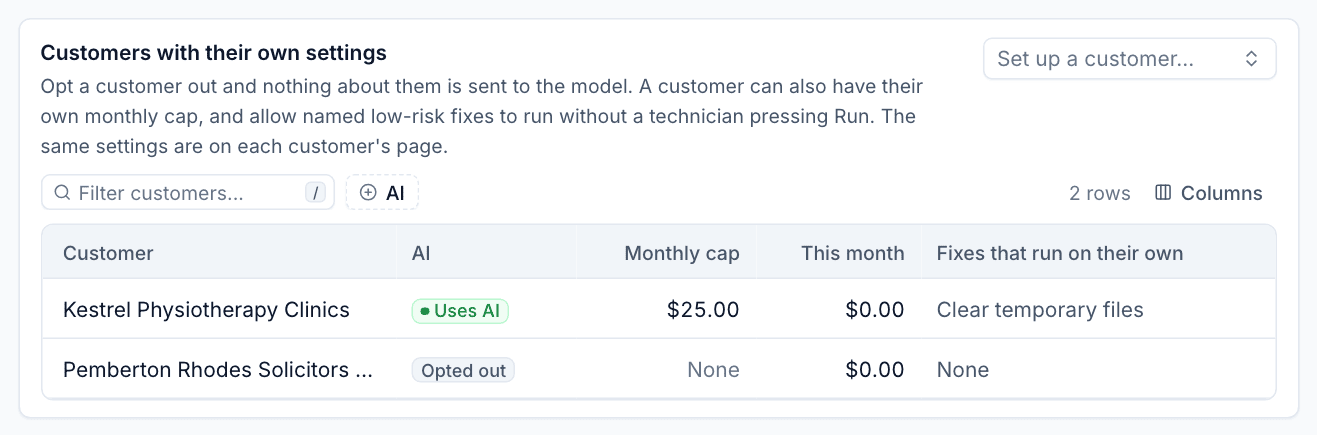
Fixes that run on their own
Only fixes marked low risk in Fixes the investigator may suggest can be allowed to run on their own, and only per customer. When one runs:
- It runs as automation, through the same module a technician would use.
- It always uses the script's default parameters, never values AI picked from reading customer text.
- It is logged on the ticket and the device.
A restart is never allowed to run on its own.
The activity log
Settings > AI > Activity lists every AI action: when, what (triage, summary, draft reply, investigation, Ask AI, chat bot answer), what it was about, the customer, and how many checks (tools) it used. Filter by what, customer, who asked, status or model, and save views.
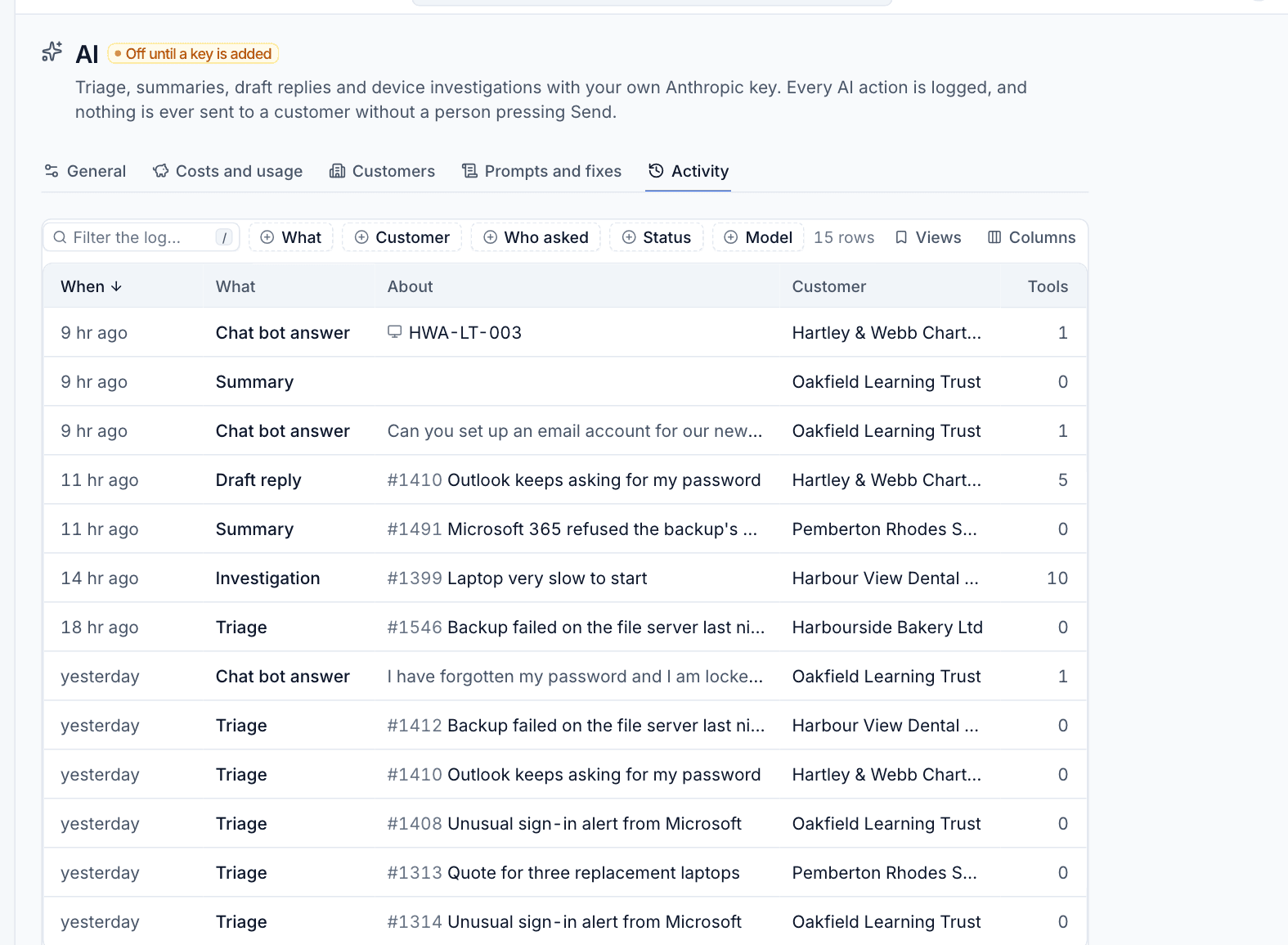
Click a row to open the run:
- Status, Model, Cost, tokens in and out, cache read and written, and how long it Took.
- The Customer, Ticket and Device it was about, and who asked.
- Steps: each thing it did, in order, with a one-line result.
- Tool calls: every check, with what was sent and what came back, and how long it took.
- Model calls: each request to Anthropic, with tokens, cache use and cost.
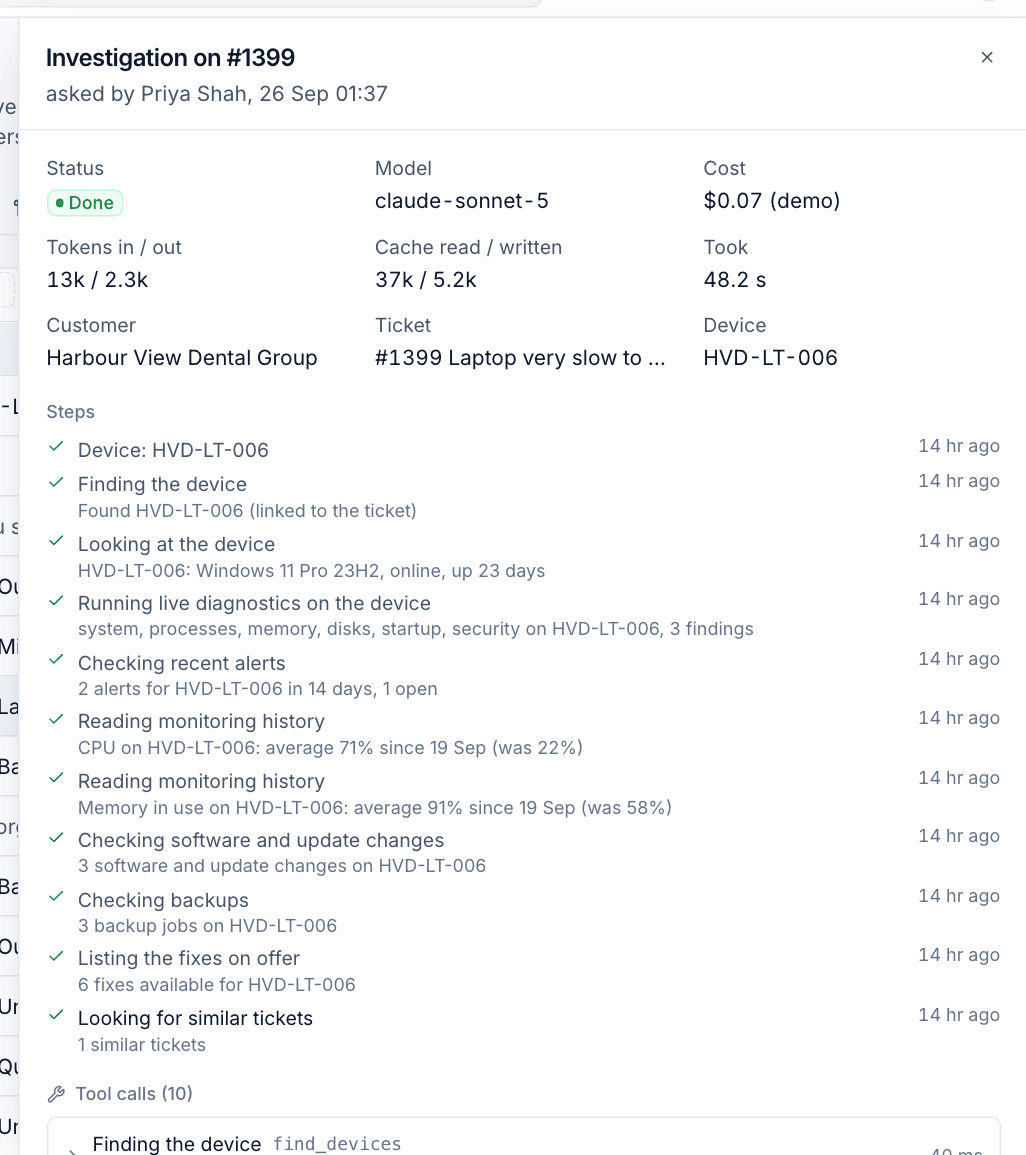
Use it to answer "what did AI see?" for any note, draft or summary. The same run opens from tool calls on an investigation note.
Safeguards against misuse
Customer emails can contain anything, including text written to trick an AI. Tenvara guards against this:
- Customer text is wrapped and marked as data, and fixed rules after every prompt say it is never an instruction, that AI only reads and suggests, and that it must never reveal secrets.
- The investigator only has read-only checks. There is no check that changes a device, so no instruction could make it do so.
- Checks are fenced to the customer in scope. They can never read another customer's devices, tickets or documentation.
- Fixes only run when a technician presses Run, with the technician's own permissions, or under a customer's named low-risk allowance with default parameters.
Was this page helpful?
Thanks for the feedback.