Restoring
Bring back files, folders, volumes, mail, OneDrive, calendars and contacts from a recovery point, to where they were, somewhere else, or as a download.
Every restore, from a single file on a laptop to a whole mailbox, goes through the same five steps: What, When, Files, Where and Confirm. The steps across the top show what you have chosen so far; click one to go back to it.
Starting a restore
Open Backup and choose Restore, or start from where you already are, and the first steps are filled in for you:
- Restore on the Backup overview or a customer's Backup tab.
- Restore in a device's Recovery points.
- Restore on a Microsoft 365 tenant, or the restore button on one user, site or team.
- Restore from this backup on a job.
Restoring from a device
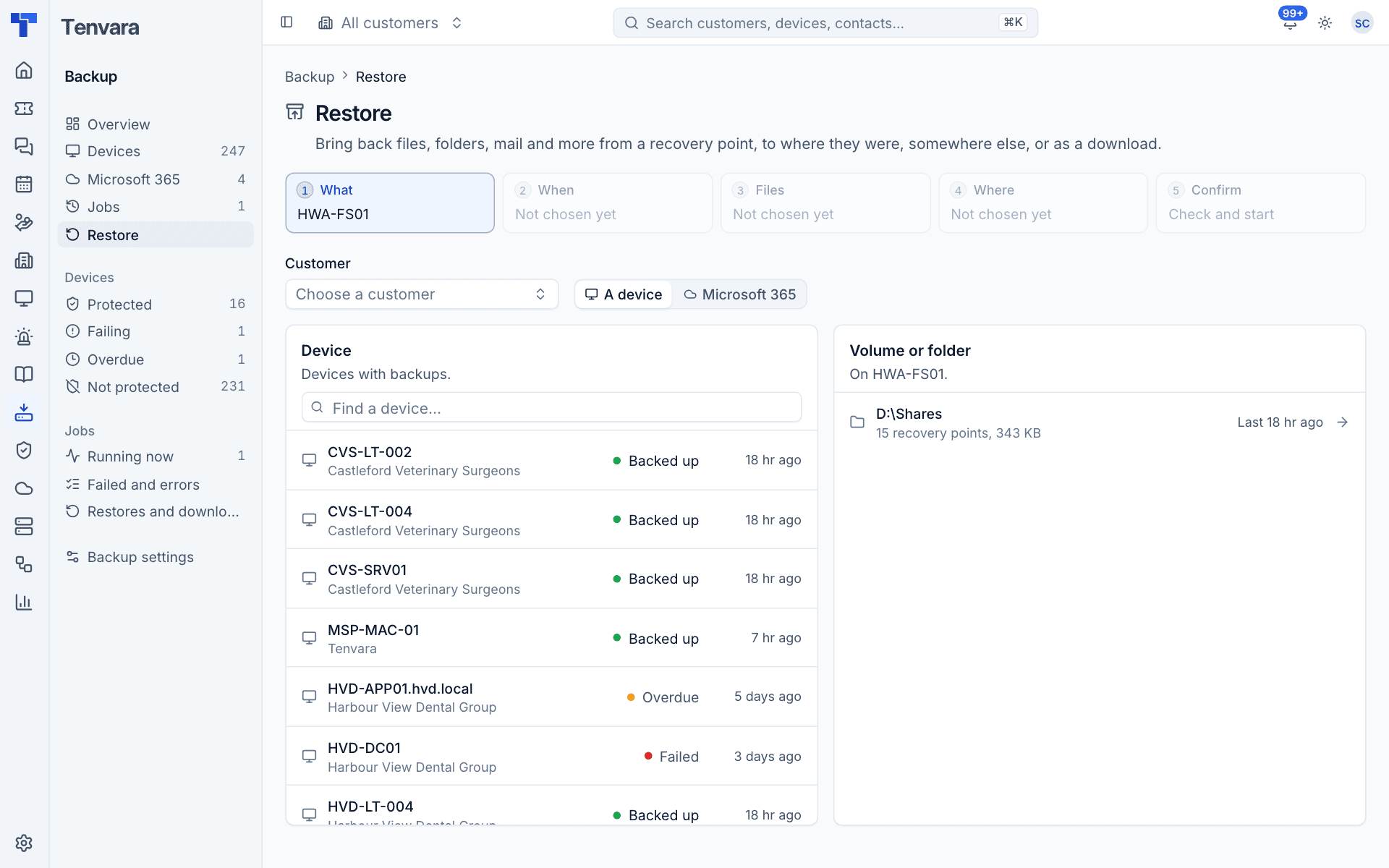
1. What
- Choose A device. Optionally narrow the list with Customer, or type in Find a device.
- Pick the device. Only devices with backups are listed, with their backup state and last good backup.
- Under Volume or folder, pick what to restore from. Each shows how many recovery points it has, their size and the newest.
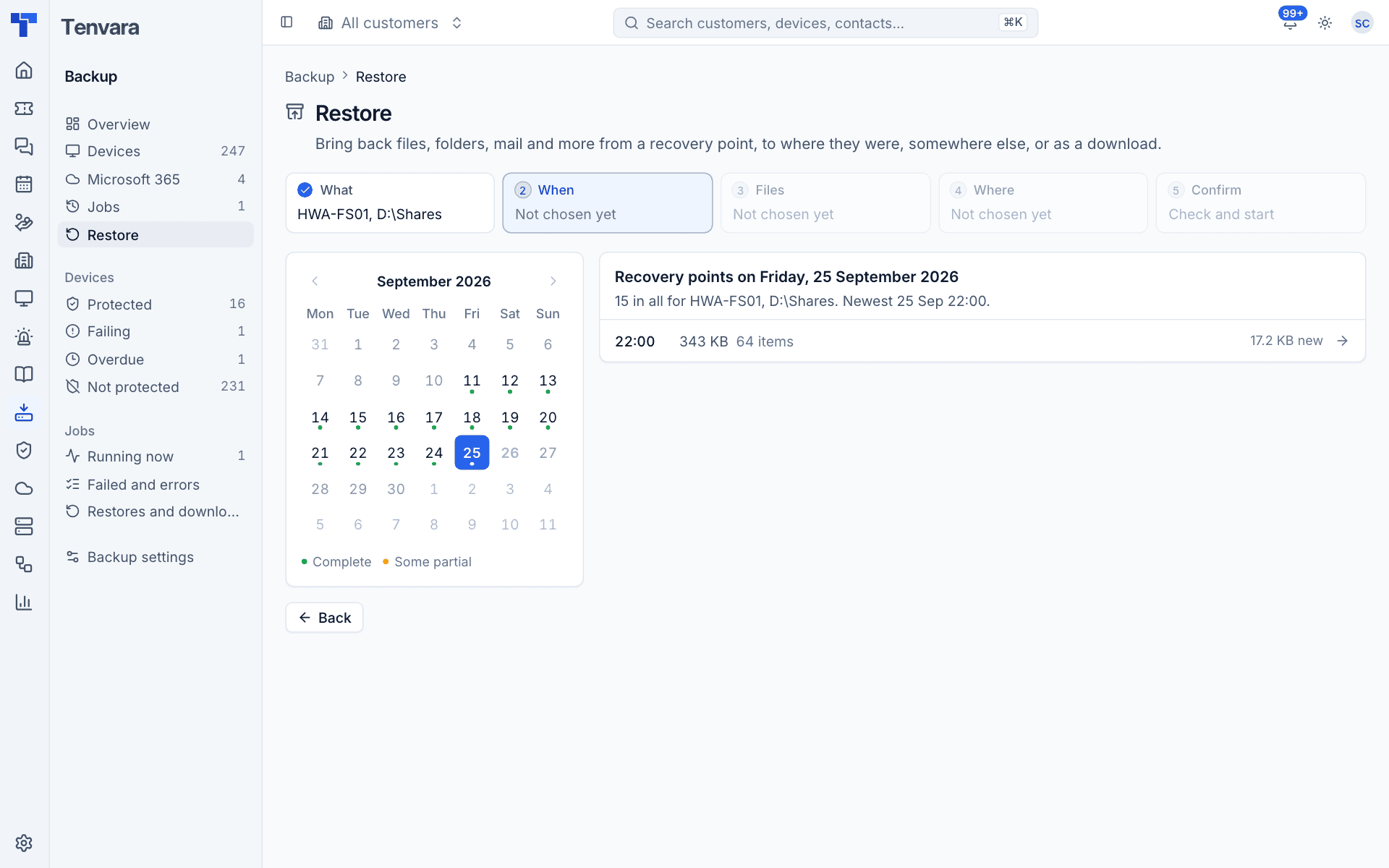
2. When
A calendar shows the days with recovery points. A green dot means complete, amber that some were partial. Pick a day, then a recovery point on the right. Each shows its time, size, number of items and how much was new.
3. Files
Browse the recovery point like a file manager: the tree on the left, the folder's contents on the right. For a volume image you can browse inside it (NTFS, ext4 and XFS) and pick single files.
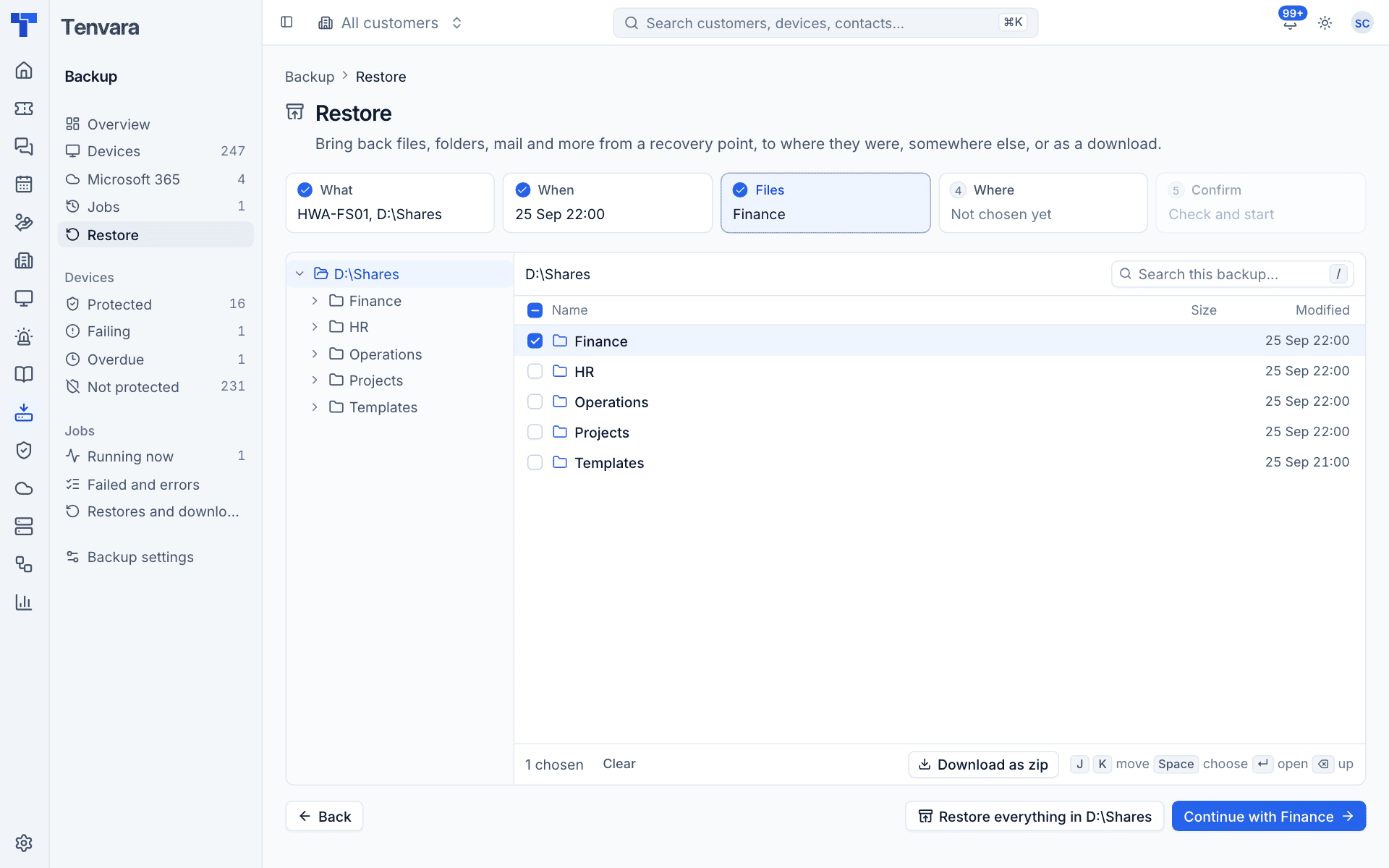
- Tick files and folders, or press Space on a row. J and K move, Enter opens a folder and Backspace goes up.
- Use Search this backup to find a file by name.
- Clear empties your choice.
- Download as zip skips straight to a download of what you ticked.
- Restore everything in restores the whole volume or folder.
- Continue with moves on with what you ticked.
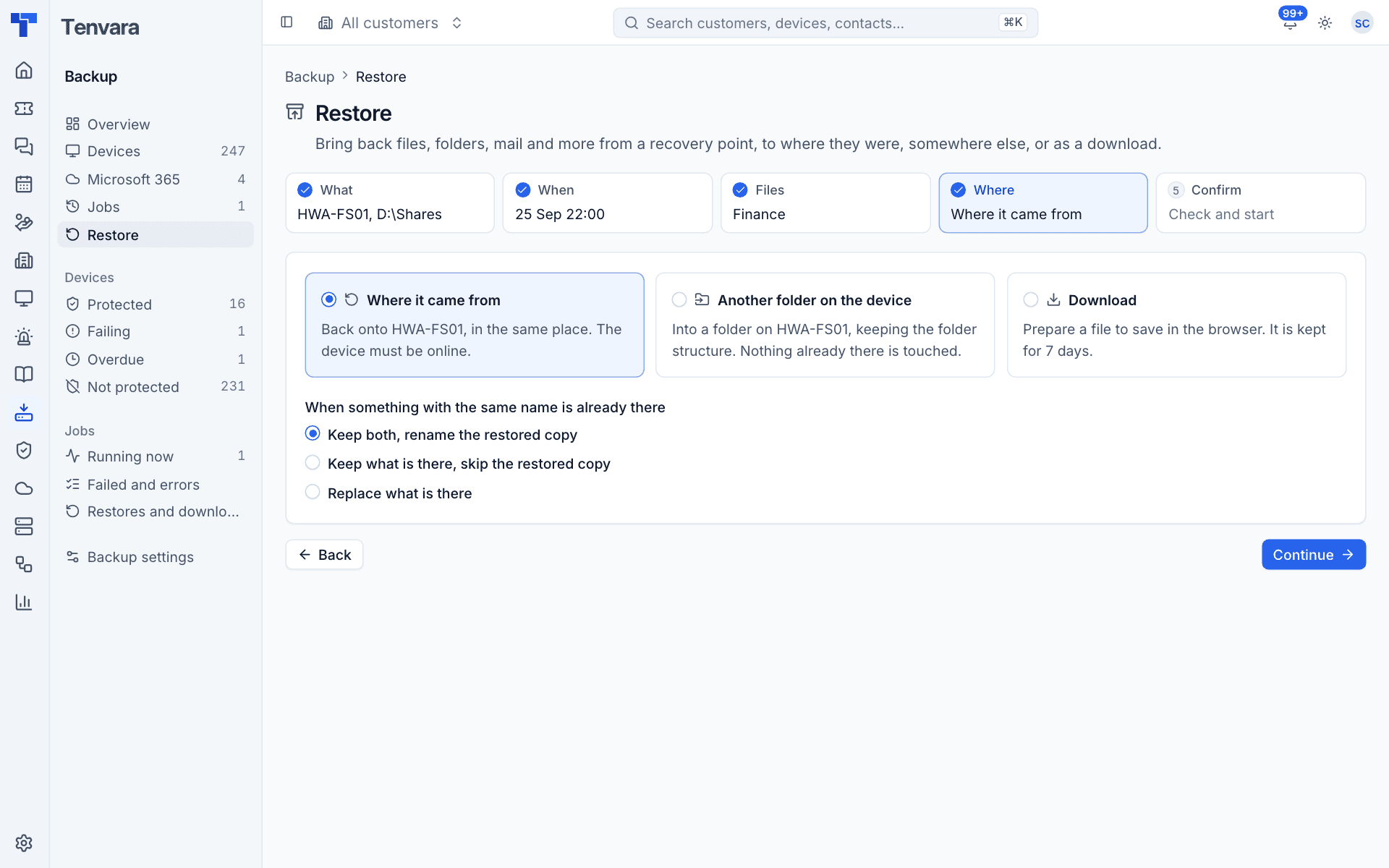
4. Where
| Choice | What happens |
|---|---|
| Where it came from | Back onto the device, in the same place. The device must be online |
| Another folder on the device | Into a folder you name, keeping the folder structure. Nothing already there is touched |
| Download | Prepares a file to save in the browser. It is kept for seven days |
For Where it came from, choose When something with the same name is already there:
- Keep both, rename the restored copy (the safe default).
- Keep what is there, skip the restored copy.
- Replace what is there.
Restoring to where it came from is available for folders and Windows volumes. Files from Linux disk images and virtual machine disks go to a folder or a download.
5. Confirm
Check the summary and press Start the restore. The job starts straight away and you can follow it in Jobs.
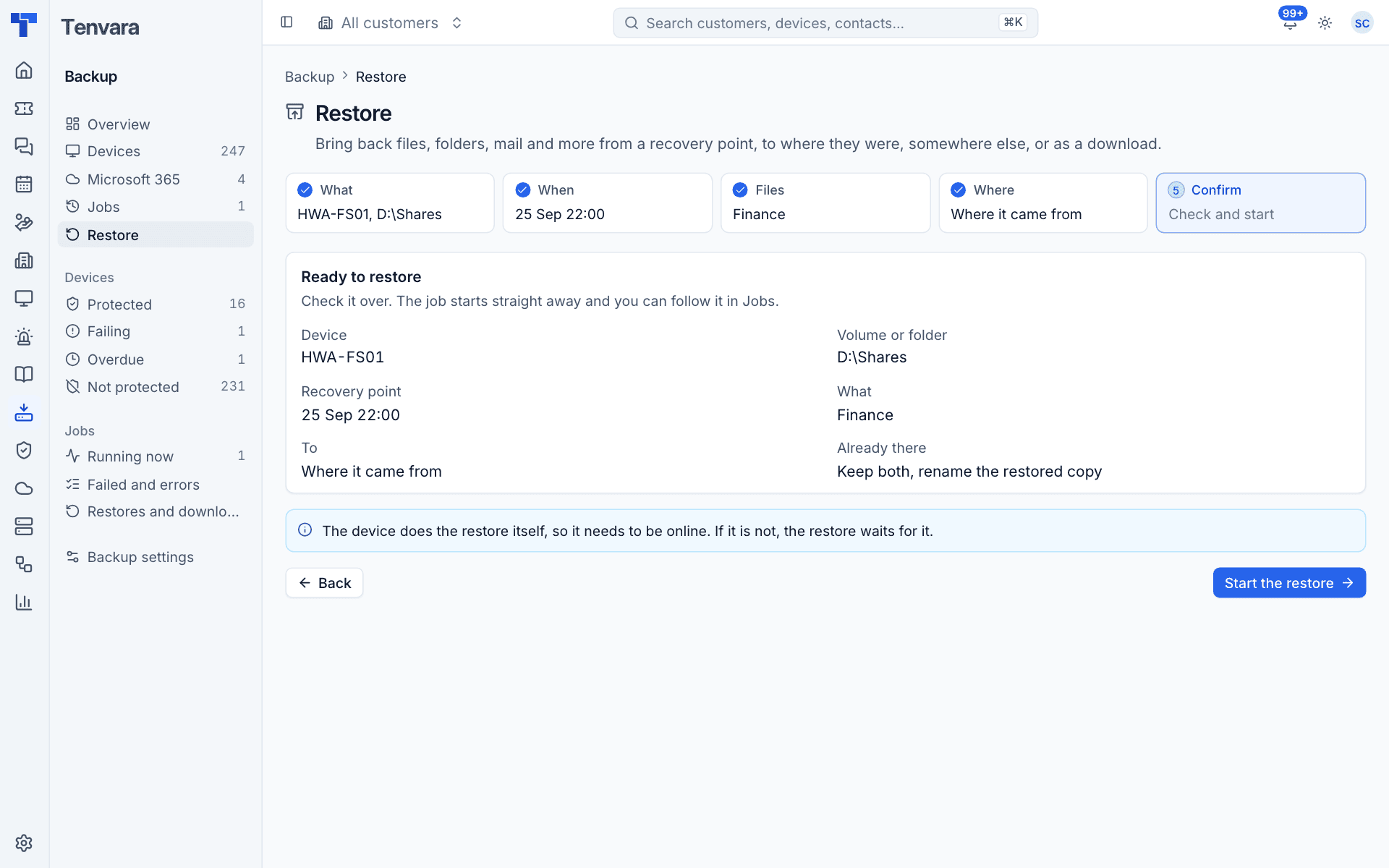
The device does the restore itself, so it needs to be online. If it is not, the restore waits for it.
Restoring a whole volume or virtual machine
Choose the volume or guest in step 1 and Restore everything in step 3. A whole image is restored as an image file (for example C.img) into a folder, never written over a live disk. From there you can attach it, convert it or copy it to new hardware. A virtual machine's disks come back the same way, one image file per disk.
Restoring Microsoft 365
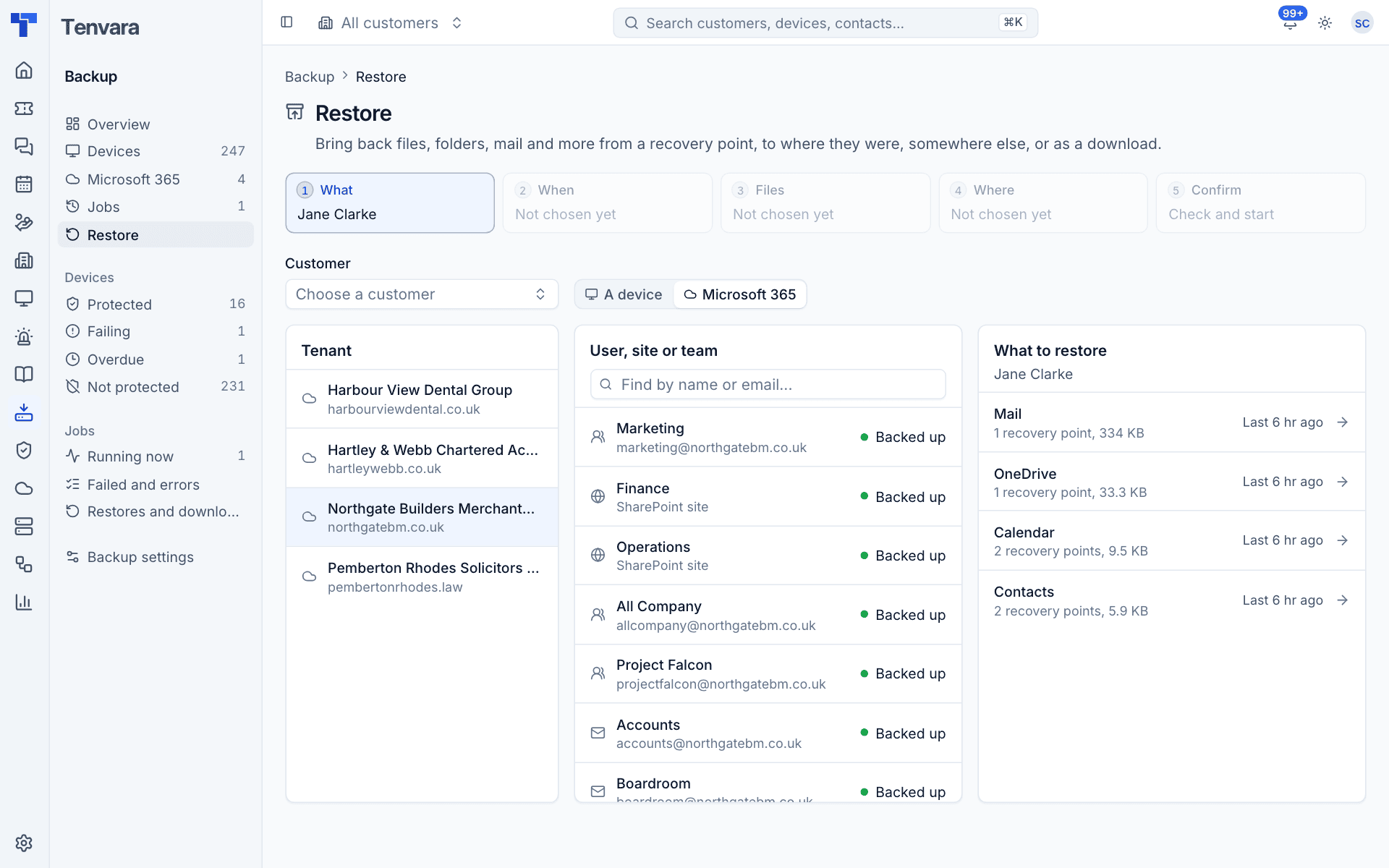
1. What
- Choose Microsoft 365.
- Pick the Tenant.
- Pick the User, site or team. Find by name or email narrows the list.
- Under What to restore, pick the part: Mail, OneDrive, Calendar or Contacts for a user, or the site or team.
2. When
Pick a day and a recovery point, as for a device.
3. Files
Browse the recovery point: mail folders and messages, OneDrive and SharePoint folders and files, calendar events, contacts, or Teams channel messages. Search mail (or the search for that part) searches subjects and senders, file names, event and contact details, or message text.
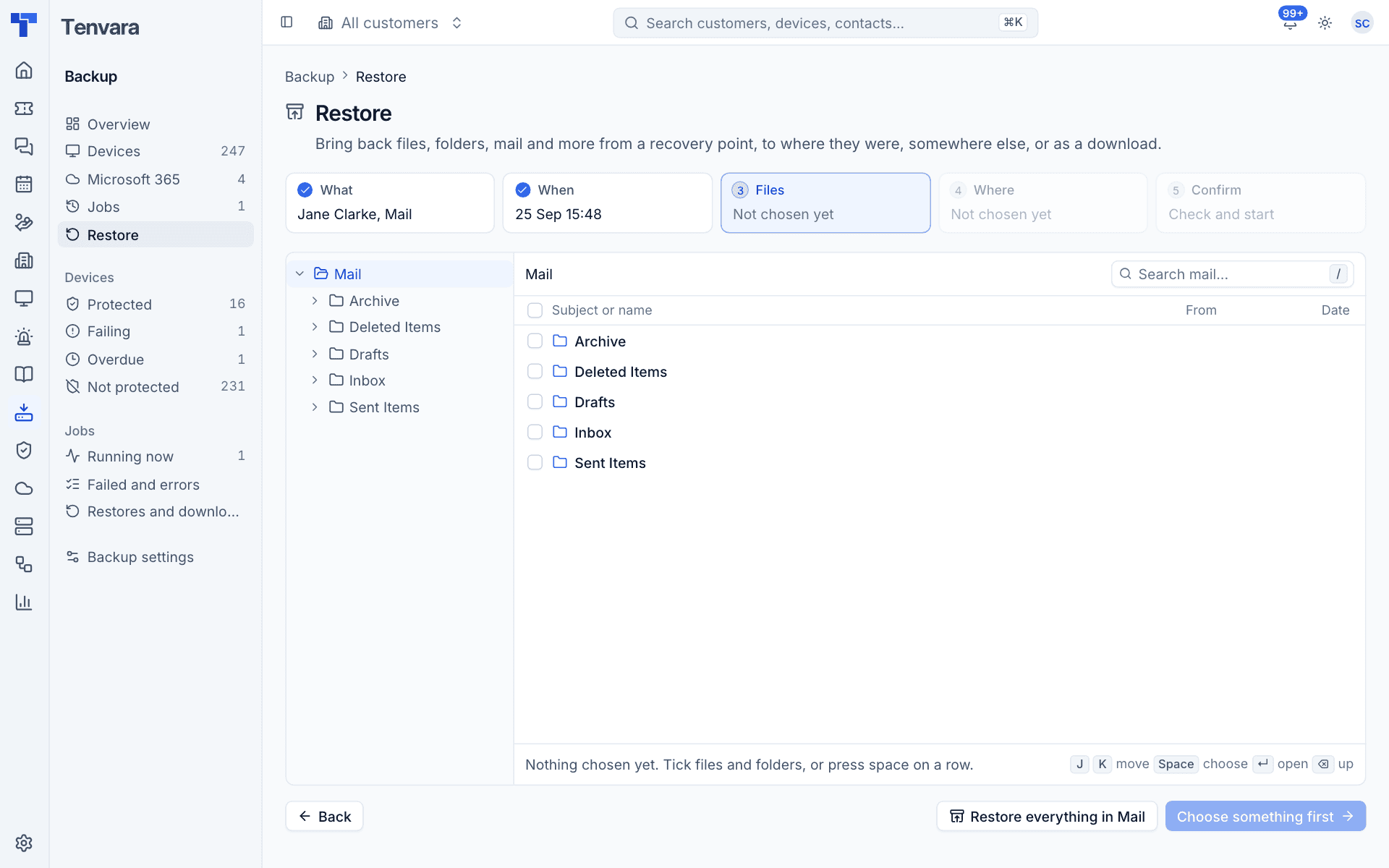
Tick what you want, or use Restore everything in for the whole part.
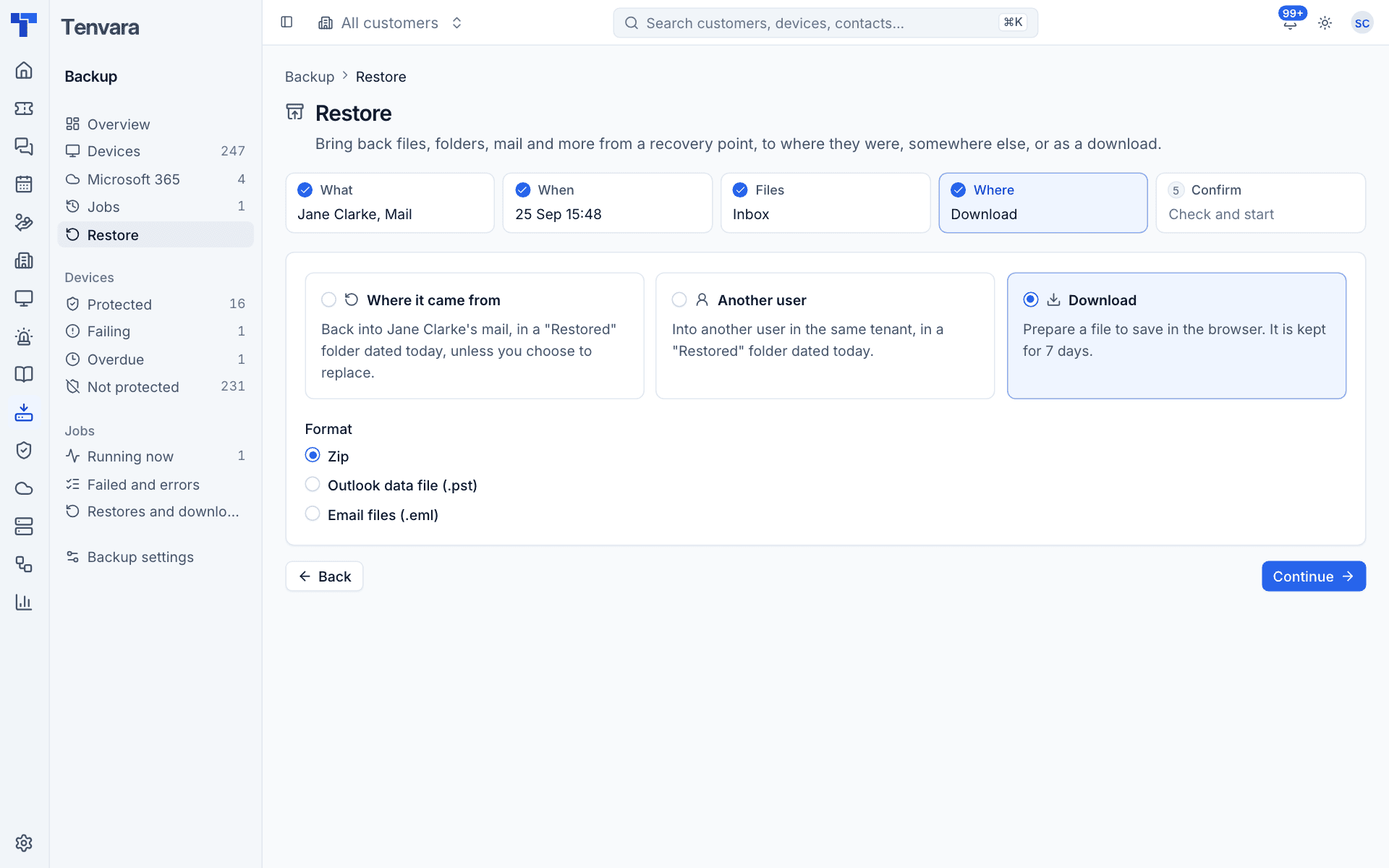
4. Where
| Choice | What happens |
|---|---|
| Where it came from | Back into the same mailbox, OneDrive or site. Mail goes into a "Restored" folder dated today, unless you choose to replace |
| Another user | Into another user in the same tenant, in a "Restored" folder dated today. Files are renamed if they clash |
| Download | Prepares a file to save, kept for seven days |
For Download, choose the Format:
- Mail: Zip, Outlook data file (.pst) or Email files (.eml).
- Files: the file itself, or a zip of several.
- Calendar:
.ics. Contacts:.vcf.
Restored calendars and contacts go into a new "Restored calendar" or "Restored contacts" folder with the date, so nothing in the user's own calendar is overwritten.
5. Confirm
Check the summary and start. Microsoft 365 restores run from the backup server, so there is no device to wait for.
Finding and saving downloads
A download runs as a Download job. Open it from Restores and downloads in the Jobs sidebar and save the file from its details. Downloads are removed after seven days.
Good habits
- Test restores. A backup is only proven when it has been restored. Restore a folder from each customer to another folder now and then, and note it in their Backup and DR record in Docs.
- Prefer "Keep both". Renaming the restored copy means you can never overwrite something newer by mistake.
- Use Another user for investigations. Restoring a leaver's mail into their manager's mailbox avoids touching the original.
Was this page helpful?
Thanks for the feedback.