Connecting a tenant
Set up the app registration once, then connect each customer's tenant with an admin consent link or through GDAP.
Connecting a tenant takes two things: an app registration in your own Entra tenant (set up once), and the customer's consent to that app (once per tenant). Tenvara then gives itself the directory roles it needs in the tenant and starts the first sync.
Before you start: the app registration
Tenvara uses one multi-tenant Entra app for every customer, for management and for Microsoft 365 backup. You create it in your own Entra tenant and enter it once.
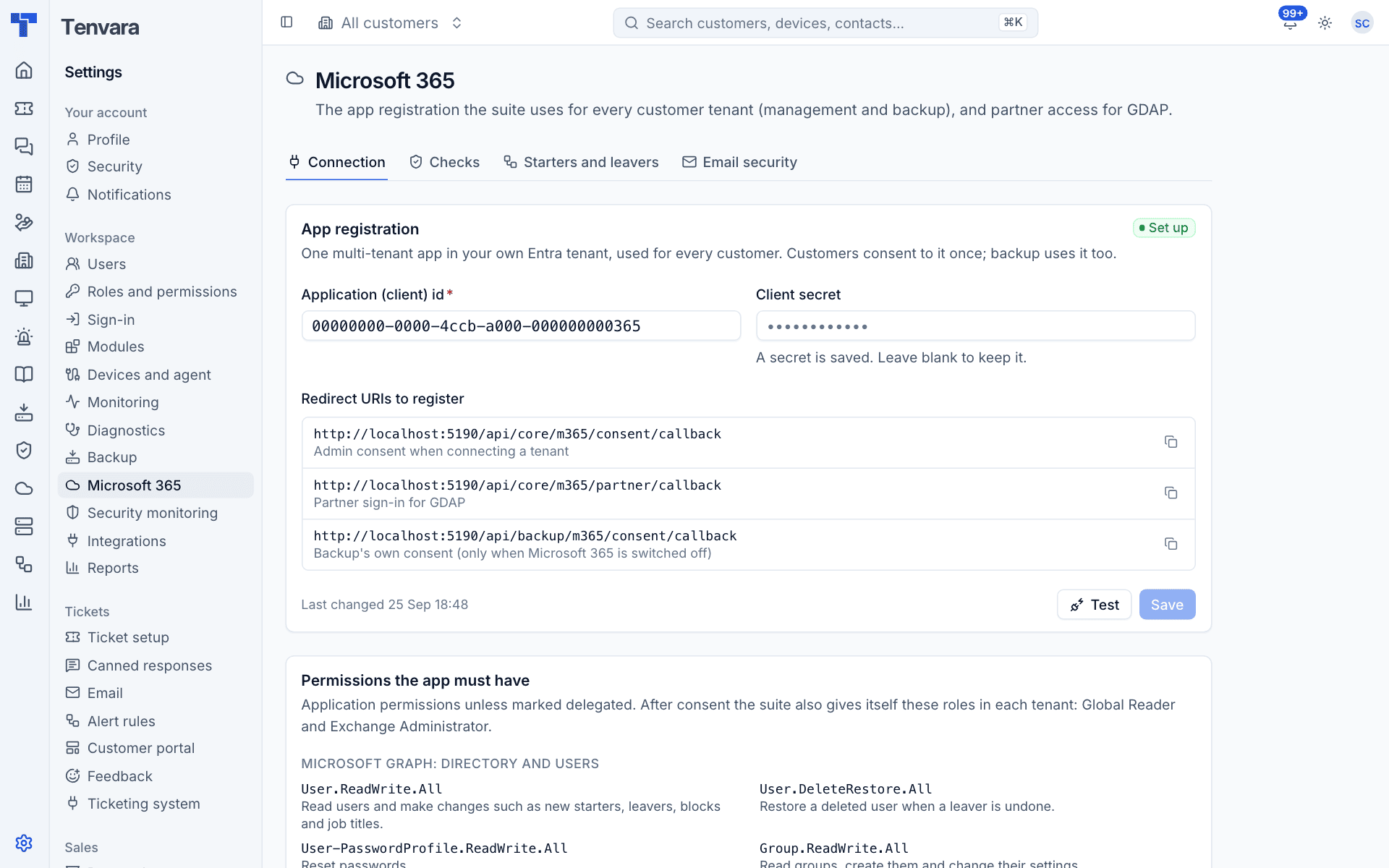
- Go to Settings > Microsoft 365 > Connection.
- In the Entra admin centre of your own tenant, register a new app that supports accounts in any organisational directory (multi-tenant).
- Add each address under Redirect URIs to register as a web redirect URI. Use the copy buttons beside them. They cover admin consent when connecting a tenant, partner sign-in for GDAP, and backup's own consent.
- Add every permission listed under Permissions the app must have to the app, and grant admin consent for them in your own tenant. The list is grouped (directory and users, security and sign-ins, mail, backup, Exchange, security monitoring, partner access) and each permission says what Tenvara uses it for. Partner access permissions are marked Delegated; the rest are application permissions.
- Create a client secret.
- Back in Tenvara, enter the Application (client) id and Client secret, press Test, then Save.
Once a secret is saved, the field says "A secret is saved. Leave blank to keep it." When backup is switched on, saving here also updates backup, so there is only one registration to maintain.
Note: After consent, Tenvara also gives its own app two directory roles in each customer tenant: Global Reader (to read everything) and Exchange Administrator (for mailbox changes). Teams settings cannot be changed app-only, so Teams findings link to the Teams admin centre instead.
Connect with an admin consent link
This works for every customer, partner or not.
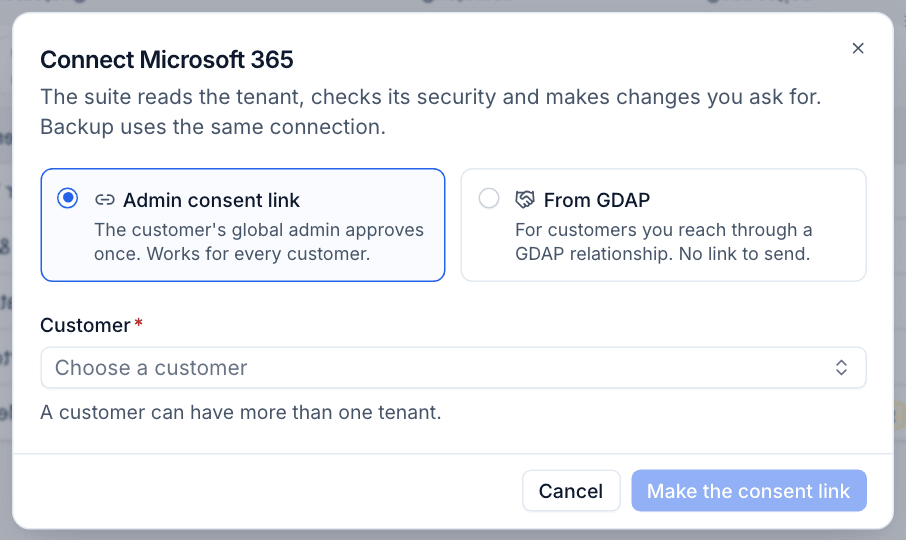
- Go to Microsoft 365 > Tenants (or the overview) and press Connect a tenant.
- Leave Admin consent link selected.
- Choose the Customer. A customer can have more than one tenant.
- Press Make the consent link.
- Open the link yourself signed in as the customer's global admin, or send it to the customer.
- Microsoft asks the admin to approve the app's permissions. Once they accept, they are sent back to Tenvara, which reads the tenant id from Microsoft's own answer, grants the directory roles and queues the first full sync.
The tenant sits as Waiting for consent until then. A consent link is valid for seven days and can only be used once; if it expires, open the tenant and choose More actions > Copy a new consent link. Tenvara refuses a Microsoft tenant that is already connected to another customer.
Connect through GDAP
If you are a Microsoft partner with GDAP relationships, you can connect customers without sending a link.
Sign in as a partner (once)
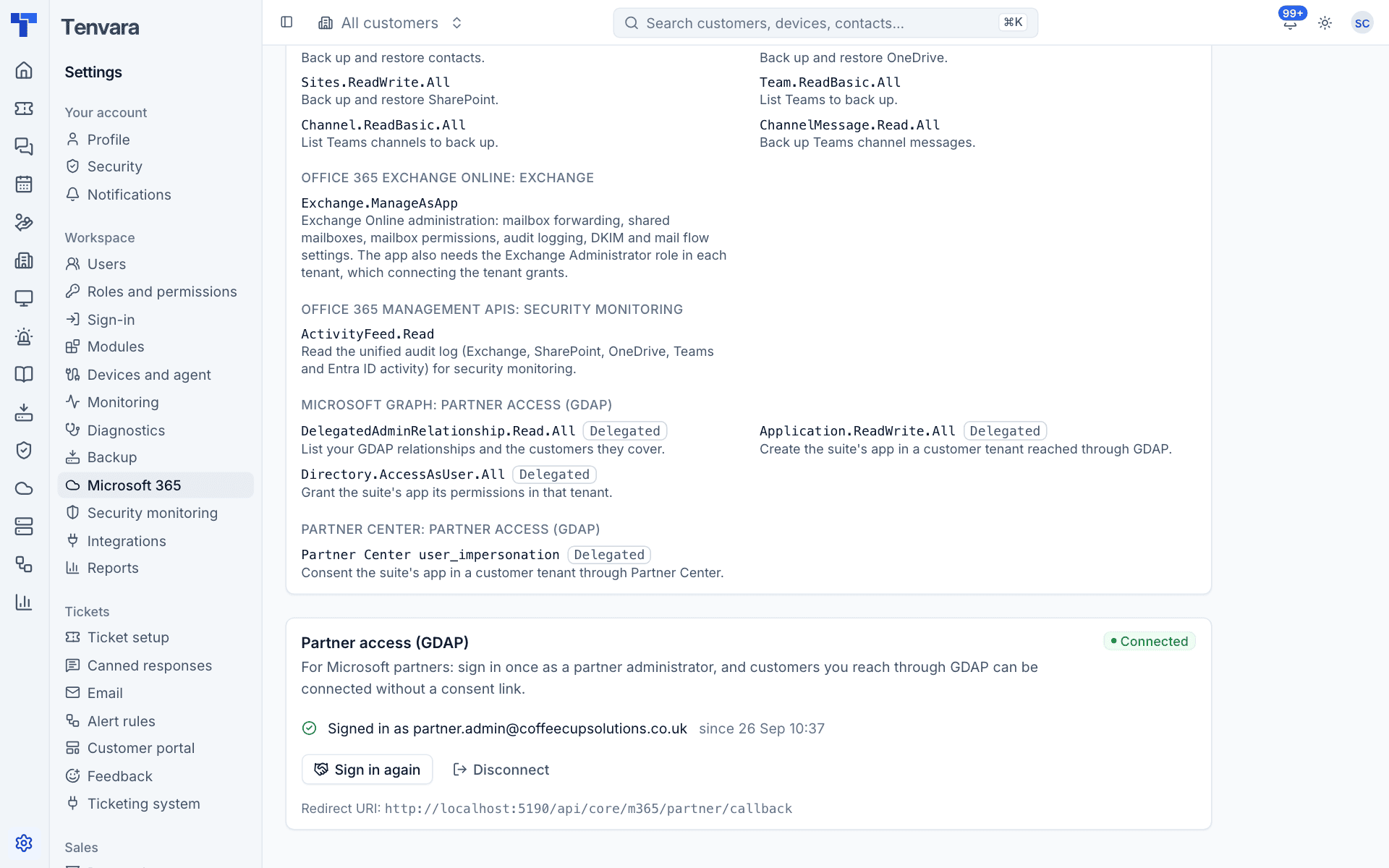
- Go to Settings > Microsoft 365 > Connection and scroll to Partner access (GDAP).
- Sign in as a partner administrator. The section then shows Connected, who signed in and when.
- Use Sign in again if the sign-in stops working, or Disconnect to remove it.
Connect a GDAP customer
- Press Connect a tenant and choose From GDAP.
- Tenvara lists your GDAP customers with how many relationships each has and when the earliest ends, and suggests a matching Tenvara customer by name and domain.
- Check or change the customer beside each one and press Connect.
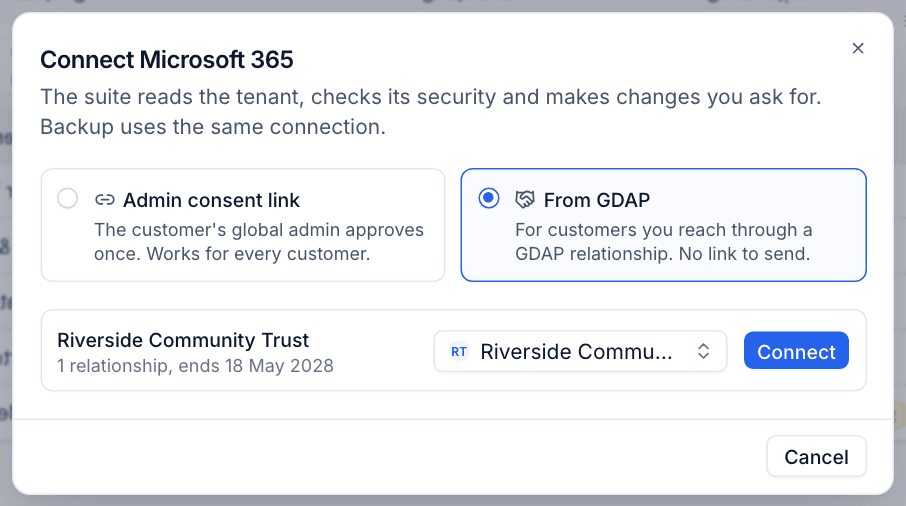
Tenvara consents its app in the customer tenant through Partner Center (or, if that fails, directly through Graph with your partner sign-in), grants its directory roles and starts the first sync. Tenvara raises an alert when a GDAP relationship is due to end within 30 days.
Tenant statuses
| Status | Meaning |
|---|---|
| Waiting for consent | The consent link has not been used yet |
| Connected | Consent is in place and the tenant syncs |
| Consent error | Setting the tenant up failed; Microsoft's words are shown and the consent link still works |
| Auth error | Microsoft refuses the app (for example consent was withdrawn). An alert is raised and the next successful sync clears it |
| Disconnected | Kept for history, never synced |
Tip: Straight after consent, Microsoft can take a few minutes to apply the permissions. The sync history then says "Microsoft is still applying the permissions from the consent. Retrying shortly." and tries again every two minutes. No alert is raised for this.
After connecting
The first sync reads the directory, licences, security settings, mailboxes and sign-ins. Open the tenant from Tenants to see the result: see Tenants and the tenant page. The tenant's Settings tab shows the Microsoft tenant id, initial domain, how it was connected, when consent was given and whether each directory role was granted.
To leave a tenant out of every sync, check, bulk action and schedule without removing it (for example while a customer is leaving), open it and choose More actions > Exclude from automation. More actions > Remove tenant removes it altogether and needs an administrator.
Was this page helpful?
Thanks for the feedback.